


























Learning hub
Get a closer look at the SendPulse and LinkedIn integration.
How does LinkedIn chat automation work in SendPulse?
Why automate LinkedIn chats?
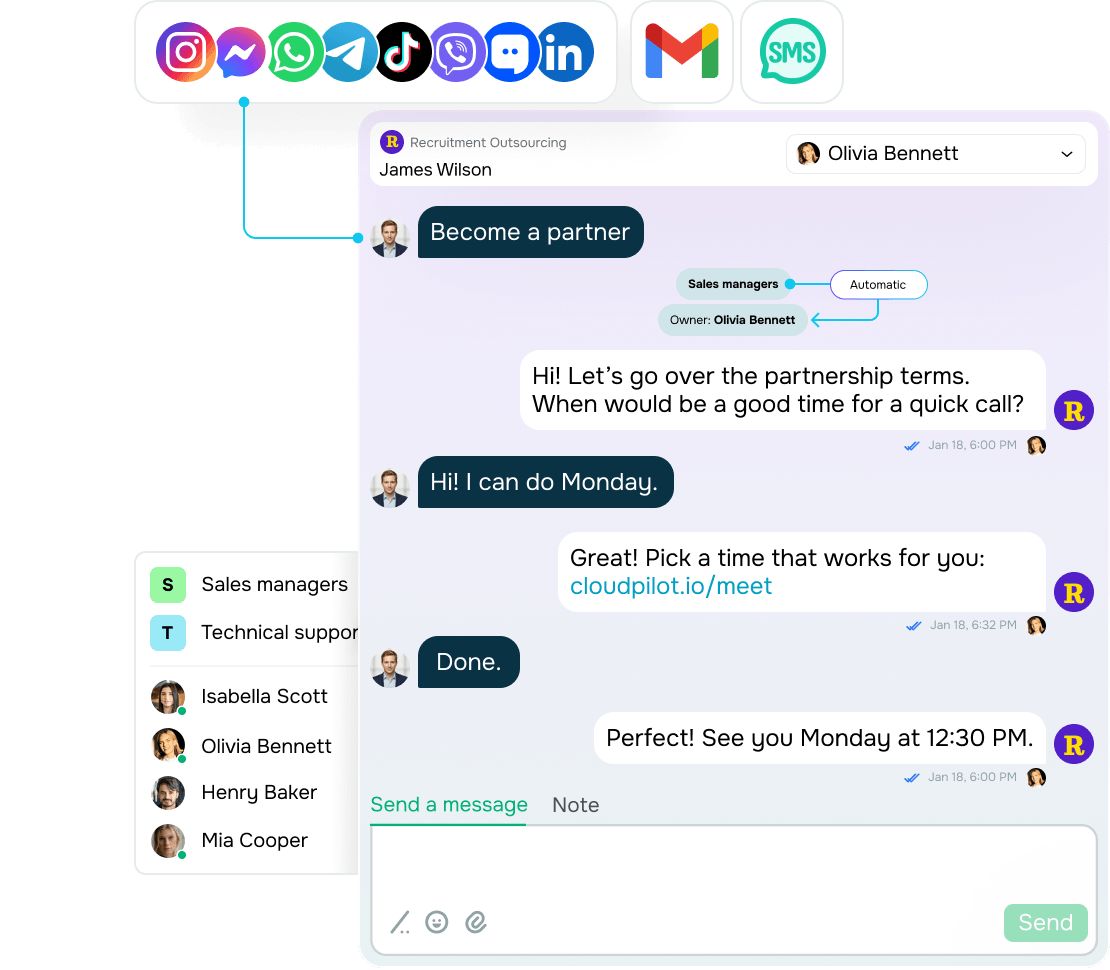
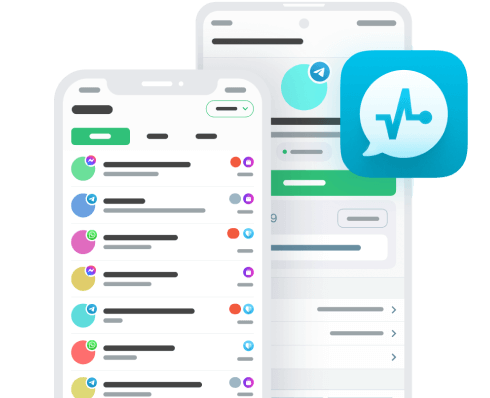
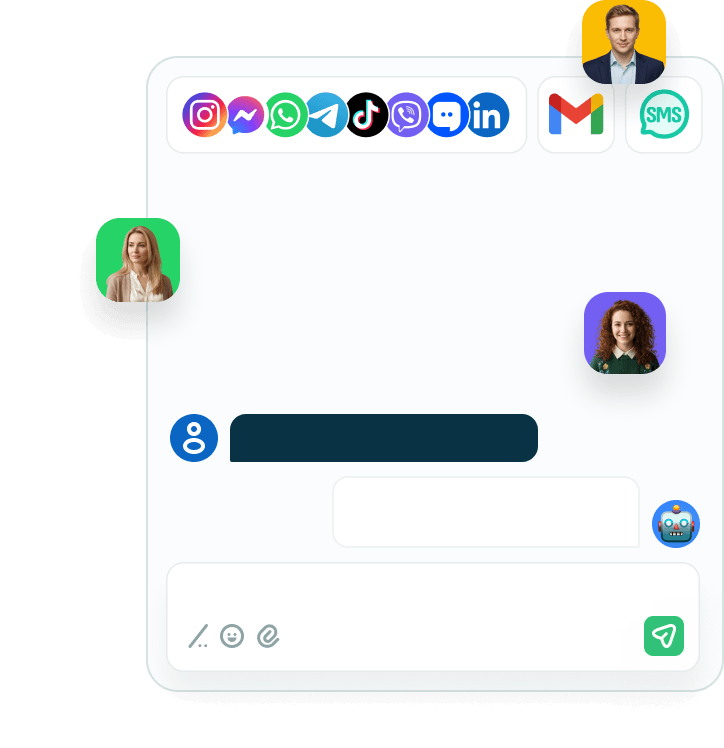
Your LinkedIn chats will live in the same shared inbox as your other conversations, so you won't have to switch between platforms and tabs. You can also import all your chats or just the new ones, which gives you control over your chatbot subscriber limit.
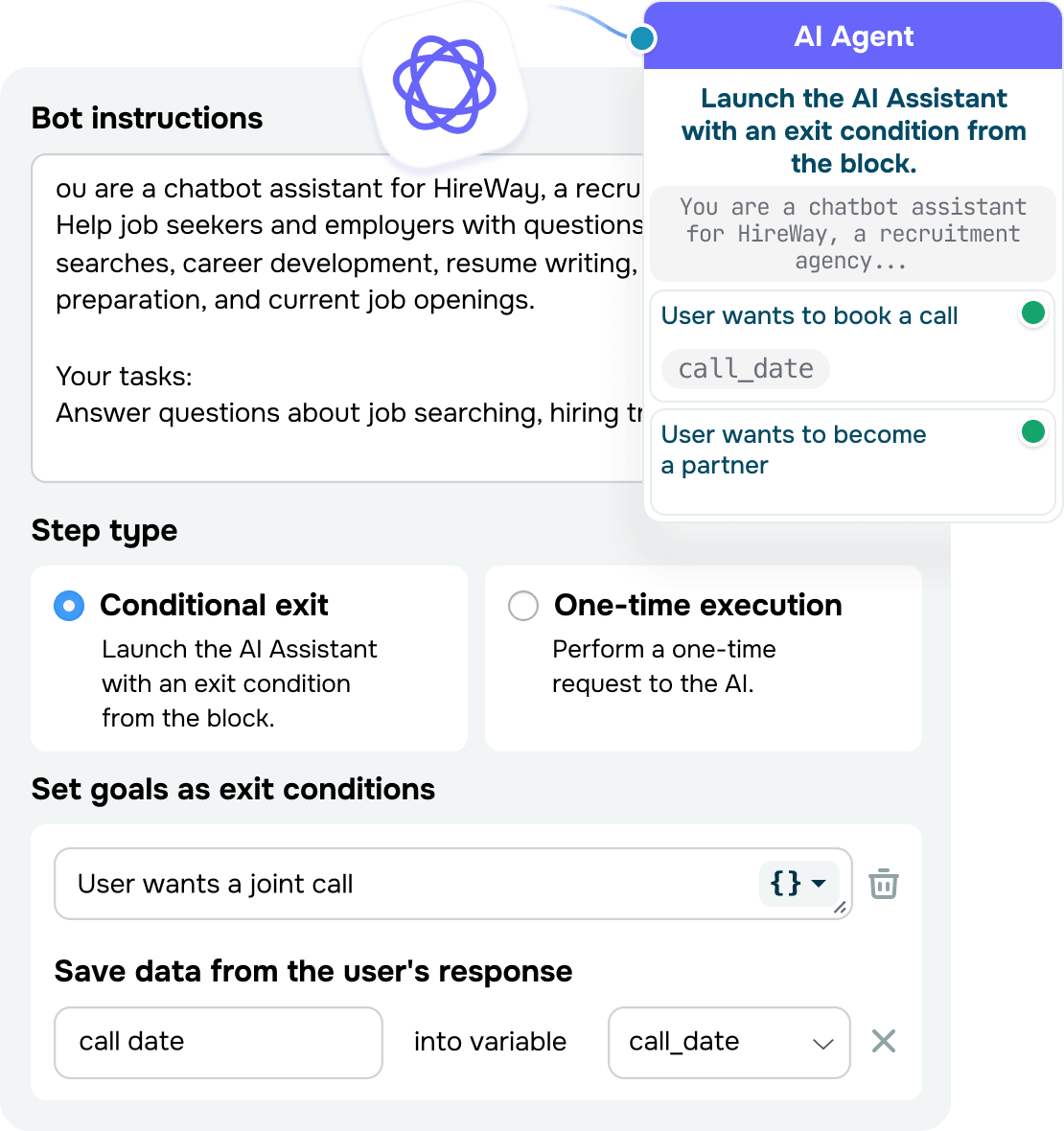
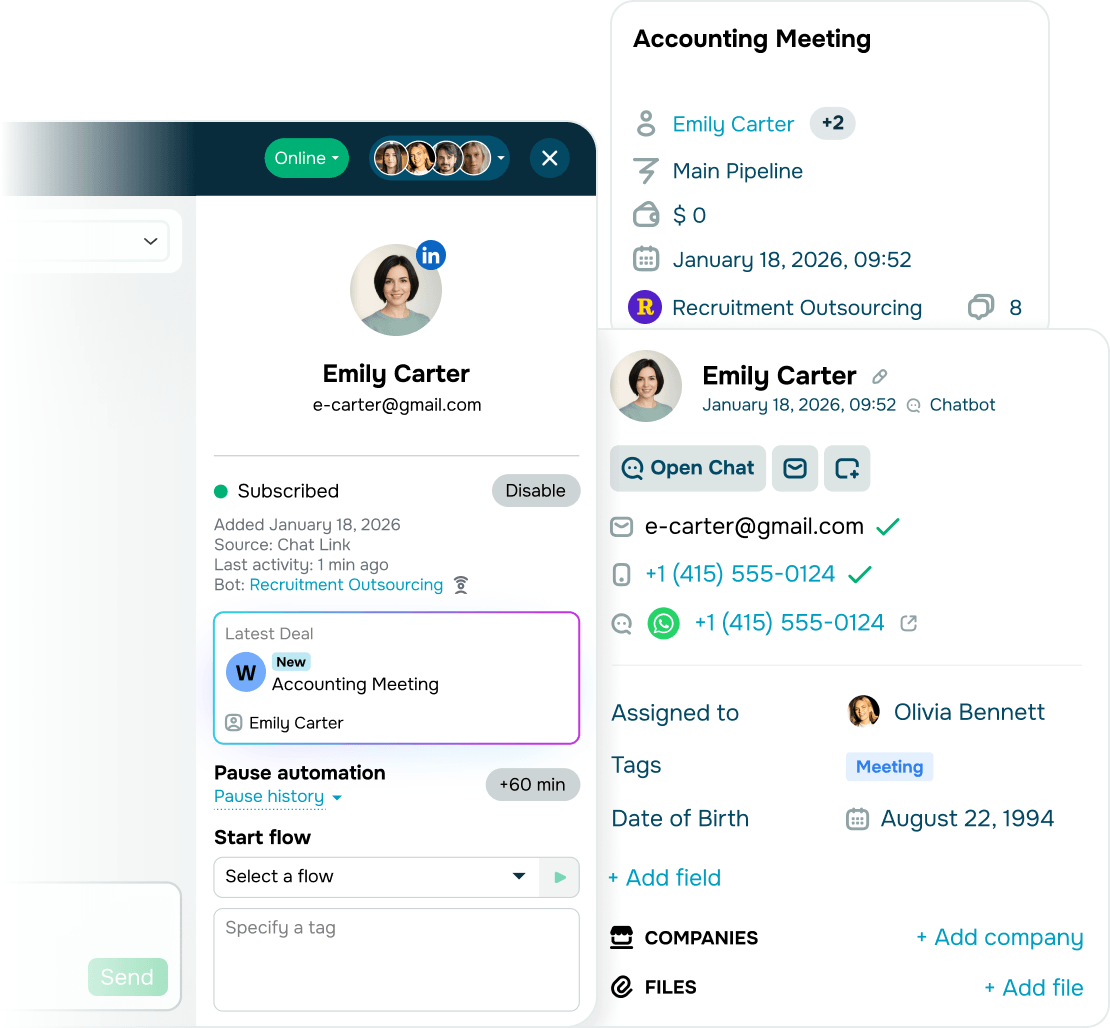
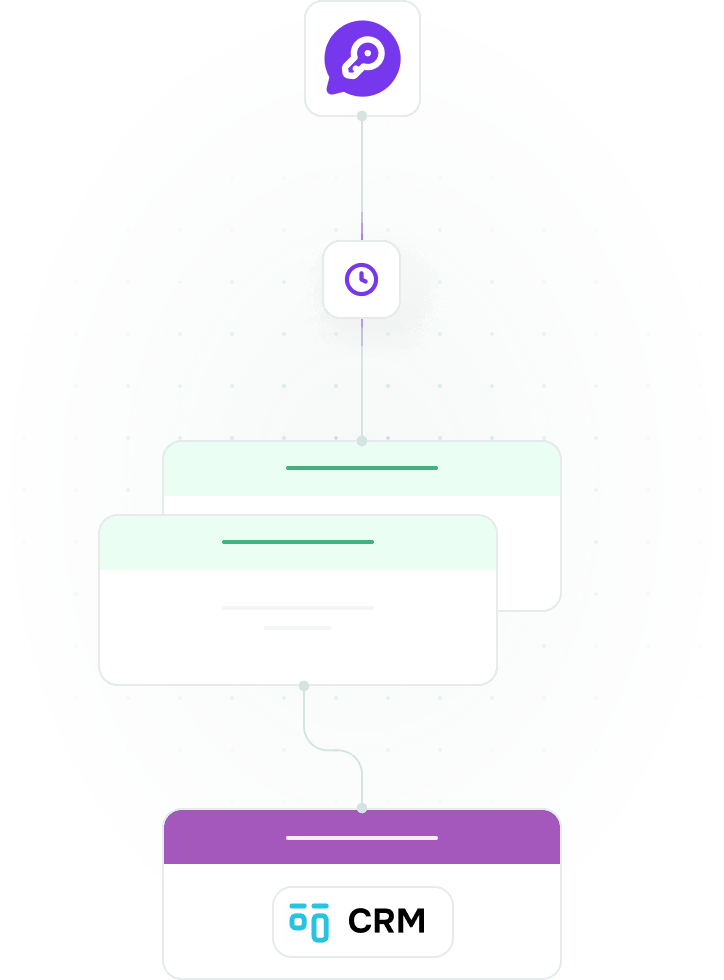
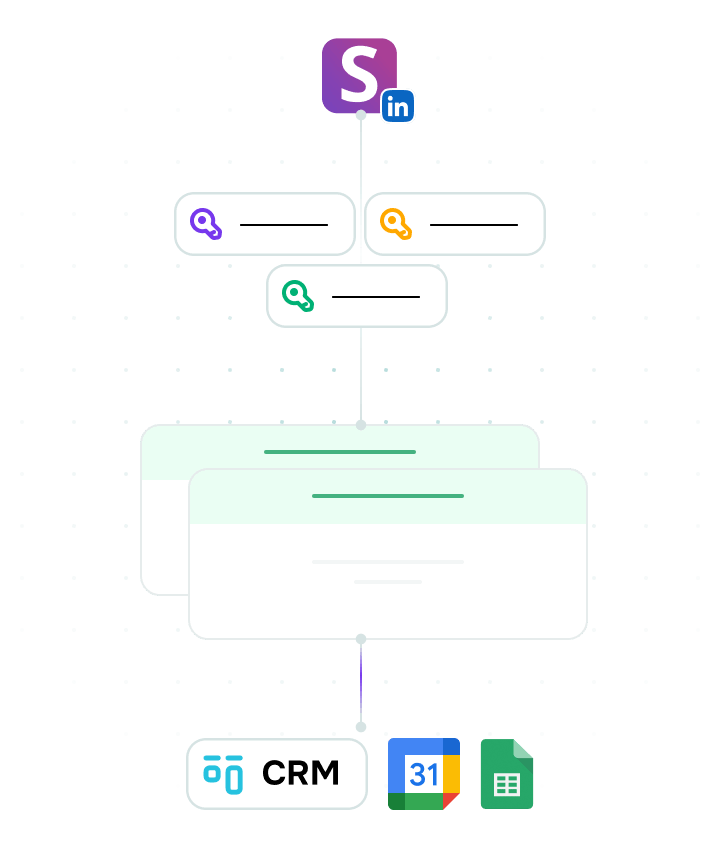
On top of that, LinkedIn chat automation helps you capture leads. Your chatbot picks up on keywords in incoming messages, pulls details from the conversation, and sends them to your CRM. Then, your team starts working on a qualified lead right away, instead of digging through chats and entering data manually.
With LinkedIn chat automation, you can also:
- Send text messages and emojis
- Share an unlimited number of links to external pages and files
- Receive and view file attachments
- Create and save reply templates for common messages
To keep your teamwork running smoothly, assign contacts to teammates right in the chat.
You'll find all these features in SendPulse's mobile app too, ready whenever you're away from your desk.
Are there any limitations to this integration?
Only inbound communication. The LinkedIn integration is built exclusively for inbound communication. It prohibits mass messaging to anyone outside your existing connections.
Pricing terms. To keep your integration up and running, you'll need to renew your Snov.io plan and pay $69/month per LinkedIn account. On SendPulse's side, the integration runs on the free chatbot builder plan, but it's tied to your subscriber limit, which you can raise by upgrading your pricing plan. Every LinkedIn connection counts as a subscriber, so the more connections you have, the faster you hit that limit.
A few more things to keep in mind about LinkedIn chatbot flows:
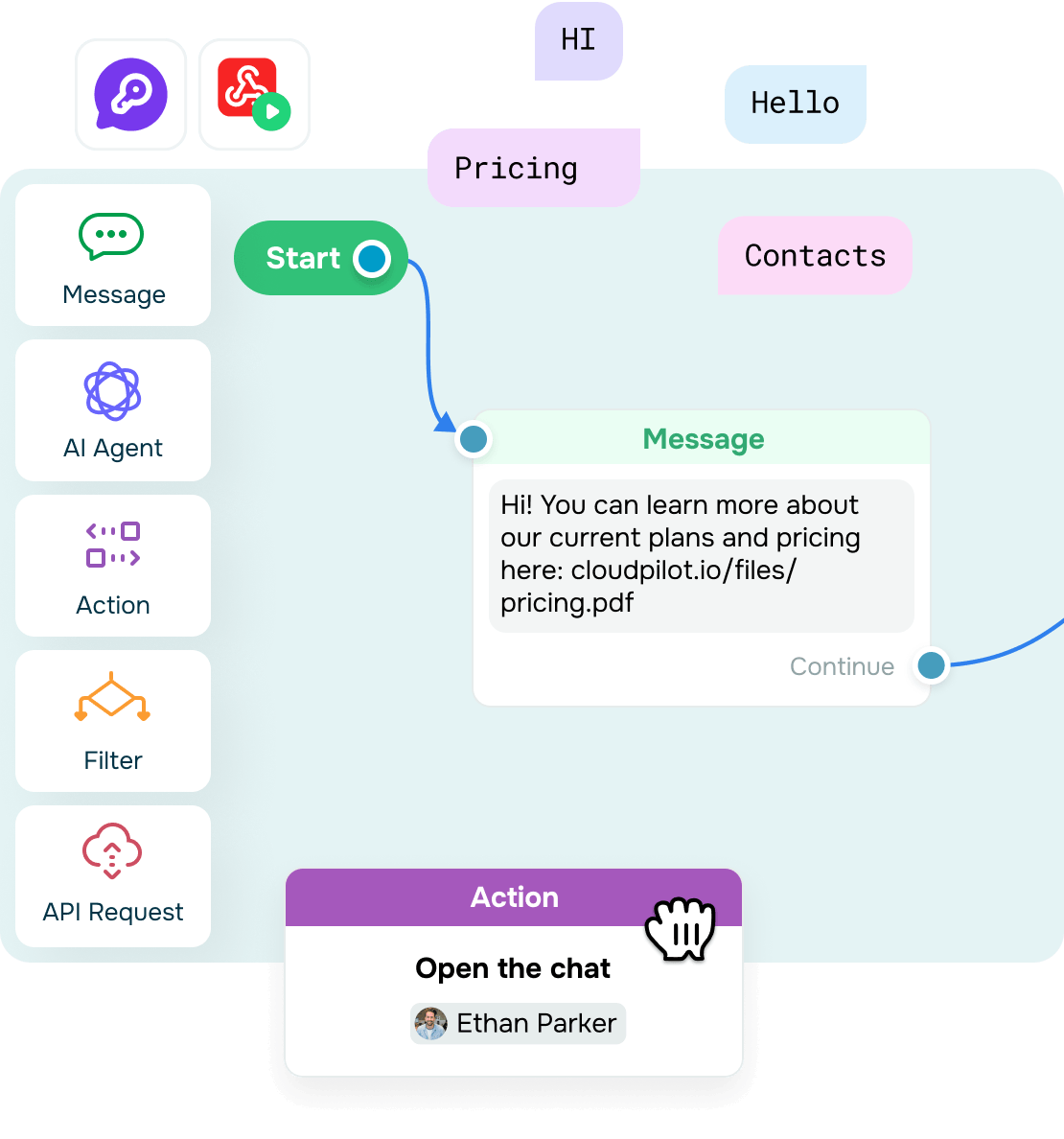
- Flows can only be triggered by a keyword in a message, not by replies to comments.
- The "Message" element supports text, emojis, and links only.
- Buttons and interactive menus aren't available.
Message delays. Since LinkedIn has no official external API, message exchange isn't instant. An incoming message can take up to 5 minutes to arrive, and a reply takes up to 4 minutes to send.
How can I optimize LinkedIn workflows using SendPulse?
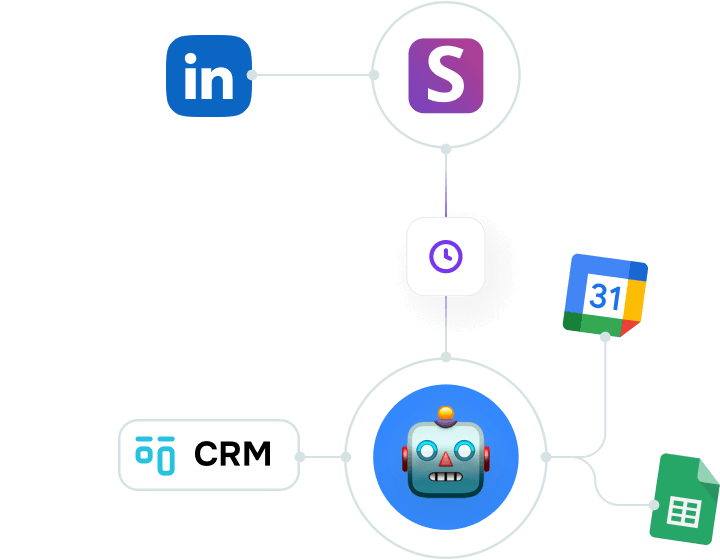
LinkedIn chat automation brings your chats into SendPulse's omnichannel inbox.
- Once you're connected, start building a chatbot flow. Pick 3 or 5 keywords that come up most often in messages, such as pricing, demo, or partnership terms. Your chatbot will react to these keywords and take the conversation from there.
- Sync your chats with CRM. To capture leads and log the gist of each conversation on autopilot, send data from LinkedIn chats to SendPulse using tags or variables. That info flows straight into your CRM and turns into contacts or deals, so there's a lot less manual data entry to worry about.
LinkedIn chat automation only supports inbound communication with your existing connections.
or