Integrate Claude with SendPulse tools
Claude is a family of large-scale language models developed by Anthropic to support text generation and analysis. These models can analyze complex writing, produce structured responses, generate marketing content, categorize information, and more.
You can configure Claude through your chatbot to handle specific business needs. Choose a model and create a prompt that will set your tone of voice, outline the scope of responses, add context, and list examples of message formatting.
In this article, we'll talk about how to integrate with Claude models and use them in your SendPulse-powered chatbots and automated campaigns.
Create an account
Go to the Anthropic Console and create an account. Enter your email address, then click Continue with email or continue with your Google account.
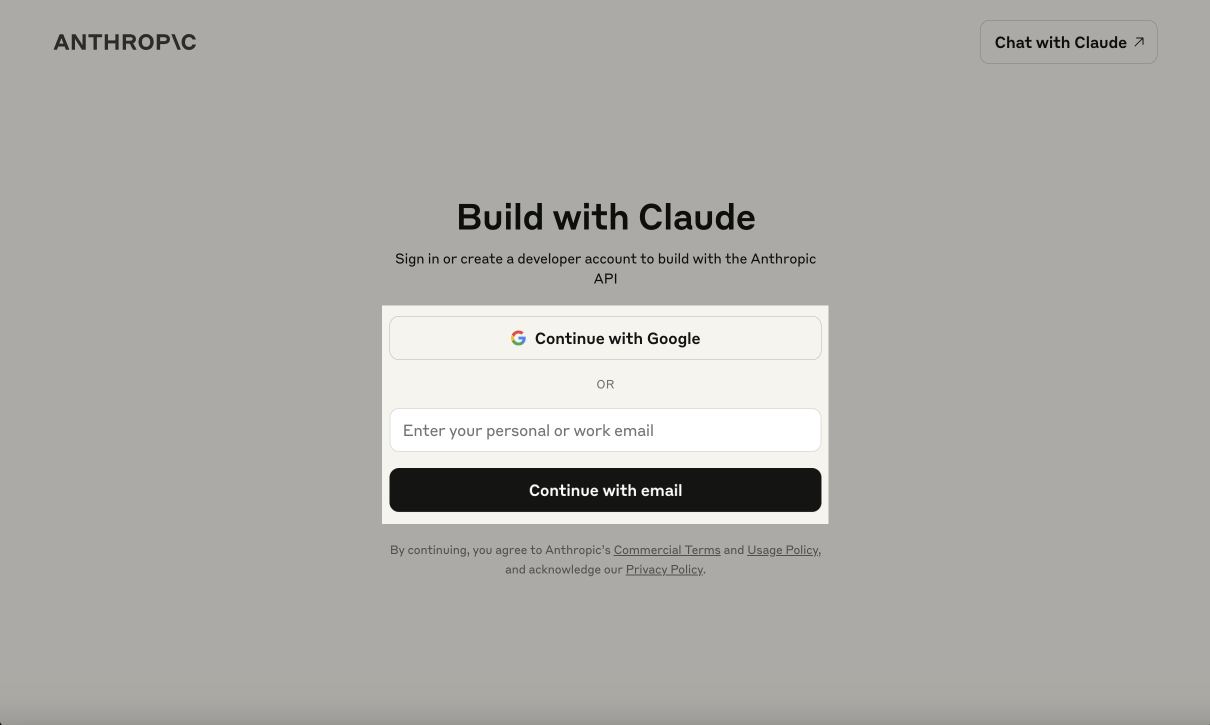
If you’ve entered your email address, type in your password in the next window. You will receive a confirmation email in your inbox. Follow the confirmation link in this email and add your name and organization.
Enter your phone number to receive a confirmation code by SMS. Enter the code and log in to your account.
Anthropic Console limits its list of supported countries and regions. Read more: Anthropic documentation.
To view your token balance, go to Usage in the Anthropic Console. Here, you'll see your current balance and spending history.
Scroll down to Usage by model to view a detailed usage analysis by timeframe and Claude model.
Learn more: Pricing.
Generate an API key
In the Anthropic Console, go to API Keys on the left sidebar or click Get API Key on the main page.
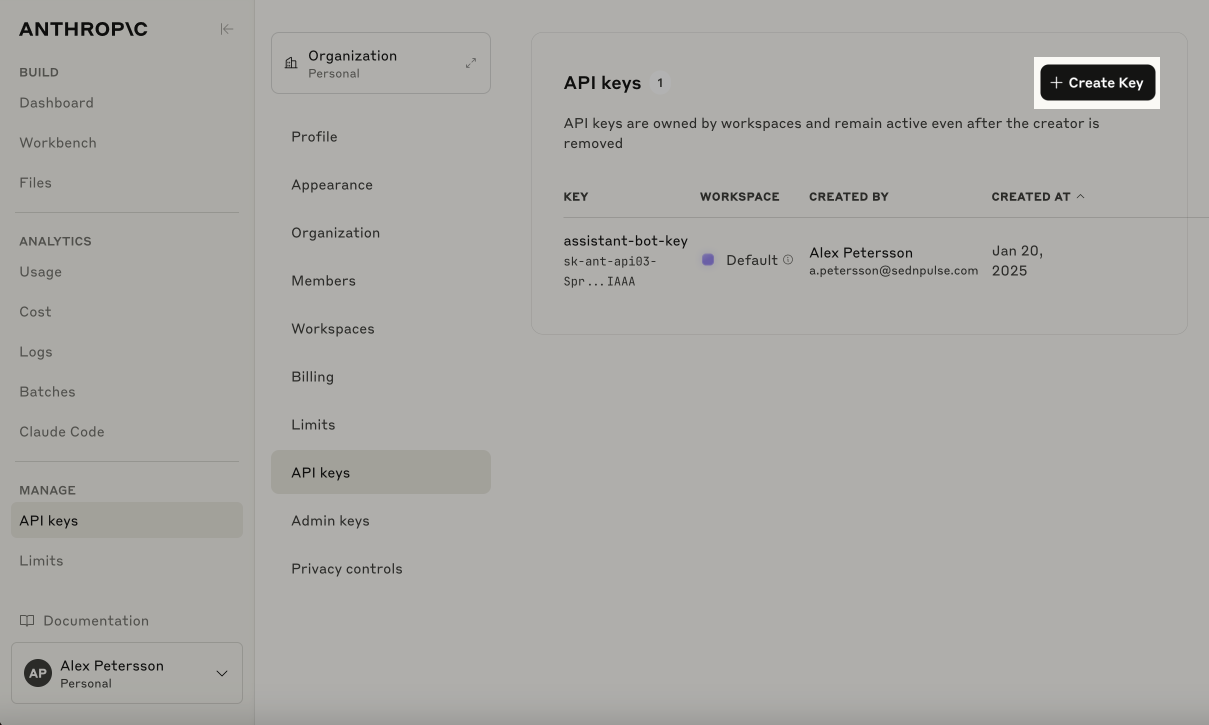
Click Create Key to create a new API key. In the modal window, name your key. Click Add and copy the generated key.
Make sure to save this key on your device. Once you log out, you won’t be able to copy it again. If you misplace it, you’ll have to generate a new key.
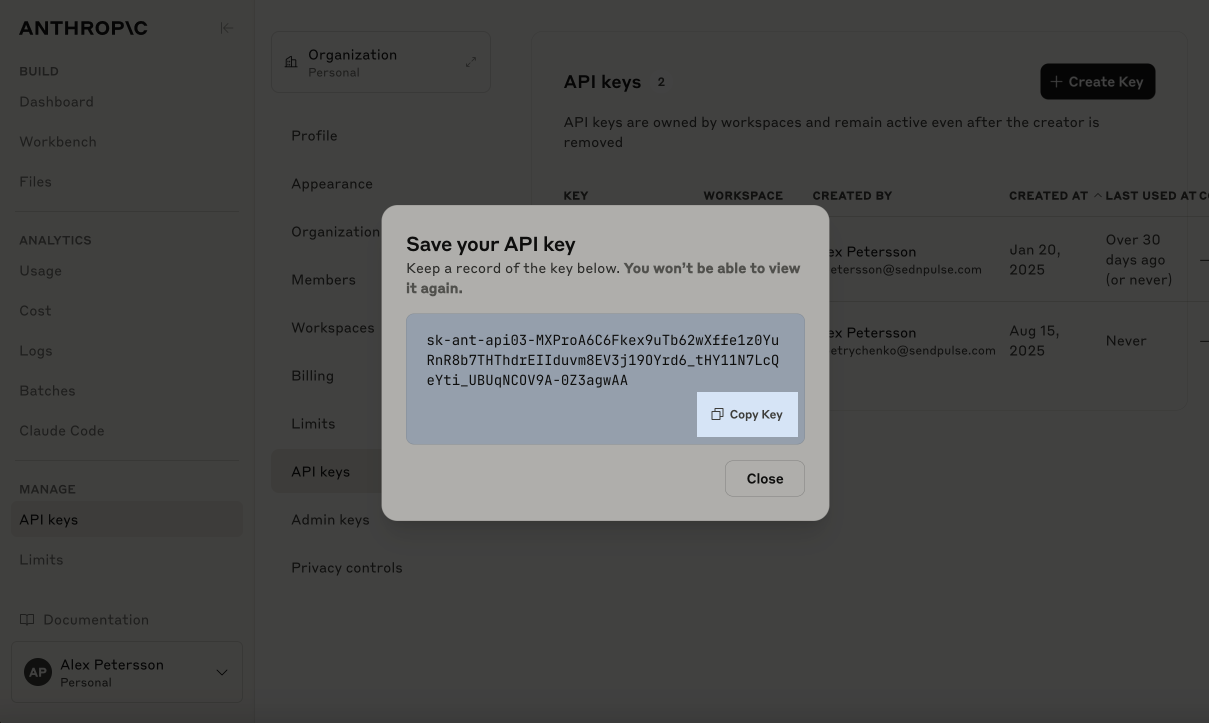
This key will be active and ready to use with all Claude models covered by your pricing plan.
Paste the API key in SendPulse
Go to your account settings > API. In Claude, click Add token.
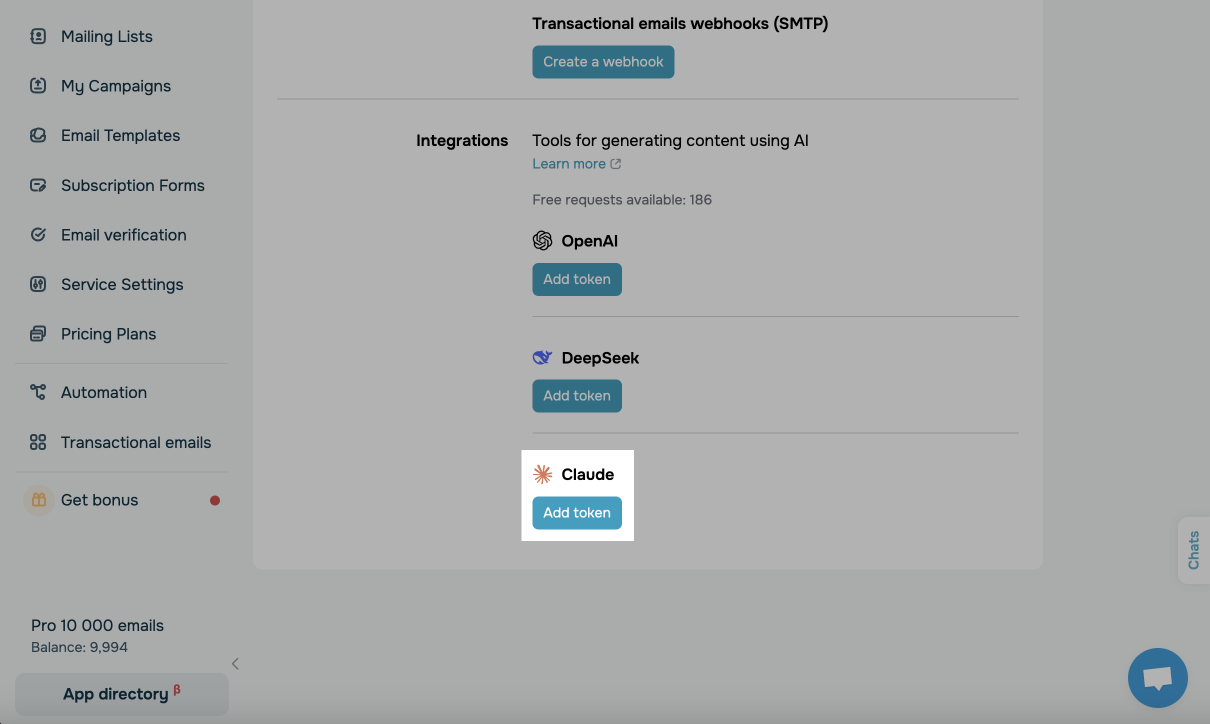
Paste your key and click Save.
After connecting your account, you can use models in SendPulse tools.
 Last Updated: 27.08.2025





or