Create an AI prompt library
A prompt library helps you save and reuse AI prompts in the CRM system. It supports teams that regularly work on repetitive tasks, such as replying to customers, filling in deal cards, adding comments, or writing emails.
In this article, we will talk about how to save AI prompts.
Add a prompt to your library
In a CRM object, click AI > Quick actions. In Custom prompts, click Add.
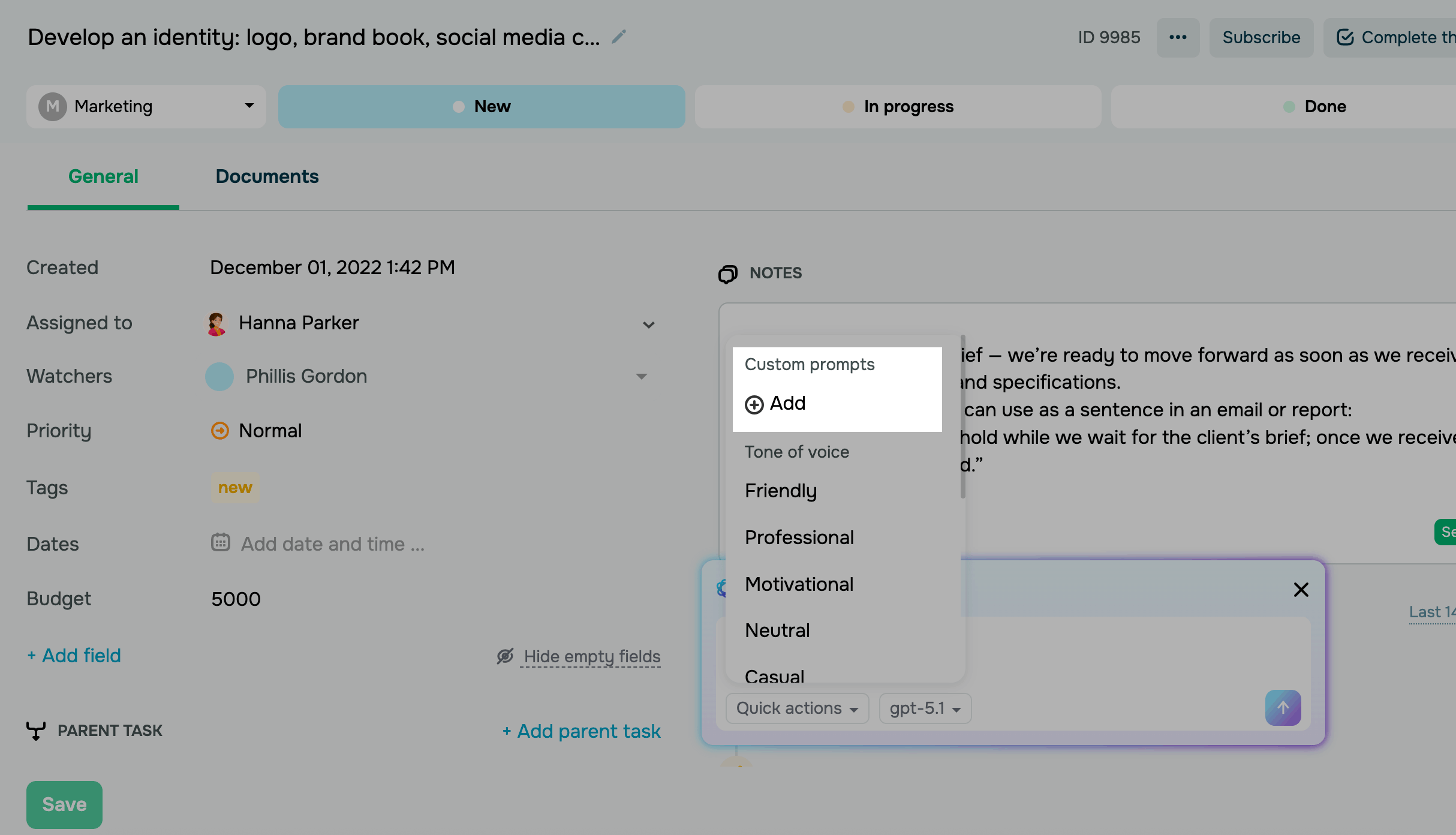
On the right, click Add prompt. In the modal window, enter your prompt:
| Name | Enter a prompt name. It will appear on the list of quick actions. |
| Prompt | Enter an AI prompt. It can look like this: “Write a short, friendly reply confirming that we have received the customer’s order.” |
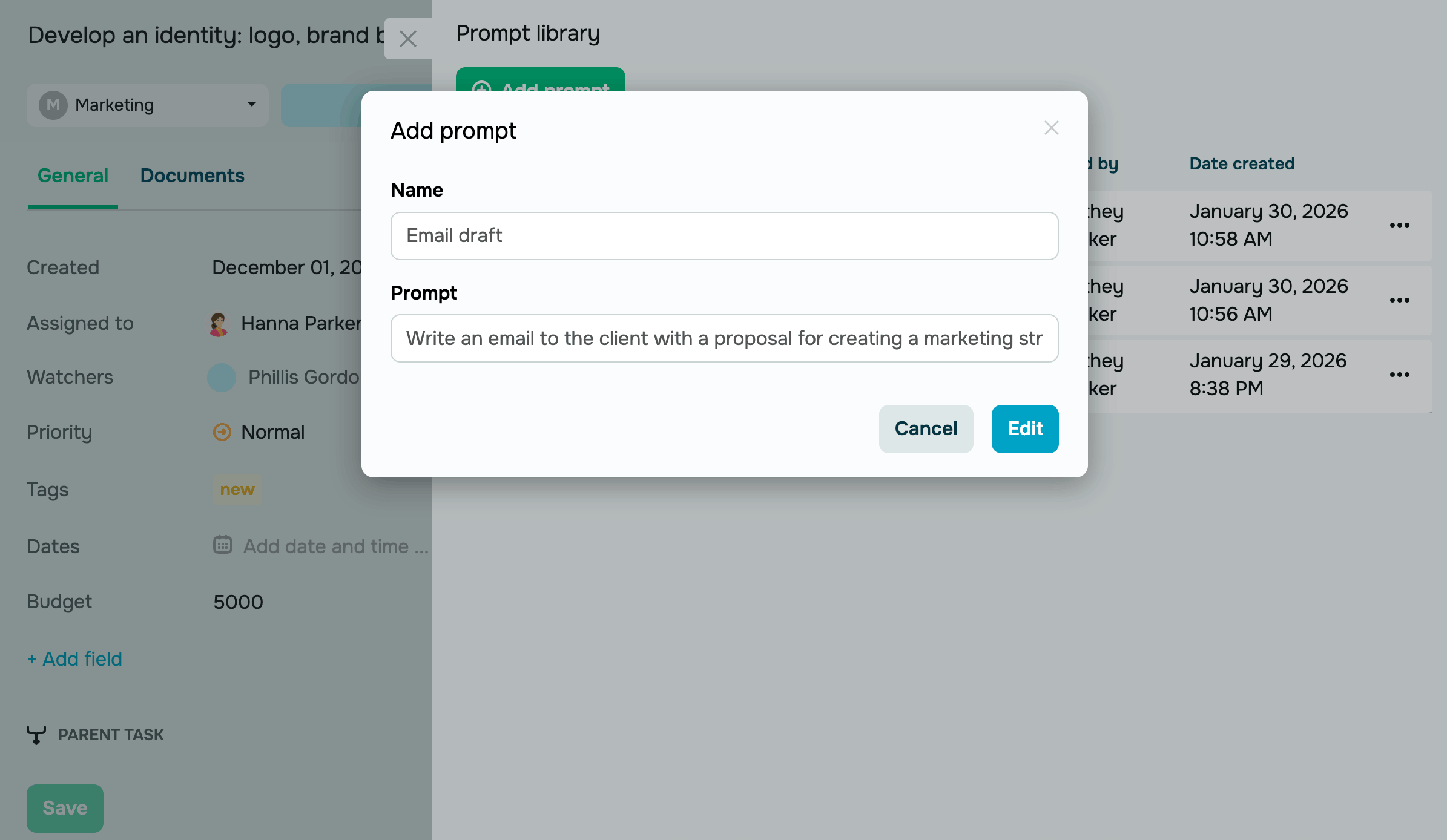
Once you fill in the fields, click Save. The prompt will appear on the list of quick actions in the AI modal window and will become usable.
Manage prompts in your library
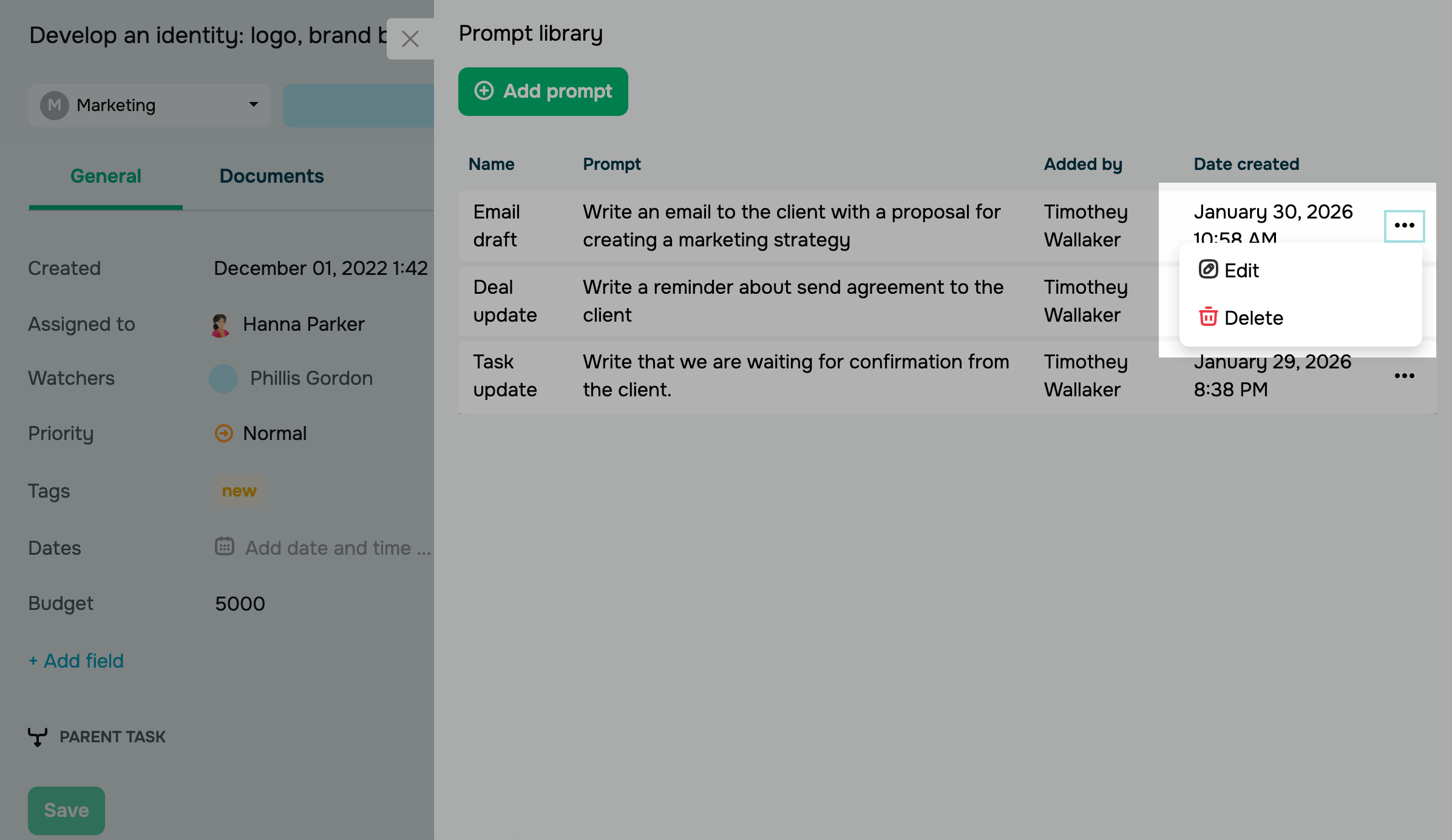
The library lists all added prompts and their details, including the name, prompt text, creator, and date added.
To edit a prompt, click the three dots next to it and select an action:
| Edit |
Opens the window where you can change your prompt’s name and text. Make your changes and click Save. The date created will be updated based on your changes. |
| Delete | Permanently deletes your prompt along with all its details. |
 Last Updated: 03.02.2026





or