Manage digital product subscriptions
The Subscribers list shows everyone who has paid for a subscription to your digital products, along with their billing dates, prices, and subscription statuses. Use it to see who is subscribed, how much each subscriber has paid, and when their next payment is due.
Let’s talk about how to view and manage your subscribers in the subscriber list.
View subscriber list
To view the list of contacts who subscribed to your digital products, go to CRM > eCommerce > Payments > Subscribers. The list shows all subscribers who paid for a subscription through a chatbot, CRM, or website.
To find a specific subscriber, use the filter criteria. You can filter by date, contact information, product information, price, and subscription status.
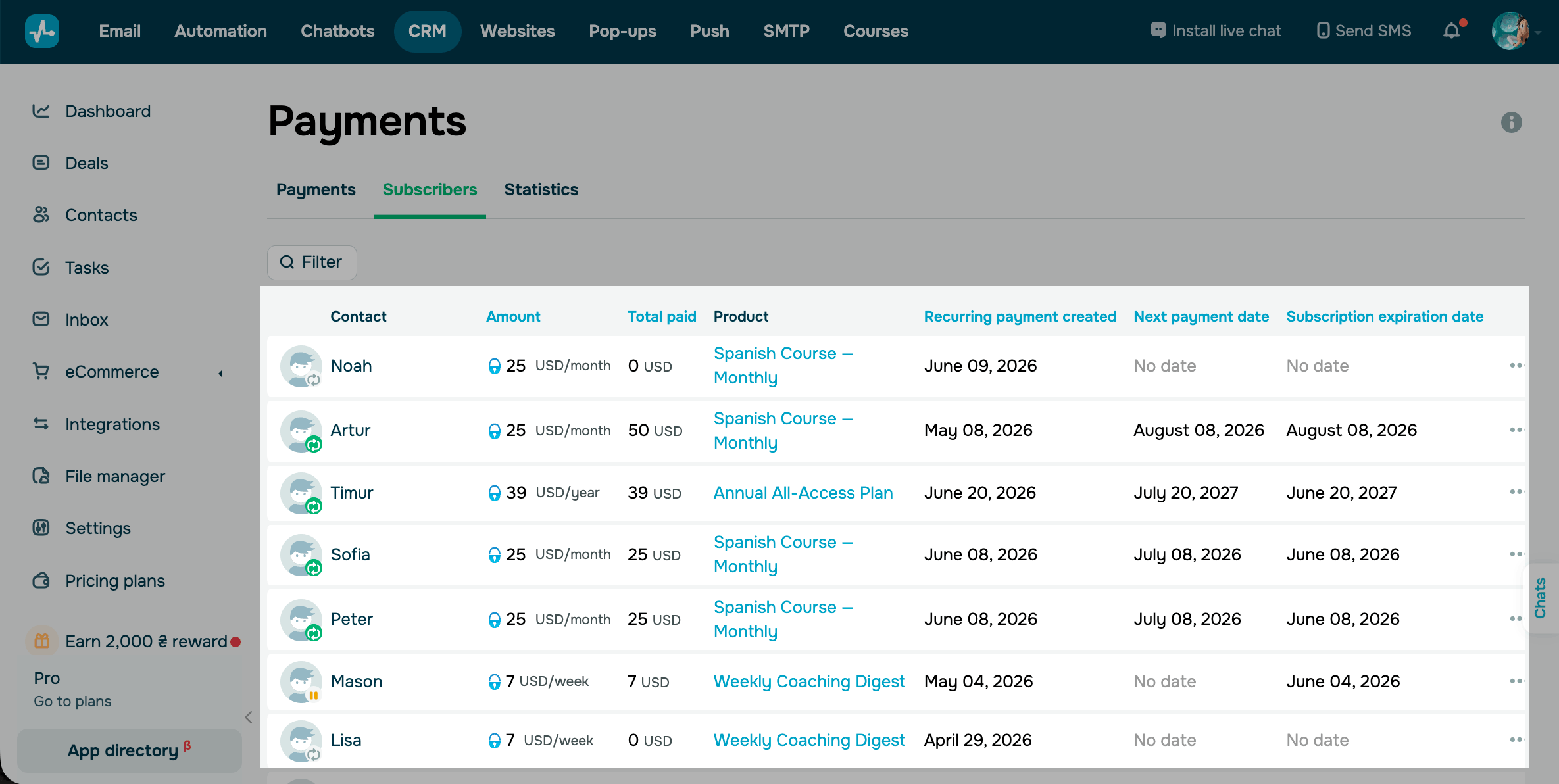
You can view the following details about each subscriber:
| Contact | Subscriber's name and surname. To view details, click it. |
| Status |
Subscription status. Read more: View subscription status. |
| Amount | Subscription fee charged each billing period. |
| Total paid | Total amount paid for the subscription. |
| Product | Product associated with the subscription. To view details, click it. |
| Recurring payment created | Date when the recurring payment was created and the subscription became active. |
| Next payment date |
Date when the card is charged for the next billing period. The subscription expiration date is displayed under this date. Both dates move forward with each payment and stop changing once the subscription ends. |
*The subscription expiration date indicates when the subscriber's paid access expires. If a subscriber cancels their subscription, they will have access to your product until the end of the current billing period. If a renewal payment fails and is not recovered, this date shows when access ended.
View subscription status
Every subscription has a status that indicates its current state. Combined with the associated dates, subscription statuses help you see who has active access, who is due for renewal, and whose access has expired.
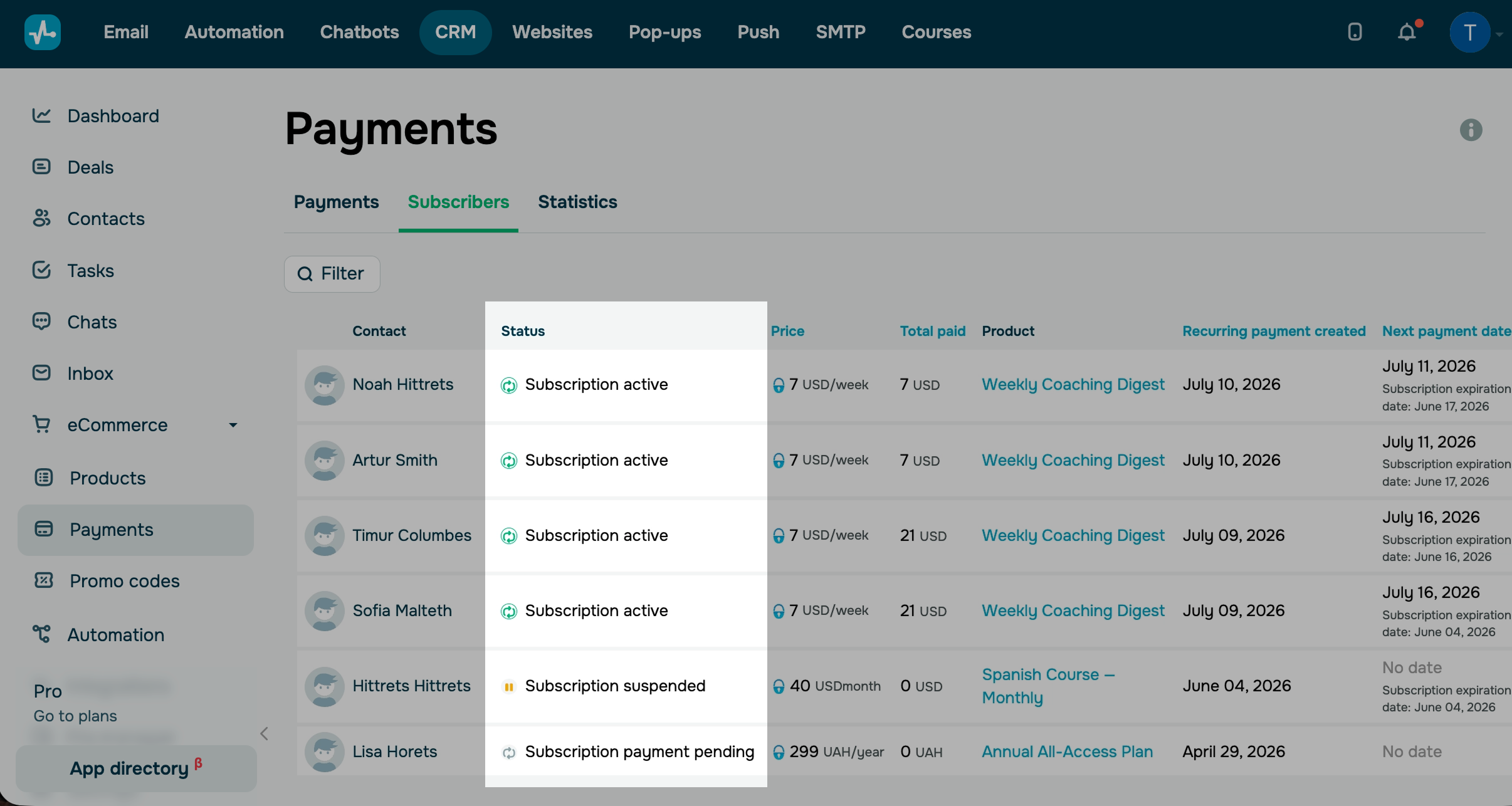
To view a subscription status, check the Status column. It can take the following statuses:
| Active | The subscriber paid for the subscription and is using it. |
| Pending | The subscriber clicked Pay but has not completed the payment yet. |
| Suspended | A team member suspended the subscription. |
| Canceled | A team member or the subscriber canceled the subscription. |
Manage digital product subscriptions
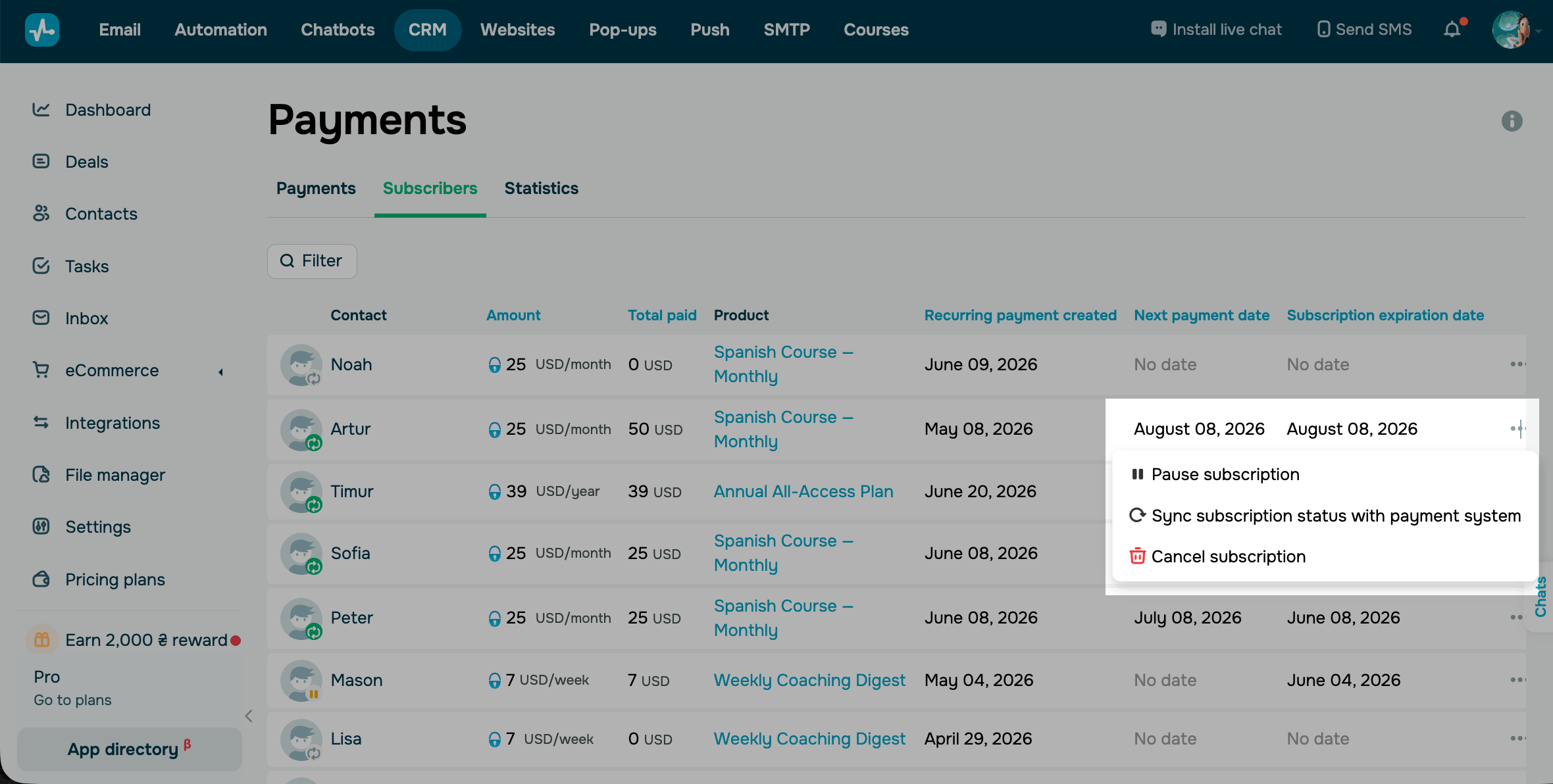
To manage a subscription, go to CRM > eCommerce > Payments > Subscribers. Next to a subscriber, click the three dots and choose an action:
| Pause subscription |
Stops future payments but doesn’t cancel the subscription. The subscription becomes Suspended. You can only pause Active subscriptions. The customer keeps access to the digital product until the end of the current paid period. After that, access ends. |
| Resume subscription | Restores access to the digital product and starts charging the customer again. You can resume only Suspended subscriptions. |
| Synth subscription with payment system | Syncs the subscription data with the payment provider. Use this option after you cancel, suspend, or renew a subscription in your WayforPay account. |
| Cancel subscription |
Permanently revokes access to the digital product and stops charging the customer. You can't resume a canceled subscription. The customer's subscription stays active until the end of the current period, and they won't be charged after it ends. You can also create a chatbot flow to cancel subscriptions. Learn more: The Cancel subscription action. You can cancel a subscription in the list of subscribers only if WayForPay remains connected. |
 Last Updated: 02.07.2026



or