The Chatbots element in bio link page builder
In the SendPulse bio link page builder, you can add a button for a user to subscribe to your chatbot and launch a flow for further communication — a welcome flow or your custom flow for a specific request.
Add an element
To add a chatbot subscription, drag the Chatbots element from the left panel to the desired part of the template.
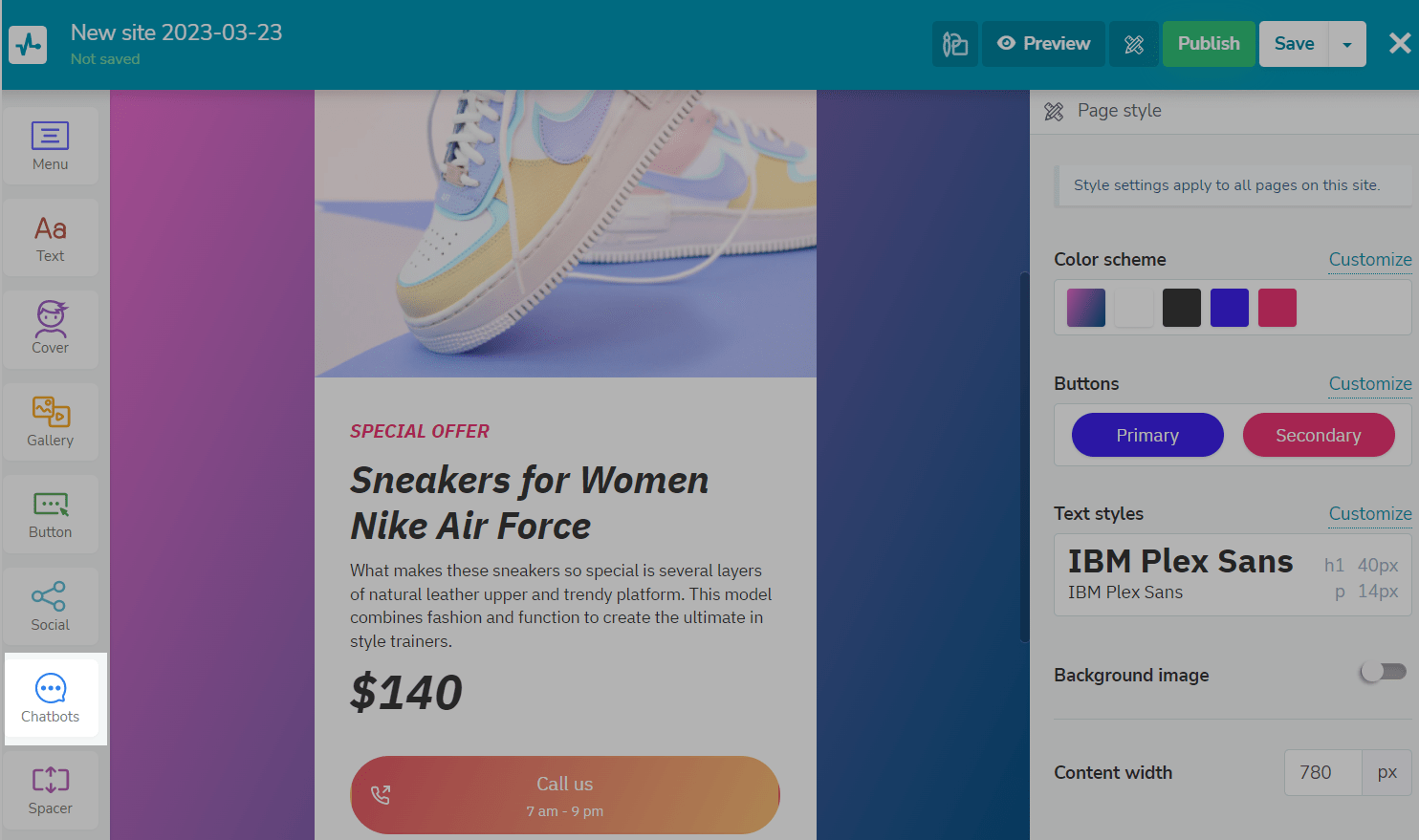
Customize subscribe buttons
Choose an appearance — Buttons or Icons. Specify a style — standard, primary, secondary, or custom, and choose a size.
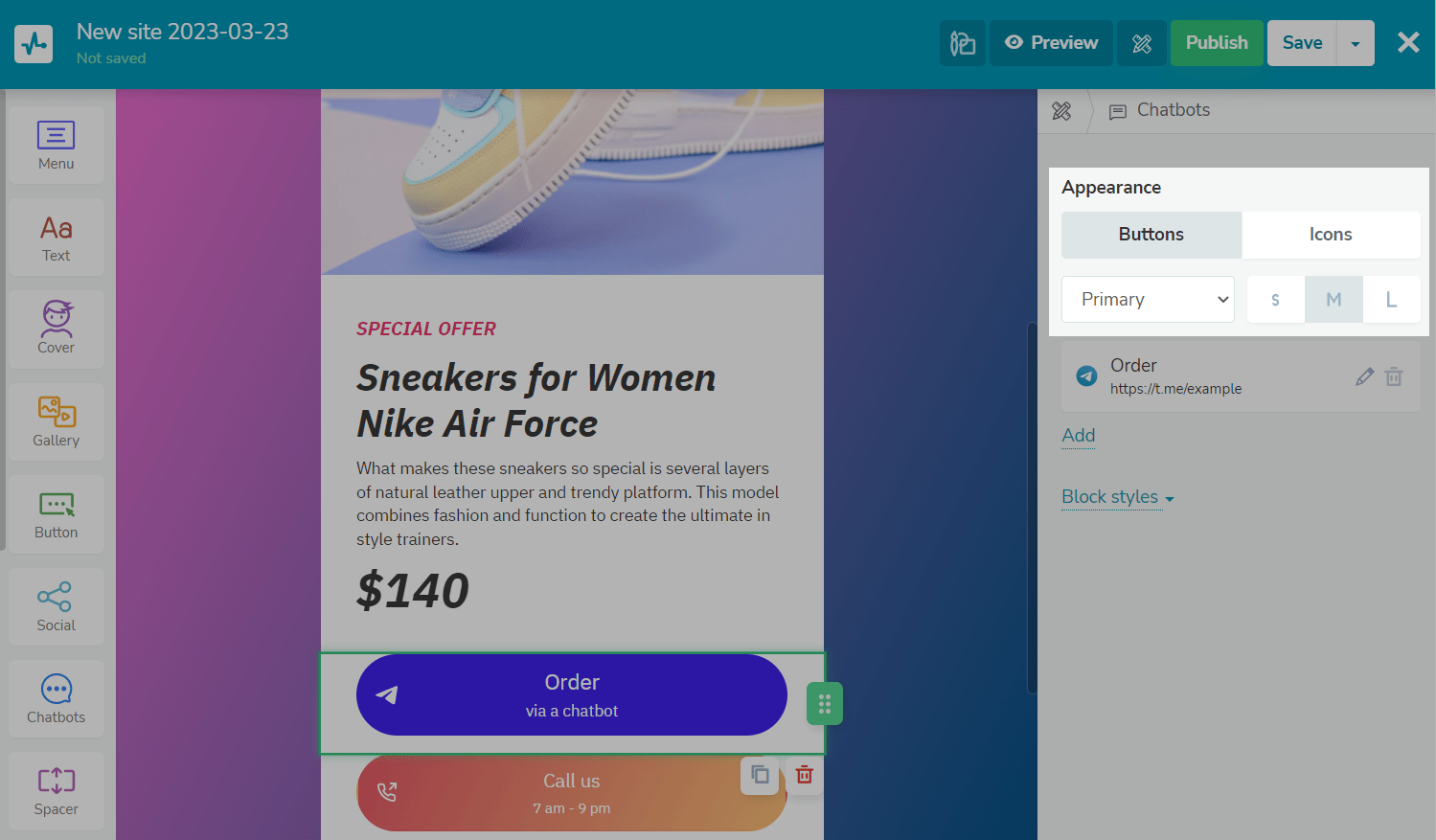
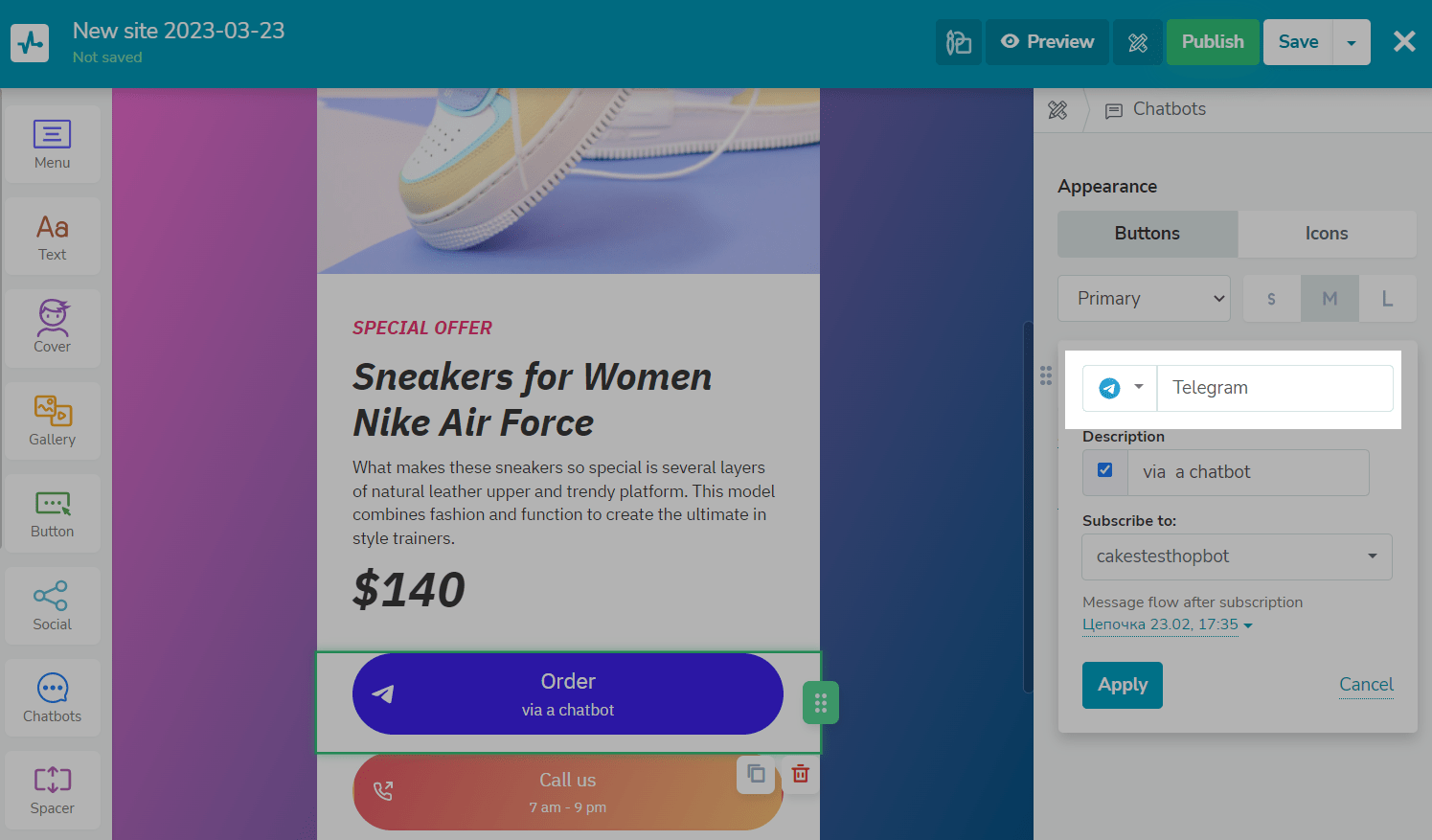
Then, add a new item or edit an existing one by specifying a social network.
Enter a description to appear on the button. To hide the description, uncheck the checkbox.
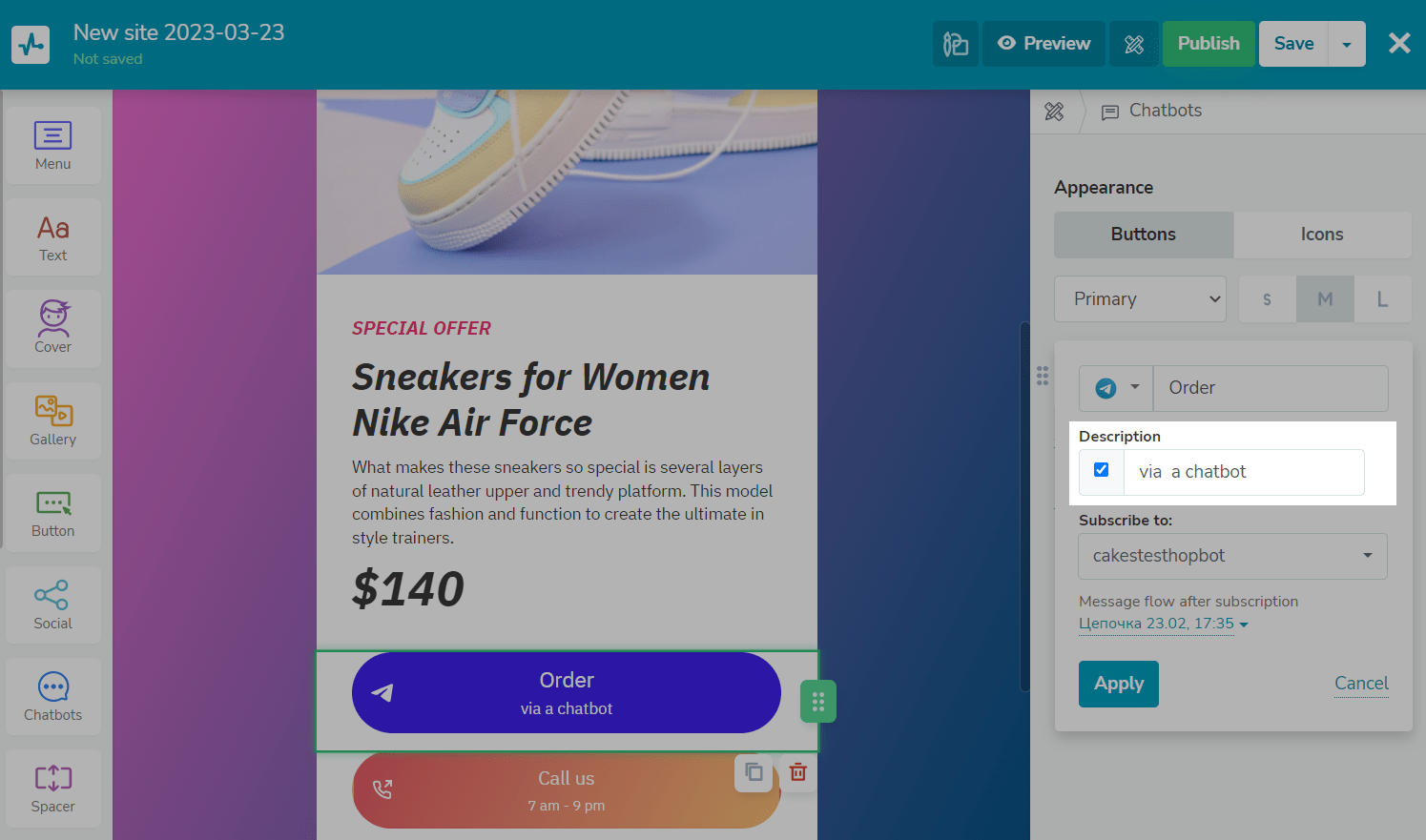
If you have a chatbot created with SendPulse, the builder will pull up the data — you just have to choose a bot.
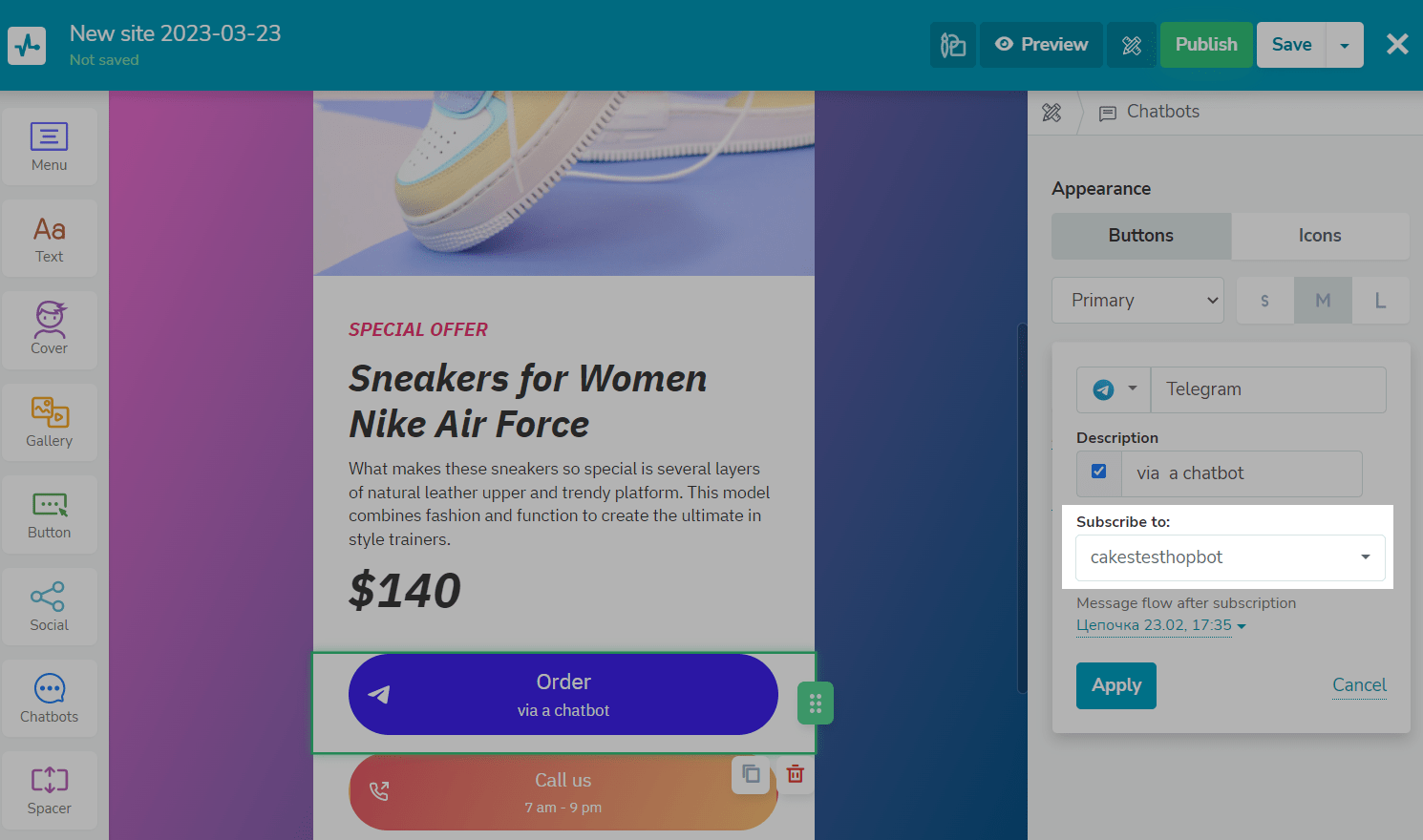
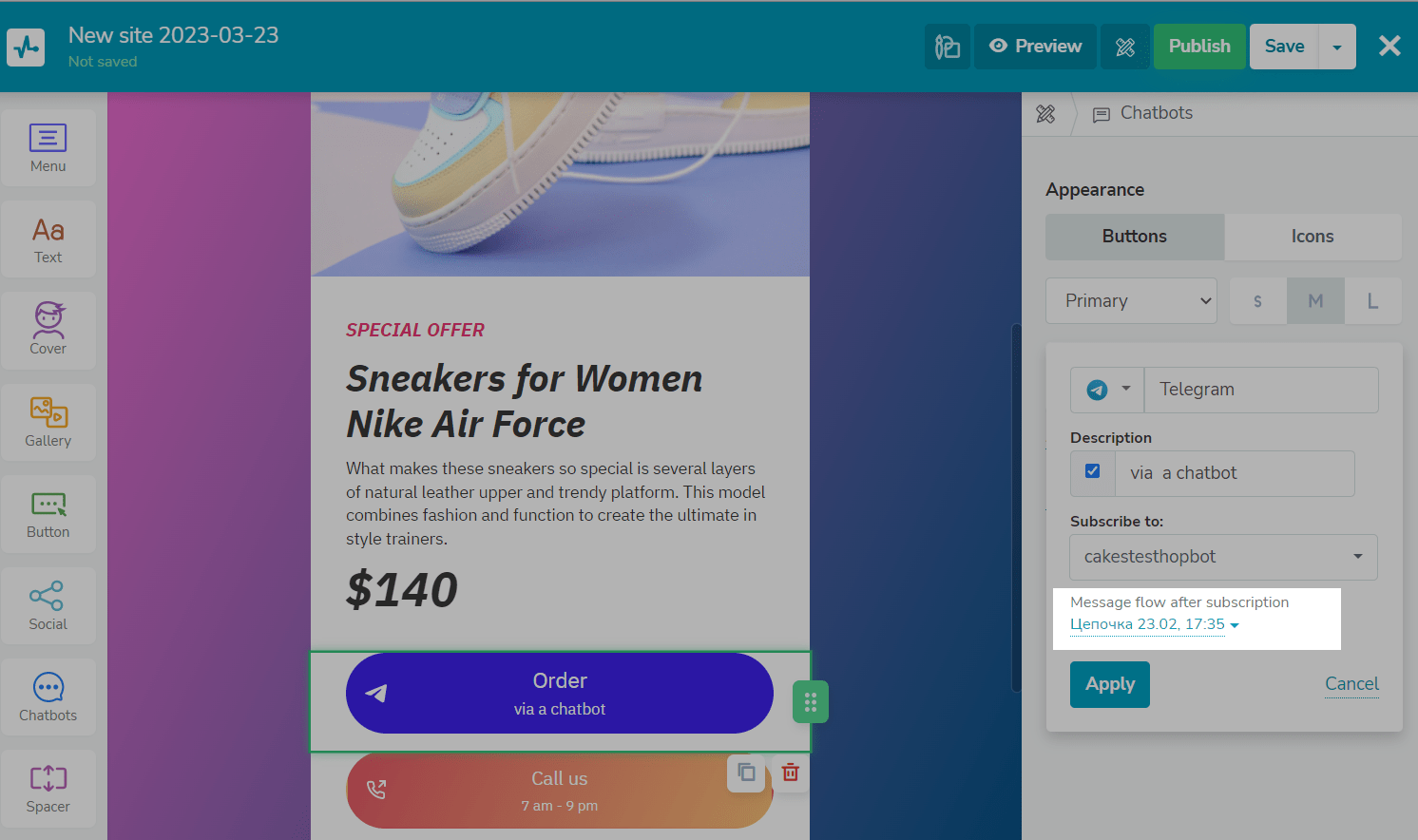
Select the flow that will start after subscribing to the chatbot.
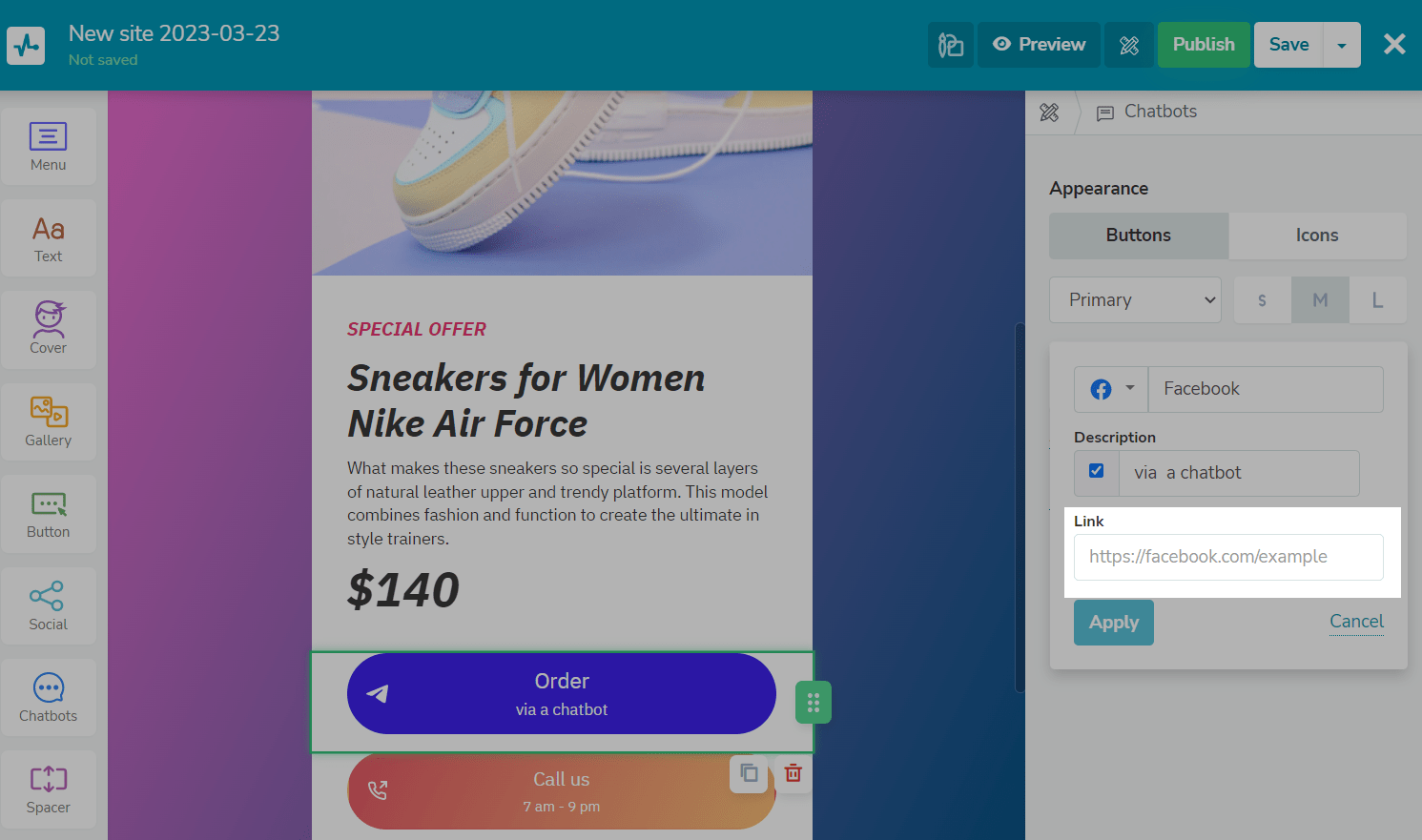
If you do not have a SendPulse chatbot, you can provide a link to a chatbot created in another service.
Customize the element
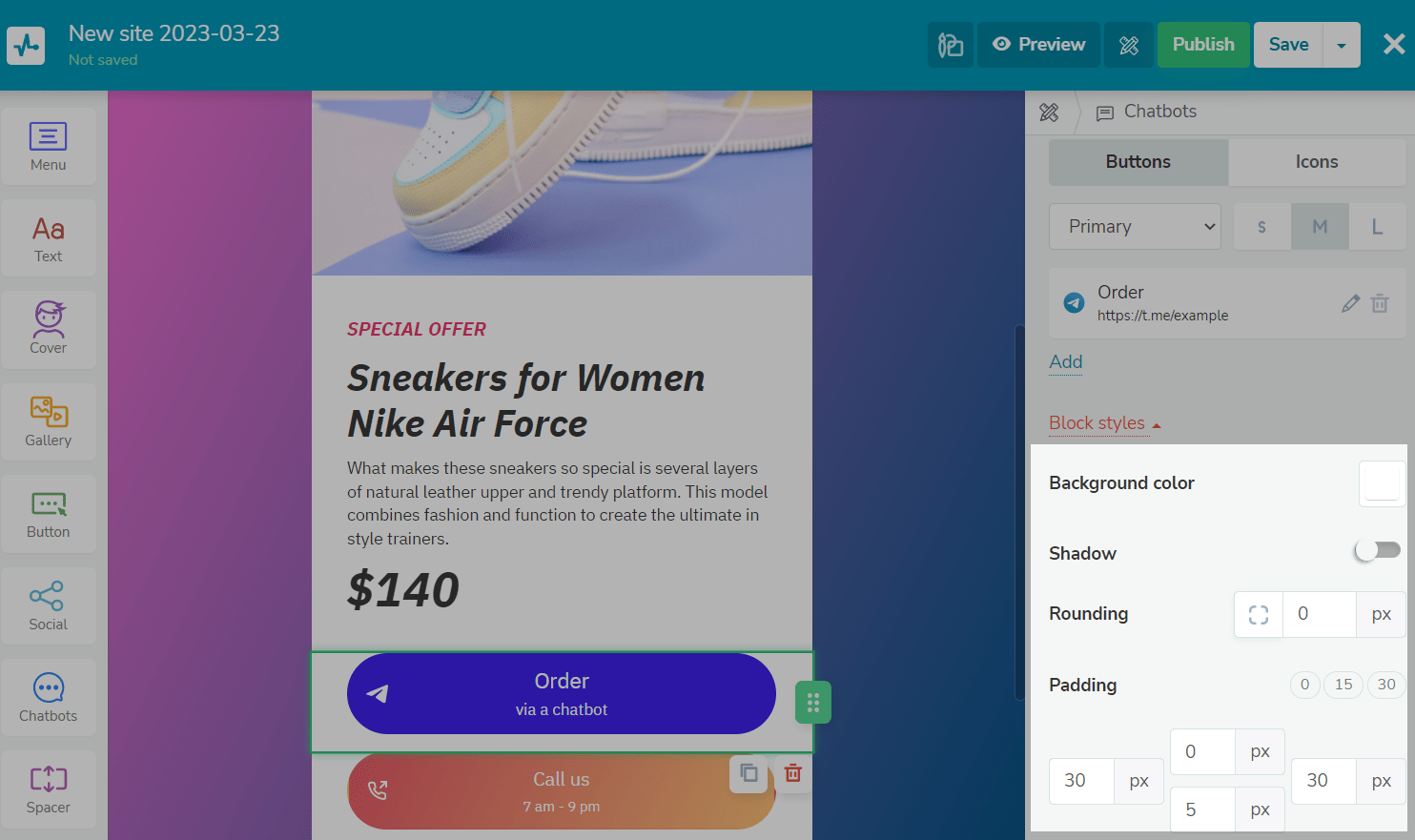
You can customize the block styles — background color, shadow, rounding, and padding.
 Last Updated: 22.03.2024





or