The Gallery pop-up element
Use this element to show images as a slideshow or on click. It can help you attract users' attention and highlight multiple images in a compact space.
In the pop-up builder, select the Gallery element and go to its settings.
Select an image
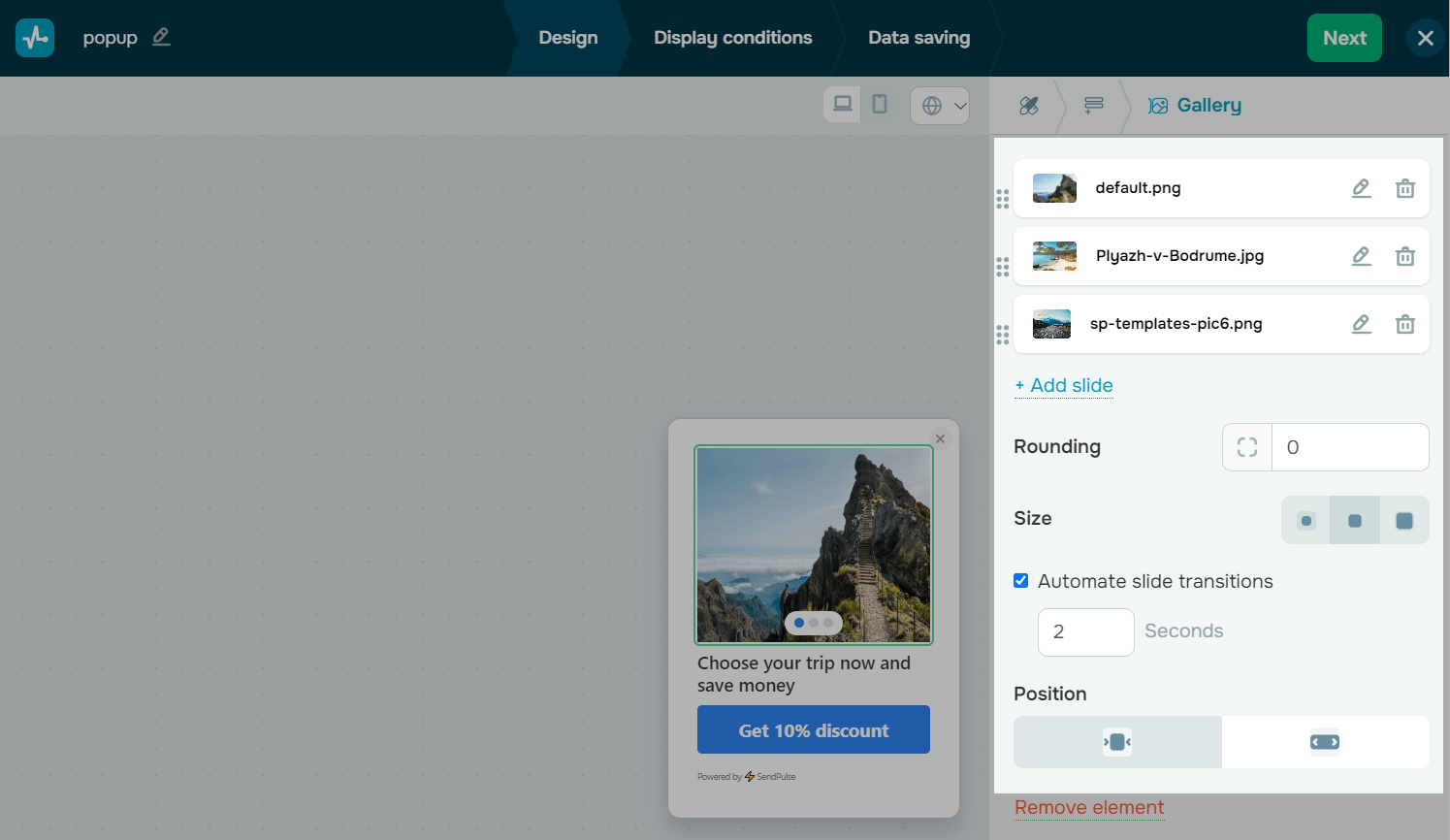
Click Add cover image to add your first image, then select it from the file manager. To upload more images, click Add slide.
You can also generate your cover and slides using AI.
Customize the appearance
Customize your element design in the following sections.
| Rounding | Set the corner rounding in pixels that will be applied to all images. |
| Size | Select a scale (horizontal, square, or vertical picture).
Your image will be compressed, so make sure to upload suitable images or select a medium (square) size. |
| Automate slide transition | Select this checkbox to enable automated image scrolling.
In the section below, set a scroll frequency in seconds. |
| Position | Select an element position relative to your pop-up edges (with or without a frame). |
Your pop-up size can affect the size of the Gallery element, but you can still adjust these settings separately.
 Last Updated: 18.06.2025





or