Check and expand your file storage
File storage keeps the images, videos, and documents you upload to SendPulse tools. All tools share one storage limit, so online schools, stores, and agencies can track their space in one place.
For example, you can store product photos for your emails, lesson videos for your courses, and tickets that your chatbot sends to subscribers.
Let's talk about how your storage limit works, how to check and expand it, and how to manage your files.
Basics
Your storage limit isn't added up across tools. SendPulse uses the largest storage limit among your active pricing plans for all tools.
Suppose you have the Standard email plan with 1,000 MB and the free Basic chatbot plan with 250 MB. In this case, you can use 1,000 MB across all tools.
Extra storage you buy is added to your limit. The CRM plan included with the chatbot Pro plan doesn't add storage.
When your files take up all your storage, you can't upload new files. In Chatbots, SendPulse also suggests switching to the Pro plan.
This situation can also happen after you switch to a lower-tier plan, if your files take up more space than its limit.
To upload new files again, delete the files you don't need or get more storage.
Team members can use the file manager if their user role includes access to it.
Storage in pricing plans
Here's how much storage the pricing plans of SendPulse tools include:
|
In the email service, storage depends on your pricing plan:
|
|
| Chatbots |
In the chatbot builder, storage depends on your pricing plan:
|
| Websites |
In the website builder, storage depends on your pricing plan:
|
| Courses |
In the online course builder, storage depends on your pricing plan:
|
Read more: Pricing plan basics.
Check your storage
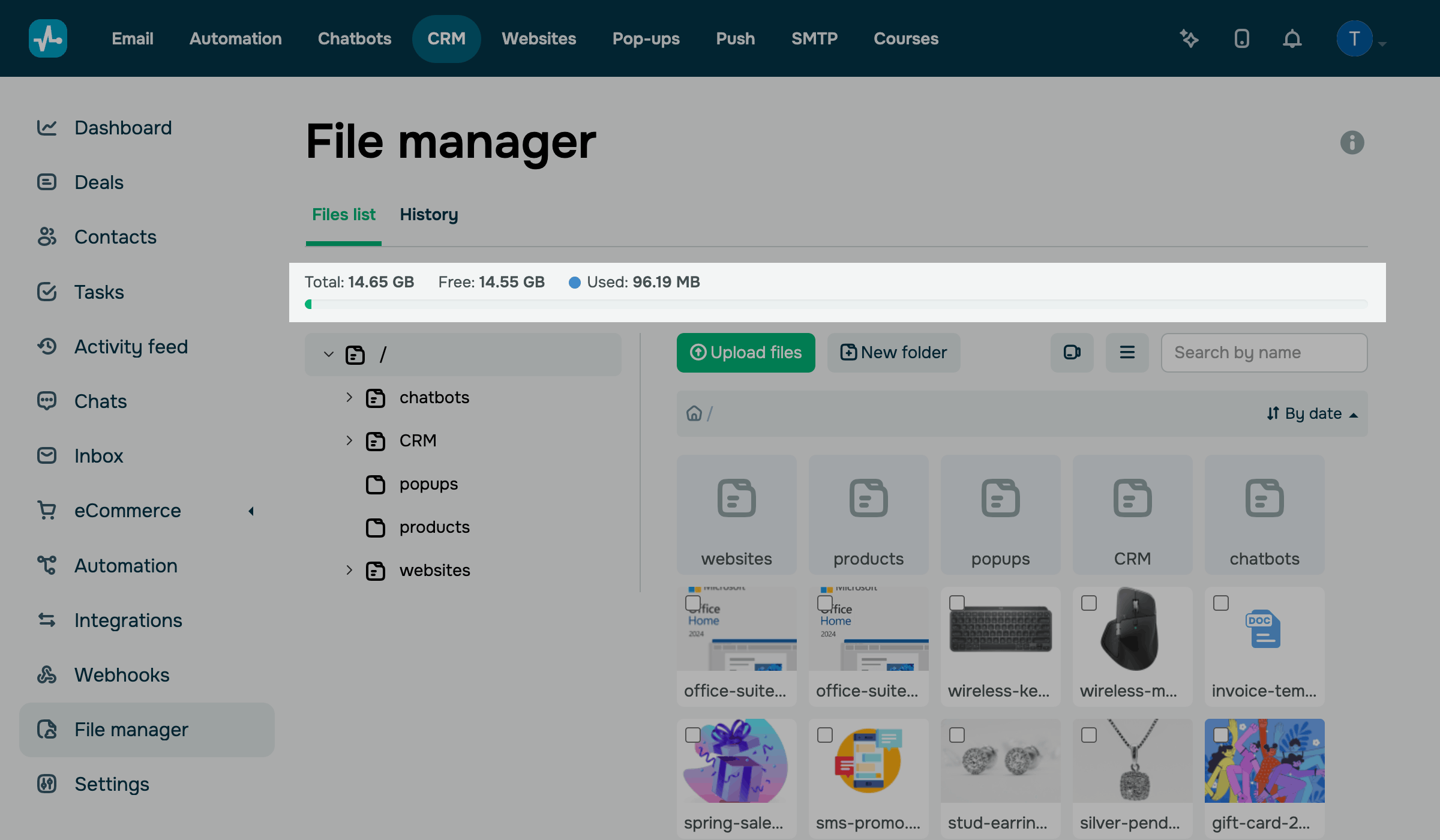
To see how much space you have left, go to CRM > File manager. You can also open the File manager section in Courses and Pop-ups.
The Files list tab shows your Total storage, the Free space, and the space your files have Used. Your storage is shared across tools, so the numbers are the same in every file manager.
Get more storage
To get more storage, switch to a pricing plan with more storage in any SendPulse tool, or buy extra storage.
Upgrade your pricing plan
Your limit grows when any active pricing plan includes more storage. For example, the chatbot Pro plan includes from 2 to 10 GB, depending on the plan size.
Read more: Choose a pricing plan for chatbots, Purchase a pricing plan.
Buy extra storage
You can buy extra storage on the Pricing plans page in Chatbots, CRM, Pop-ups, or Courses.
For example, go to Chatbots > Pricing plans. In Additional gigabytes, under Select a size, choose how many gigabytes you need.
You can also choose the billing period in Due for payment for. Then, click Buy.
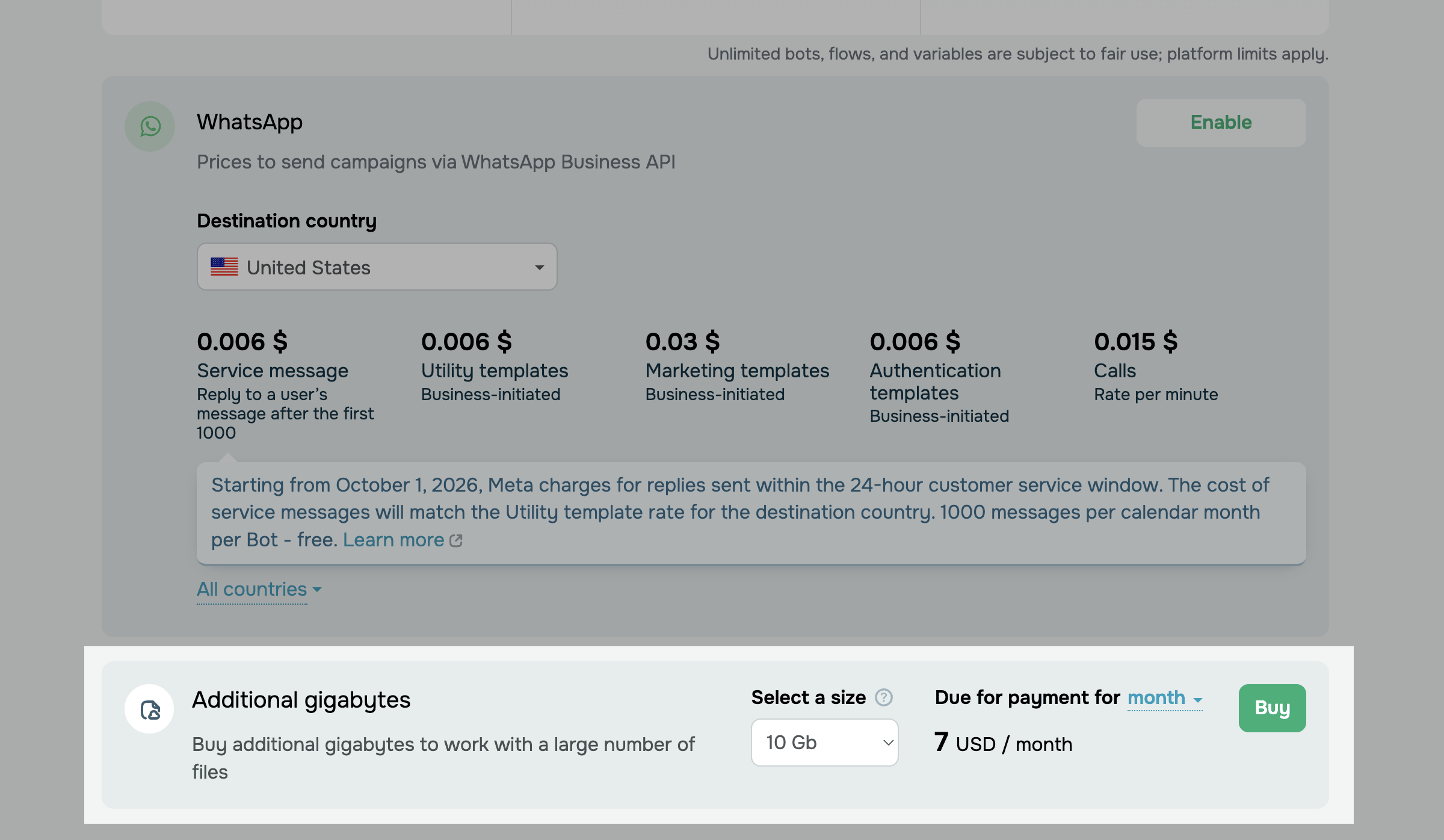
After the purchase, the Total storage in your file manager includes the extra gigabytes.
You pay for extra storage only for the days you use it in the current month.
Manage your files
In the file manager, you can find, upload, view, rename, download, and delete files and create folders.
Each tool saves its files to its own folder, such as chatbots, CRM, popups, and websites. The / folder is the root folder that holds them all.
Find files and folders
To find a file, open its folder in the folder tree on the Files list tab, or enter the file name in the Search by name field.

To switch between the gallery and list views, click the list icon next to Search by name. The list view shows the size of each file and folder and the date each file was added.
Create a folder
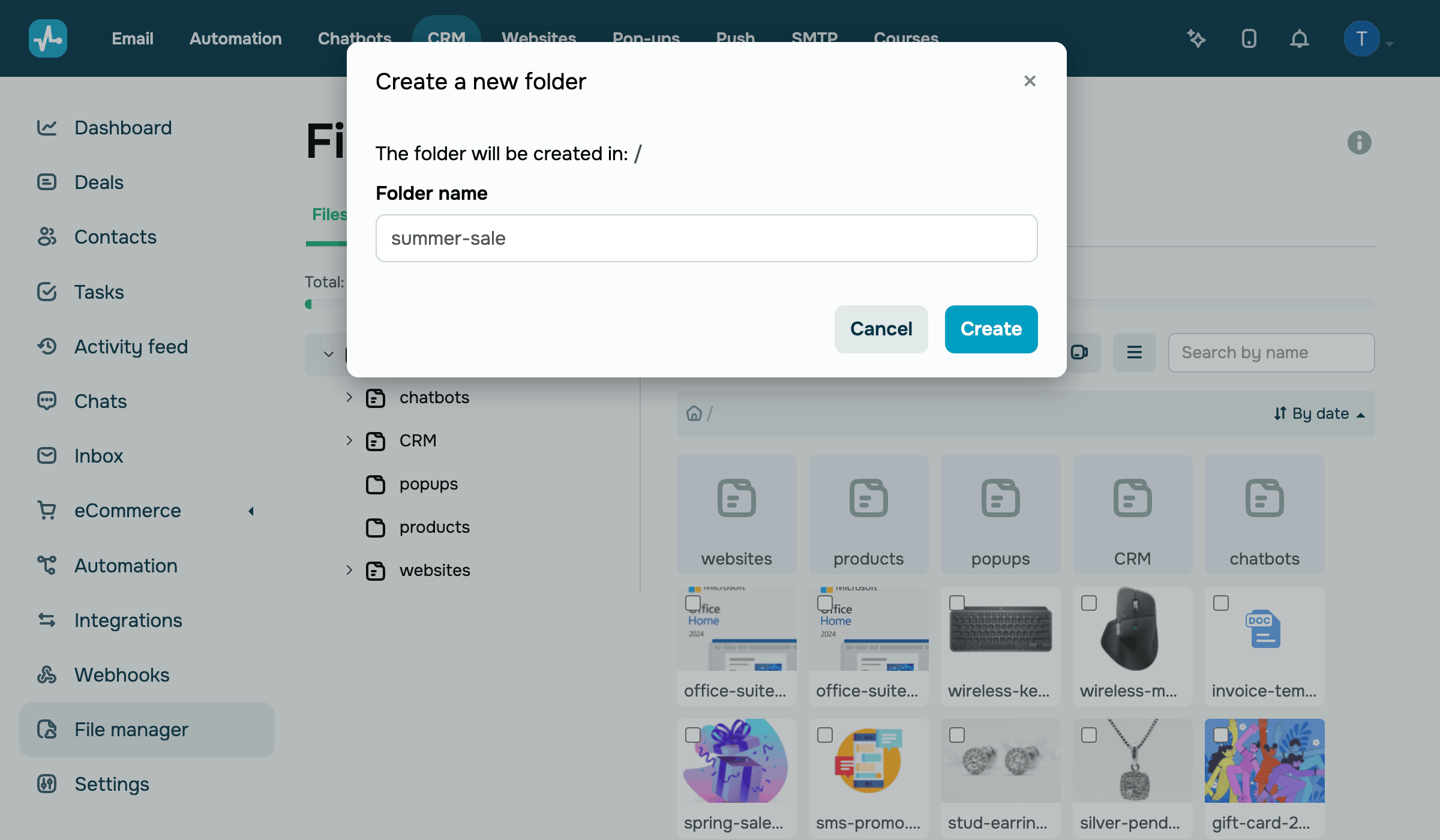
To create a folder, open the folder where you want to add it and click New folder.
In the Create a new folder dialog box, make sure the path in The folder will be created in is correct. In Folder name, enter a name and click Create.
Upload a file
To upload files, open the folder where you want to add them, click Upload files, and select one or more files on your device.
If a file doesn't upload, see how much Free space you have on the Files list tab. When your storage is full, for example, after you switch to a lower-tier plan, delete the files you don't need or get more storage.
Your file size must not exceed 5 GB.
Manage a file
To manage a file, hold over it, click the three dots, and select one of the following actions:
| View | Shows the file. |
| Rename | Renames the file. |
| Copy link | Copies the file link. |
| Download | Saves the file to your device. |
| Delete | Removes the file from the file manager. |
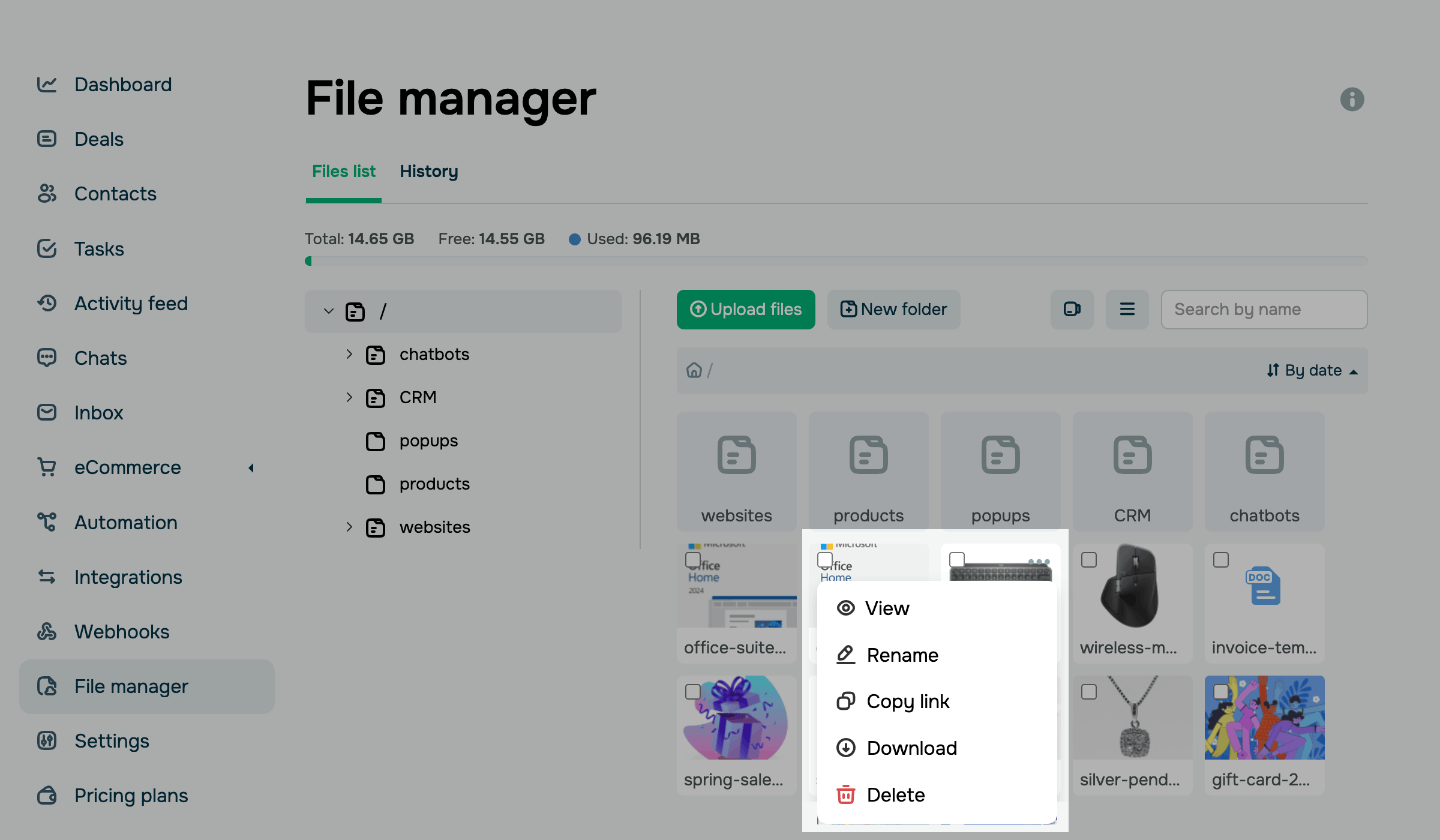
To delete multiple files, select their checkboxes and click Delete.
View file history
To see who changed files and when, go to the History tab. Each record shows who made the change, when, what they did, and in which folder.
The history tracks uploaded, moved, renamed, and deleted files, as well as created, renamed, and deleted folders.
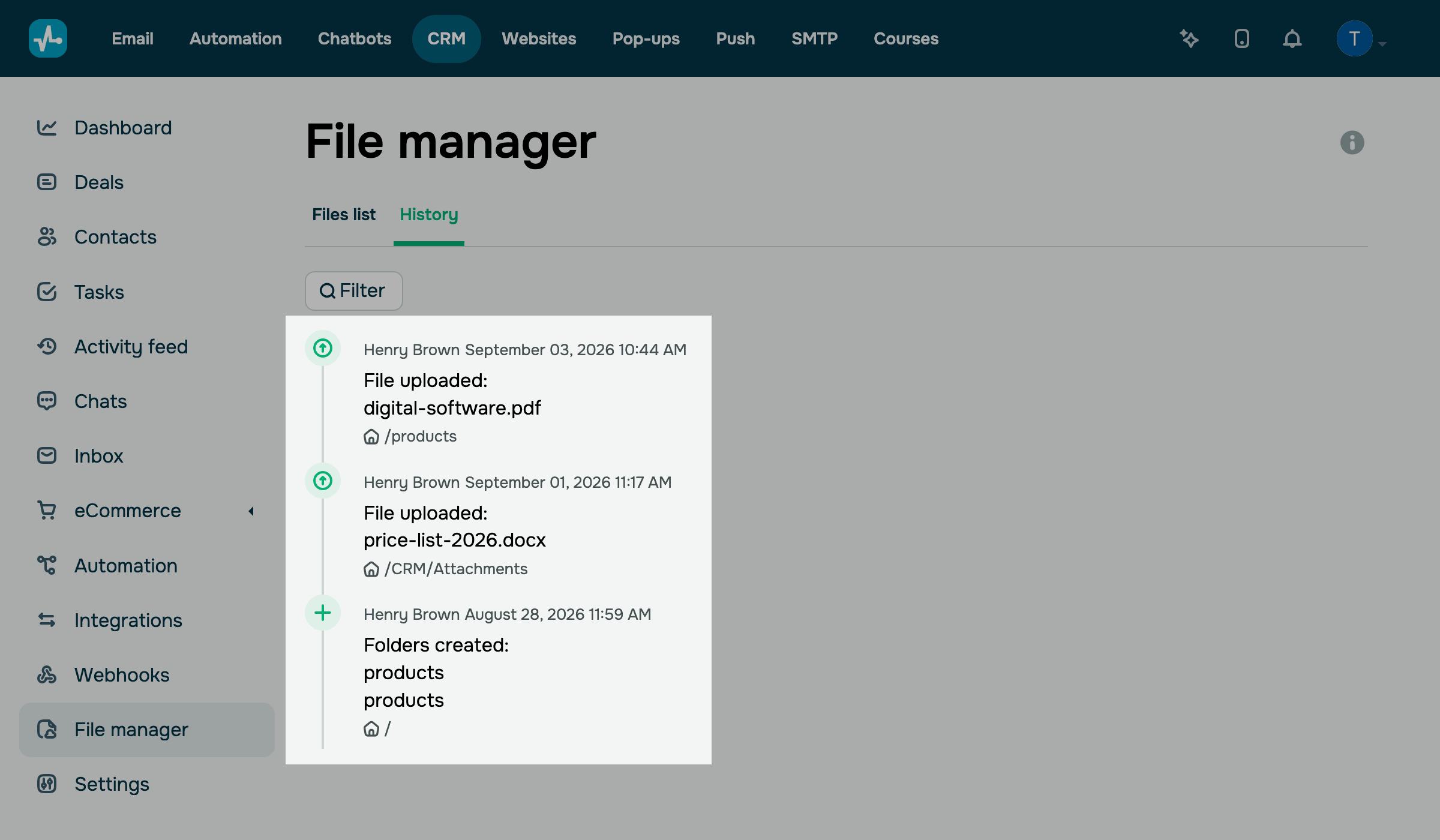
To filter the history, click Filter. Set the dates in the From and To fields, or choose the type of change in Event, and click Select.
Use files in SendPulse tools
Here's how SendPulse tools use files from the file manager:
| Chatbots |
Files you upload to flow elements go to the Files sent by live chat users and Viber subscribers go to the |
| Add images from the file manager to your email templates. | |
| CRM | Add files to deals, contacts, and tasks, and create documents from templates. |
| Courses | Add files to lesson elements, the course preview, and certificates. For the course preview and certificate, use images in JPG, JPEG, PNG, BMP, GIF, SVG, or WEBP format. |
| Websites |
Add images to your website pages with the Image widget. To open the file manager from the widget, click Choose file and select File manager. |
| Pop-ups | Add images to your pop-ups with the Image element. |
To compare chatbot plans and their storage, see Choose a pricing plan for chatbots.
To learn what happens to your files after a downgrade and check other plan limits, see Downgrade your pricing plan and Pricing plan basics.
 Last Updated: 19.11.2026





or