Pass data from other systems to SendPulse through n8n
Integrate SendPulse with other tools and automate your workflows using n8n.
For example, when your customer places an order in Shopify, send a request to SendPulse to run an event-triggered flow. This approach helps send messages, update customer data, and create deals automatically.
Beyond running flows, you can build a custom integration using any SendPulse REST API method. Add or update contacts, get mailing lists, manage the CRM system, and more.
Let’s talk about how to add and configure the HTTP Request node in n8n to build a custom integration.
Start flows in SendPulse
Create an event in SendPulse and start flows when events occur in other tools. For example, when your customer places an order in Shopify, start a flow that creates a deal in the CRM system, updates customer data, or sends a message.
Create an event in SendPulse
Go to Automation > Event manager, click Add new event, set a name and variables, click Add, and copy the method URL.
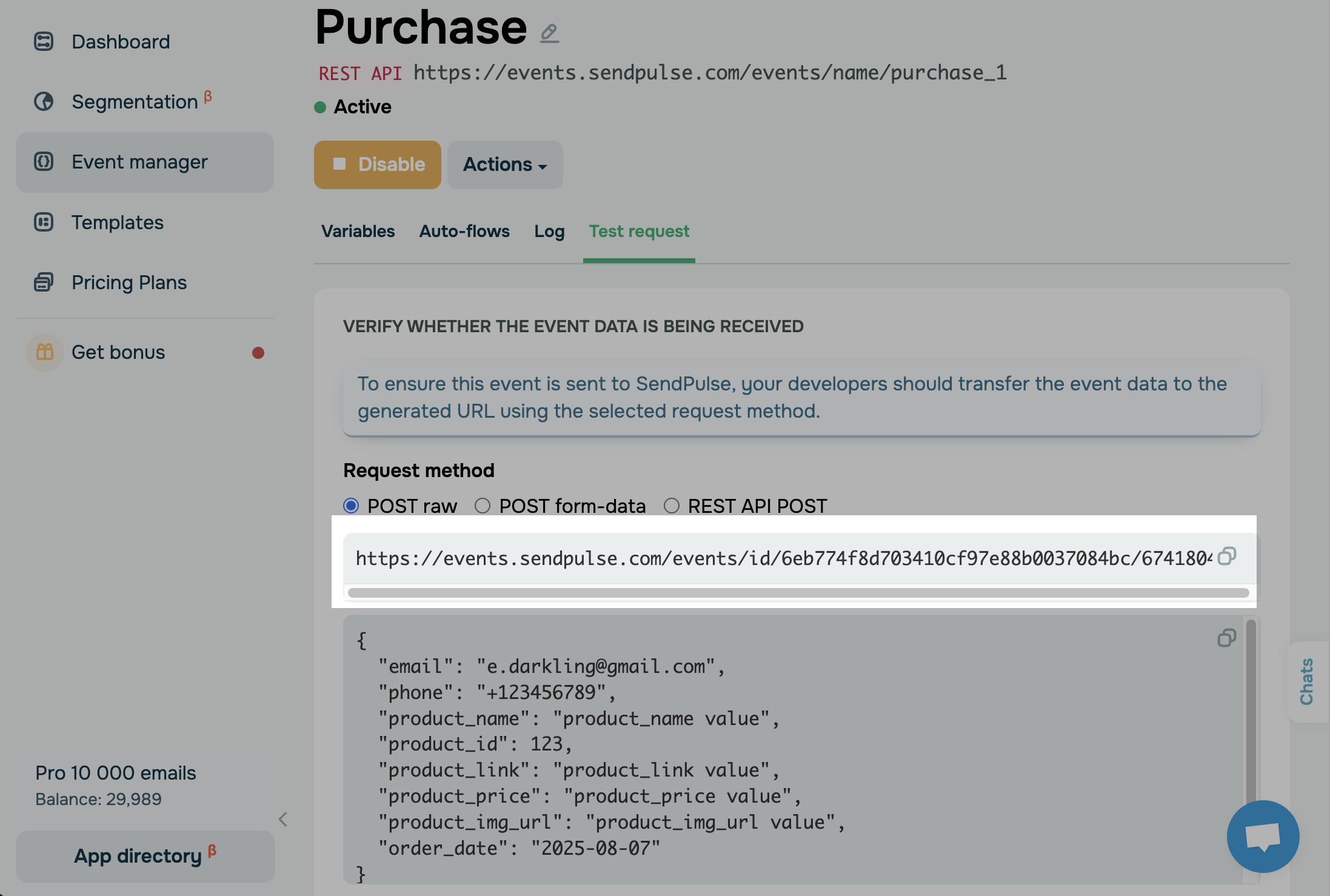
Send the event from n8n
In your n8n flow, add HTTP Request where needed.
In the Method field, select a method and add its URL.
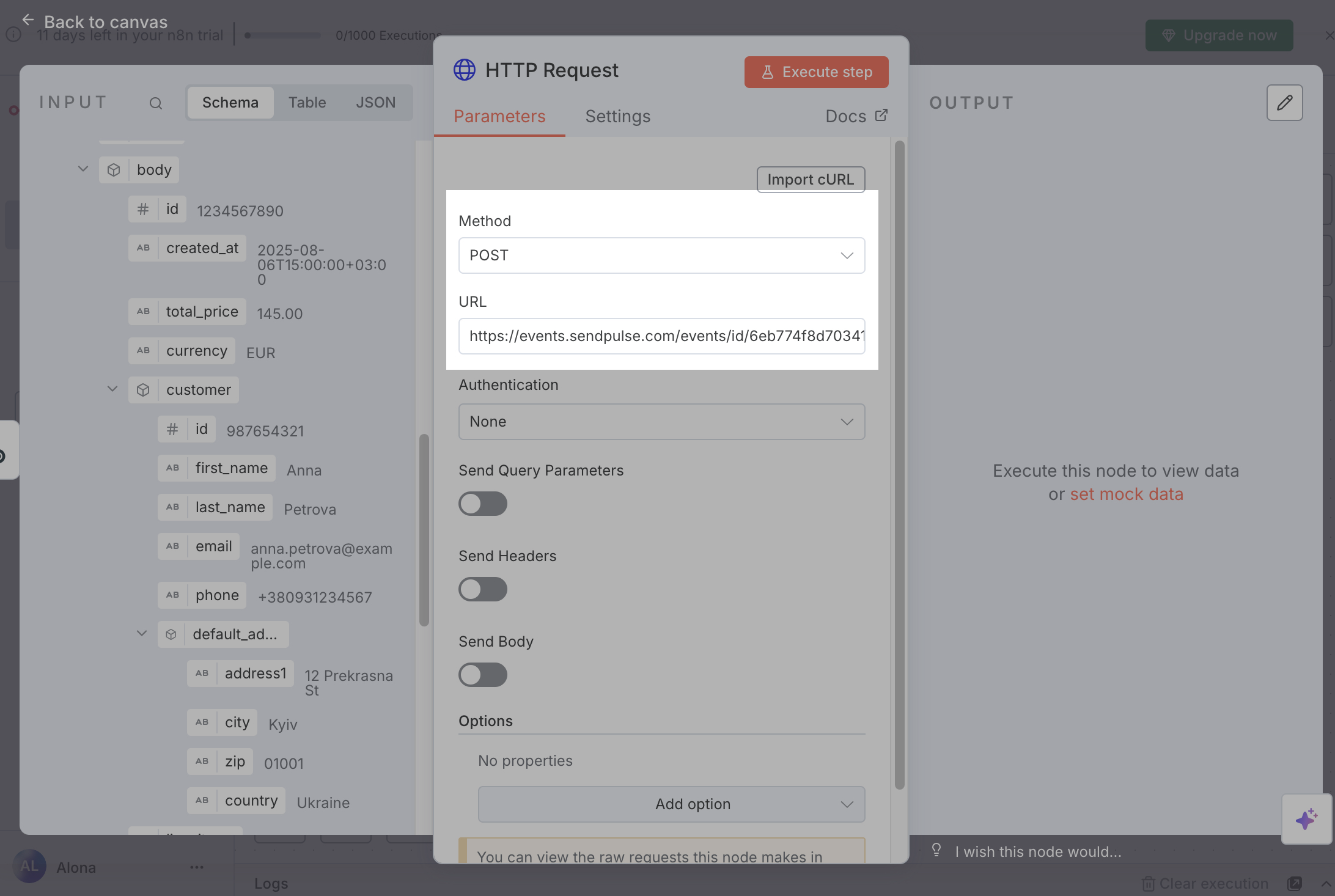
Turn on the Send Body toggle to add a request body. Set Body Content Type to JSON and Specify Body to Using JSON.
To help n8n detect data structures in HTTP Request and other nodes, test your flow in n8n. To do this, trigger your workflow and reproduce the event in its source tool. If your trigger is On webhook call, open the node and click Listen for test event.
In the next field, enter the Request body. Refer to the example on the event page. Drag the required variables from the previous node’s Input into the values.
To start your flow and recognize the customer, pass their email or phone variables.
To test your request, click Execute step. If the request is successful, you’ll see Result: True in the Output section, and the event with its data will appear in automation event logs.
Add a SendPulse event trigger to your flow
After you set up an event, you can link it to an existing flow or create a new one in a SendPulse tool.
To create a flow triggered by an Automation event, go to Automation > Create flow. In the trigger element, select the event you created. Then, continue building your flow by adding other elements in the builder.
With Automation, you can perform actions across different SendPulse tools. Manage the CRM system, run courses, and send messages through various communication channels. Learn more: Automation scenarios.
To create a flow triggered by a chatbot event, go to your bot structure settings. Click Create trigger and choose the A360 event trigger type. Select an event, click Add, then create or link the required flow.
Use the SendPulse API
In the SendPulse REST API documentation, you can view the list of available methods and response examples. This can help you choose the right method to retrieve data and use it in subsequent n8n nodes.
To help n8n detect data structures in HTTP Request and other nodes, test your flow in n8n. To do this, trigger your workflow and reproduce the event in its source tool. If your trigger is On webhook call, open the node and click Listen for test event.
In your n8n flow, go to the point where you want to call the API and add the HTTP Request node. As an example, we’ll use a method adding a contact to the CRM system.
In Method, select POST and enter the URL.
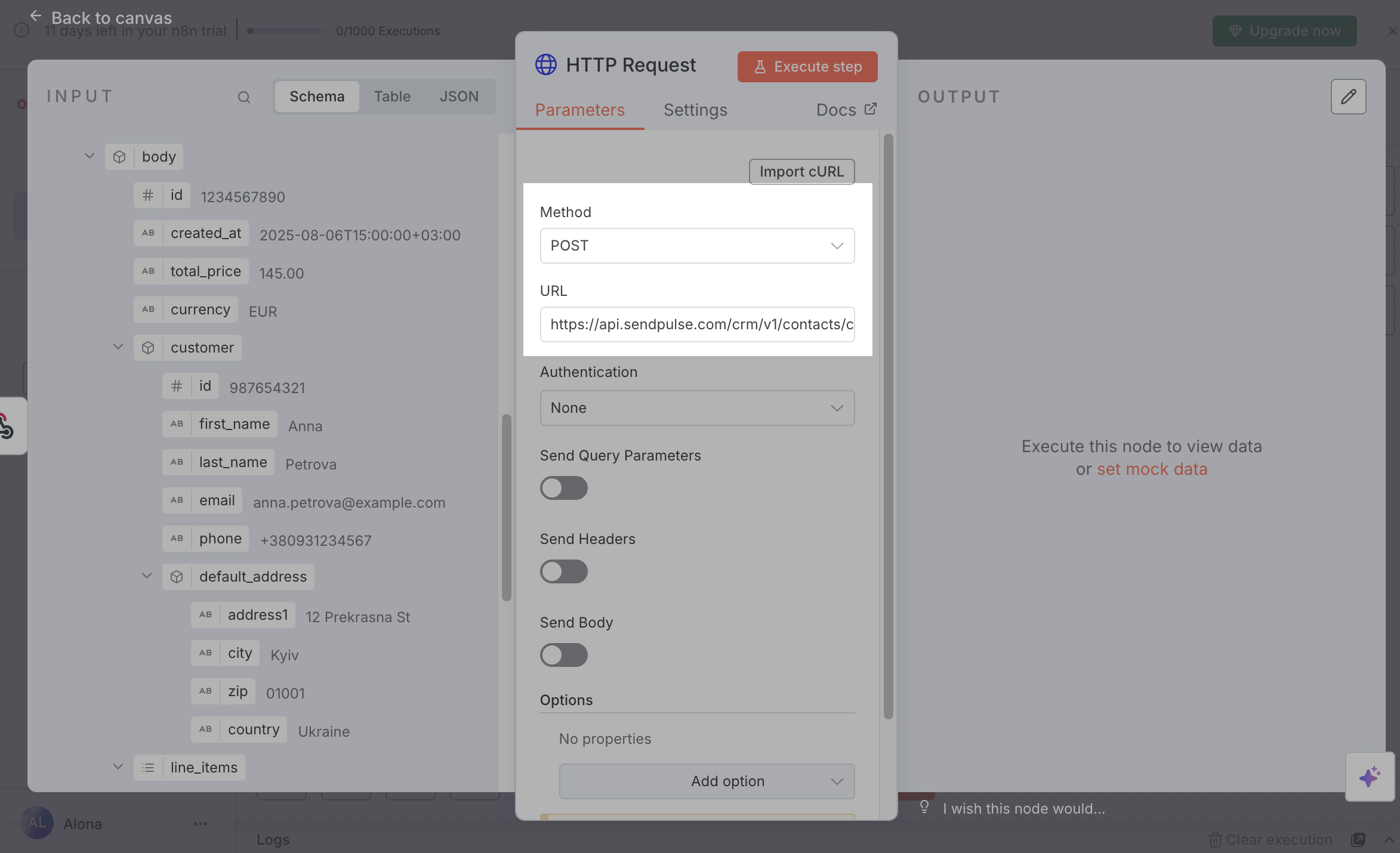
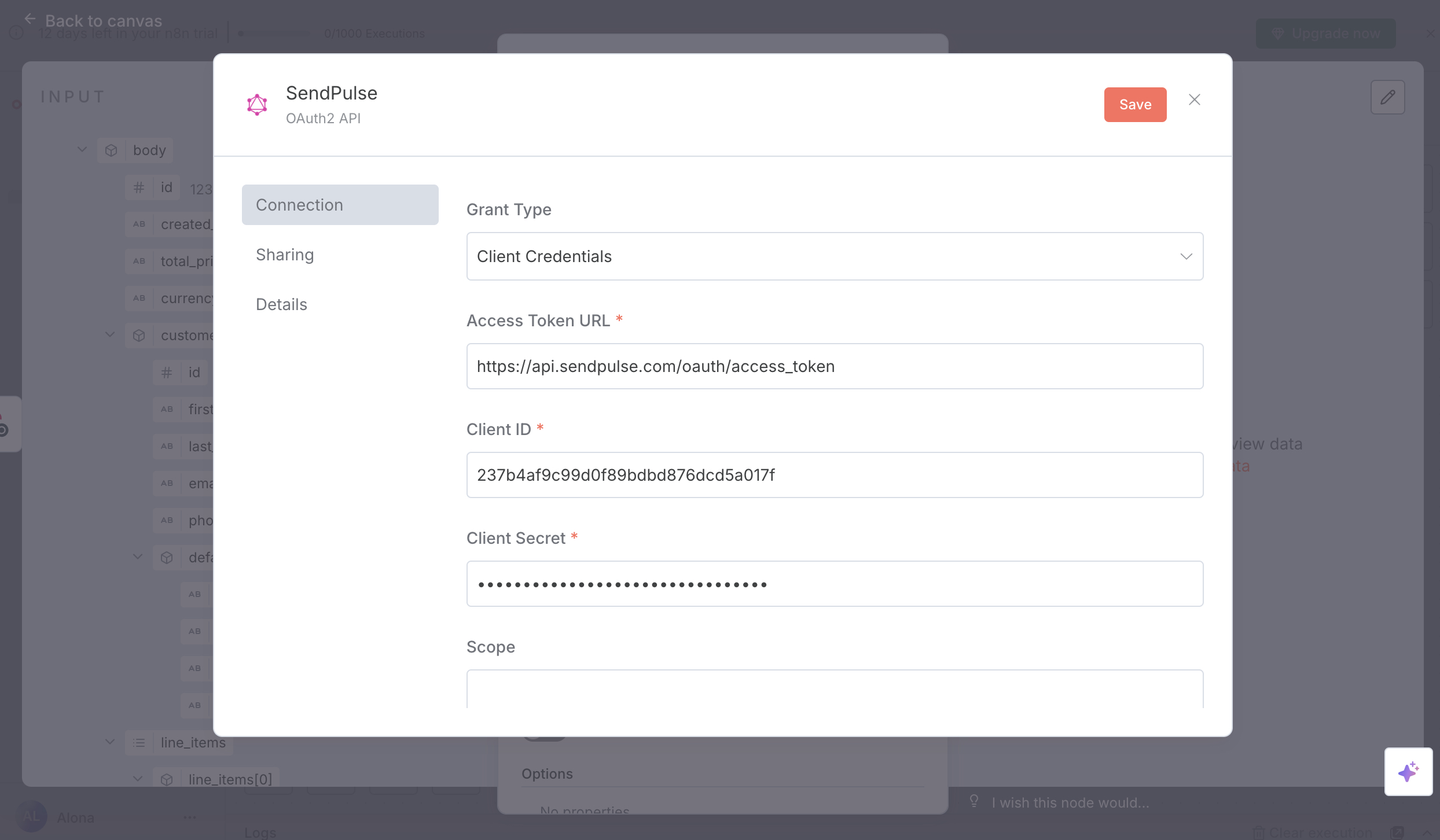
In Authentication, select Generic credential type. In the next field, select OAuth2 API and your credentials.
If you haven’t added your credentials yet, click Create new credential and fill in the fields in the modal window using the Authorization method. Set Grant Type to Client Credentials, enter the token request URL, and add the Client ID and Client Secret from your account settings under the API tab.
Passing more parameters will vary based on the method syntax. Refer to the documentation for specifics on each method. If parameters are included in the URL, turn on the Send Query Parameters toggle. If they are included in the request body, turn on the Send Body toggle. In our case, the method expects parameters in the body.
Turn on the Send Body toggle. In Body Content Type, select JSON, and in Specify Body, select Using JSON.
In the next field, enter the Request body. Refer to the method documentation for the syntax and required parameters, and use the exact field names as listed. As for the values, drag the required variables from the previous node’s Input section.
To test the request and get data for subsequent nodes, click Execute step. You can view the received data in the Output section.
For example, if you add a deal and link a contact or update field values and tags, you’ll need the contact ID. Refer to the API documentation for specifics on each parameter.
 Last Updated: 20.08.2025





or