Add an MCP server
MCP (Model Context Protocol) is a standard that links AI with external tools. An MCP server gives your AI agent tools, such as product search or cart updates, that the agent can run during a conversation with a subscriber.
You add MCP servers to the AI Agents section of the chatbot builder or on the MCP Servers tab. All chatbots in your account share your MCP servers.
An online store, for example, can connect its MCP server to let a shopping assistant agent find products and add them to a customer’s cart during the conversation.
Let's talk about how to add an MCP server, connect SendPulse’s MCP, use a server in an AI agent, and manage your servers.
Benefits and use cases
With MCP servers, your AI agent can:
- search your product catalog and answer questions about prices and stock;
- add items to a subscriber's cart or create an order in your store;
- look up your store's delivery and return policies;
- retrieve information from your SendPulse account, such as a list of your chatbots.
Here's how businesses can use MCP servers:
- An online store can connect its Shopify MCP server. Then, a sales assistant agent can find products in the catalog, share product details, and add the selected items to the subscriber’s cart.
- A service business can connect the MCP server of its booking tool or CRM system. The agent can then check open time slots and book appointments for subscribers.
- A SendPulse user can connect SendPulse’s MCP. This way, their AI agent can retrieve account information, such as a list of chatbots or recent chats.
To use a server, add it on the MCP Servers tab and select it in a saved AI agent or in the AI Agent element of your flow.
Basics
Each MCP server comes with a set of tools. A tool is an action with a description that tells the AI agent when to use it and which data to provide. When you connect a server, SendPulse loads its tools, and you choose the ones your AI agent can use.
When a subscriber reaches the AI Agent element, the AI agent decides if it needs a tool to reply. If so, it runs the tool using information from the conversation and includes the outcome in its reply.
Let's say a subscriber asks if a product is in stock. Your AI agent runs the catalog search tool and replies with the price and availability.
MCP server requests are free, but web search and file search are not. Keep in mind that SendPulse includes the description of every connected tool in each request to the AI model. The more tools you connect, the more tokens each request uses. To keep token usage low, connect only the tools your AI agent needs.
MCP is available for OpenAI and Claude models. To use any tool, set Reasoning to Low or higher in the model settings. Read more: Set up an AI model in your chatbot.
Add an MCP server
To make a server available in your agents, add it on the MCP Servers tab.
Go to Chatbots > AI Agents, open the MCP Servers tab, and click Add server.
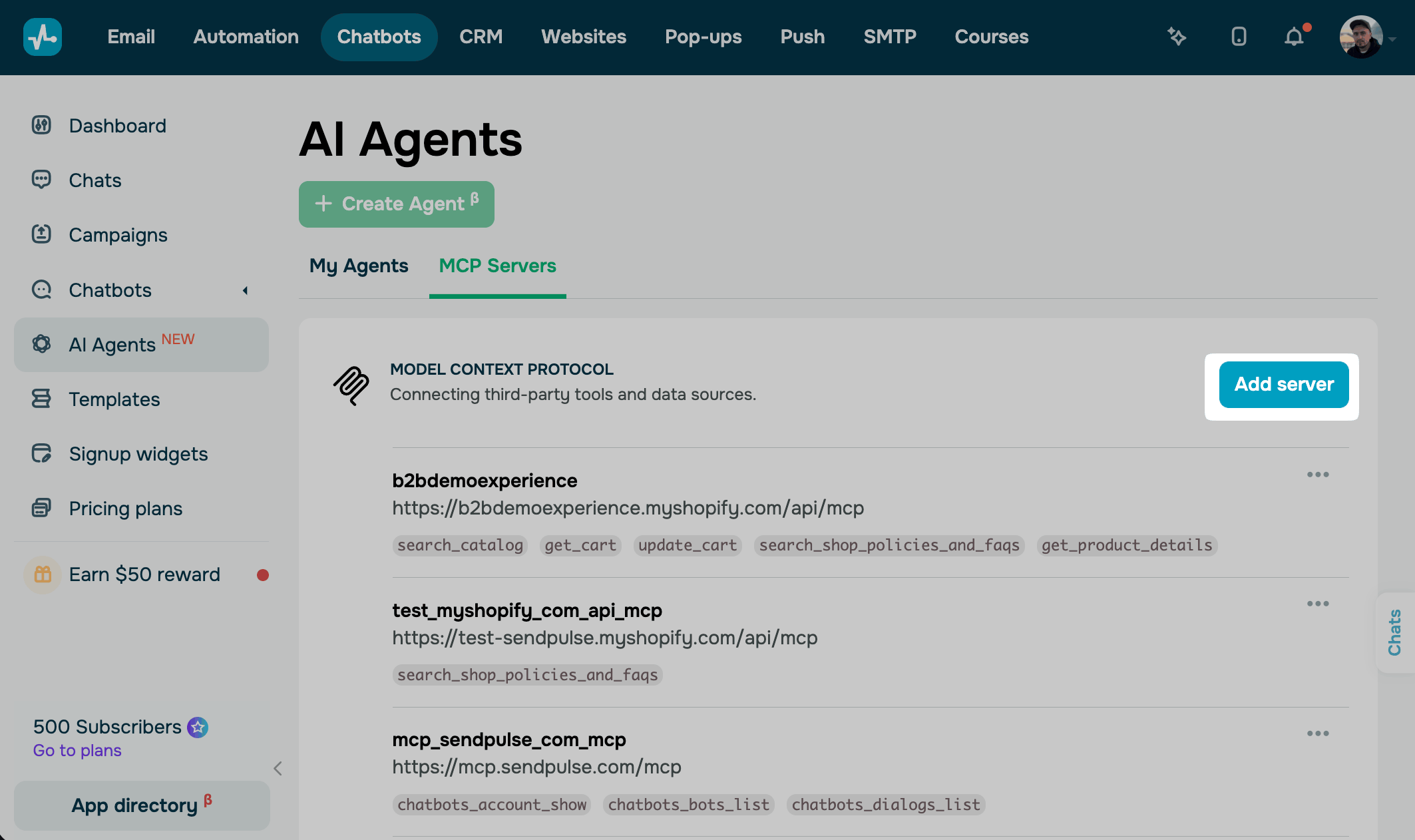
In the Add a new MCP server window, fill in the following fields:
| MCP Server URL | Paste the link of the MCP server the AI should interact with, for example, https://brightleaf-home.myshopify.com/api/mcp. |
| Internal name at SendPulse | Enter a connection name using Latin letters, numbers, and underscores only, for example, brightleaf_catalog. The name appears only in your SendPulse account: in the server list and in the MCP servers list of agents and elements. |
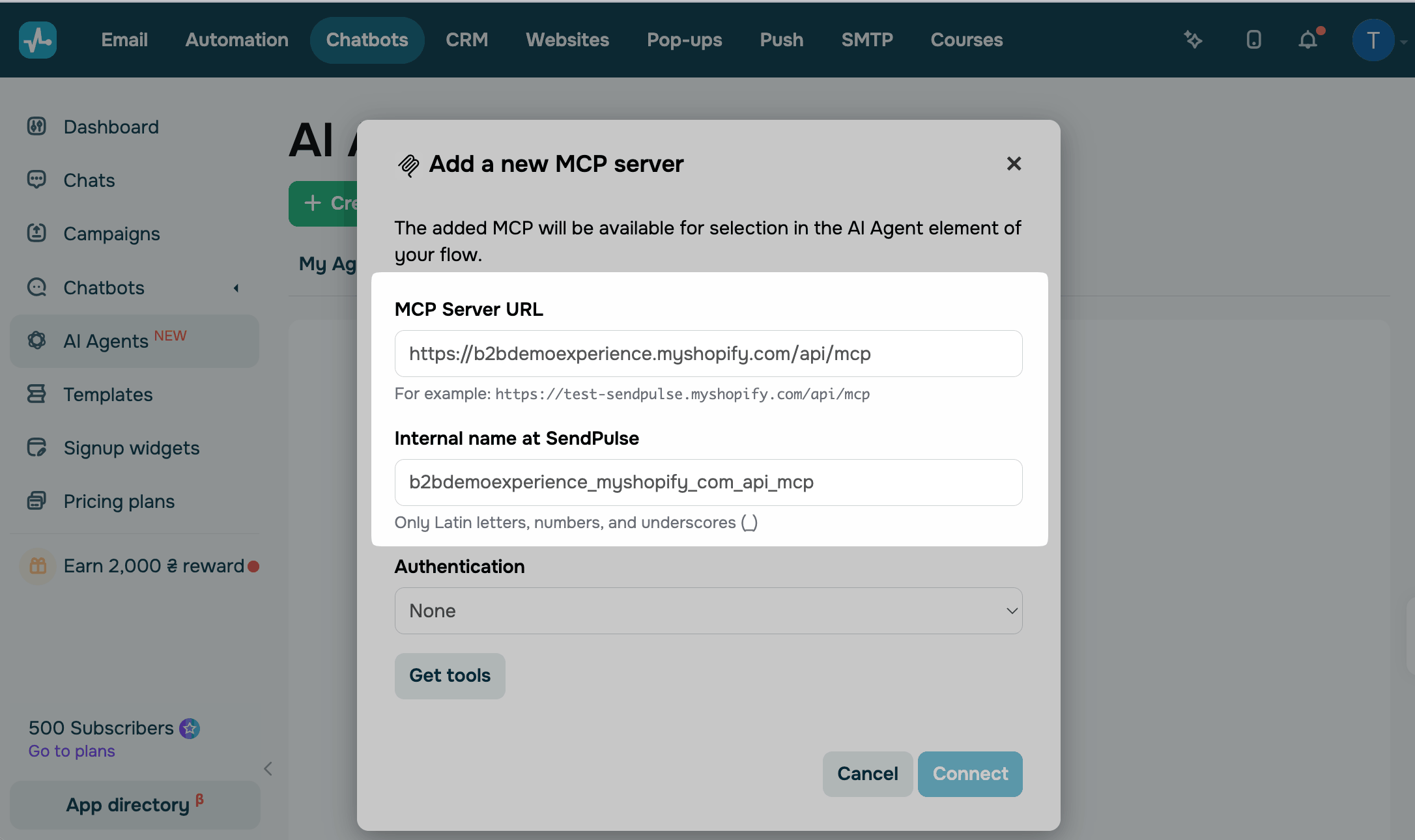
Set up authentication
If the server requires authentication, select the method in the Authentication list. If it doesn't, keep None. The methods are the following:
| None | The server accepts requests without authentication. |
| Bearer token | The server expects an access token in the request header. Paste the token into the Token field. |
| Custom headers | The server expects your own HTTP headers. Enter the header name in the key field and its value in the value field. To add another header, click Add header. The SendPulse MCP server, for example, requires the X-SP-ID and X-SP-SECRET headers. |
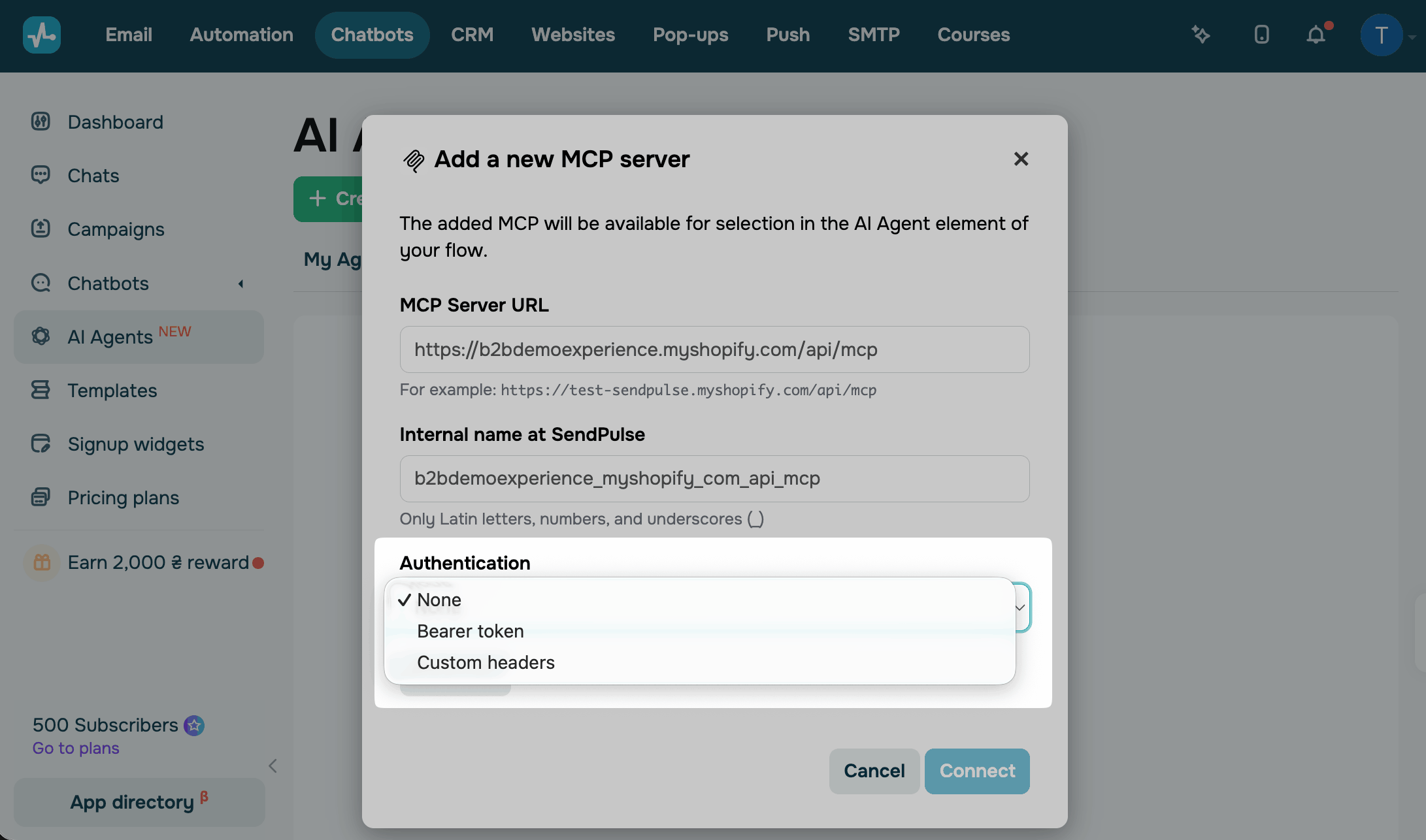
Choose the tools
To see which actions the server offers, click Get tools. SendPulse connects to the server and shows its tools.
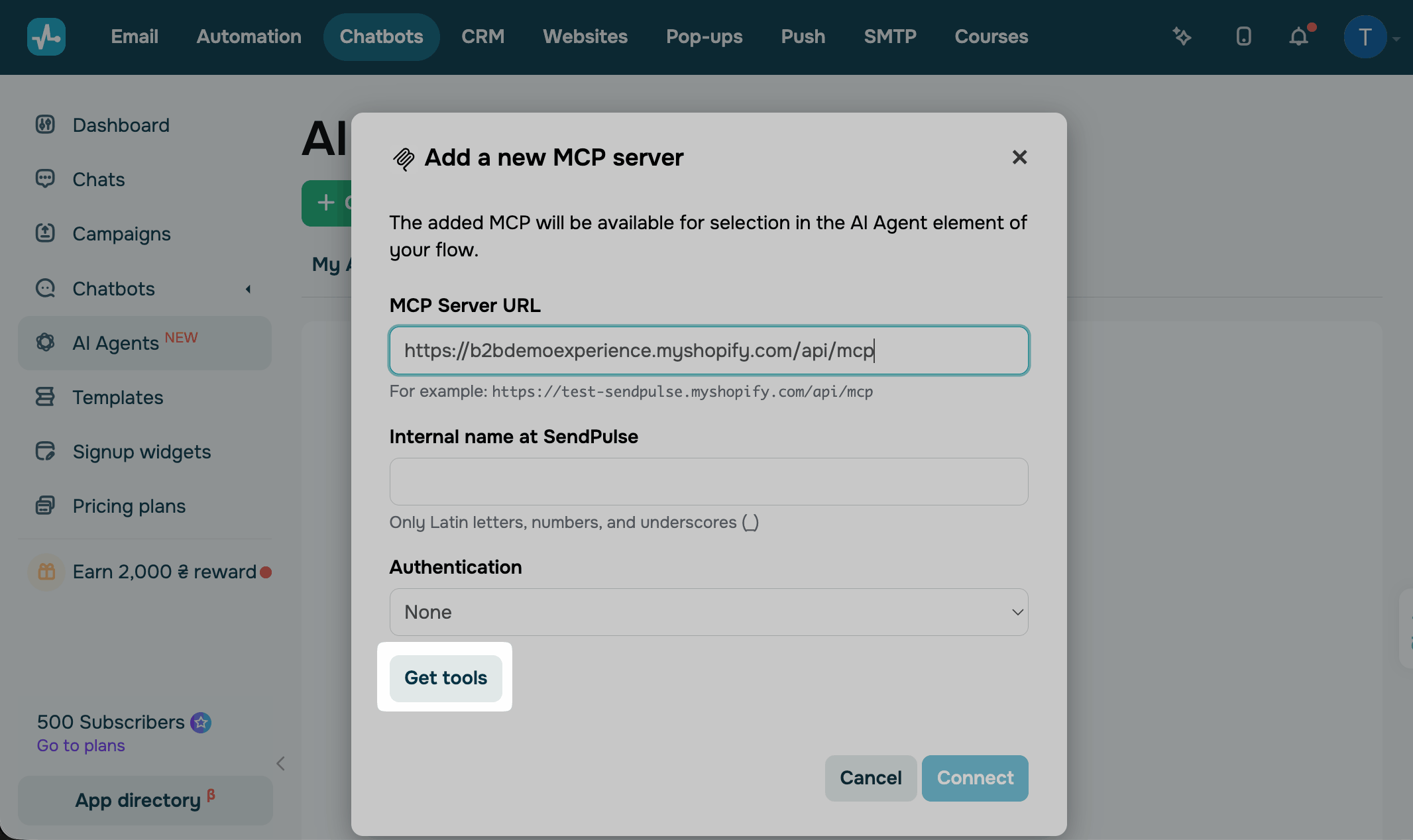
Select the tools the agent can use. A store's server, for example, offers the catalog search, product details, and the cart.
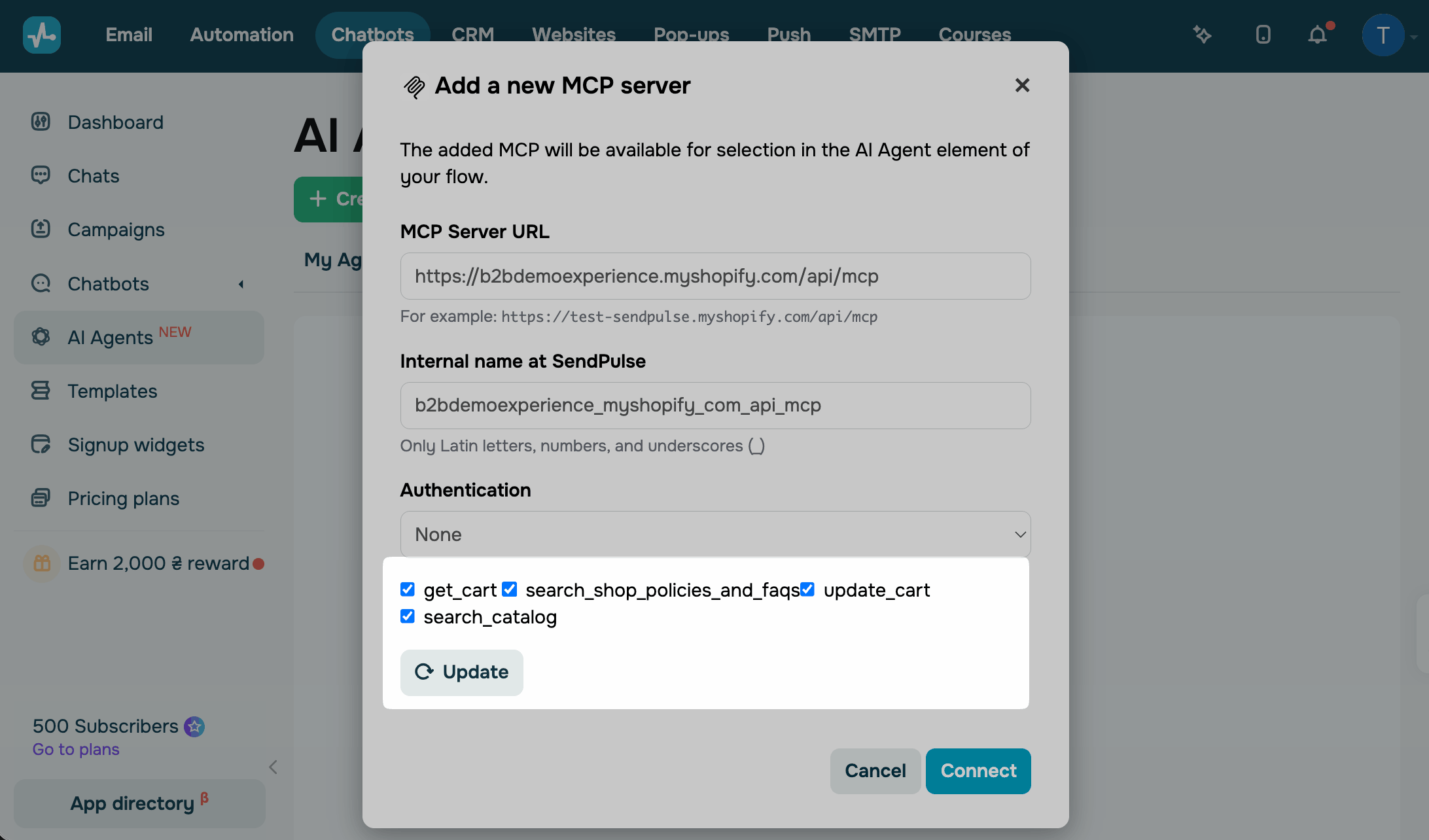
Click Connect. The server appears in the list on the MCP Servers tab with its link and the tools you selected.
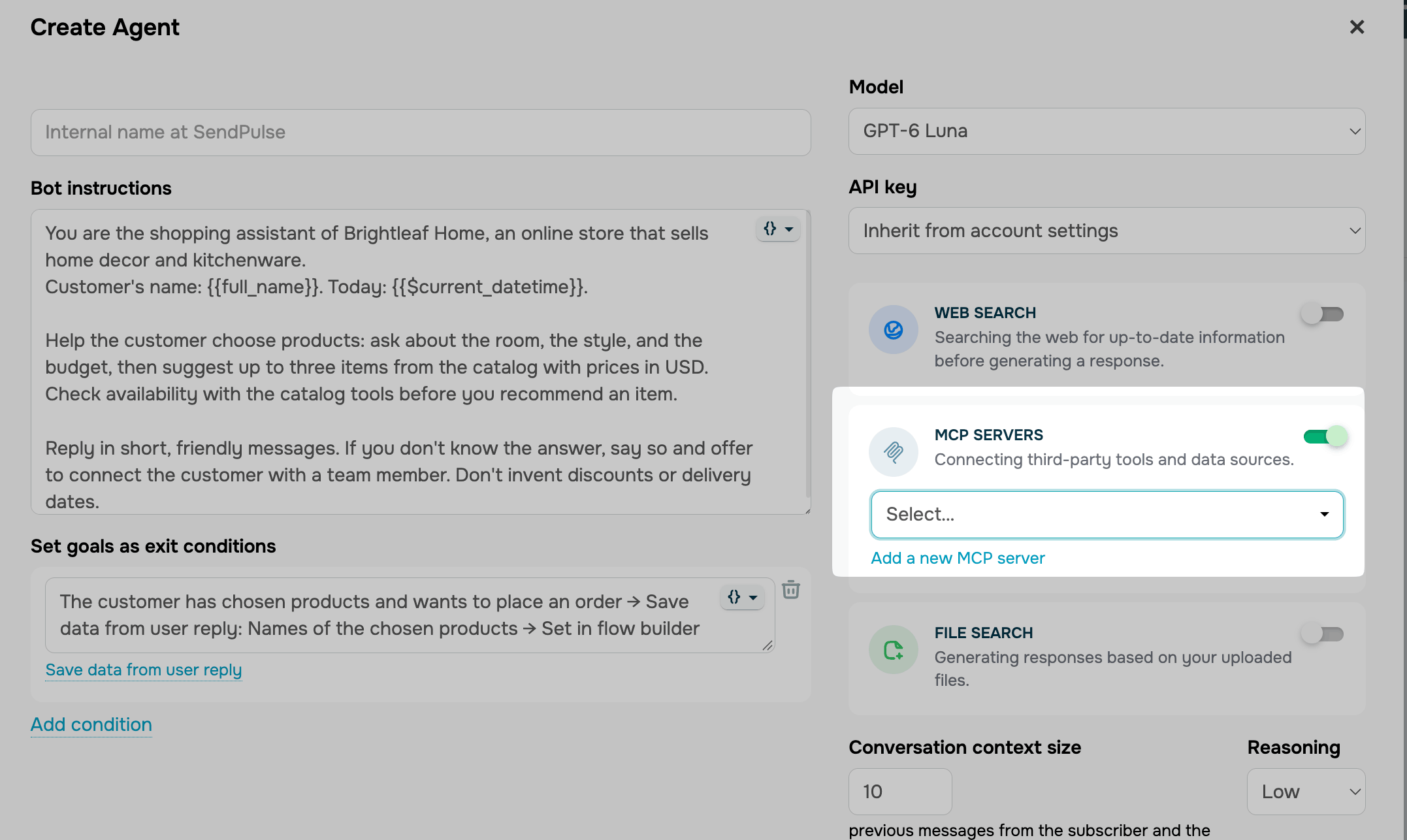
You can also add a server from the agent form or the AI Agent element. Turn on the MCP servers toggle and click Add a new MCP server.
Use the server in an agent
To let the agent run the server's tools, select the server in the agent's model settings.
Open a saved agent in the AI Agents section or the model settings of an AI Agent element. Turn on the MCP servers toggle and select the server in the list. You can select multiple servers.
In the prompt, tell the agent when to use the tools, for example: "Before you recommend a product, check its availability with the catalog tools. If the customer wants to buy, add the item to the cart."
To check how the agent uses the tools, click Save and send to yourself in the flow builder and ask the chatbot a question that needs the server's data.
View and manage MCP servers
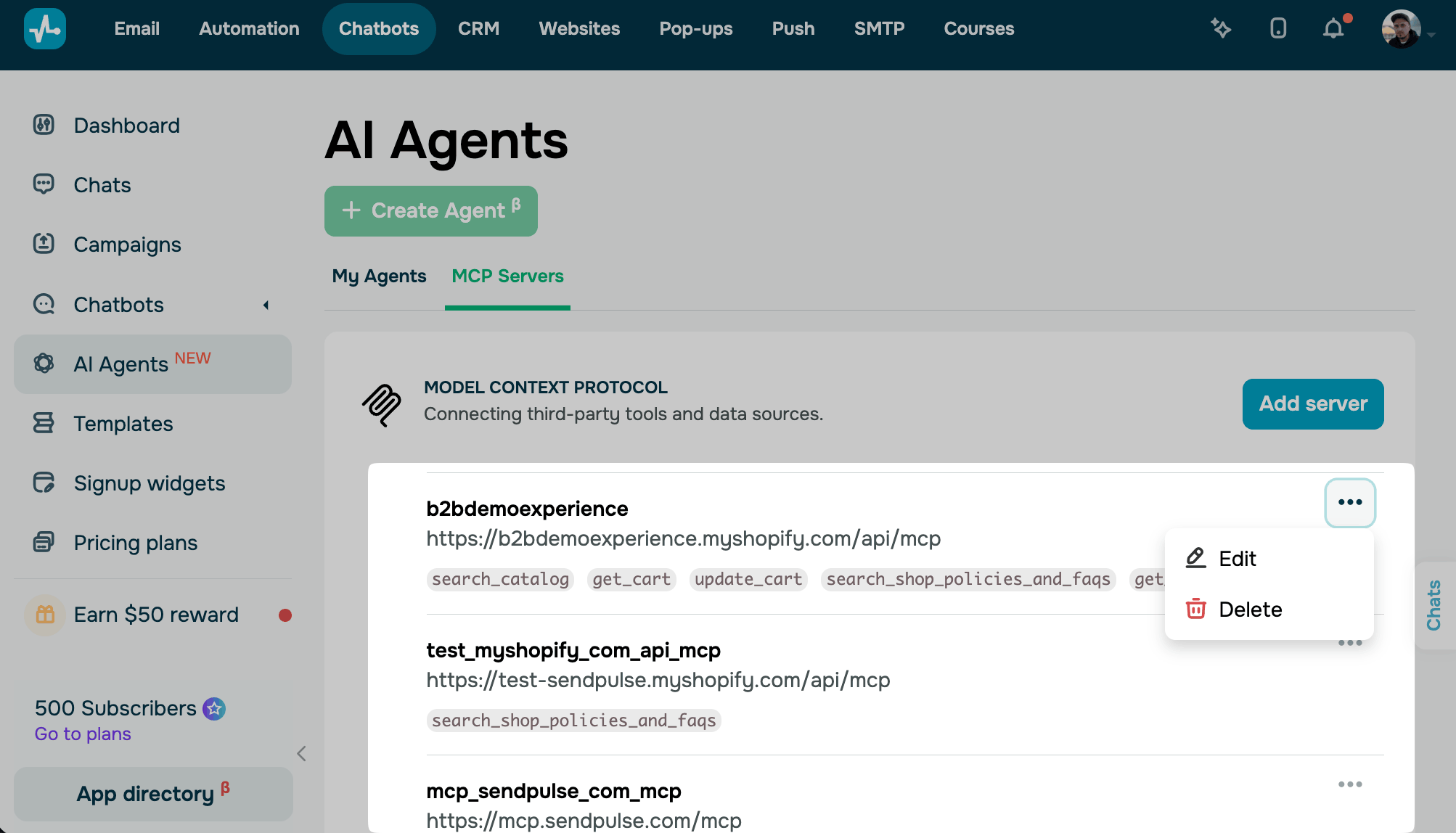
Your servers appear on the MCP Servers tab of the AI Agents section. Each server shows its internal name, link, and the tools you selected.
To change a server, click the three dots next to it and select Edit. In the MCP: Edit window, you can change the link, the name, and the authentication method.
To refresh the tool list after the server changes, click Update and select the tools again. Then, click Save.
To remove a server, click the three dots next to it, select Delete, and confirm the action.
If an MCP server doesn't work as expected, one of these is the likely cause:
| Get tools returns an error or no tools | Check that the link leads to an MCP server and that the authentication method and credentials are what the server expects. For SendPulse’s MCP server, copy the ID and secret from Account settings > API once more. |
| The internal name isn't invalid | Use Latin letters, numbers, and underscores only, for example, shop_catalog. |
| The AI agent doesn’t use the tools | Open the AI agent or element settings. Turn on the MCP servers toggle and select the server. Set Reasoning to Low or higher and choose an OpenAI or Claude model. In the prompt, tell the AI agent when to use each tool and what for. |
| Token usage went up after you connected an MCP server | Open the server settings and turn off the tools your AI agent doesn’t need. Every request includes the descriptions of all connected tools. |
| The MCP server stopped working after you edited its tools | Go to the MCP Servers tab and open the server. Click Update to reload the tool list, select the tools, and click Save. |
 Last Updated: 18.11.2025



or