Merge deals
You can remove duplicate deals to keep your CRM data up to date, avoid confusion, and simplify deal management for your team. The system detects duplicates and merges them into a single record based on specific parameters, such as deal names, amounts, contact details, or assignees.
In this article, we will talk about how to find and merge duplicate deals.
To remove duplicates, go to the Deals section and click Duplicates.
Automated deal merge
You can merge deals based on specific criteria.
Select merge criteria
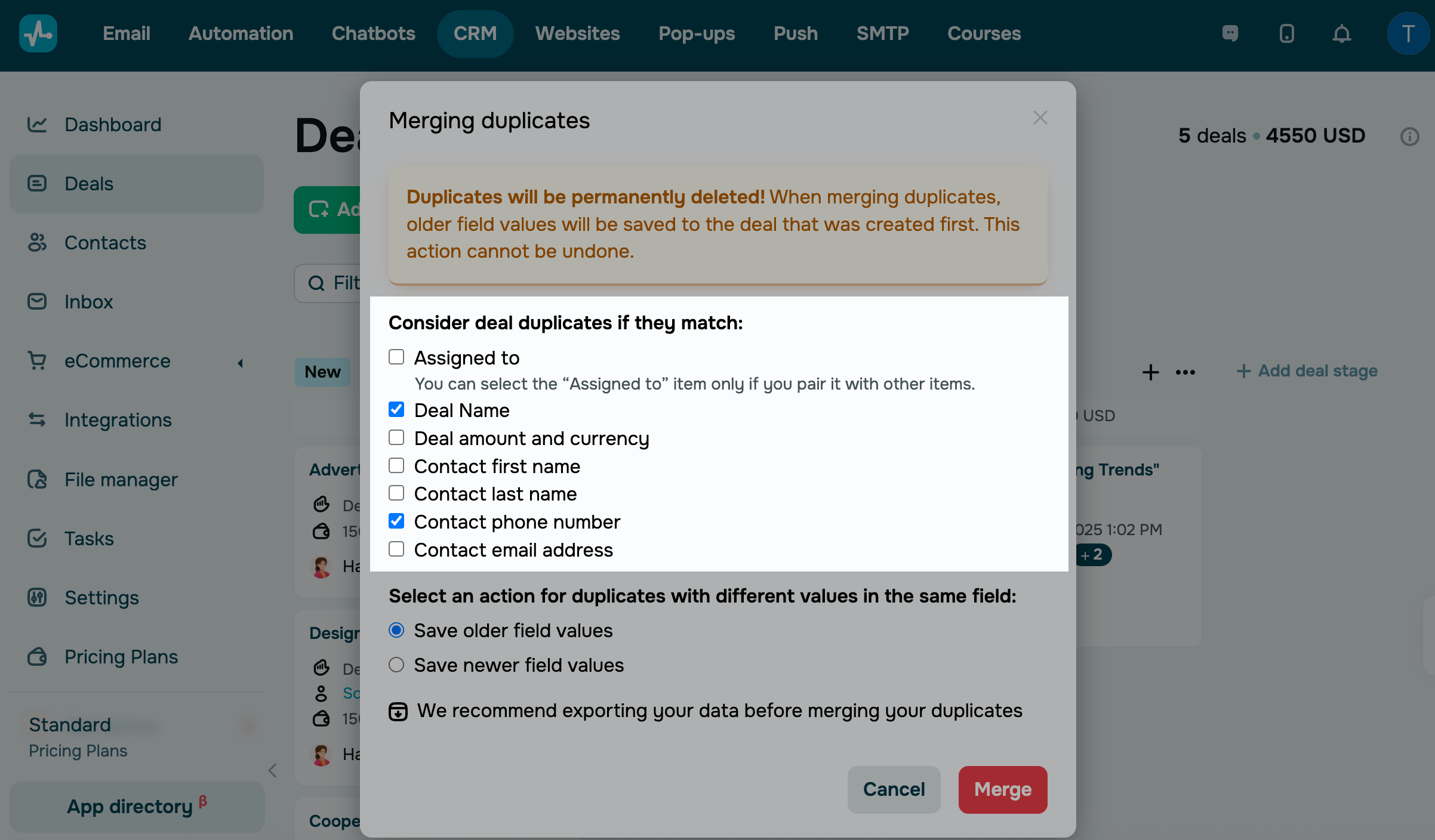
In the modal window, select a parameter to merge deals:
- assignee (to use this option, choose at least one other criterion);
- deal name;
- deal amount and currency;
- contact first name;
- contact last name;
- contact phone number;
- contact email address.
You can select multiple merge criteria, but the deals will be merged if all the specified conditions match. For example, if you select a contact name and phone number as conditions, and the system finds two deals with the same name but different phone numbers, these deals will not be merged. The duplicate will be deleted only if both the name and phone number are the same.
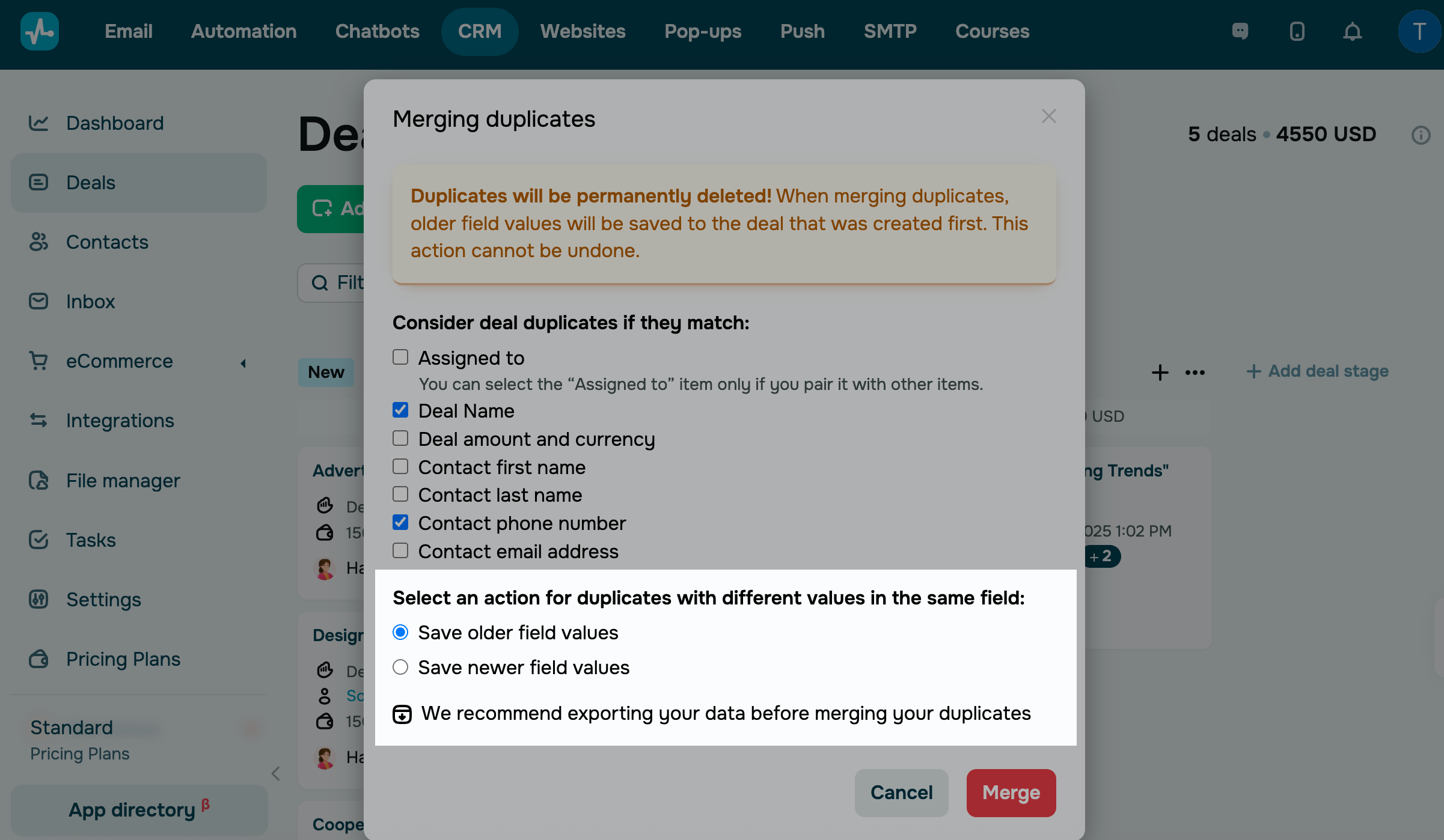
Choose an action for mismatched fields
This action applies only to deals with different values in the same field.
Select what to do with your duplicates during the merge.
| Save older field values | This option will save the oldest values among the fields that differ from your merged deals. The data will be merged into the oldest deal, and the oldest information in the fields will be saved. |
| Save newer field values | This option will save the newest values among the fields that differ from your merged deals. The data will be merged into the oldest deal, but the most recent information will be saved to the fields. |
You can process up to 10,000 deals during one removal session.
If your deal has hidden fields, the system automatically fills them with values from the deal you selected as the primary one during merging.
Merge duplicates
Once you finish with the settings, click Merge. You can go to other sections and pages — the merge will not be interrupted.
Once a deal merging starts, it cannot be canceled. This process can be interrupted but not reversed.
You can also view your merging history.
Manual deal merge
The CRM system helps you merge deals manually if you want to combine specific deals and decide which data points to keep.
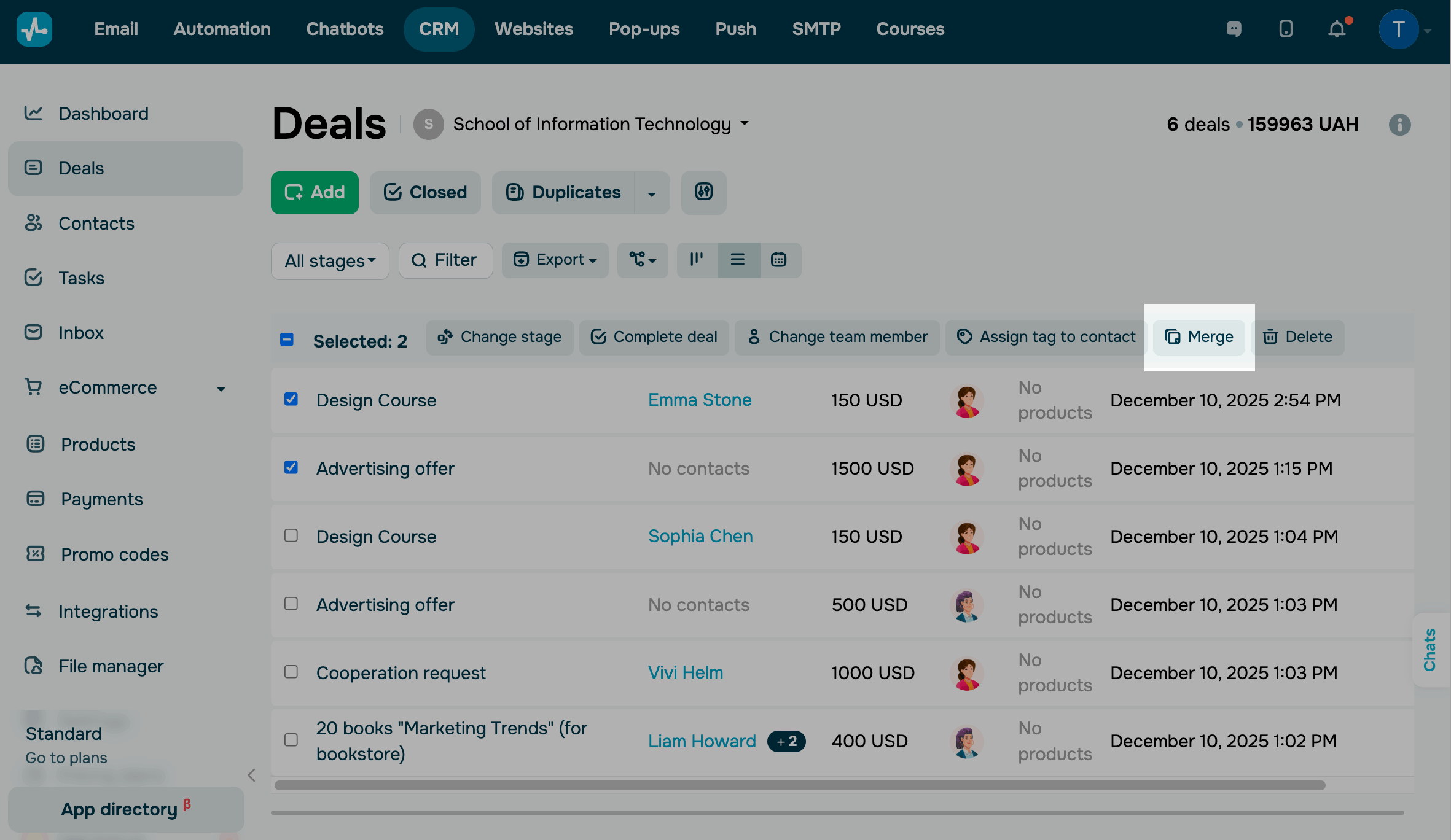
Go to your pipeline and switch to the List view. Select two to five deals and click Merge.
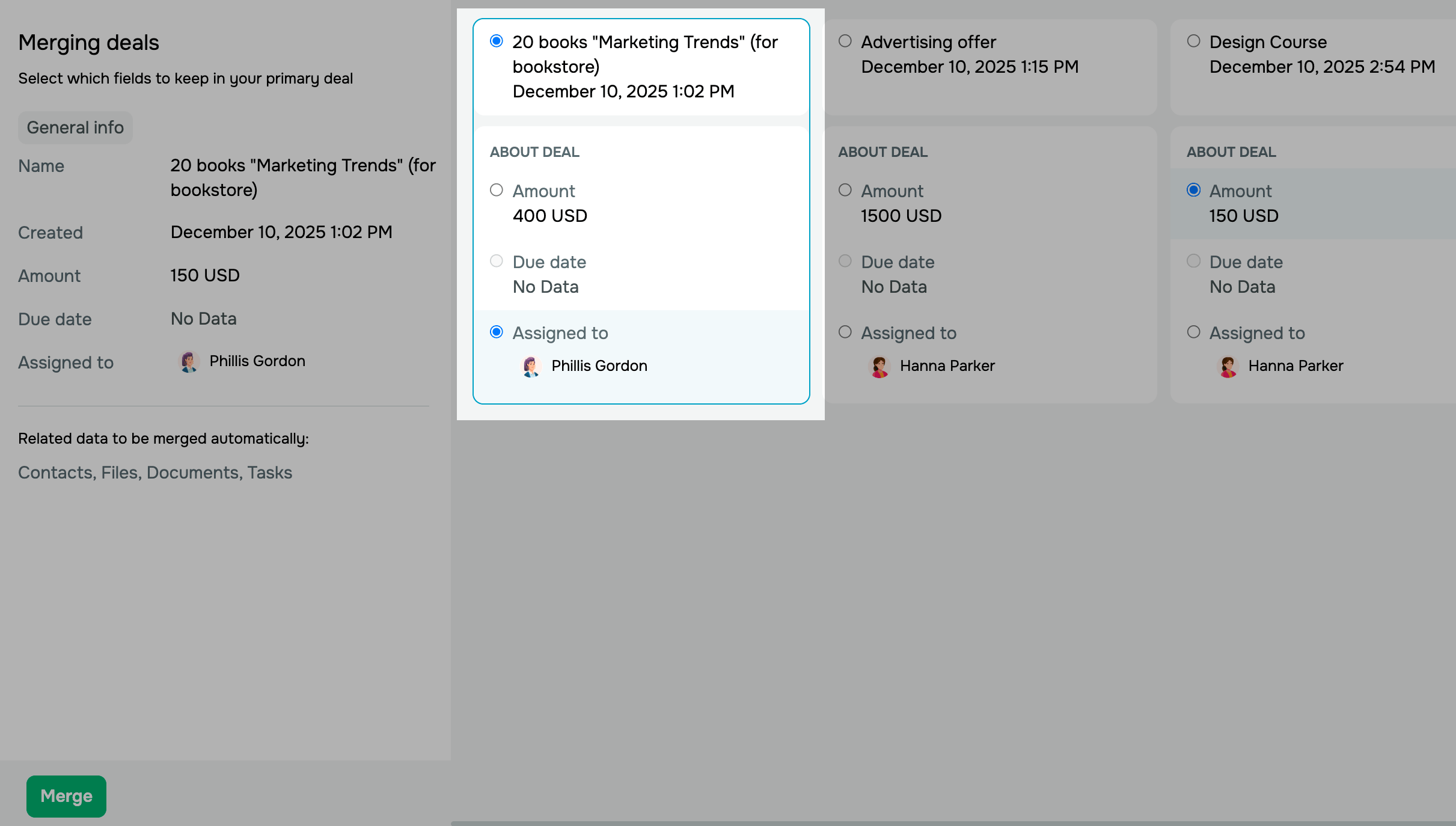
In the modal window, select the primary deal. Data from the other deals will be moved into it. Then, decide which field values to keep.
To illustrate, you can have one primary deal that retrieves the price and assignee from other deals. On the right, you can see the data your primary deal will include after the merge.
Click Merge. Once you confirm the merge, it will run in the background.
Deals can be merged only if they have the same currency.
Results of manual and automated merges appear in your duplicate history.
 Last Updated: 20.01.2026





or