Element Assigments in course builder
Homework assignments help assess students’ comprehension of your course. You can add assignments to every lesson, accept submissions manually or automatically, and leave comments to give feedback.
In this article, we’ll talk about how to create course assignments and accept submissions automatically.
Add the Task element
If you add homework after a lesson, you can check how your students mastered this one lesson.
If you add homework after the final lesson, you can check how your students mastered the entire course. For example, you can ask them to create a diploma project based on your course materials.
Drag and drop the Task element under your primary lesson material, and enter your task description and requirements in the text field.
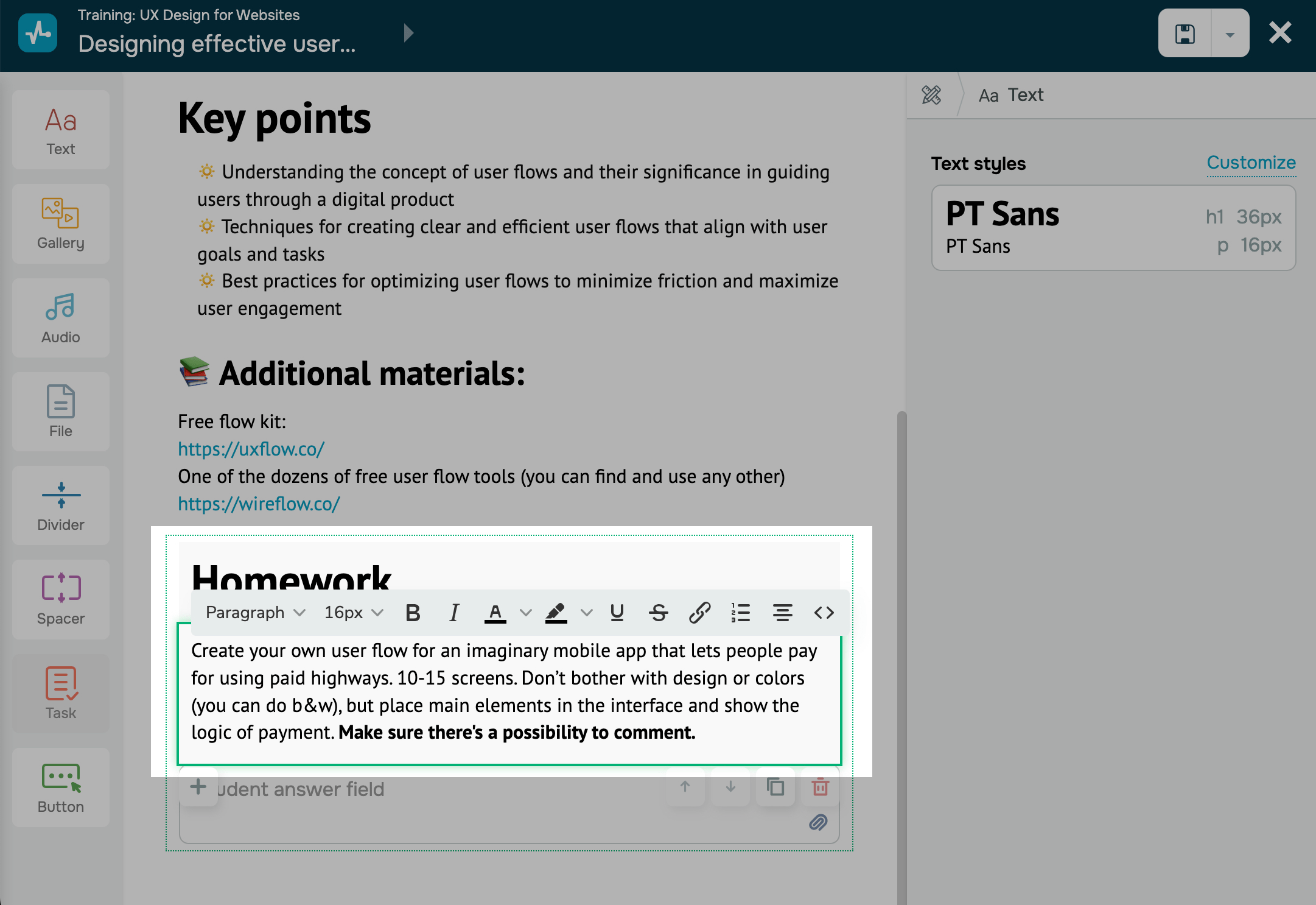
If you have a big task description, format your text to improve its readability. For example, you can add headings, change your font size, apply bold, italic, or strikethrough, change your text color, add a link, and create a list.
To format your text, select it, and choose a tool from the toolbar.
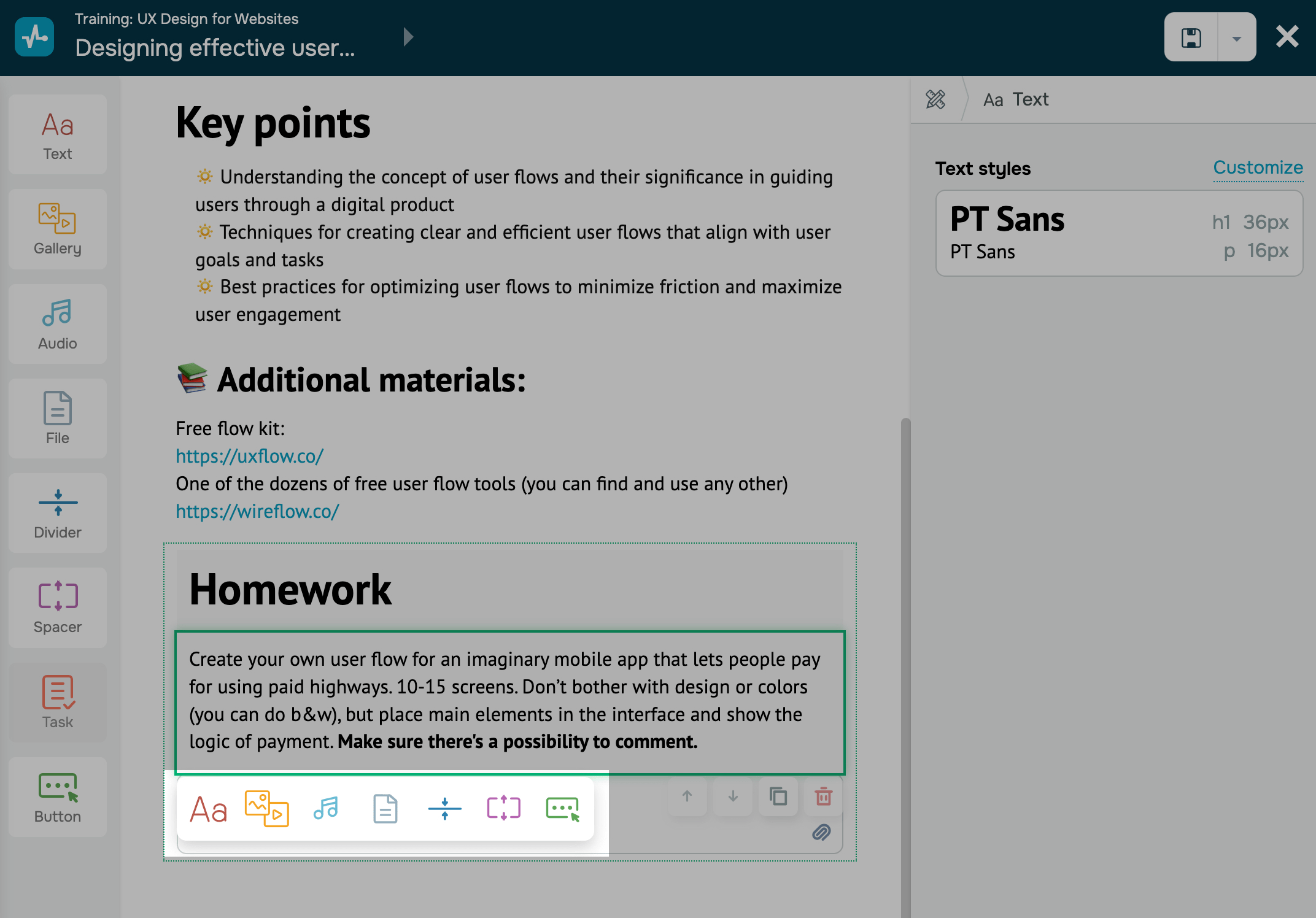
You can also add additional elements to your task: text, image, audio, file, divider, and spaces.
You can add several tasks to one lesson. If your course is sequential, students will not be able to continue studying until an instructor grades all their assignments.
Set up assignment options
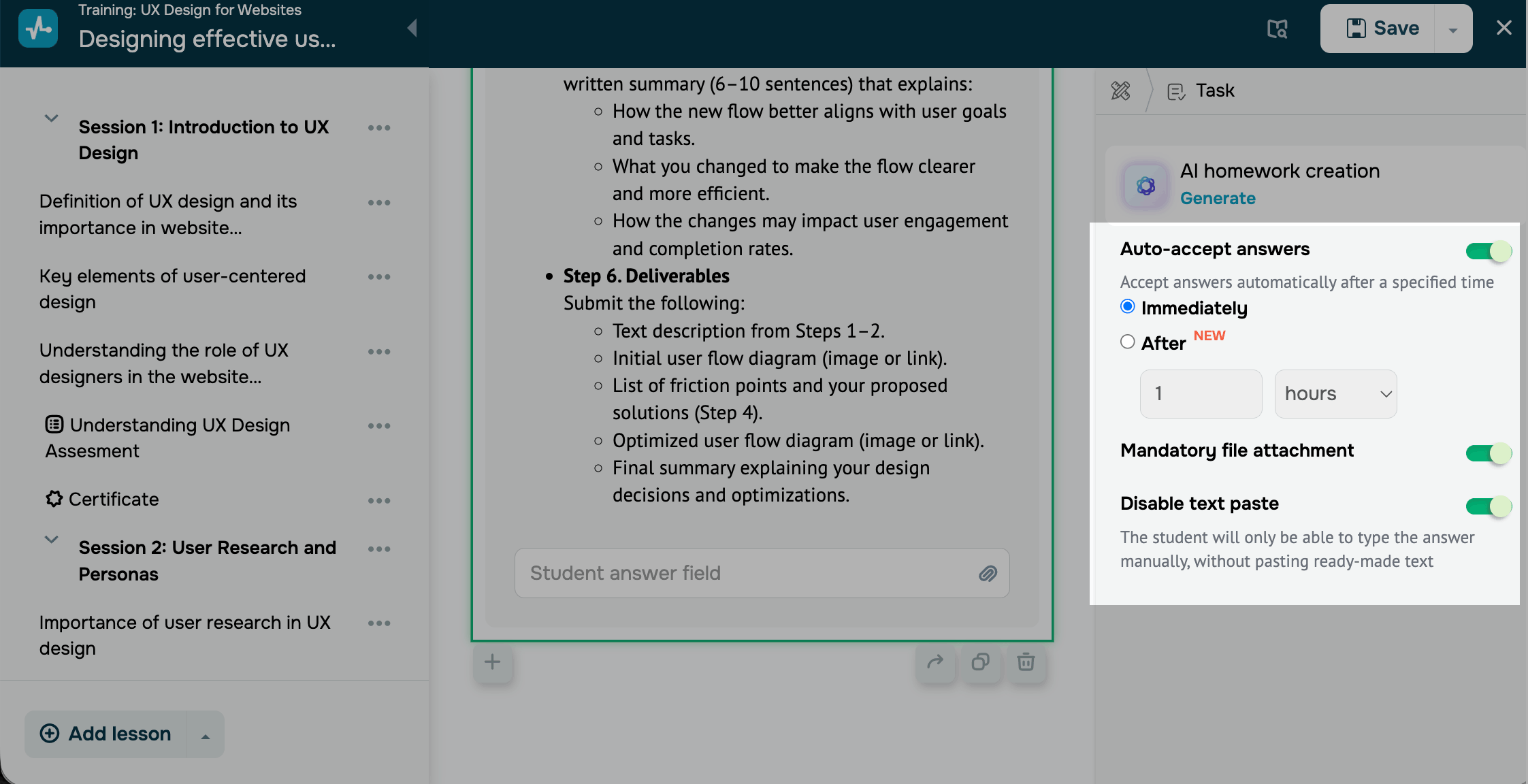
You can configure assignment submission and approval settings. To apply an option, turn on its toggle in the panel on the right:
| Auto-accept answers |
Accepts answers automatically, so you don't need to grade simple assignments manually. Select when to accept an answer after submission: Immediately — right after the student submits it. After — once the selected amount of time passes, from 5 minutes to 24 hours. When this option is turned off, you can grade assignments manually in the Assignment answers section. |
| Mandatory file attachment |
Requires students to attach a file, such as a presentation or a capstone project, before submitting an answer for review. Available with a paid pricing plan. |
| Disable text paste | Prevents students from pasting copied text into the input field. Students must type their answers manually. |
 Last Updated: 23.05.2025





or