View the Email element statistics
Use the Email element statistics to track how sent emails are delivered and how recipients interact with them.
For example, you can check whether messages were delivered, opened, or clicked, view sending errors, and see the status of each contact in your flow.
Let’s go through how to view and interpret the Email element statistics.
View the Email element statistics
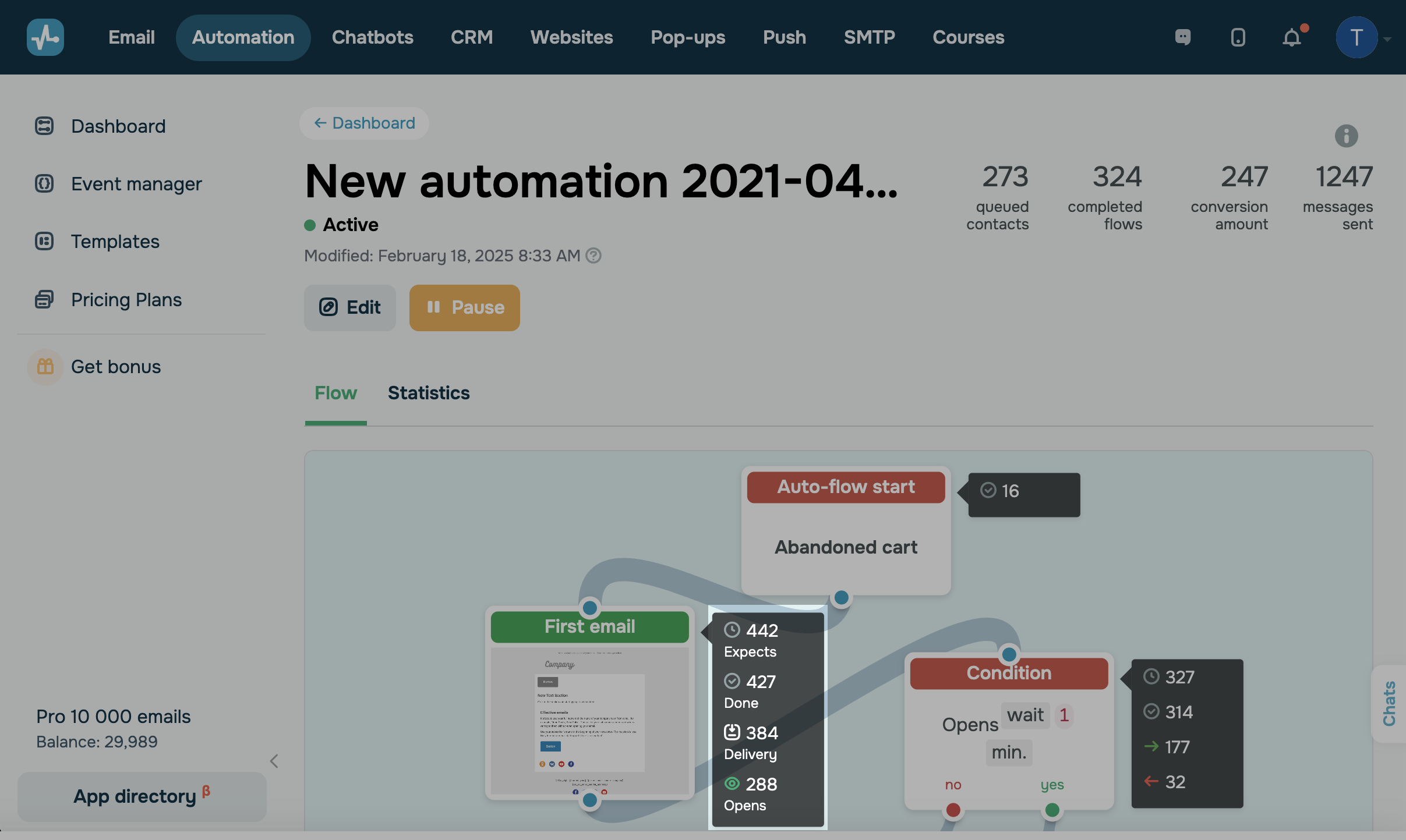
To view detailed statistics by email addresses, hover over the desired Email email.
Your element can have the following statuses:
| Expects | Contacts are waiting for the element execution time you set in the Complete Action settings, or contacts are waiting to be processed. |
| Done | Your email was sent to the recipient at the specified email address. |
| Delivery | Your email was delivered to the recipient at the specified email address. |
| Opens | A recipient opened your email. |
| Clicks | A recipient clicked through your email. |
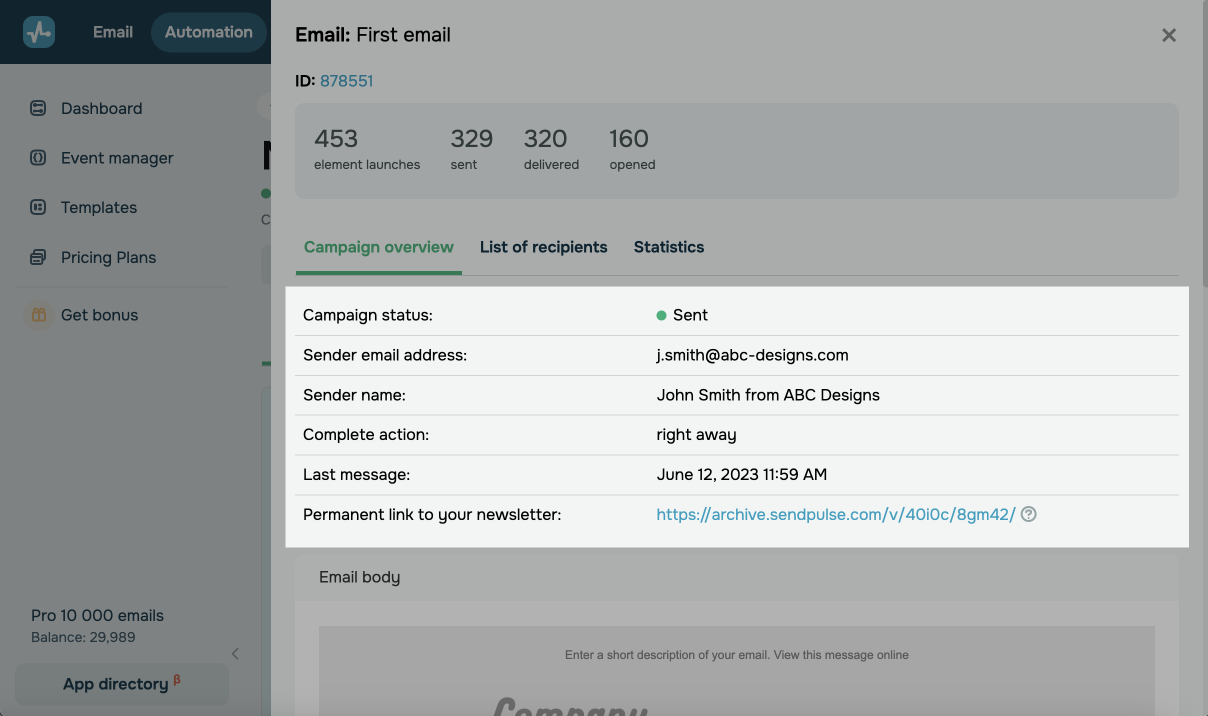
Campaign Overview
On the Campaign overview tab, you will see the general information about it — the status, preheader, mailing list, sender's email address and name, sending time, campaign link, and template.
List of Recipients
You can also view contacts to whom your emails were sent, their delivery status, sending time and date, and time and date when the sending status changed.
Go to the List of recipients tab. To the right of the email address, you can see the sending status:
| Sent, delivery status not known yet | Email sent to the recipient. |
| Delivered | Email delivered to the recipient. |
| Delivered and read | Email delivered and read by the recipient. |
| Delivered, read, clicked a link | Recipient received the email, read it, and followed the link. |
| Delivered, read, user unsubscribed | Recipient received the email, read it, and unsubscribed via the link. |
| Marked as spam by user | Recipient received the email and marked it as spam. |
| Invalid email | Recipient's email address is incorrect. |
| Mailbox is full | Recipient's mailbox is full. |
| Spam by server | Email was rejected by the server. |
| Domain does not exist | Recipient's domain does not exist or is incorrect. |
| Bad recipient | Recipient's email address blocked by the service, for example, due to spam reports or emails to non-existent email addresses. |
| Other reasons | Email was not delivered to the recipient for other reasons. |
Statistics chart
On the Statistics tab you can see the statistics of the element in the form of a pie chart and an activity graph.
The Error statistics tab displays a pie chart of email sending errors. You can also click an element ID and start editing the element.
 Last Updated: 06.01.2026





or