View contacts in your mailing list
Use the mailing list view to manage contacts stored in the Email section. This helps you understand your audience and assess contact availability, engagement, and mailing list health before running an email campaign.
Let’s talk about how mailing lists work and how to manage contacts in them.
View contacts
To view contacts in your mailing list, go to Email > Mailing lists tab and select a mailing list.
It shows all subscribers and their information in the following fields:
| Email address | The contact’s email address and subscription status. |
| Phone | The contact’s phone number, if provided. |
| Tags | Labels used to categorize and filter contacts. |
| Rating |
A star-based rating that reflects contact value or engagement. Ratings don’t affect automated campaigns. They help you quickly compare contact activity. |
| Last activity | The date and time of the most recent interaction. |
| Added on | The date the contact was added to your mailing list. |
| Custom variables | Other fields created in your mailing list, such as name, city, or customer type. |
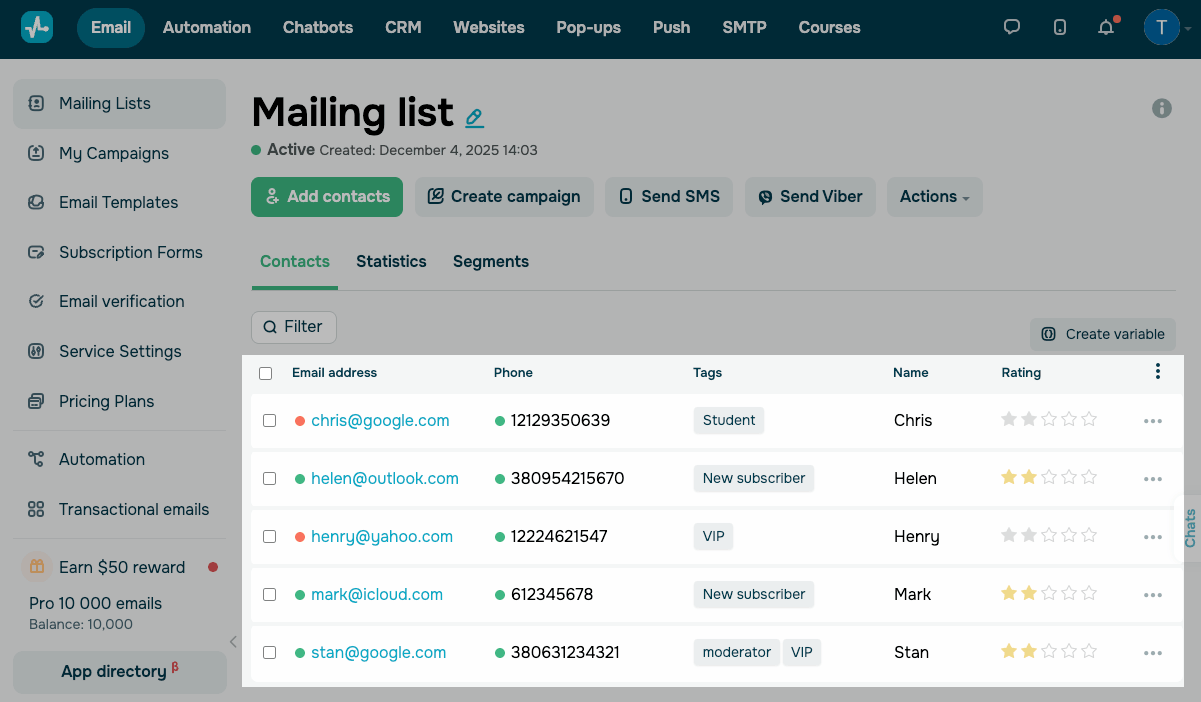
In the Email address column, a colored dot shows the contact status. Contacts can have the following statuses:
| New (green dot) | The contact was recently added and has not received any campaigns yet. |
| Active (green dot) | The contact is confirmed and can receive campaigns. |
| Disabled (red dot) |
The contact cannot receive campaigns due to system, user, or moderation restrictions. Use Filter > By status to see why the contact was disabled. |
| Excluded | The contact was excluded from campaigns. |
Filter contacts
To find specific contacts in your mailing list, click Filter. You can apply the following filters:
| From | Shows contacts added to your mailing list on or after the selected date. |
| To | Shows contacts added to your mailing list on or before the selected date. |
| Only with phones | Shows contacts that have a phone number. |
| Search by email | Shows contacts by email address. |
| Search by phone | Shows contacts by phone number. |
| Subscriber ID |
Shows contacts using their unique subscriber IDs. To find a subscriber's ID, open your mailing list and click the contact's email address. On the page with subscriber details, you will see the numeric ID value in your browser’s address bar. |
| By status | Shows contacts by their subscription status. |
| By tag | Shows contacts with a specific tag. |
| By verification status | Shows contacts by email verification state. |
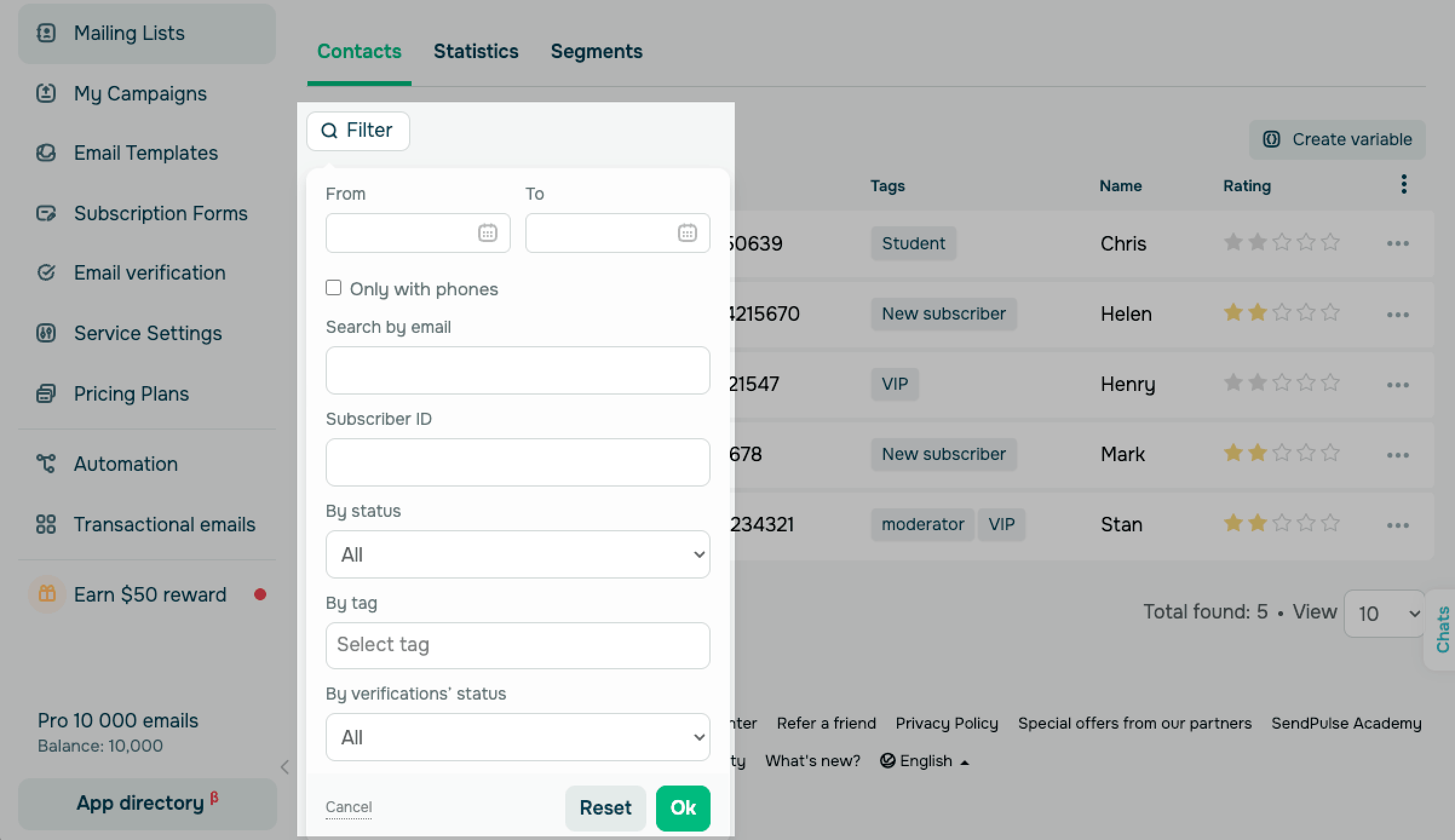
To apply filtering, click Ok. To clear all applied filters, click Reset.
Manage columns
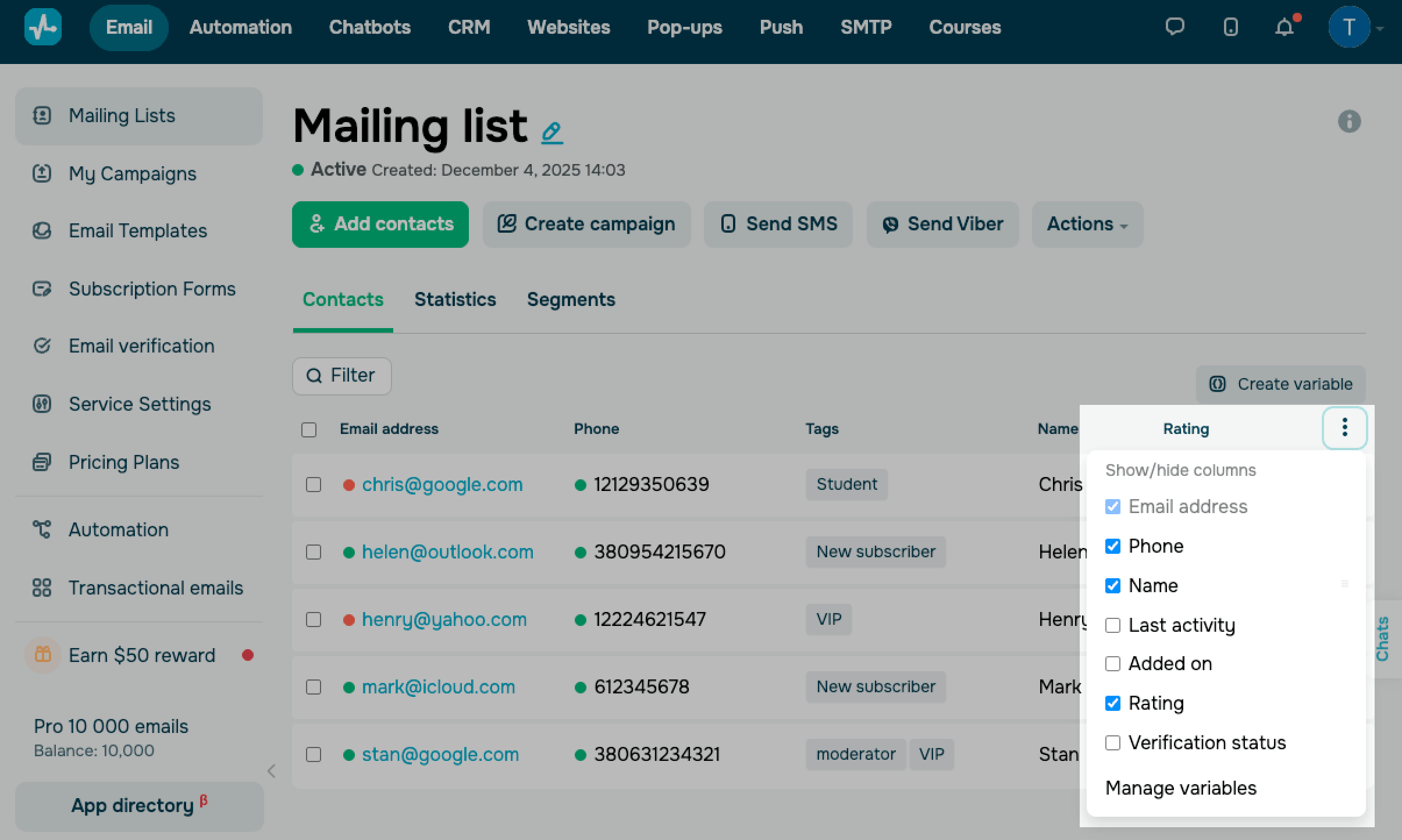
To control column visibility, click the three dots on the right. In Show/hide columns, select a checkbox to show a column. You can also hide a column by clearing the checkbox.
To control which variables subscribers can edit on the subscription management page, click Manage variables and select variables.
You can edit only users' personal data. You can not change their email addresses or system data.
 Last Updated: 15.01.2026





or