Add custom code to a specific website page
In SendPulse, you can add third-party scripts or required SEO tags to specific website pages, including analytics, widgets, chatbots, or integrations. This helps you extend your website’s features without changing its structure.
In this article, we will talk about how to add custom code to a website page.
Go to page settings
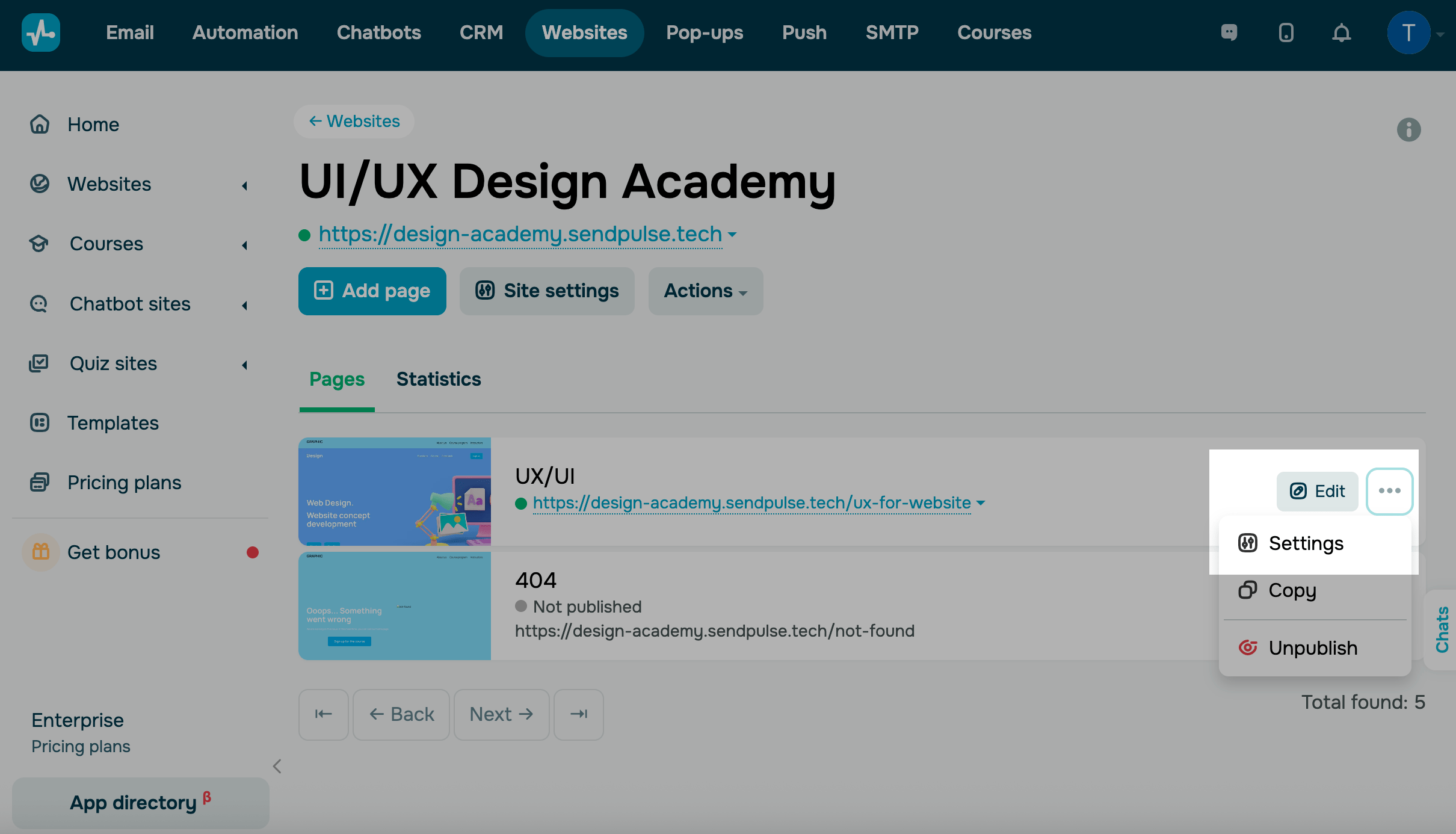
Go to Websites and select your website. On the page list, click the three dots next to the page where you want to add code. Select Settings.
Paste the code
In the modal window, open the Custom code tab.
Choose how you want to add the code and paste it into a field:
<head> |
Use this option when the code must load before your page appears. Add analytics, SEO tags, verification codes, fonts, CSS, global settings, or scripts that need to run immediately. |
|
<body> |
Use this option when the code can run after your page loads. Add pop-ups, third-party widgets, interactive elements, buttons, and scripts that run after your page loads. |
|
Click Save.
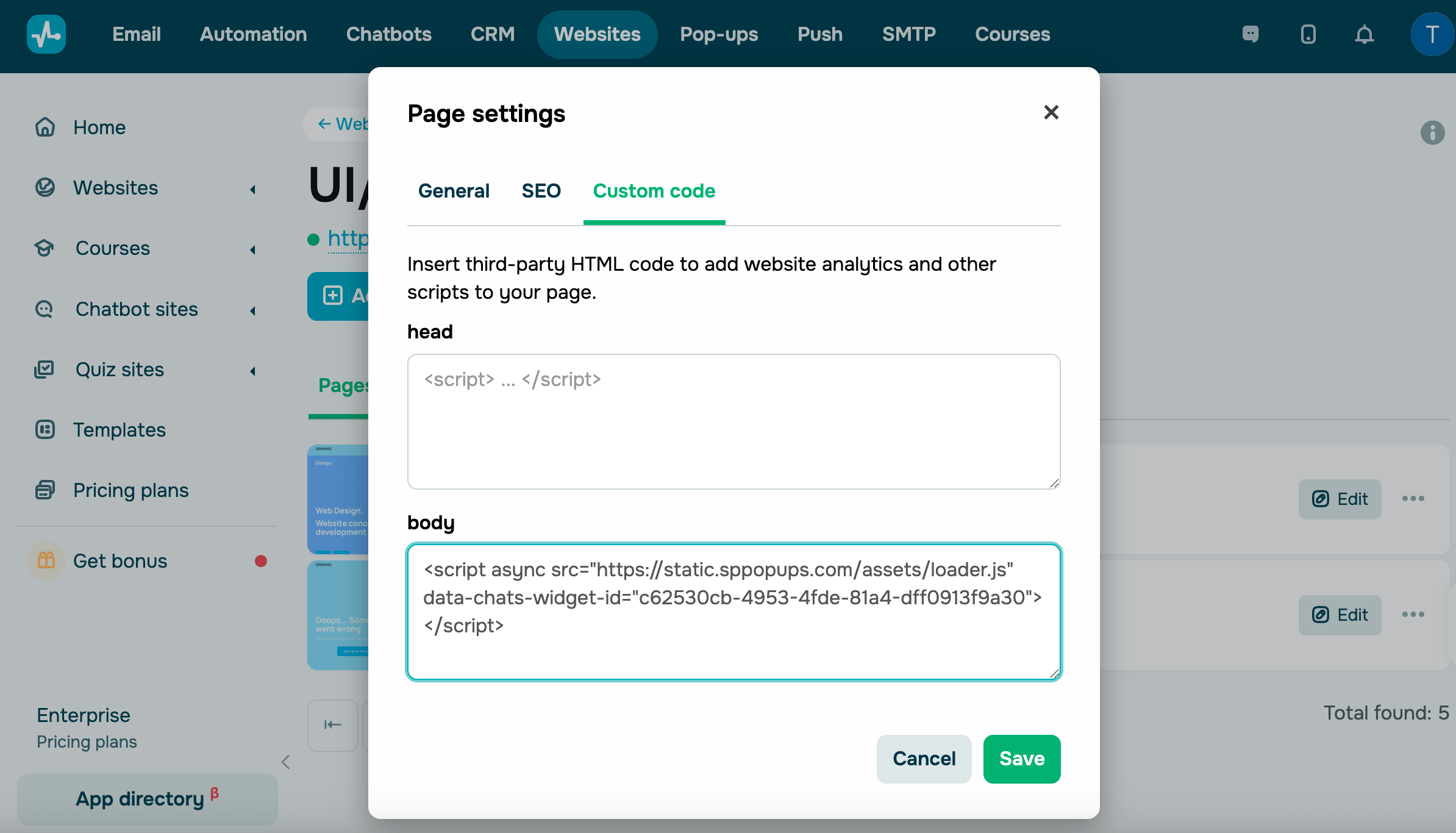
To remove the code, go to Page settings > Custom code, delete the added code, and click Save.
 Last Updated: 04.12.2025





or