Adjust element width
Element width affects how your content looks on the page, from text spacing to image and button arrangement.
In this article, we will talk about how to adjust element width using spacing, separators, and layout ratios.
Spacing
Your content width is affected by the padding and margins you set when editing a block, column, or widget.
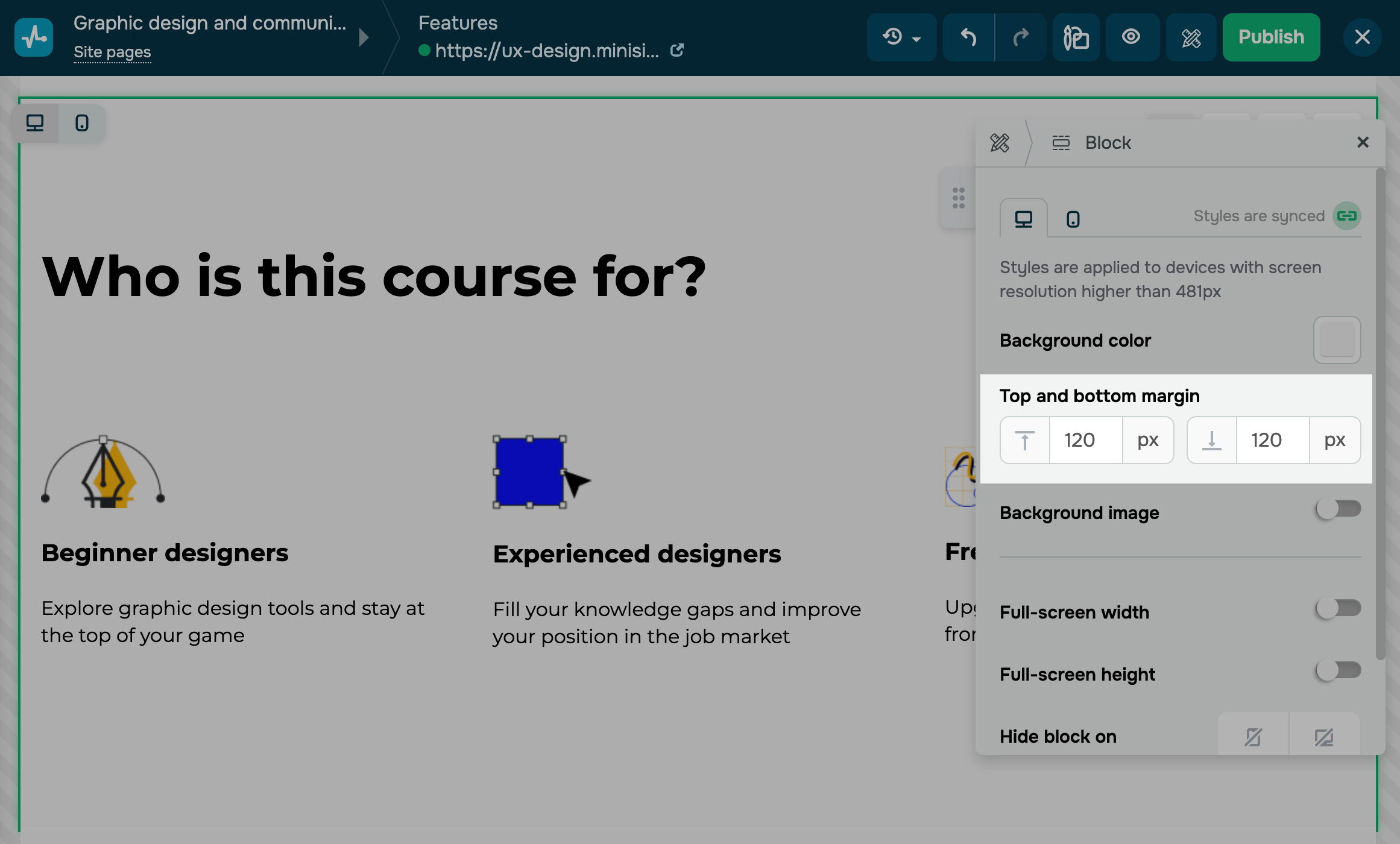
For blocks, in the Top and bottom margin setting, you can add external margins at the top and bottom. You can set the value from 0 to 240 px.
In the Left and right margin setting, set the block’s outer spacing on both sides from 0 to 240 px.
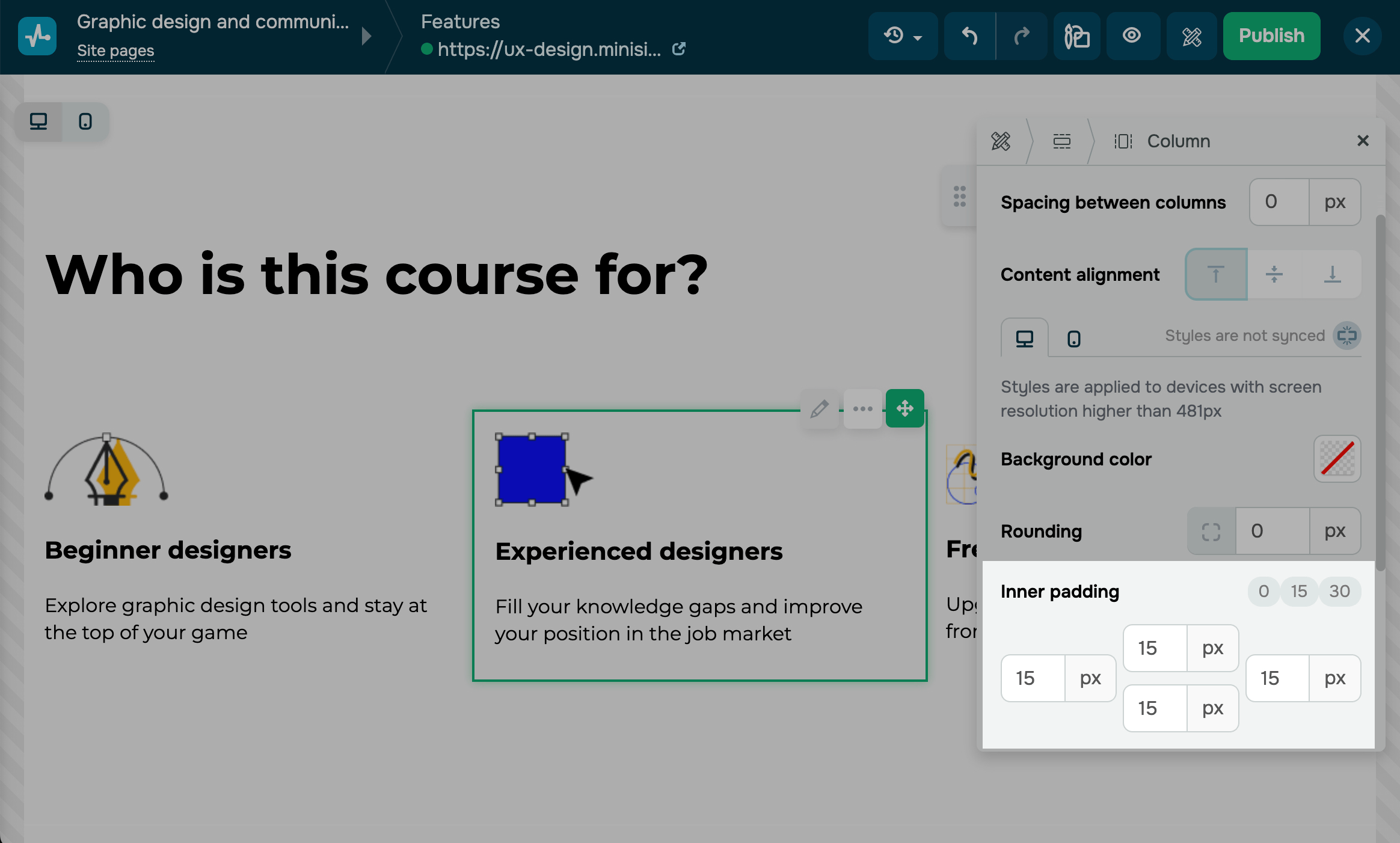
For columns, you can set horizontal external margins in the Spacing between columns setting and internal margins in the Inner padding setting.
For some widgets, in the Inner padding setting, you can add internal padding between elements on the right, left, top, and bottom.
You can adjust the Y and X widget spacing to spread out your layout elements.
Separators
You can also separate website elements by adding the Spacer widget or the Divider line. For example, you can use these to separate your main screen from the section that highlights your product or service benefits.
Column ratio
As you add elements to your page, column widths will become evenly spaced across the section. You can also adjust column widths to create your preferred content layout.
Turn on the Flexible column ratio toggle. Then, move the column divider.
This setting adjusts all column widths in a section. Increasing one column’s width will proportionally reduce the others. You can change the width in sections with two, three, or four columns. However, if you add five or six columns, you won't be able to adjust their widths.
Layout ratio
You can modify layout elements' sizes to place them outside the grid. Hover over an element border, click and hold the slider, and drag it left or right. All other elements within the row will automatically adjust to the new size.
Widget width
You can stretch your content to full-screen width using the Full-width block option. This will not change the overall width of your page.
For some widgets, such as Text, the Width setting allows you to specify a percentage to control how much of the element's width will be filled with content.
 Last Updated: 18.07.2025





or