Use saved replies in chats
Saved replies are reusable message templates you can insert into a chat instead of typing the same reply repeatedly.
For example, you can save a greeting or a reply about delivery terms and insert it whenever needed.
Let’s talk about how to insert a saved reply in a chat and manage your saved reply templates.
Manage saved replies
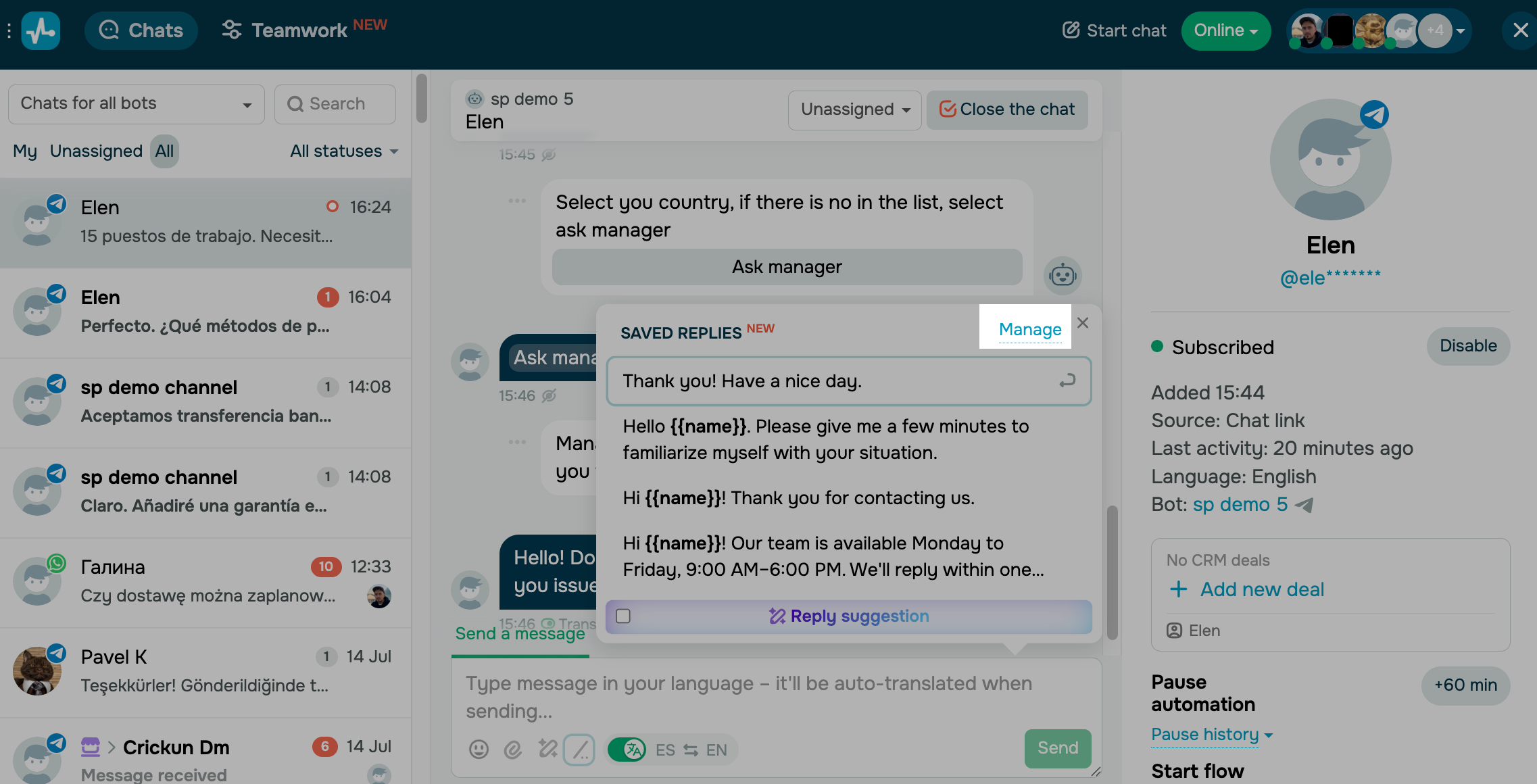
Go to the Conversations section and find a chat with a subscriber. To view, add, edit, or delete saved replies, go to Saved replies and click Manage.
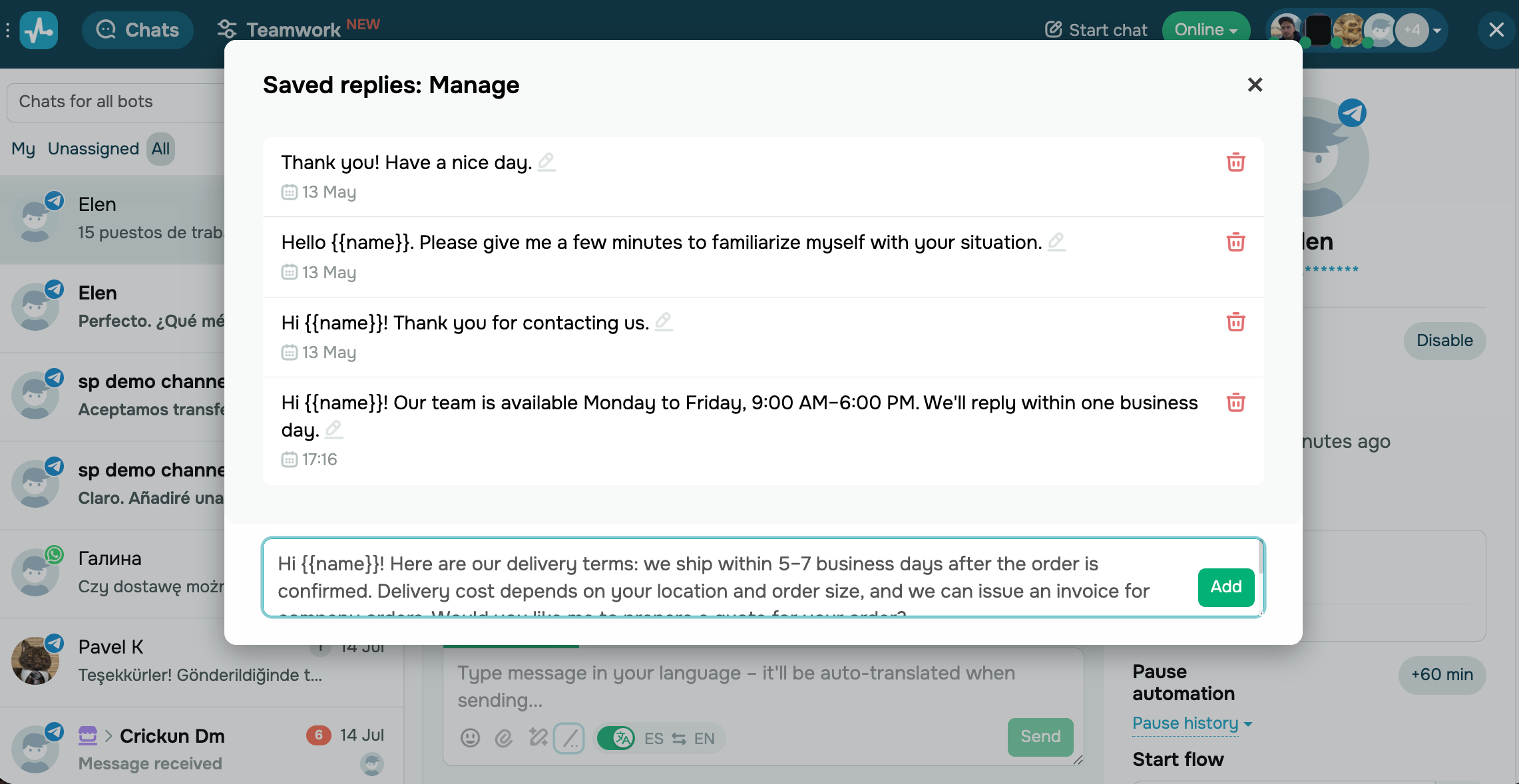
The Saved replies: Manage window shows all saved replies with the date each one was added.
To add a new saved reply, type it in the field at the bottom of the window, then click Add.
Saved replies support custom and system variables, such as {{name}} and {{sp_assignee}}.
To edit a saved reply, click the edit icon next to it. To delete a saved reply, click the trash can icon next to it.
Insert a saved reply
Go to the Conversations section and find a chat with a subscriber. In the input field, click the Saved replies icon or type in a slash /.
In the window that appears, press the Up and Down keys to select a reply, then press Enter to insert it into the input field.
 Last Updated: 17.07.2026


or