Send SendPulse chatbot events using Conversions API
Use the Conversions API to send conversion events from your Messenger, Instagram, or WhatsApp chatbot to Meta Ads Manager. Meta gets accurate information on your click-to-messaging ads and shows them to users who are more likely to convert.
For example, an online school can send a lead event to Meta when a team member assigns the qualified tag to a subscriber. Then Meta can optimize its ads for qualified leads, not for started conversations.
Let’s talk about how to connect the Conversions API, choose which events to send, test your setup, and view sent events.
Choose how to send events
You can send events to Meta in the following four ways and combine them as needed:
| Send general events about subscriber activity |
SendPulse sends standard events when a subscriber starts a conversation, shares contact details, or pays. Use this option to get basic events without extra setup. |
| Send automatic events via Conversions API |
Meta identifies leads and purchases in conversations that start from your click-to-WhatsApp ads, and SendPulse sends these events to Meta. This option works only in WhatsApp chatbots. |
| No-code conversion event rules |
SendPulse sends an event when a subscriber gets a tag, a variable gets a specific value, or a WhatsApp template message is sent. Use rules to track key actions without editing your flows. |
| The Goal element |
SendPulse sends an event when a subscriber reaches a specific step of your flow. Use it for more event types, custom events, and event parameters. |
SendPulse sends the same event for the same subscriber only once within 60 seconds. If multiple ways send this event at the same time, Meta receives it once.
Check the requirements
Before you set up the integration, make sure you have the following:
| A WhatsApp, Instagram, or Messenger chatbot |
The Conversions API works in chatbots for these channels. Connect your Instagram chatbot through Facebook Login or Meta for Business. If your chatbot is connected directly through Instagram, click Switch bot to Facebook Login in the Conversions API pop-up window. |
| An ad that leads to your chatbot |
SendPulse sends events only for subscribers who started a conversation from your ad. To create one, follow the steps for WhatsApp, Instagram, or Messenger ads. |
| Full access to your dataset | To use an existing dataset in an Instagram or Messenger chatbot, you need full access to it in your Meta Business Portfolio. |
To check events before you run ads, use test mode in Instagram and Messenger chatbots.
Enable Conversions API
To start sending events, connect the Conversions API in your chatbot settings.
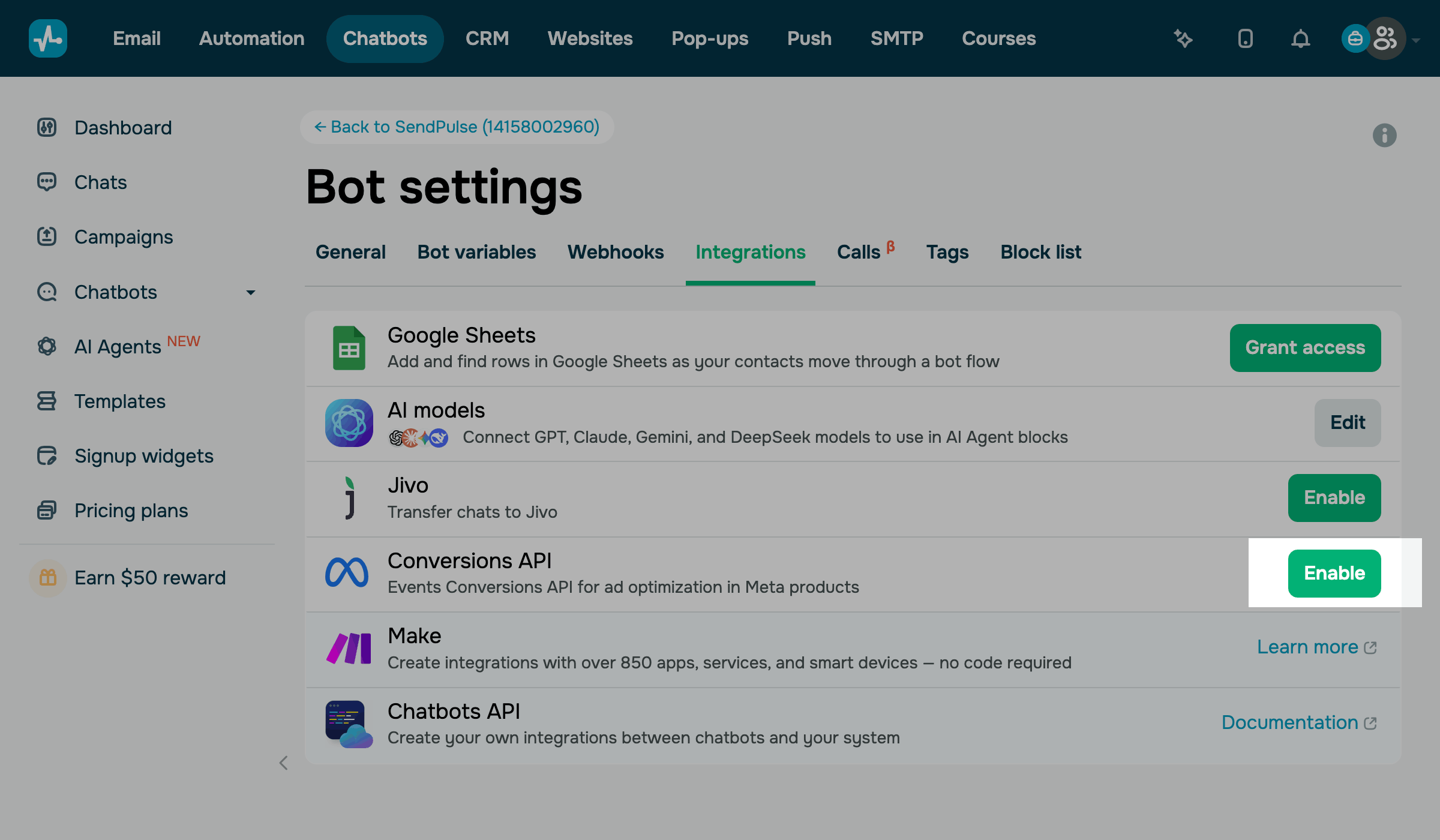
Go to Chatbots, select your chatbot, and click Bot settings. Select the Integrations tab and click Enable next to Conversions API.
In the Events Manager Dataset section, create or specify the dataset that will receive your events.
In WhatsApp chatbots, Meta links a dataset to your WhatsApp Business Account automatically, so you can't change it in SendPulse. To use these events in your ads, select this dataset in your ad set settings.
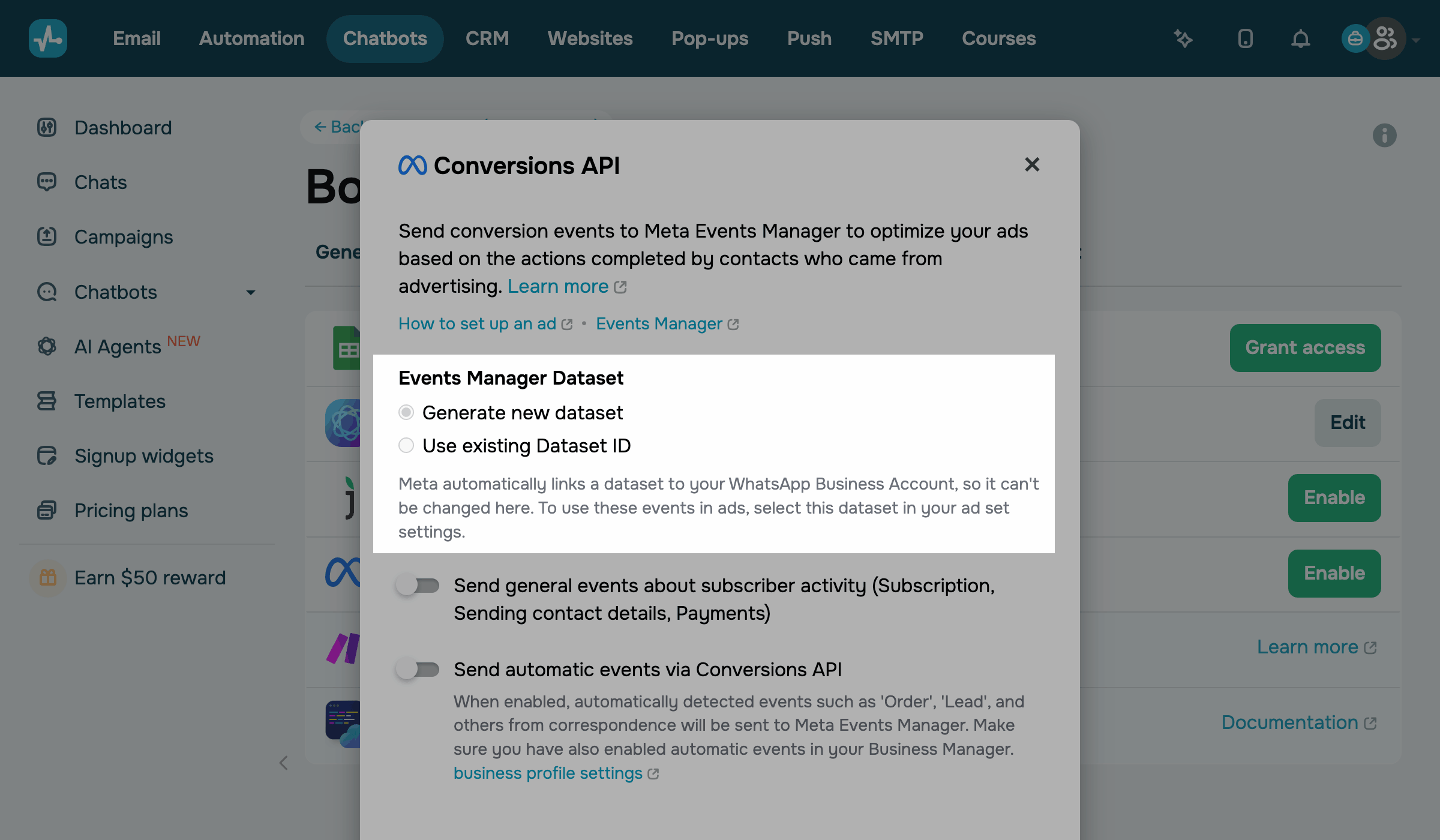
In Instagram and Messenger chatbots, choose one of the following options:
| Generate new dataset | SendPulse generates a new dataset in Meta Events Manager and links it to your chatbot. |
| Use existing Dataset ID | Copy an existing Dataset ID from Meta Events Manager and paste it into the Dataset ID field. |
To find the ID of an existing dataset, go to Meta Events Manager and select your dataset. Under the dataset name, copy the dataset ID.
In the Conversions API pop-up window, turn on the toggles for the events you want to send. To learn what each toggle sends, see Choose how to send events. Then, click Connect.
After connection, on the Integrations tab, the Conversions API row shows Enabled and your dataset ID.
To change the settings later, next to Conversions API, click Enabled and select Edit. To save your changes, click Save.
To turn off the integration, select Disable.
Send events about subscriber activity
General events tell Meta which subscribers took key actions, such as sharing contact details or paying. To send them, in the Conversions API pop-up window, turn on the Send general events about subscriber activity (Subscription, Sending contact details, Payments) toggle.
SendPulse sends the following actions to Meta as standard events:
| Subscription | ViewContent when a subscriber starts a conversation with your chatbot. |
| Sending contact details | LeadSubmitted when a subscriber shares their email address or phone number in response to your chatbot’s question. |
| Payments | Purchase when a subscriber pays through your chatbot. |
Meta Events Manager shows these events in your dataset under the same names.
Send automatic events from WhatsApp conversations
In WhatsApp chatbots, Meta can identify leads and purchases in new conversations that start from your click-to-WhatsApp ads. SendPulse then sends these automatic events to Meta through the Conversions API.
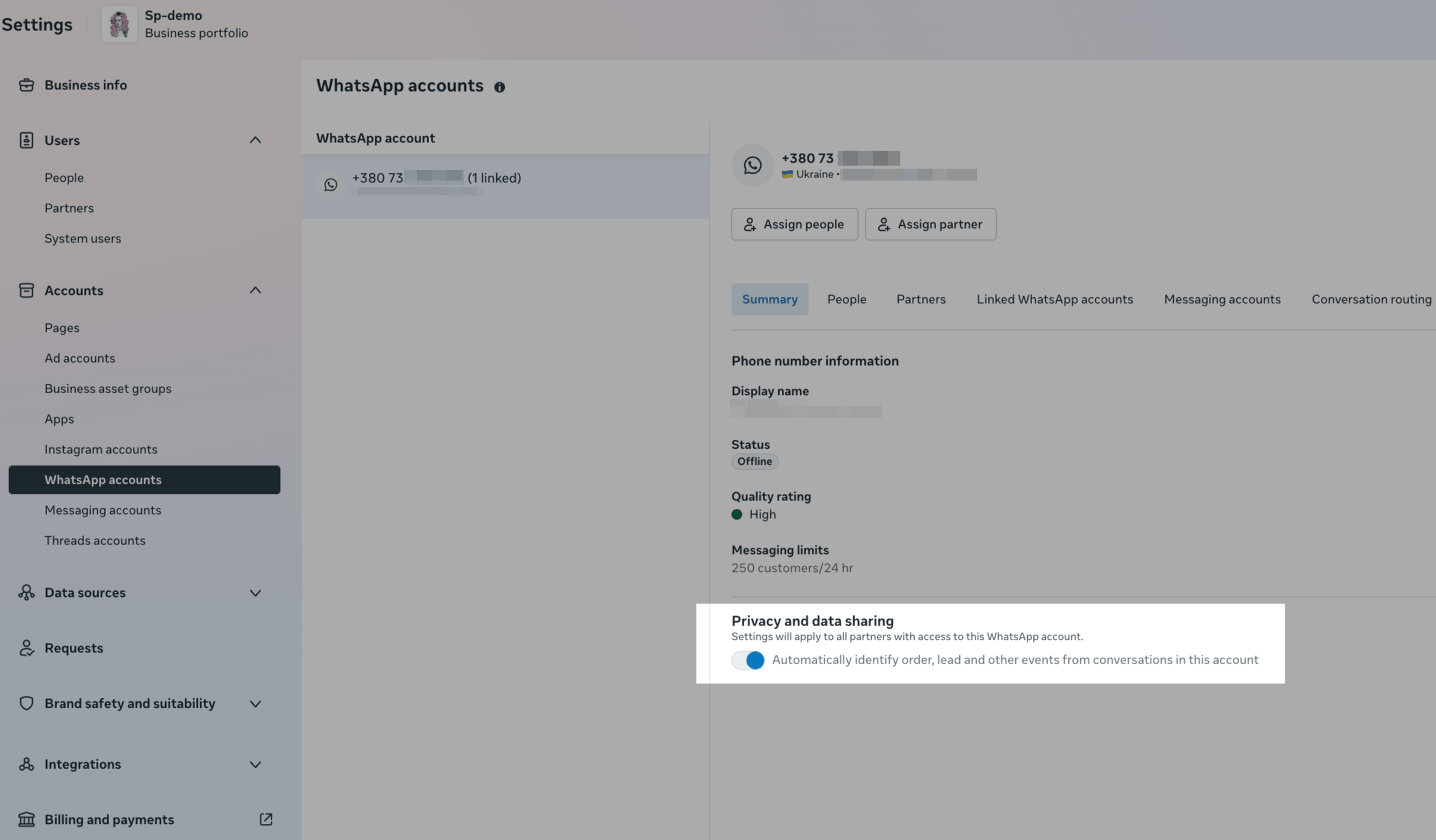
To send automatic events, in the Conversions API pop-up window, turn on the Send automatic events via Conversions API toggle. This toggle doesn't change your Meta settings, so also turn on automatic event identification in Meta Business Suite.
To open this setting, click Business profile settings in the toggle description, or go to Settings > Accounts > WhatsApp accounts in Meta Business Suite. Then, select the WhatsApp account linked to your phone number.
On the Summary tab, in the Privacy and data sharing section, turn on the Automatically identify order, lead and other events from conversations in this account toggle.
Meta doesn’t offer automatic event identification to businesses in the European Union, the United Kingdom, and Japan. Read more: Automatic Events API.
Create no-code conversion rules
No-code conversion rules send an event when a subscriber gets a tag, a variable gets a specific value, or a WhatsApp template message is sent. Rules work wherever the action happens: in a flow, on the Audience tab, or manually in Chats.
To create a rule, in the Conversions API pop-up window, turn on the No-code conversion event rules toggle.
To create a rule, in the Send event to Meta Ads Manager field, select Purchase, Lead submitted, or Initiate checkout options. These are the same Purchase, LeadSubmitted, and InitiateCheckout events that the Goal element sends.
In the When field, select one of the following actions:
| Template message sent |
The rule runs when the WhatsApp template you choose is sent to a subscriber. This option works only in WhatsApp chatbots. |
| Tag assigned | The rule runs when a subscriber gets the tag you choose. |
| Variable changed |
The rule runs when the variable you choose gets the value you enter. The value is case-sensitive, so |
If you’ve chosen Purchase, enter the purchase amount in the Value field and select a currency.
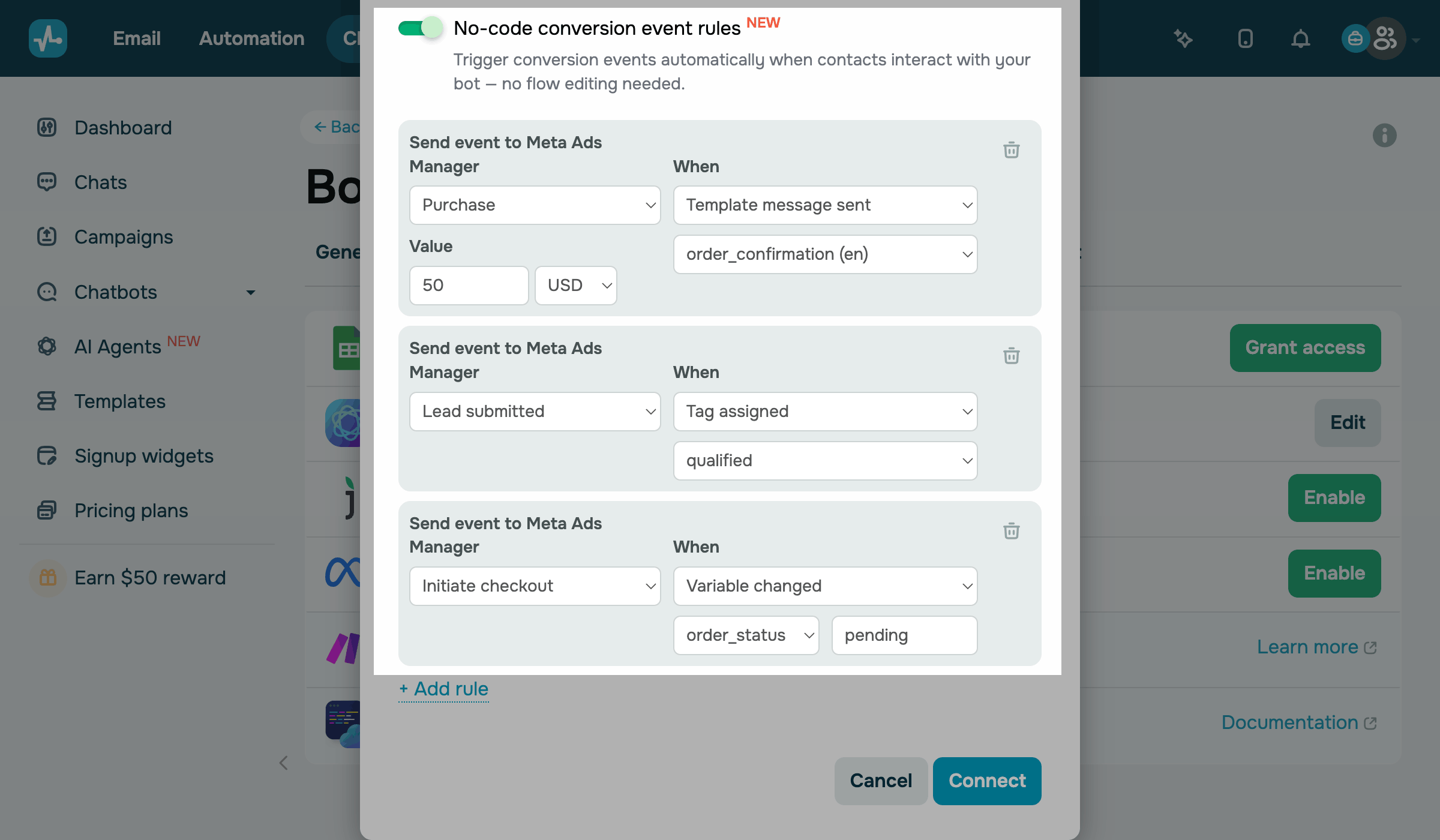
To add another rule, click Add rule.
Each chatbot supports up to 10 rules.
To delete a rule, click the trash can icon next to it. You can’t delete the last rule, so to stop using rules, turn off the No-code conversion event rules toggle.
Fill in all the fields in each rule. SendPulse highlights empty fields and doesn’t save the settings until you fill them in. Then, click Connect.
Send events from a flow step using the Goal element
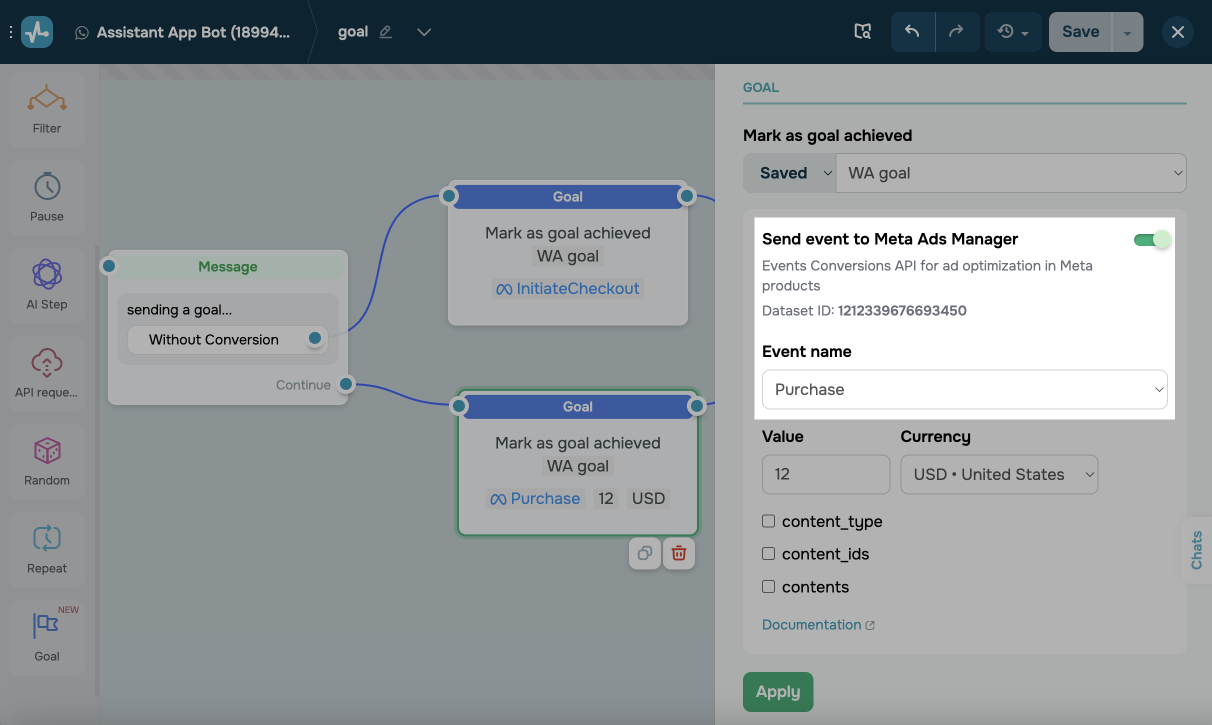
You can also send events from a specific flow step using the Goal element. It supports more event types, such as AddToCart and OrderShipped, custom events, and event parameters, such as product IDs.
Once you connect the Conversions API, the Send event to Meta Ads Manager toggle becomes available in the Goal element.
Test your setup before you run ads
In test mode, you can check that Meta receives your events before you launch an ad. SendPulse sends test events even for subscribers who didn’t come from an ad.
Test mode is available in Instagram and Messenger chatbots. In WhatsApp chatbots, check sent events in the Ad performance tab after your ad starts running.
To get a test code, go to Meta Events Manager, select your dataset, and open the Test events tab. The tab shows a test code, such as TEST48213.
In SendPulse, open the Conversions API pop-up window and turn on the Enable test mode toggle. Paste the code into the Test code field.
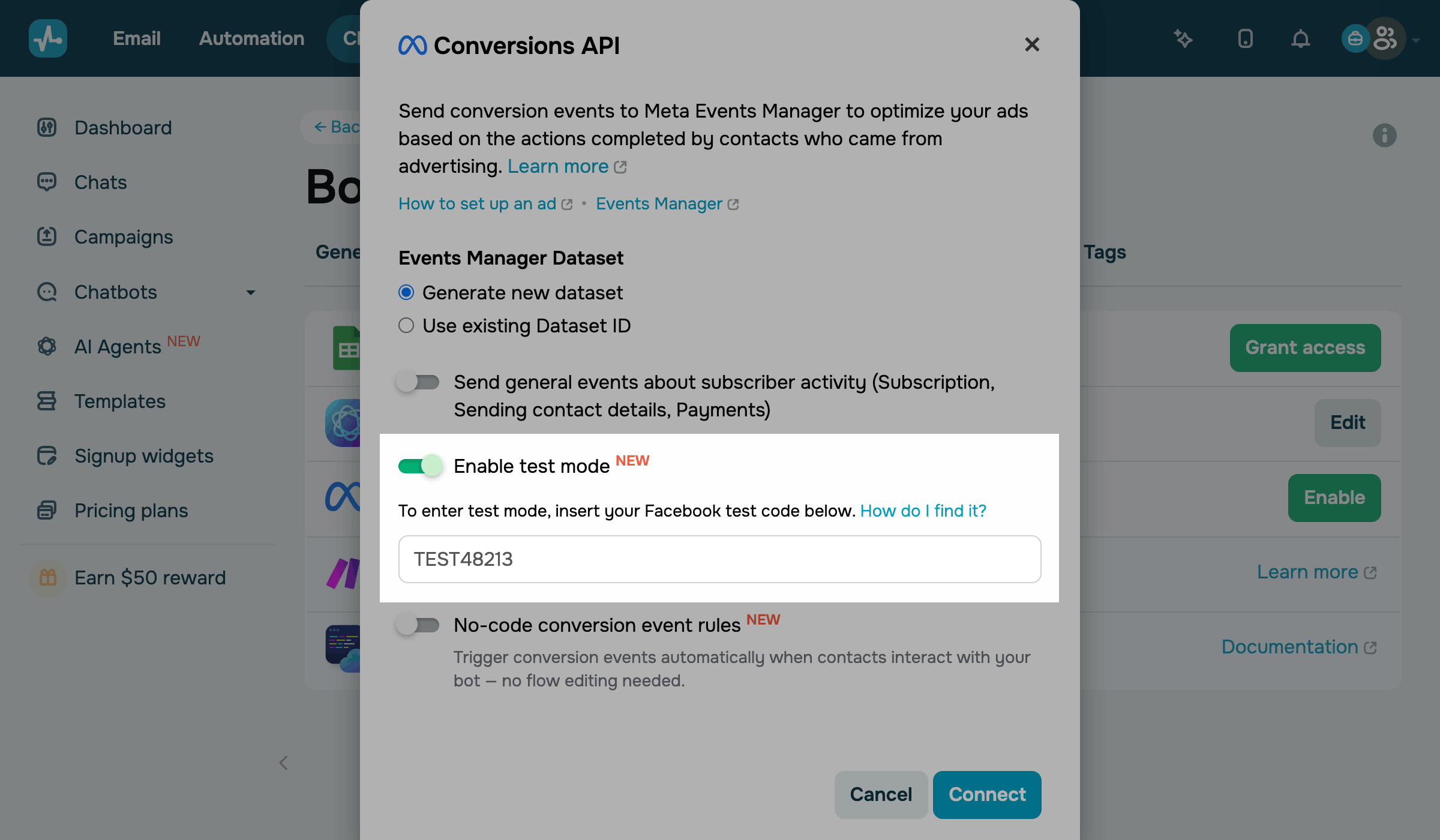
Click Connect. Then, perform the action you’ve set up, for example, assign the qualified tag to a test subscriber in Chats.
In Events Manager, the event appears on the Test events tab. In Instagram chatbots, Meta may show test events late or as a custom TestEvent event without details.
In the Ad performance tab, SendPulse marks these events as test events.
When you finish testing, turn off the Enable test mode toggle. Meta recommends sending the test code only while you test your setup.
Read more: Test Events tool.
View sent events
To check which events SendPulse has sent to Meta, go to Chatbots, select your chatbot, and open the Ad performance tab. The Latest conversions sent section lists the latest events.
If SendPulse couldn’t send an event, the error appears under the event name.
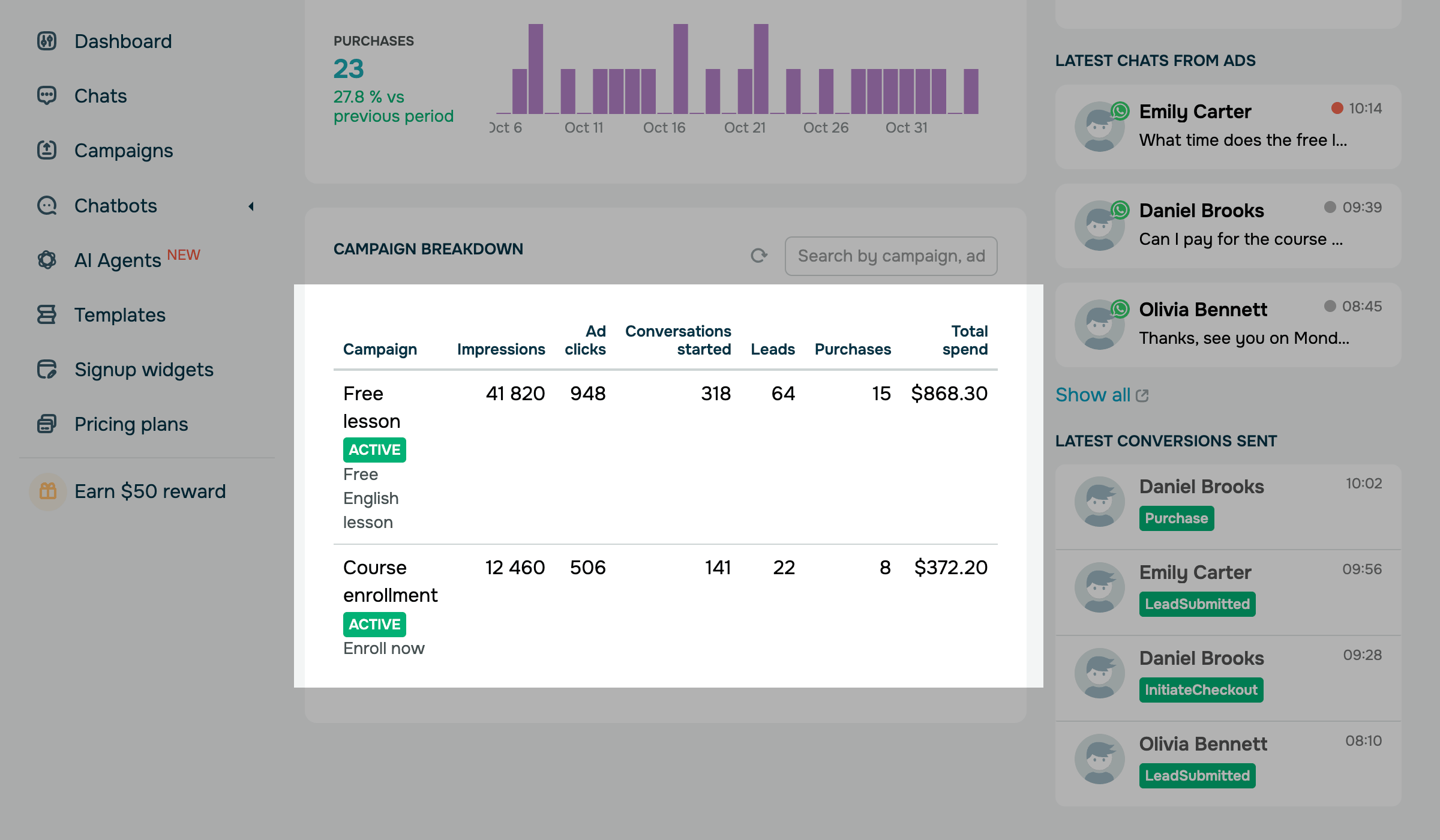
The Ad performance tab also shows your ad spend, leads, purchases, and the latest chats from ads.
To view your events in Meta, go to Events Manager and select your dataset.
Read more: Track ad performance in SendPulse.
Troubleshoot Conversions API issues
If you can’t set up the integration or events don’t reach Meta, one of these is the likely cause:
When you save the settings, SendPulse returns the following error: No access to the dataset. |
This means you don’t have full access to this dataset in your Meta Business Portfolio. Ask the dataset owner for full access, or select Generate new dataset. |
In an Instagram chatbot, the Conversions API pop-up window shows the following message: To enable the functionality, you need to update the access permissions for the page. |
This means your Instagram chatbot is connected directly through Instagram. The Conversions API works only in Instagram chatbots connected through Facebook Login or Meta for Business. To update the access permissions, click Switch bot to Facebook Login. |
| Events don’t appear in the Ad performance tab or in Events Manager |
In Instagram and Messenger chatbots, use test mode to check your setup without an ad. Outside test mode, SendPulse sends events only for subscribers who started a conversation from your ad. |
The Ad performance tab shows the following message: Failed to load ad accounts |
This means SendPulse needs updated access permissions for your page. Go through the steps to connect your chatbot again. |
Now your chatbot sends conversion events to Meta, and Meta can use them to optimize your ads.
Once Meta receives at least 10 lead or purchase events within 30 days, you can optimize your click-to-WhatsApp ads for leads. To do this, select the Maximize number of leads through messaging performance goal if it’s available for your account.
To start conversations in other channels, create an Instagram ad or a Messenger ad that leads to your chatbot.
 Last Updated: 12.11.2026

or