Create and manage an invite link to your Telegram group or channel
An invite link lets users join your group or channel. In SendPulse, you can create invite links for each group or channel where your chatbot is an admin. Then, you can run a flow only for users who join through a specific link.
For example, a clothing brand runs a weekend promotion with a 30% discount for the first 100 members of its private channel. The brand creates an invite link with a member limit of 100 and an expiry date at the end of the weekend. When 100 users have joined through the link or the weekend is over, the link expires. Members who joined in time receive the discount code in a channel post.
Let's talk about how to create an invite link, view and manage your links, and run a flow for users who join through a link.
Getting started
Before you create invite links, add your chatbot as an admin of your channel or group. Your chatbot needs the Add Subscribers admin permission in a channel or Invite Users via Link in a group.
Read more: Add your chatbot to a Telegram channel or group.
Create an invite link
To create an invite link, go to your Telegram chatbot and open the Channels and groups tab. Under your group or channel, click Create invite link.
In the Name field, enter a name for the link. Only you see it in SendPulse.
Optionally, configure the following settings:
| Expiry date | Select the date after which the link stops working. |
| Member limit | Enter how many users can join through the link.
You can't set a member limit for a link if Join requests need approval is turned on. Learn more in the Telegram documentation. |
| Join requests need approval | Users send a join request instead of joining right away. Your chatbot can message them for 5 minutes after the request or until an admin processes it. |
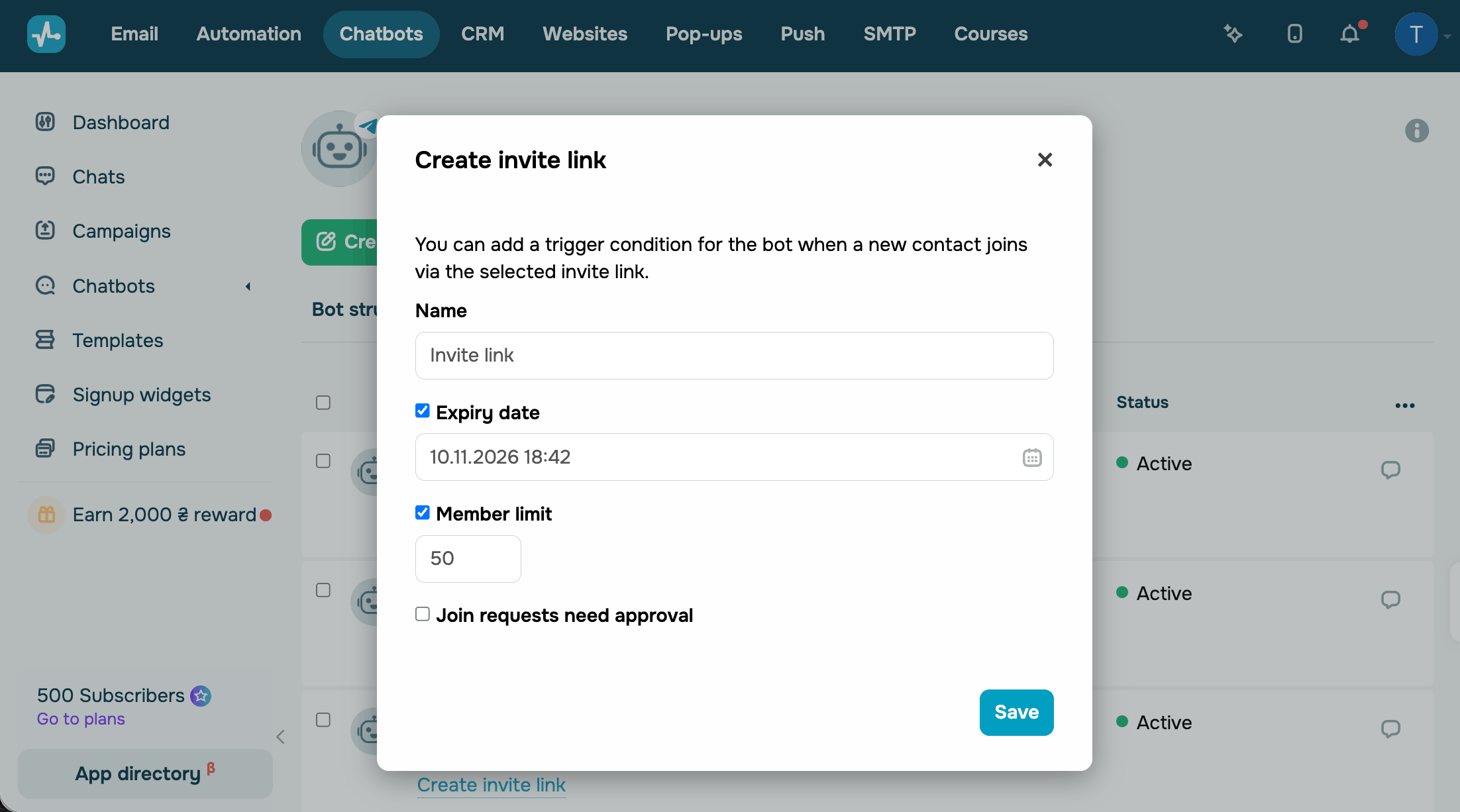
To save the link, click Save.
View and manage invite links
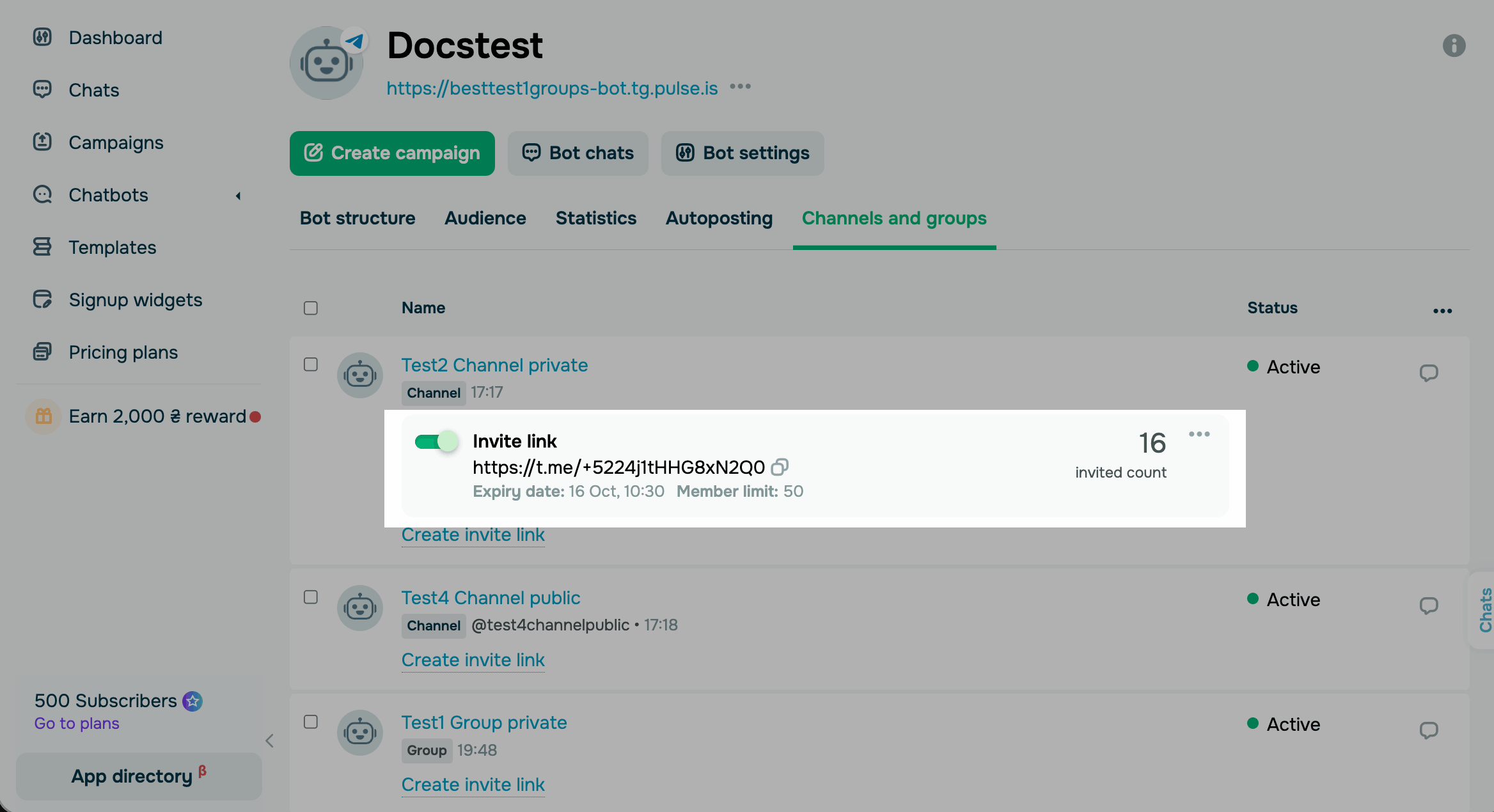
Your invite links appear under your channel or group on the Channels and groups tab. Each link shows its URL, expiry date, and member limit. The invited count field shows how many users joined through the link. To copy the link, click the copy icon next to it.
To stop users from joining through a link, turn off the toggle next to it.
To edit or delete a link, click the three dots next to it and select the action you need.
Run a flow for users who join through a link
To greet users who join through a specific invite link, create a flow with the Join a Telegram group or channel trigger. In the trigger settings, select your link.
 Last Updated: 17.10.2026





or