Add your chatbot to a Telegram channel or group
To publish posts, manage members, and run flows for new members, add your SendPulse Telegram chatbot as an admin of your channel or group. Online schools, media publishers, and agencies that manage communities for their clients add the chatbot once to each channel or group and then use it in campaigns, flows, and access rules.
Suppose an online school adds its chatbot to a private group for each course stream. The chatbot then publishes lesson reminders and blocks students whose subscription has expired.
Let's talk about how Telegram groups and channels differ, which admin permissions your chatbot needs, how to change a group or channel type, how to add your chatbot to a channel or group, how to find your channel or group in SendPulse, and how to fix common issues.
Telegram group and channel types
In Telegram, groups and channels can be private or public. In a private group, you can also make the chat history visible, so new members can read all earlier messages.
Blocking and unblocking work differently for each type. The following table shows the main differences between Telegram groups and channels:
| Feature | Public group | Private channel | Public channel | Private group with hidden chat history | Private group with visible chat history |
| Sending messages | All members can send messages labeled with their names. | Only admins can send messages, labeled with the channel name or a custom admin title. | Only admins can send messages, labeled with the channel name or a custom admin title. | All members can send messages labeled with their names. | All members can send messages labeled with their names. |
| Access to other members' profiles | Members can see each other's profiles. | Members can't see each other's profiles. | Members can't see each other's profiles. | Members can see each other's profiles. | Members can see each other's profiles. |
| Notifications about new members | Shown to all members. | Shown only to admins. | Shown only to admins. | Shown to all members. | Shown to all members. |
| Chat history for new members | All messages sent since the group or channel was created | All messages sent since the group or channel was created | All messages sent since the group or channel was created | Not visible | All messages sent since the group or channel was created |
| Link types | A share link such as t.me/group_name, or an invite link limited by time or number of uses. | An invite link: permanent, or limited by time or number of uses. | A share link such as t.me/channel_name, or an invite link limited by time or number of uses. | An invite link such as https://t.me/+a12bcEd3F45gH67i: permanent, or limited by time or number of uses. | An invite link such as https://t.me/+a12bcEd3F45gH67i: permanent, or limited by time or number of uses. |
| Telegram search | Available | Not available | Available | Not available | Not available |
| Join requests | Available for invite links with Request Admin Approval turned on. You can also turn on the Approve New Members toggle in the group settings to approve everyone who joins. | Available for invite links with Request Admin Approval turned on. | Available for invite links with Request Admin Approval turned on. | Available for invite links with Request Admin Approval turned on. | Available for invite links with Request Admin Approval turned on. |
Telegram groups can have up to 200,000 members, and channels can have unlimited subscribers. Learn more in the Telegram FAQ.
Chatbot admin permissions
To use some SendPulse features, your chatbot needs specific admin permissions in Telegram. You turn these permissions on or off when you add your chatbot as an admin, in the What can this admin do? section. The following table shows the permissions for each feature:
| SendPulse feature | Channel | Group |
| Publish posts | Post Messages under Manage Messages | No special permission |
| Block and unblock members | Ban Users | Ban Users |
| Receive and approve join requests | Add Subscribers | Invite Users via Link |
| Create invite links | Add Subscribers | Invite Users via Link |
SendPulse doesn't use the other permissions. You can turn them off if you don't need them.
When you add your chatbot from its profile, through a link, or through SendPulse, Telegram suggests permissions in advance. You can change them before you confirm or later in the admin list of your channel or group.
When your chatbot is a group admin, it receives all messages in the group. Group members can then start your flows using @mentions, /commands, and keywords. If you've set up the OpenAI integration, they also get replies from it. In a public group, your chatbot recognizes which member contacted it, runs the flow for that member, and shows the reply in the group chat.
Change your group or channel type
Your group or channel type affects which links work, who can find your group or channel in Telegram search, and how blocking works.
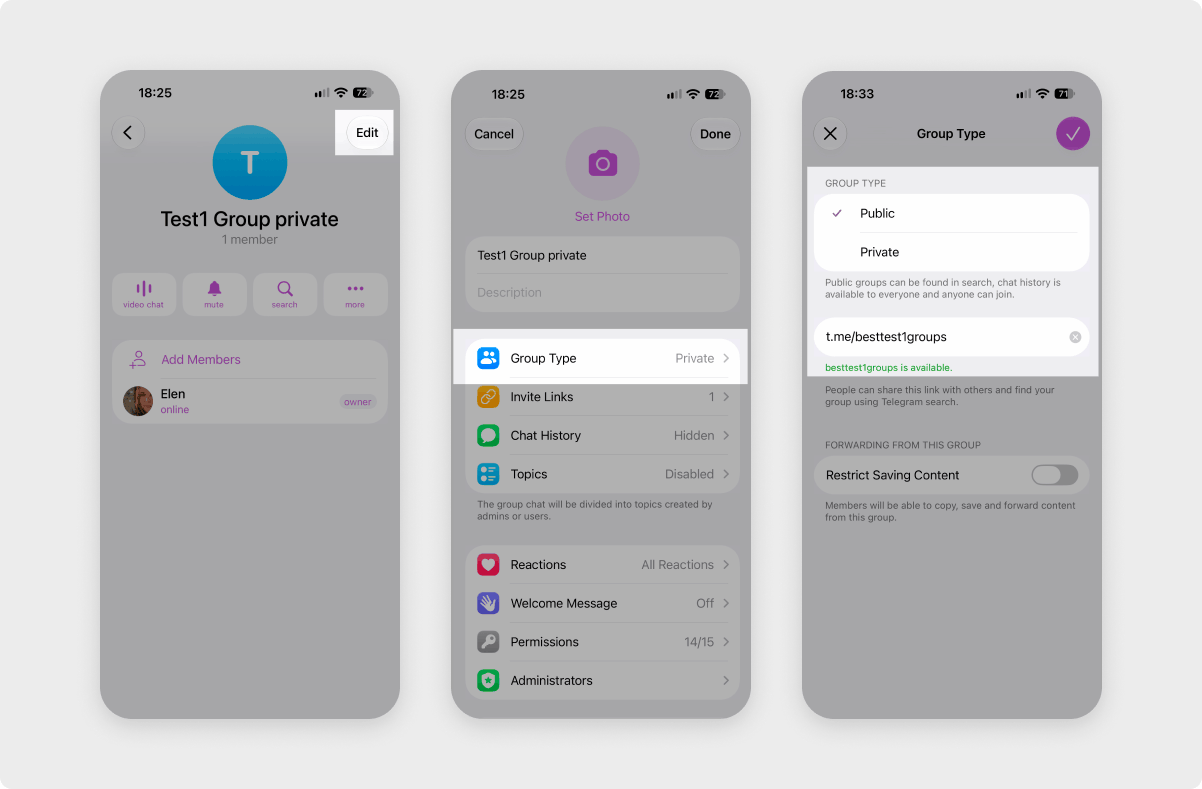
To change your group type, open the group in Telegram, tap the group name at the top, and select Edit or Group settings > Group Type. Under Group type, select your type.
A private group shows a generated invite link you can send to users. To make the group public, select Public and create your share link. Users can then follow this link or find your group in Telegram search.
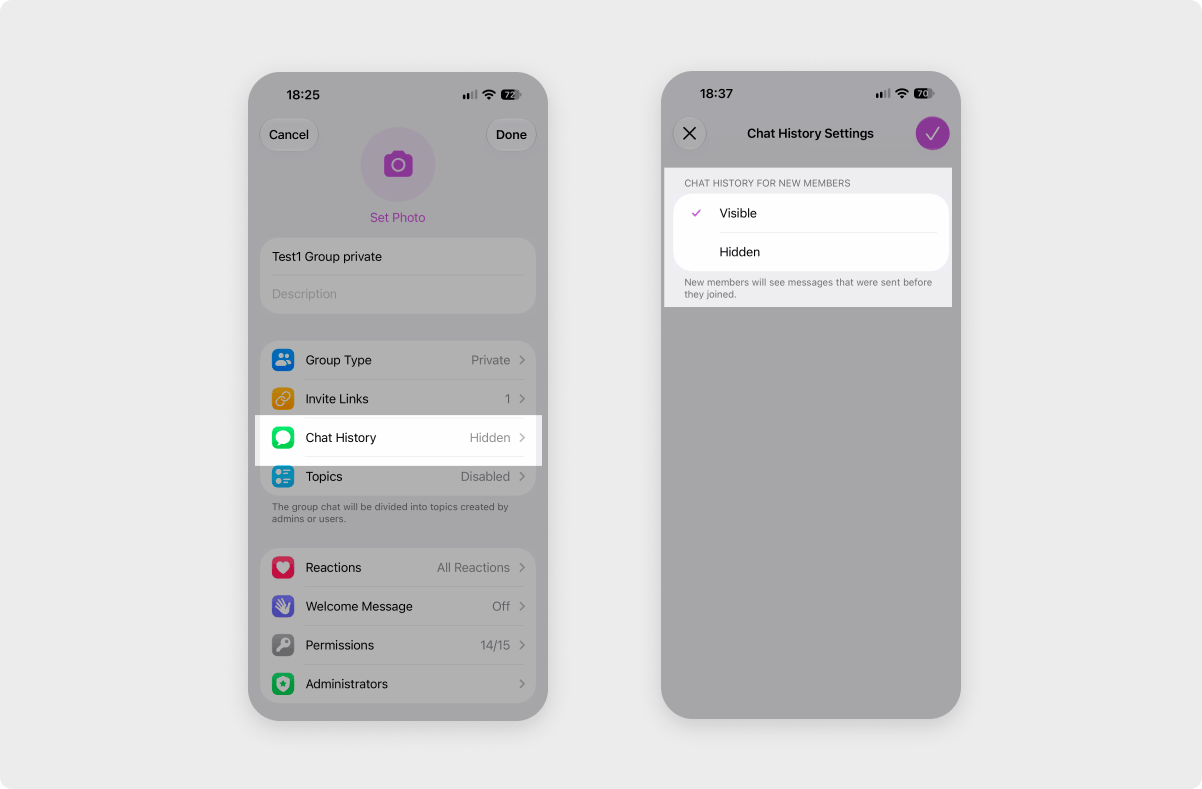
To let new members of a private group read earlier messages, select Chat History on the same Edit screen, then select Visible.
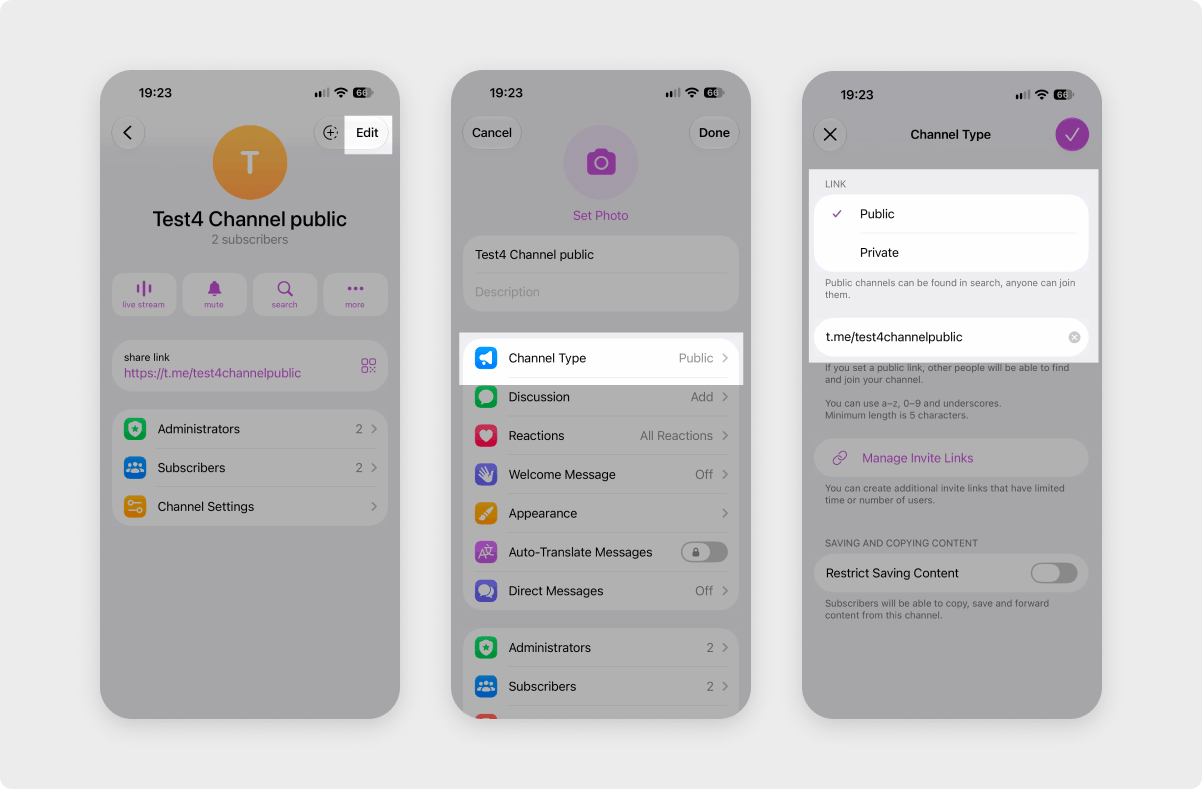
To change your channel type, open the channel, tap the channel name at the top, and select Edit or Group settings > Channel Type. To make the channel public, select Public and enter a share link.
When you make a basic group public, Telegram upgrades it to a supergroup with a new ID. If your chatbot was already in the group, see Troubleshoot adding your chatbot.
Add your chatbot to a Telegram channel
To publish posts in a channel, add your chatbot as a channel admin in Telegram. The steps are the same for private and public channels. You can add it from the channel settings or from the chatbot profile.
From the channel settings
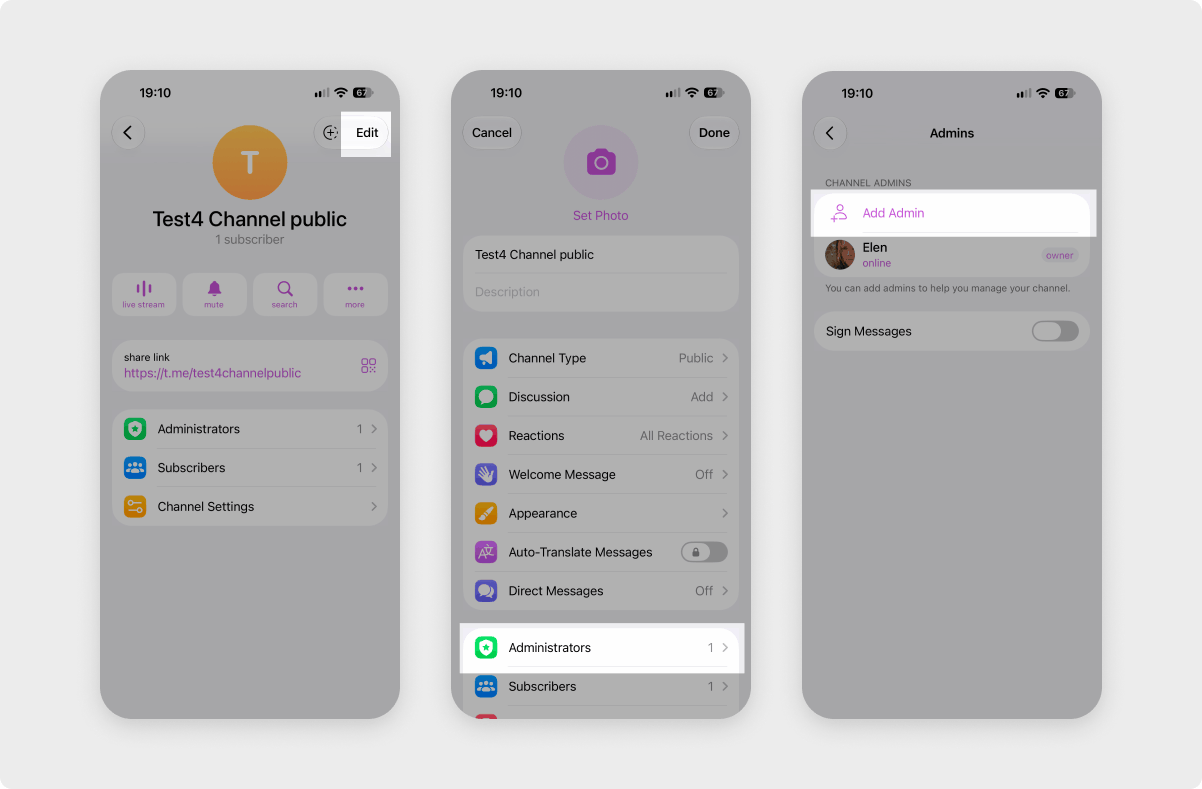
Open your channel in your Telegram app, tap the channel name at the top, and select Administrators.
Tap Add Admin. The Subscribers list that appears shows only people who are already in your channel. Your chatbot isn't there, because chatbots can't be channel subscribers.
In the Search field, enter your chatbot's username, @YOUR_CHATBOT_USERNAME. Select your chatbot under Global Search.
Set the permissions for your chatbot, and tap Add admin. Your chatbot appears in the list of channel admins.
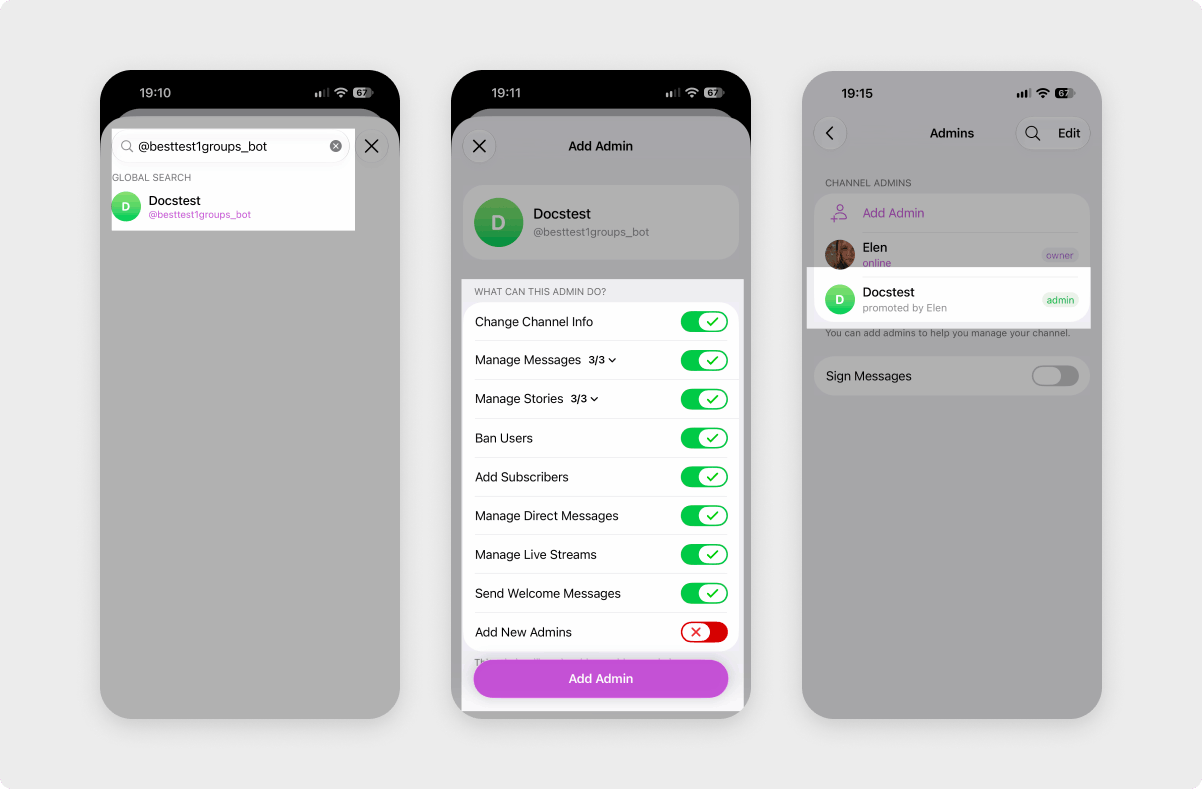
To change your chatbot's permissions later, go to the Admins section, select your chatbot, and update its permissions.
From the chatbot profile
You can also add your chatbot from its profile, without searching in the list of admins. Open the chat with your chatbot, tap its name at the top, and select Add to Group or Channel.
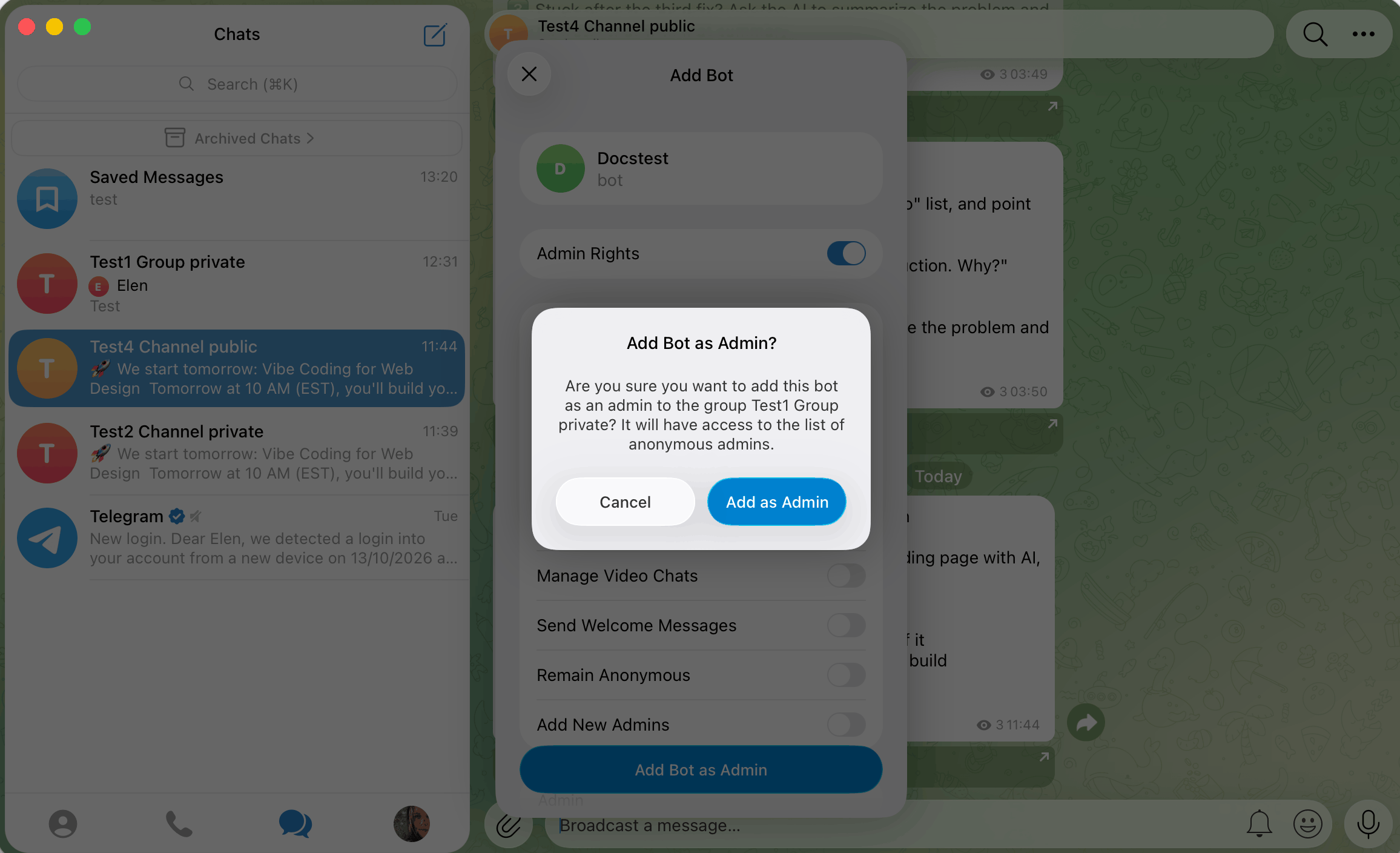
Select your channel, set the permissions, and tap Add Bot as Admin. In the window that appears, tap Add as Admin.
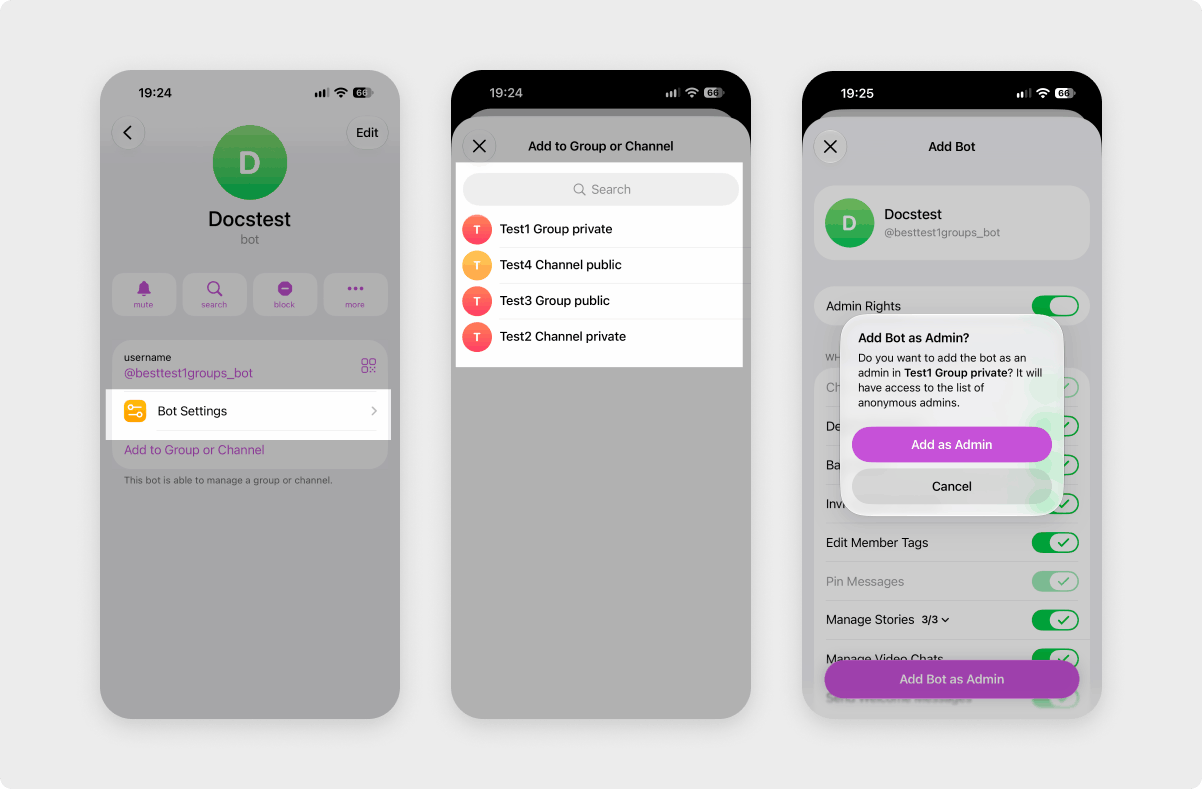
Add your chatbot to a Telegram group
You can add your chatbot to a group as an admin through SendPulse or in Telegram.
From SendPulse
To add your chatbot to a group without searching for it in Telegram, start in SendPulse. Go to Chatbots and select your Telegram chatbot. On the chatbot management page, go to the Channels and groups tab and click Add to a group.
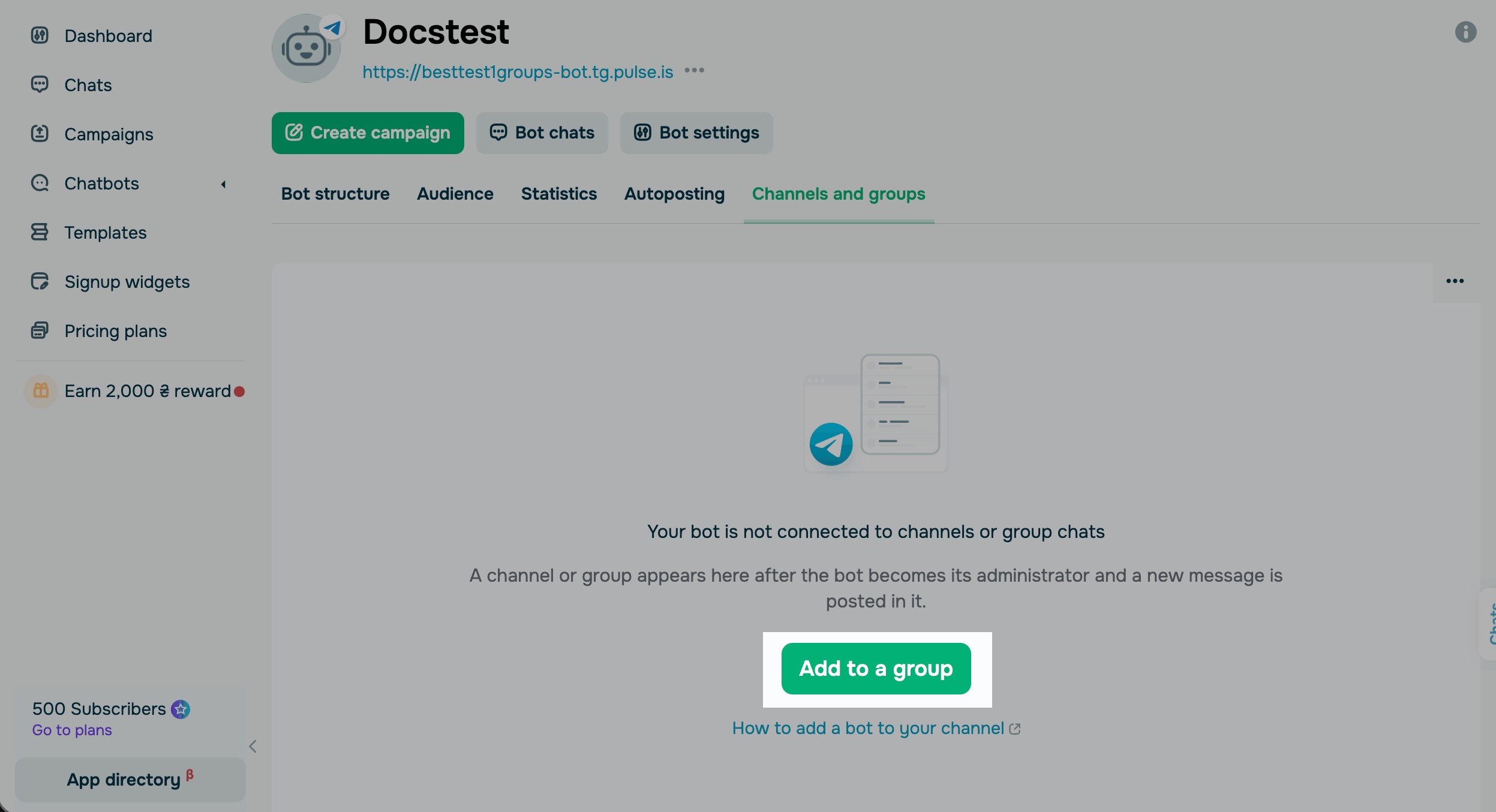
In the window that appears, click Send message. Telegram opens.
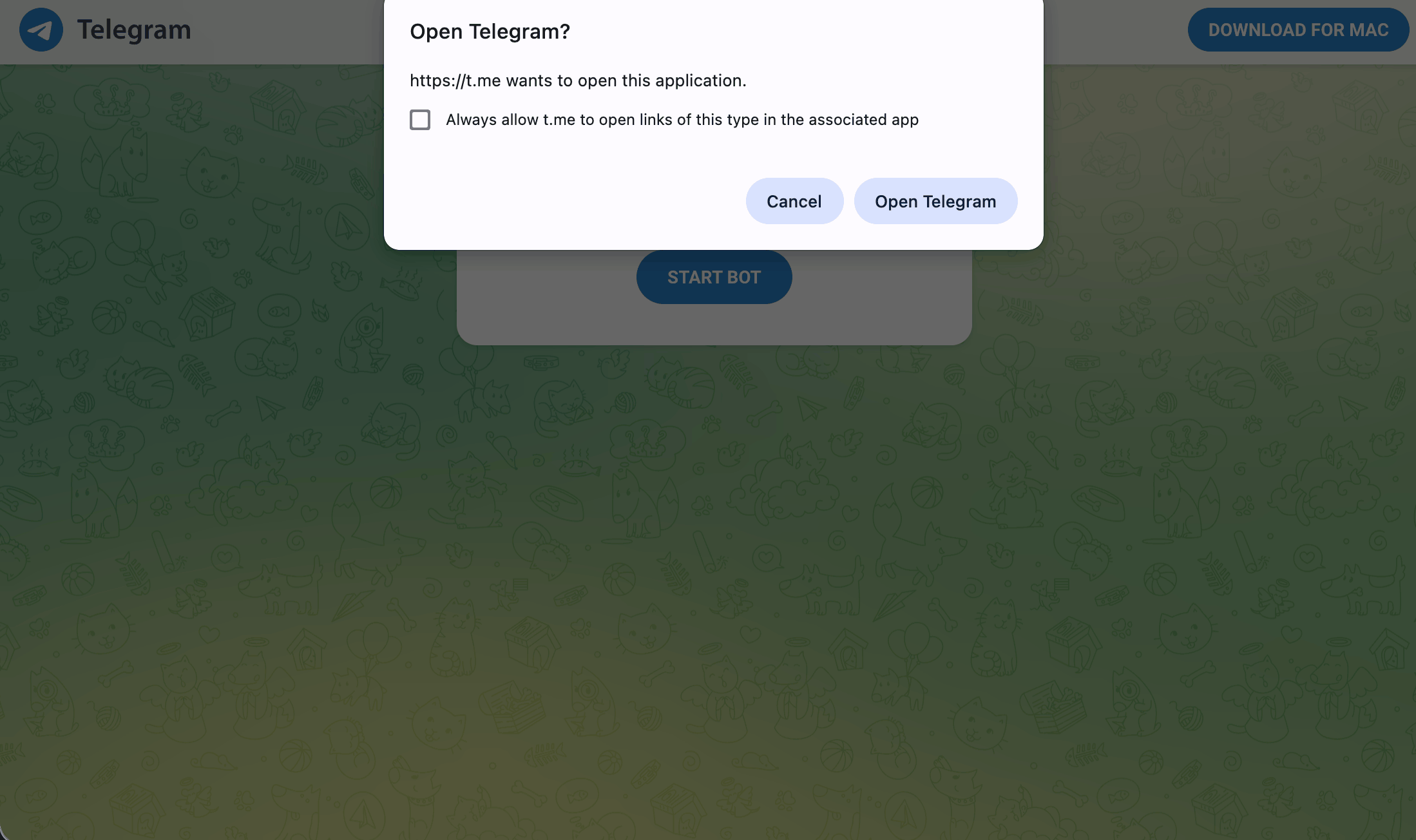
In Telegram, enter your group name in the search bar and select the group.
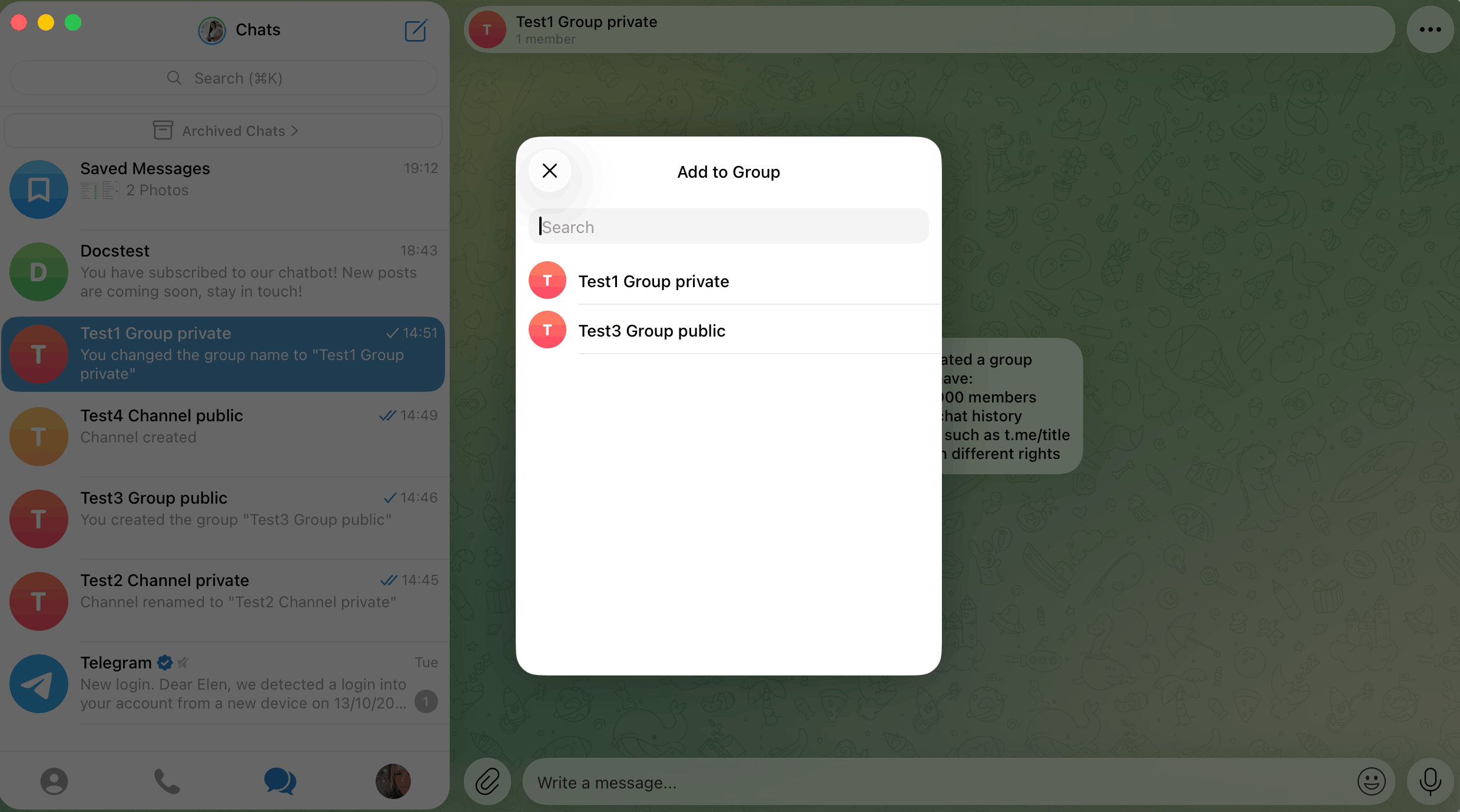
Set the permissions for your chatbot, and select Add Bot as Admin. In the window that appears, select Add as Admin.
From the group settings
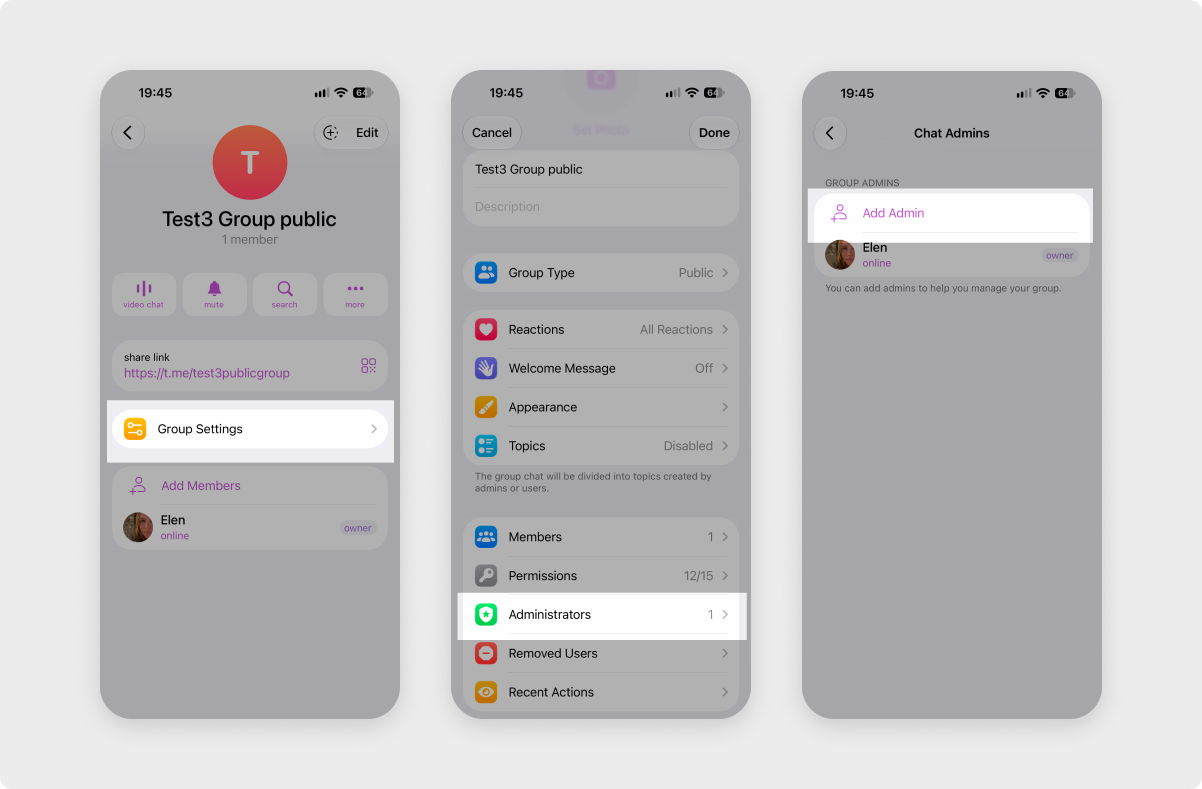
To add your chatbot from Telegram, open your group, tap the group name at the top, and select Edit or Group settings > Administrators.
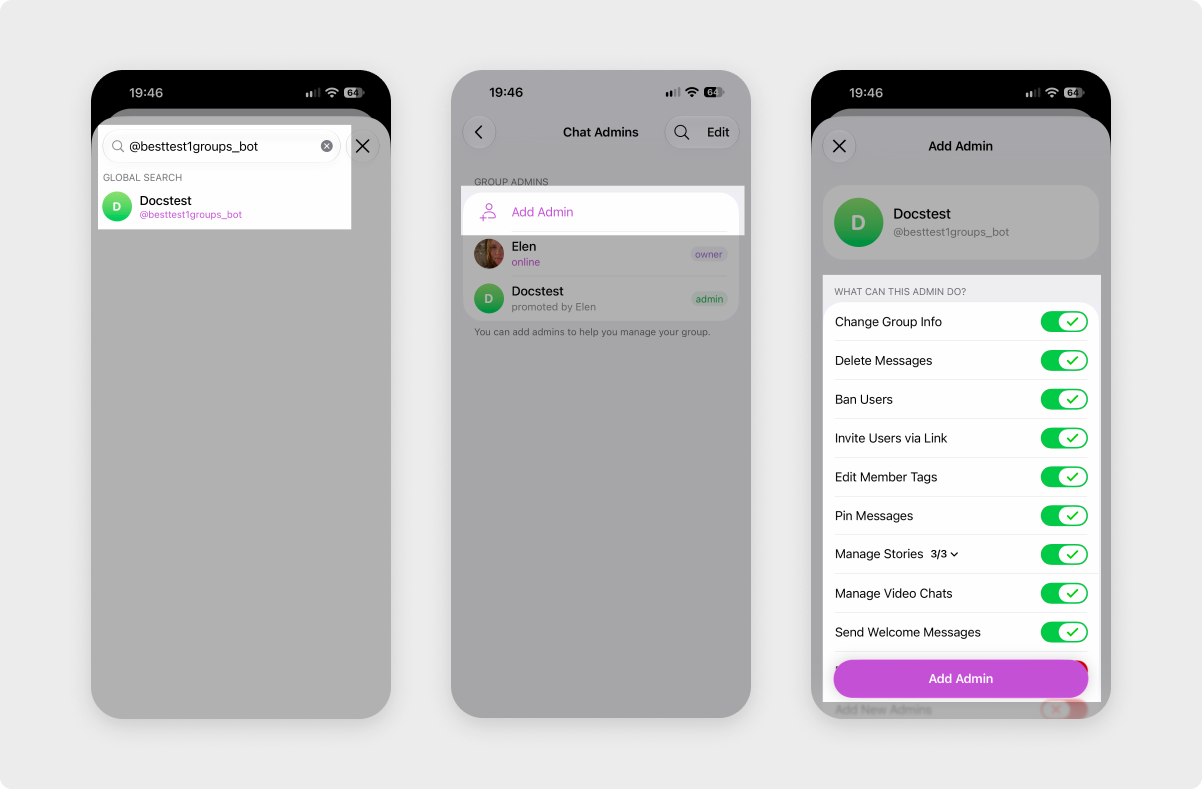
Tap Add Admin. The Members list shows only people already in your group. In the Search field, enter @YOUR_CHATBOT_USERNAME and select your chatbot under Global Search.
Set the permissions for your chatbot as described in Chatbot admin permissions and tap Add admin. Your chatbot appears in the list of group admins.
To change your chatbot's permissions later, go to the Admins section, select your chatbot, and update its permissions.
From the chatbot profile
You can also add your chatbot from its profile, without searching in the list of admins. Open the chat with your chatbot, tap its name at the top, and select Add to Group or Channel.
Select your group, set the permissions, and tap Add Bot as Admin. In the window that appears, tap Add as Admin.
Find your channel or group in SendPulse
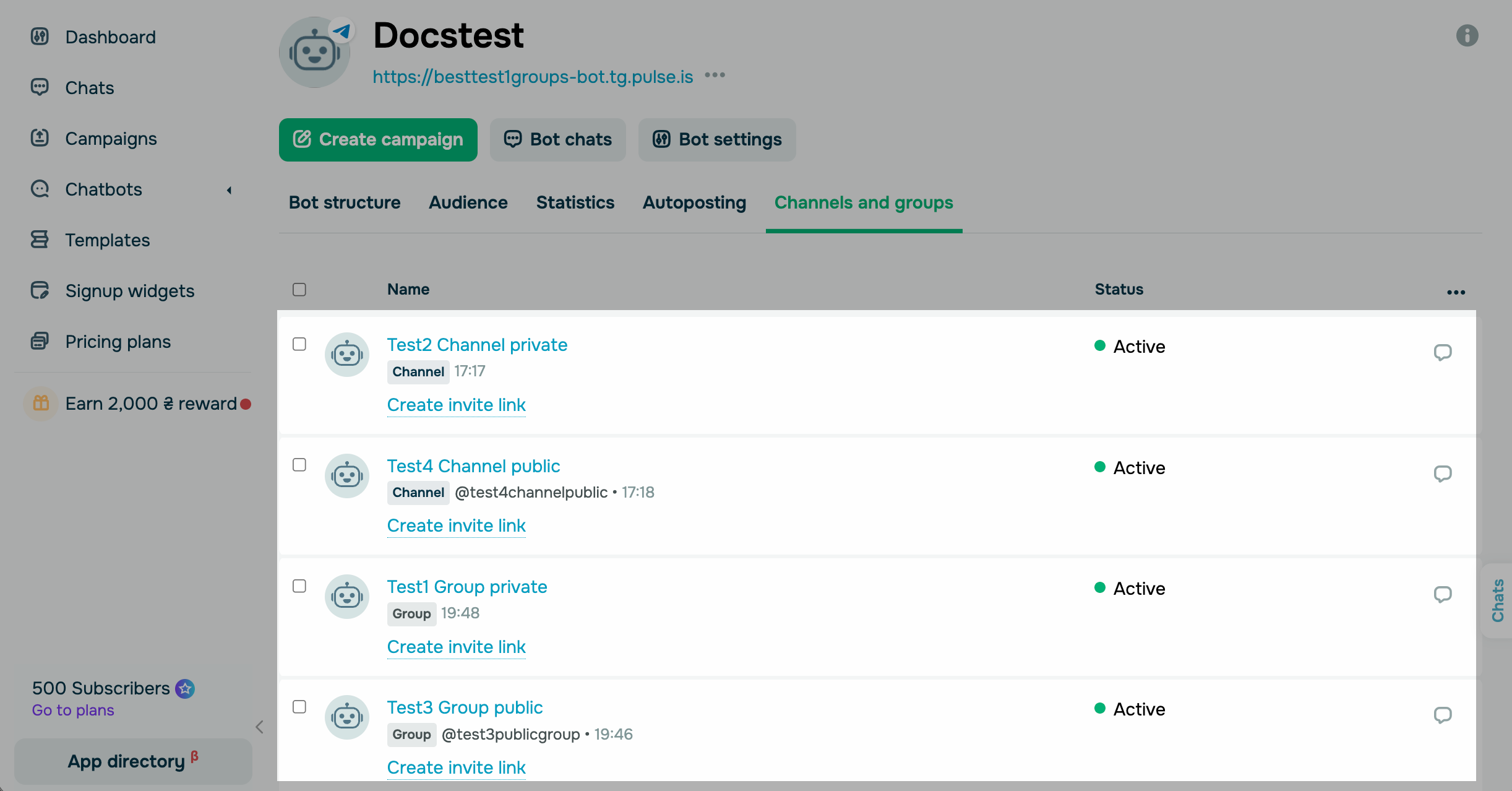
To check which channels and groups your chatbot can manage, go to Chatbots and select your Telegram chatbot. Open the Channels and groups tab, which lists every channel and group where your chatbot is an admin.
A channel or group appears on the tab after your chatbot becomes its admin and someone posts a new message there. If you've just added your chatbot, publish a post in your channel or send a message in your group.
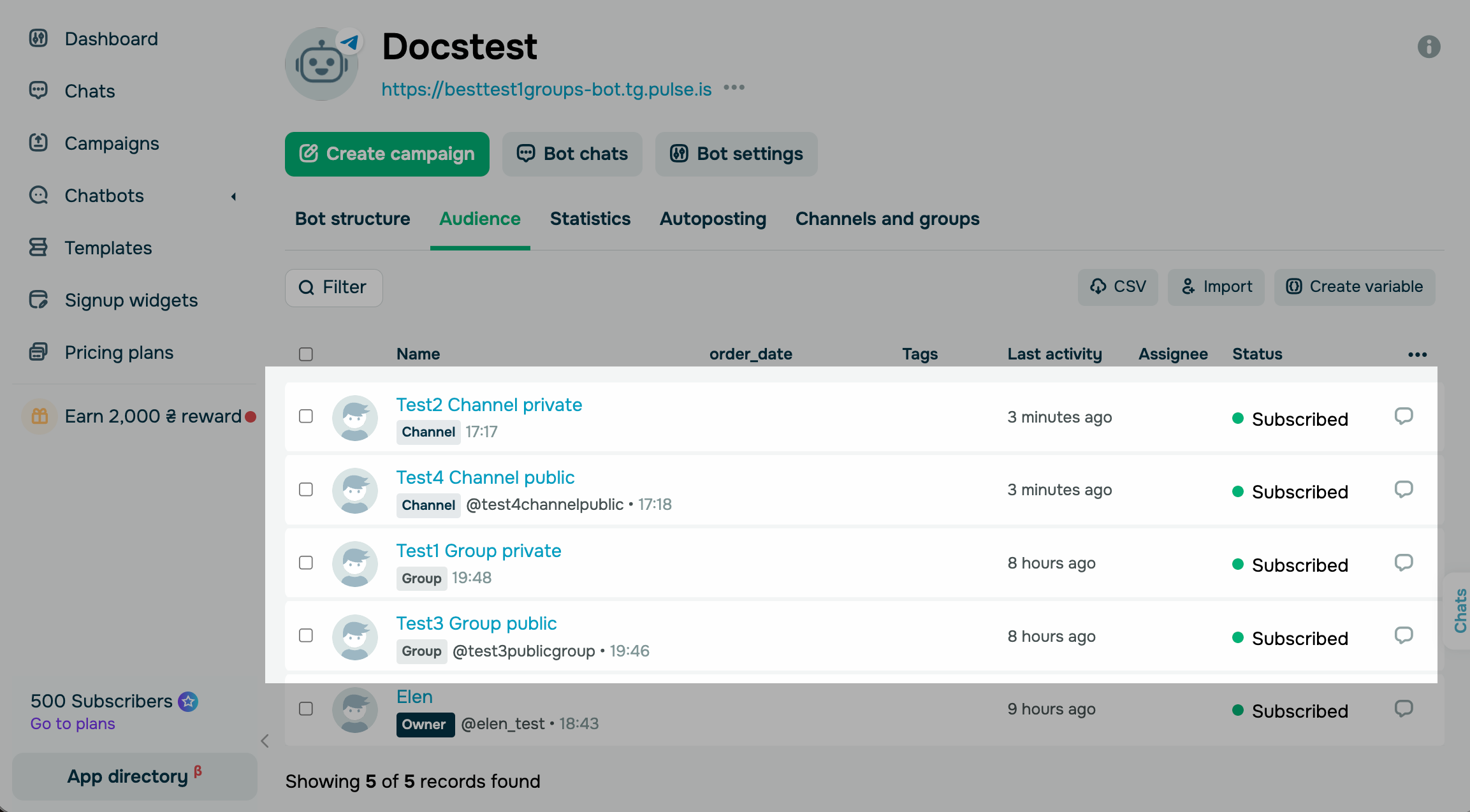
Your channel or group also appears in your chatbot audience as a subscriber. To find it, open the Audience tab of your chatbot.
Troubleshoot adding your chatbot
If you can't add your chatbot or it doesn't work as expected in your channel or group, find your issue in the following tables. For issues with blocking, unblocking, and join requests, see Troubleshoot blocking issues.
You can't find or add your chatbot
If Telegram doesn't let you add your chatbot, check these common issues:
| Your chatbot isn't in the list when you add an admin | In the Search field, enter your chatbot's username and select it in the global search results, or add your chatbot from its profile. The list shows only people who are already in your channel or group. |
| Telegram says that bots can only be added to channels as admins | Add your chatbot to the list of channel admins. Chatbots can't be channel subscribers. |
| Telegram says that the bot can't be added to groups, or the chatbot profile has no Add to Group or Channel option | In Telegram, open @BotFather, send /setjoingroups, select your chatbot, and turn group joining on. Group joining is turned off for your chatbot. |
| You can't add your chatbot again after removing it | In your channel or group settings, open Removed Users, remove your chatbot from the list, and add it again. |
| Telegram says that there are too many bots or admins | Remove the bots or admins you no longer use. Your channel or group has reached the Telegram limit for bots or admins. |
| You can't add admins | Ask the owner to add your chatbot. Only the owner and admins with the Add New Admins permission can add admins, and Telegram doesn't let new admins add other admins right away. |
| Your channel isn't in the list when you add your chatbot from its profile | Update Telegram to the latest version and try again. An outdated Telegram app might not show channels in this list. |
Your channel or group isn't in SendPulse
If you've added your chatbot but don't see the channel or group in SendPulse, check these common issues:
| The group isn't on the Channels and groups tab | In Telegram, open the list of admins and check that it includes the chatbot you've connected to SendPulse. The group doesn't appear if your chatbot isn't an admin there or if you've added a different chatbot. |
| The channel isn't in your chatbot audience and Channels and groups tab | Publish a post in your channel or send a message in your group. SendPulse adds a channel or group to the audience after your chatbot becomes its admin and someone posts a new message there. |
| The group disappeared from SendPulse or stopped getting posts after you changed its settings | If the group isn't on the Channels and groups tab, add your chatbot to it again. When you make a basic group public, turn on topics, or change some other settings, Telegram upgrades it to a supergroup with a new ID. |
Your chatbot doesn't post or reply
If your chatbot is in the channel or group but doesn't post or reply, check these common issues:
| Your campaign doesn't appear in the channel | Open the list of channel admins, select your chatbot, and turn on the Post Messages toggle. Your chatbot needs the Post Messages permission to post in the channel. |
| Your chatbot can't send messages in the group | Make your chatbot an admin or lift the restrictions in the group permissions, and reopen the topic if it's closed. Your chatbot can't send messages when it's restricted in the group, members can't send text messages, or the topic is closed. |
| Messages appear in the group with a delay | Make your chatbot an admin, because slow mode doesn't apply to admins. If the delay persists, your chatbot has reached the Telegram limit of 20 messages per minute in one group. |
| Your chatbot doesn't react to messages in the group | Make your chatbot an admin. Without admin rights, it sees only commands and messages addressed to it. If you've changed its privacy mode in @BotFather, remove your chatbot from the group and add it again. |
| Your chatbot doesn't react to comments under channel posts | Add your chatbot as an admin to the discussion group linked to your channel. Comments are messages in that group. |
| Your chatbot ignores messages from other bots | To test your flows, send messages from a personal Telegram account. By default, Telegram doesn't show chatbots the messages that other bots send. |
Your chatbot stopped working
If your chatbot worked in the channel or group and then stopped, check these common issues:
| Your chatbot stopped working after you connected it to another service | Use a dedicated chatbot for each service. Telegram sends your chatbot's updates to one service at a time, so another service that uses the same token might take over. |
| Your chatbot stopped working after you changed its token | If you've revoked or regenerated the token in @BotFather, connect the new token in SendPulse. |
| Your chatbot stopped posting in the channel or group | Open the list of admins and add your chatbot again. Someone removed your chatbot or its admin rights. |
| Your chatbot was deleted | If you've deleted your chatbot in @BotFather, you can't add it back. Create a new chatbot and connect it to SendPulse. |
| If the issue persists | Contact support. |
Now that your chatbot is an admin, you can publish posts in your channel or group, block or unblock members, or run a flow when a user joins. For an overview of all features, see Use your Telegram chatbot in groups and channels.
 Last Updated: 17.10.2026





or