Create a WhatsApp chatbot (New number)
A WhatsApp chatbot runs on a business phone number that you register on the WhatsApp Business Platform. It answers customers automatically, sends campaigns and notifications, and lets your team reply to them from one place in SendPulse.
For example, an online store can create a WhatsApp chatbot that confirms orders, answers delivery questions at any hour, and transfers the conversation to a team member when a customer asks for one.
In this article, we will explain what you need before you start, how to create a WhatsApp chatbot on a new phone number, how to subscribe to it as its owner, and how to fix the errors the connection wizard shows.
Benefits and use cases
With a WhatsApp chatbot, you can:
- Reply to messages 24/7 and send campaigns, event announcements, and updates using message templates.
- Personalize conversations: branch flows with the Filter element based on variables, subscriber countries, or subscription sources, and add personal data to messages.
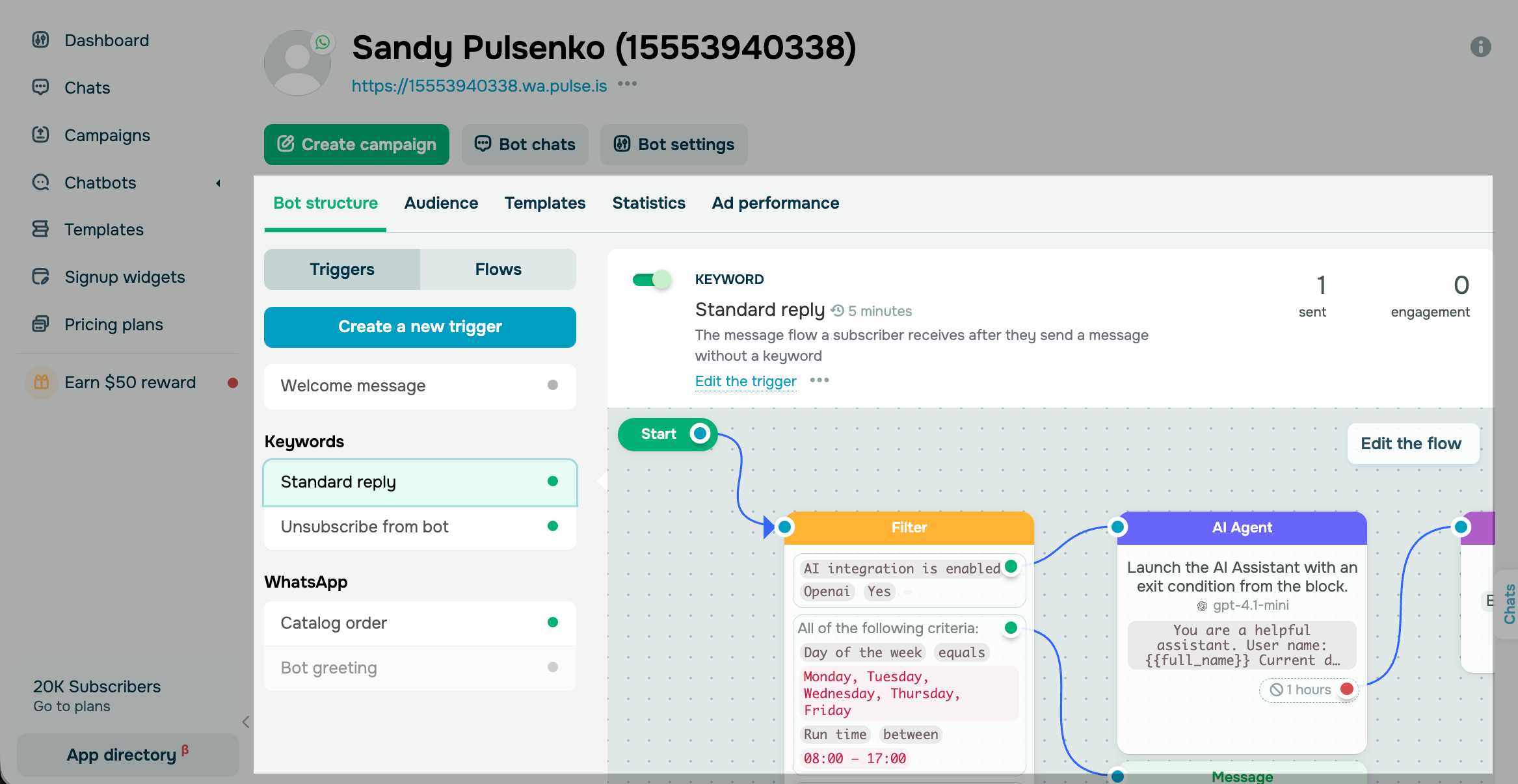
- Launch flows with triggers, for example, when a user messages you for the first time or places an order through your WhatsApp catalog.
- Connect ChatGPT or other AI models so that your chatbot answers free-form questions, and let the AI Agent element guide the conversation.
- Send API requests to your system from the flow, retrieve data, and reply based on it.
Examples of how businesses use a WhatsApp chatbot:
- An online store sends delivery updates and answers questions about returns automatically.
- A beauty salon lets customers book, reschedule, and cancel appointments in a flow and sends reminders a day before the visit.
- A language school answers questions about courses and prices, collects applications, and passes warm leads to a team member in Conversations.
Getting started
A WhatsApp chatbot in SendPulse relies on several Meta objects. You'll need to know them later, when you verify your business, add a payment method, or fix an error in Meta's interfaces. The connection wizard creates or connects these objects for you:
| Facebook account | Your personal account in Meta, which you use to log in to the wizard. |
| Meta Business Portfolio | The company entity in Meta that owns your business assets: pages, ad accounts, and WhatsApp Business accounts. You select an existing portfolio or create a new one in the wizard. |
| WhatsApp Business account | The account inside the portfolio that holds your business phone numbers, message templates, and billing. The wizard creates it. |
| Business phone number | The number your chatbot works on, which customers see in the chat. The wizard registers it on the WhatsApp Business Platform. |
You can connect a phone number to SendPulse in three ways, depending on where the number is registered now:
| Connection type | Choose it when | Where to read |
| New phone number | No WhatsApp account is registered on the number, or you are ready to delete the account and lose its chat history. | This article. |
| WhatsApp Business app number (Coexistence) | The number already works in the WhatsApp Business app, and your team wants to keep the app and the chat history. | Create a WhatsApp chatbot (Coexistence) |
| Migration from another provider | Another WhatsApp provider has already registered the number on the WhatsApp Business Platform. | Switch to SendPulse from other WhatsApp providers |
Before you open the connection wizard, make sure you have the following:
| A Facebook account with access to your Meta Business Portfolio | You log in to the wizard with this account. If you don't have a Meta Business Portfolio, you create one in the wizard. |
| A phone number without a WhatsApp account |
The number is not registered in the consumer WhatsApp app or the WhatsApp Business app, and no other WhatsApp provider uses it. Read more: Prepare your phone number before connecting. |
| Access to the number during the wizard | Meta confirms the number with a code sent by SMS or a voice call. Keep the phone with the SIM card next to you. |
| A display name for the chatbot | The name customers see in the chat. Prepare a name that complies with the WhatsApp Business Policy. |
| A desktop browser | Meta's connection wizard opens in a pop-up window, so allow pop-ups for SendPulse. On mobile browsers, especially Safari on iOS, the wizard often fails to complete. |
Please note that with an unverified Meta Business Portfolio you can register up to two phone numbers and send business-initiated messages to 250 unique customers per phone number within a rolling 24-hour period. To lift the limits, verify your business in Meta. Read more: Verify a business in Facebook Business Manager and Manage a WhatsApp chatbot without Facebook business verification.
Start the connection wizard
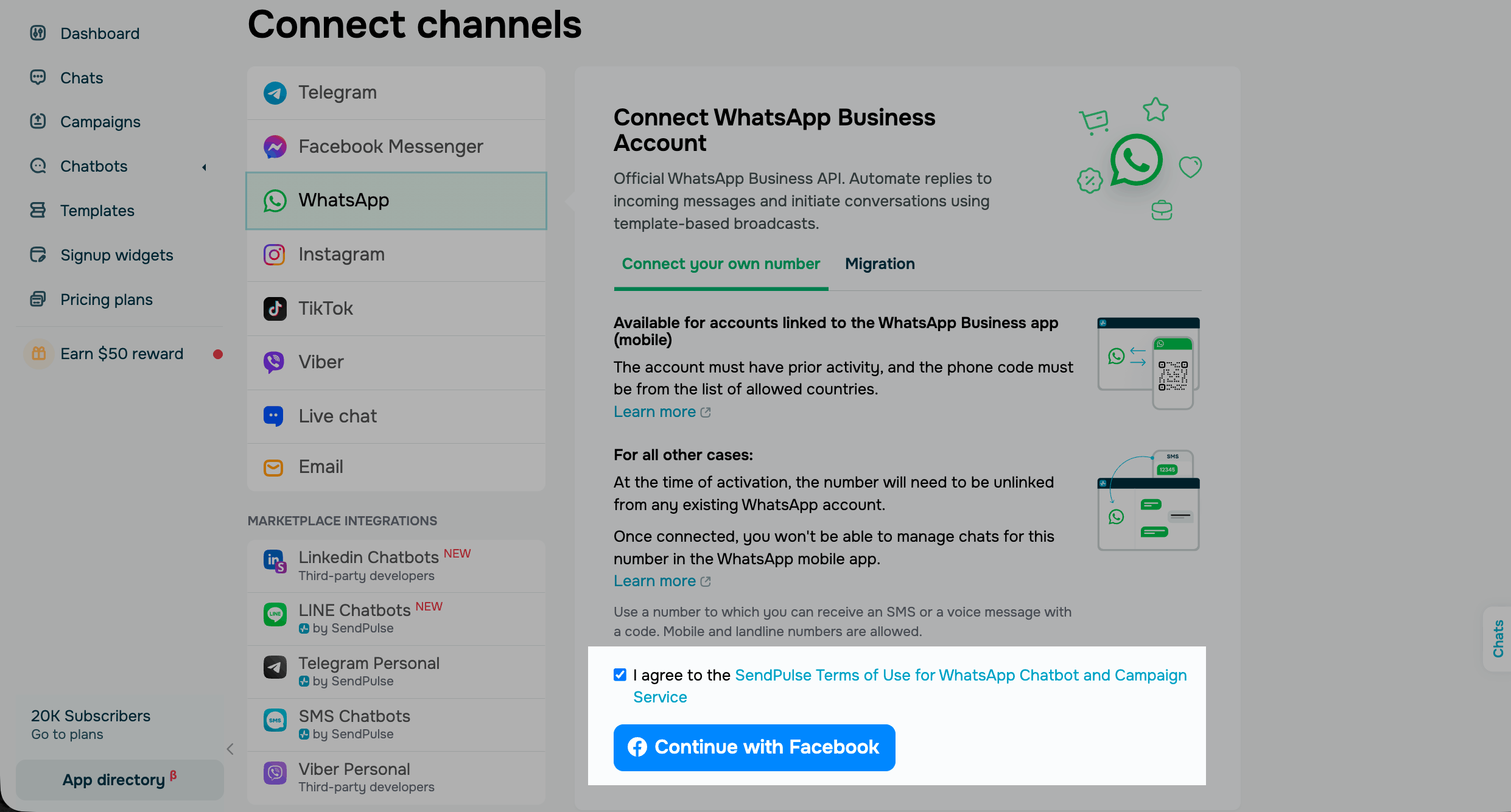
To start the setup, go to the Chatbots section in your SendPulse account. If you haven't connected any channels yet, click Connect. If you already have connected chatbots, go to Manage bots and click Connect next to the WhatsApp channel.
In the WhatsApp section, go to the Connect own number tab, accept terms, and click Continue with Facebook.
If another WhatsApp provider has already registered your number, go to the Migrate tab instead. Read more: Switch to SendPulse from other WhatsApp providers.
Log in to the Facebook account that manages your Meta Business Portfolio, or the account you'll use to create it.
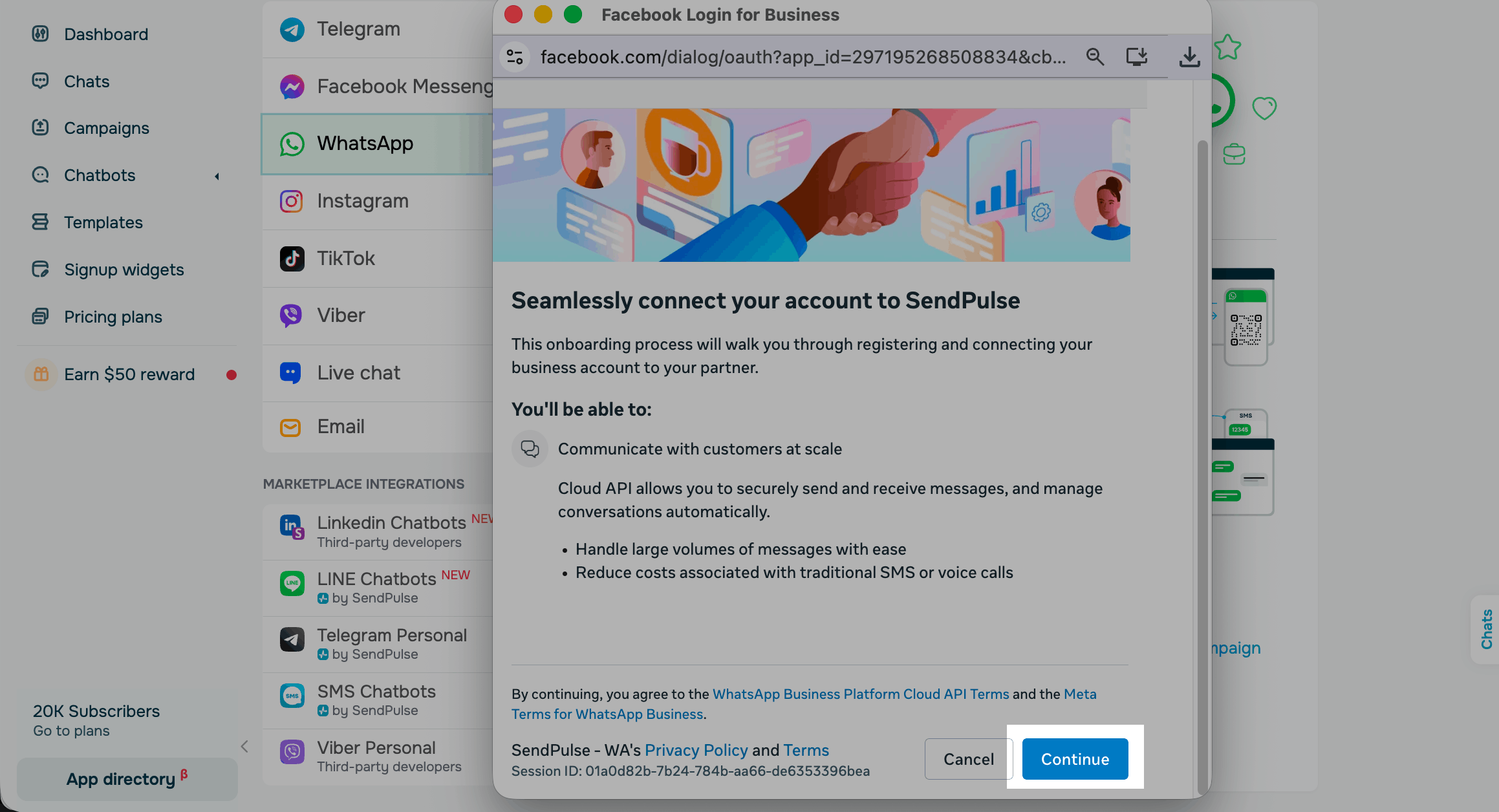
Meta's connection wizard opens. Click Continue.
Add your phone number
On the setup type screen, the wizard offers two options: connect your existing WhatsApp Business app or register a new phone number.
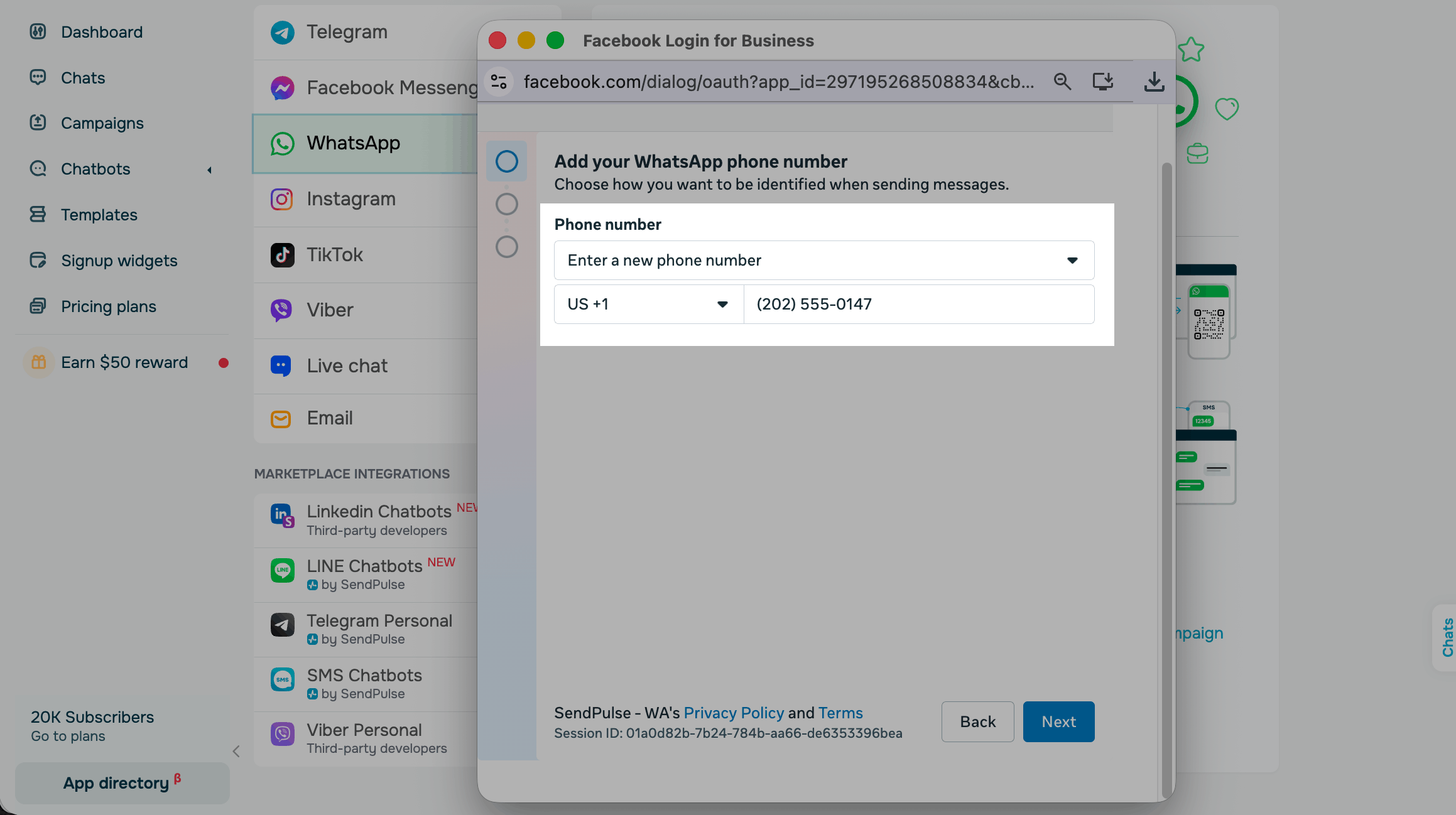
Select Enter a new phone number, enter your number and click Next.
If your want test the chatbot before your business number is ready, select Use a display name with a virtual number instead. Meta issues a test number with the +1 country code and the 555 area code and verifies it automatically. A business can claim up to two such numbers, and the option appears only for eligible businesses.
If your number works in the WhatsApp Business app and you want to keep the app, select your connected number instead and follow the Coexistence article.
Select the confirmation method: SMS for a mobile number, or a voice call for a landline, toll-free, or virtual number. The number must accept international SMS and calls, and the registration call cannot pass through a voice menu.
Please note that after you register the number on the WhatsApp Business Platform, you communicate with customers on this number through SendPulse only. You cannot use it in the consumer WhatsApp app or the WhatsApp Business app anymore, and you cannot see the previous chat history.
If the number is still registered in a WhatsApp app, delete the account first, wait up to three minutes, and start the wizard again. Read more: Prepare your phone number before connecting.
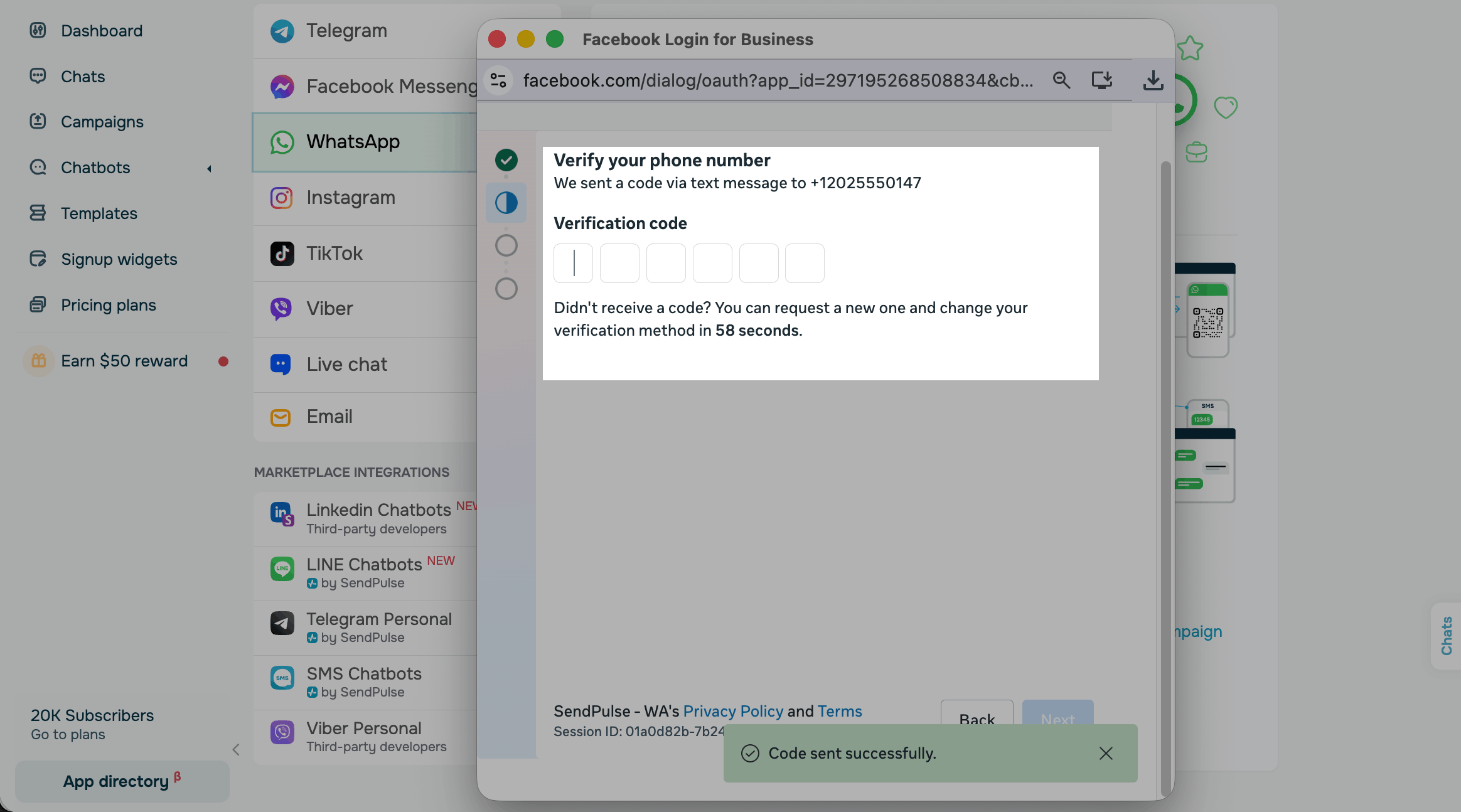
Once you select and verify your number, click Next.
Select your Meta Business Portfolio
After the number, the wizard asks which Meta assets you share with SendPulse. You can select assets your company already has or create new ones on this screen.
| Asset | What it is | What to select |
| Business portfolio | The company entity in Meta that owns your business assets: pages, ad accounts, and WhatsApp Business accounts. | Your company's portfolio. If you don't have one, create it here and enter your company's legal name, phone number, website, and email address. |
| WhatsApp Business account | The account inside the portfolio that holds your business phone numbers, message templates, and billing. | Create a WhatsApp Business account, or an existing account if your company already has one. |
| Ad Account | The Meta asset that holds your advertising settings and payment details, including for ads that click to WhatsApp. | Create a new Ad Account, or an existing account if your company already runs ads. |
To speed up the setup, we recommend that you verify your business in Meta before you connect WhatsApp. The verification process depends on the country of your business, and you can check its status in the Security Center section of your business settings. Read more: Verify a business in Facebook Business Manager.
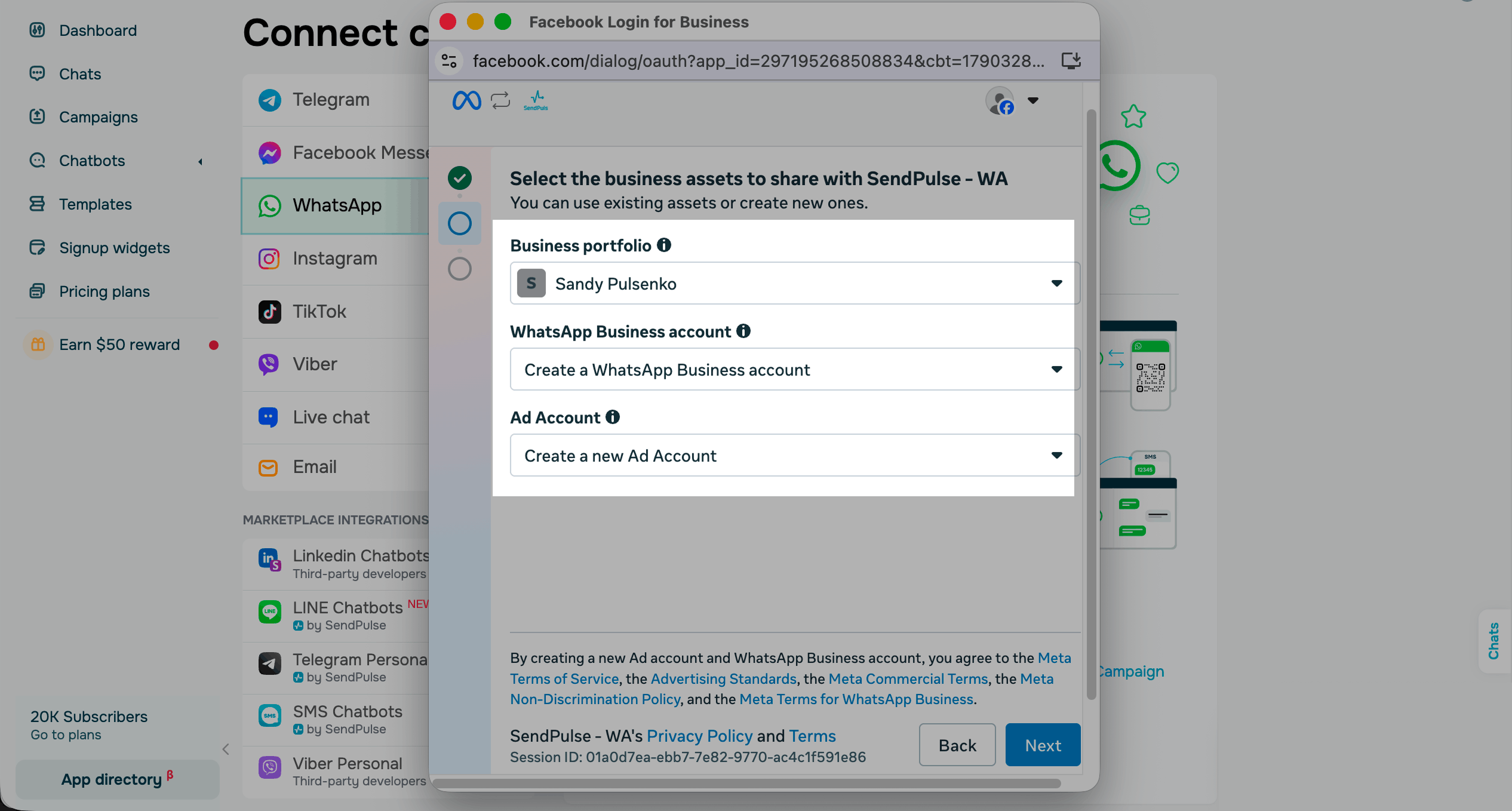
Once you select, click Next.
Set up your WhatsApp business profile
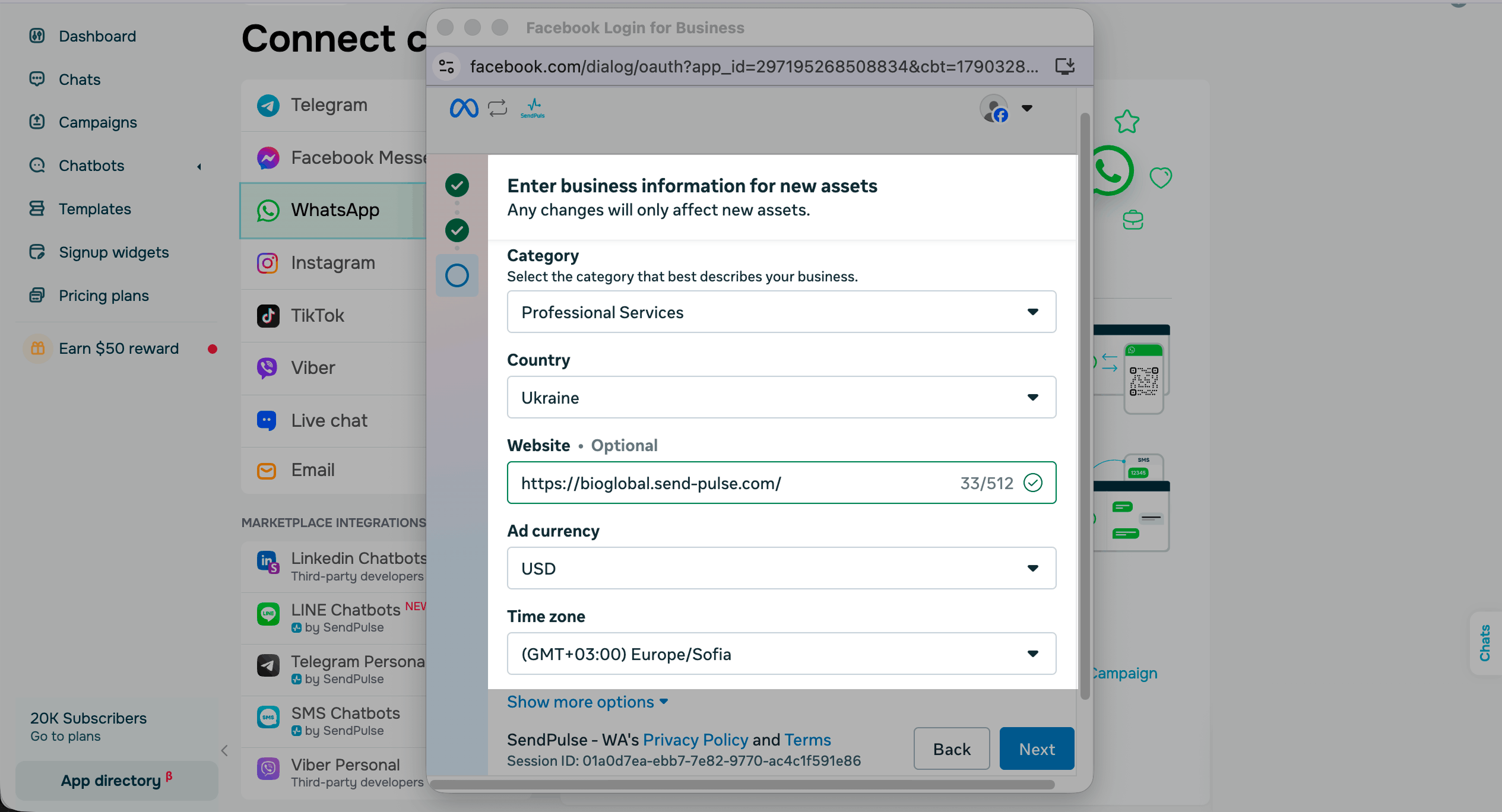
Customers see your WhatsApp business profile in the chat with your chatbot. Enter business information for new assets:
| Category | The category that best describes your business. |
| Country | The country your business operates from. |
| Website |
Your company's website, up to 512 characters. Meta checks the address as you type it. You can create a website or bio-link with SendPulse. |
| Ad currency | The currency of the new ad account. |
Please note that customers see the company name and the green check mark in the chat only for Official Business accounts, which Meta grants mostly to well-known brands. Otherwise, they see the phone number in the chat and in the profile.
Read more: Edit your WhatsApp business profile.
Click Show more options to open the remaining fields, then click Next to finish the wizard.
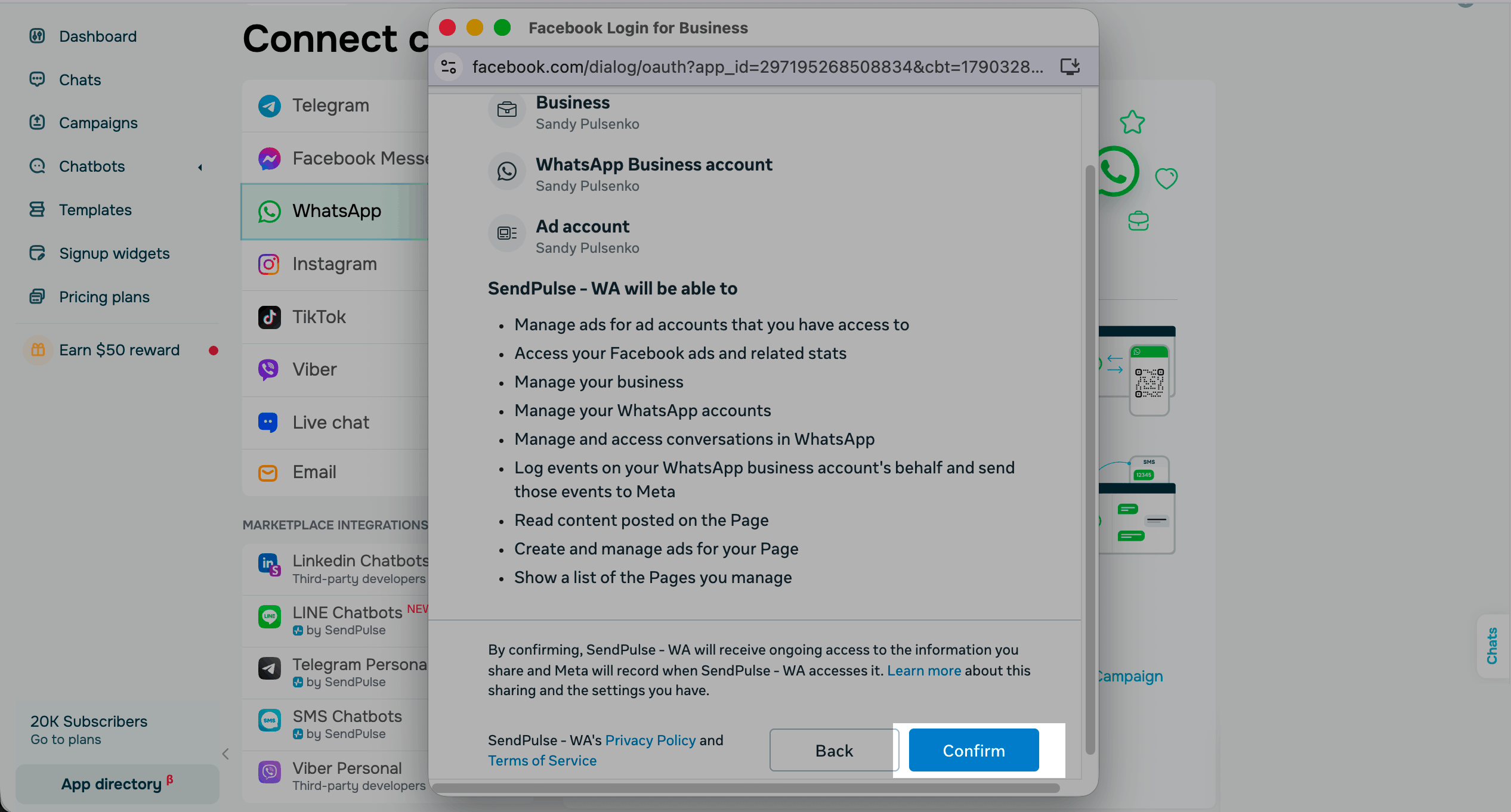
In the news window check all the information you added and click Confirm.
Finish the connection
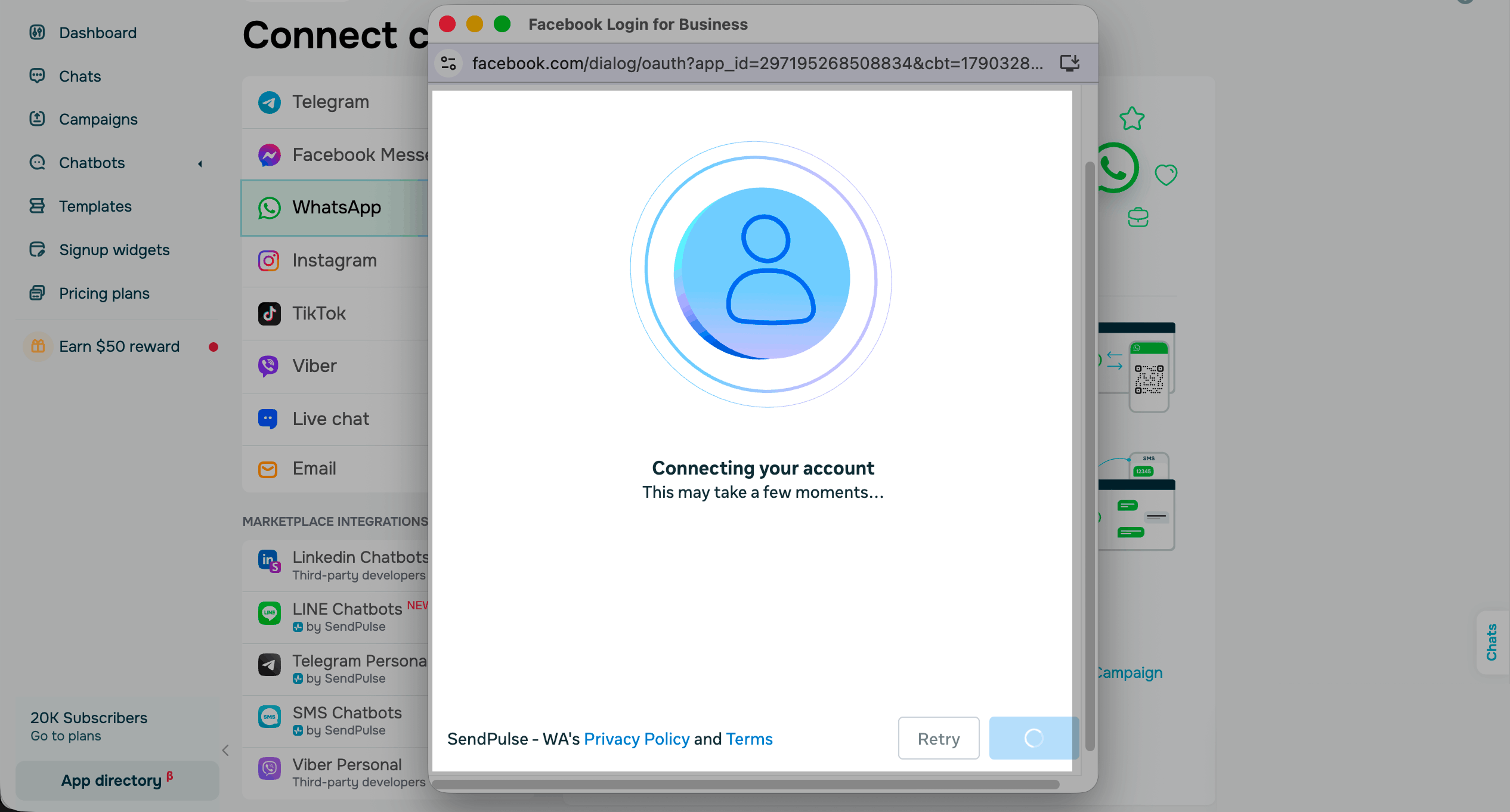
Once you finish setting up your account, the wizard shows Connecting your account and takes a few moments.
If you facing connection errors at this step, read more: Troubleshoot WhatsApp connection errors.
When the connection succeeds, you see Your account is connected to SendPulse and the list of assets the wizard created. Click Continue to feature setup.
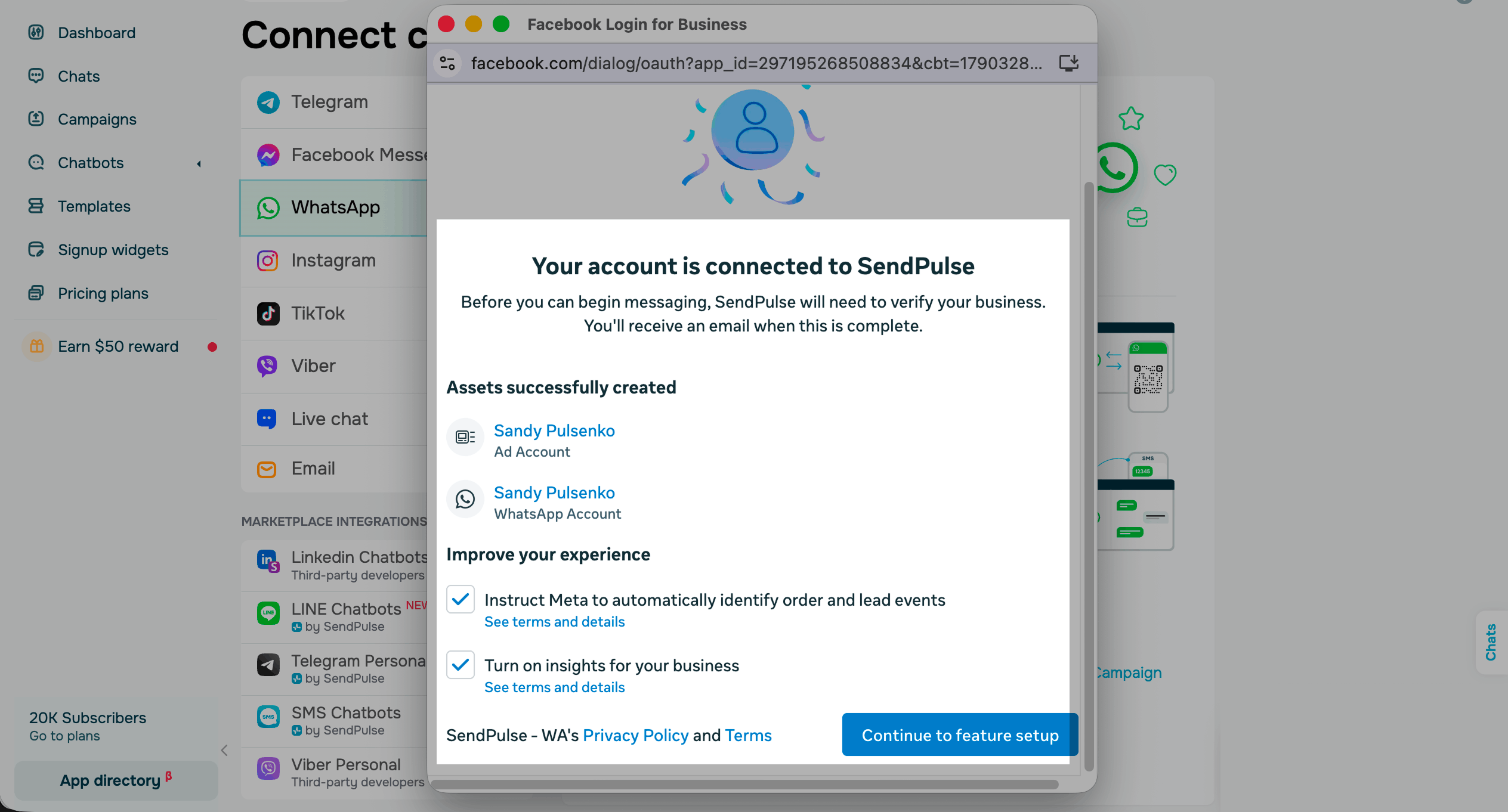
Meta opens WhatsApp Manager > Setup guidance with the task Connecting phone number to SendPulse, which takes about a minute.
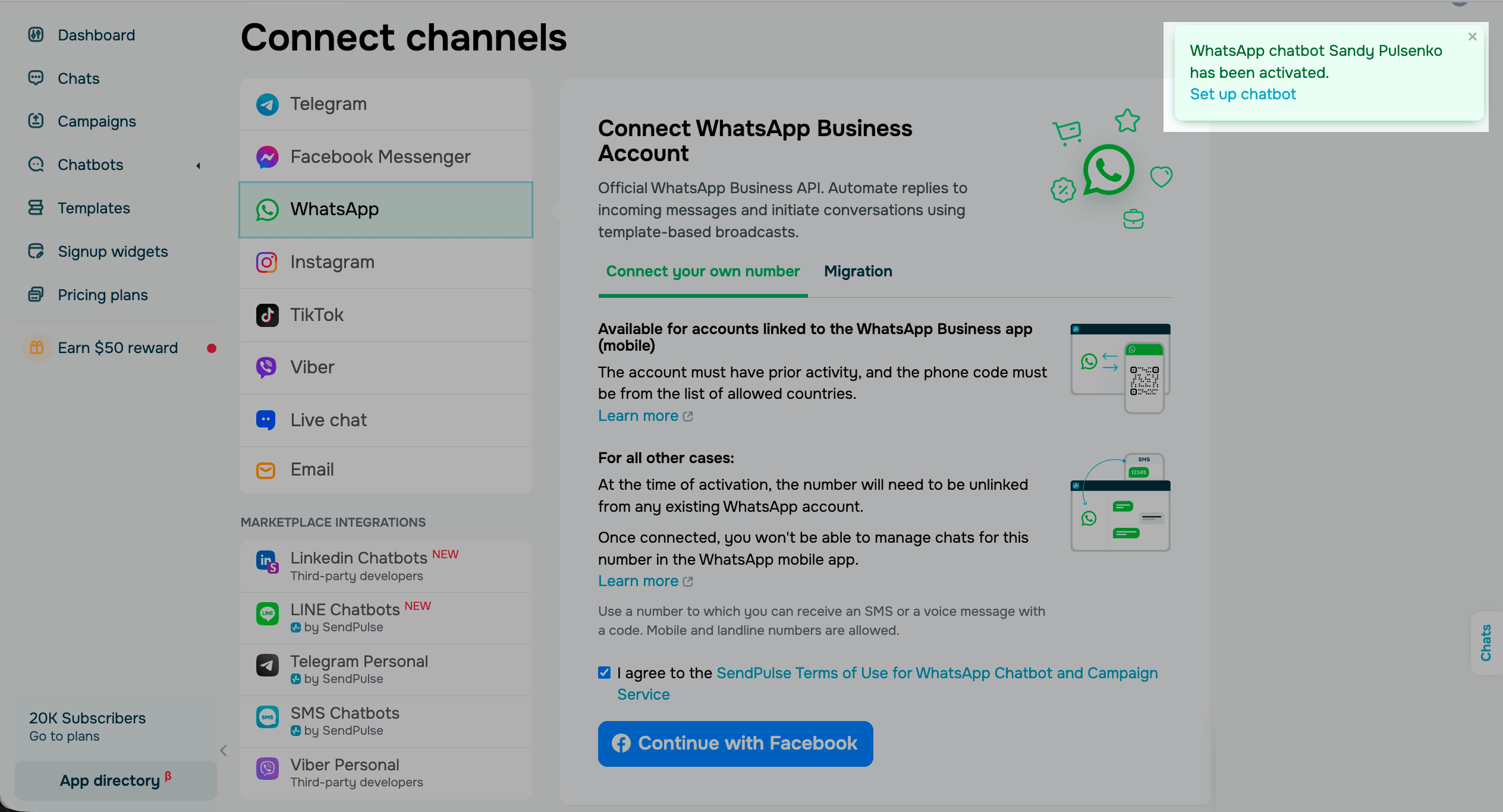
Then return to the SendPulse tab and click Set up chatbot in the notification.
Subscribe to your WhatsApp chatbot
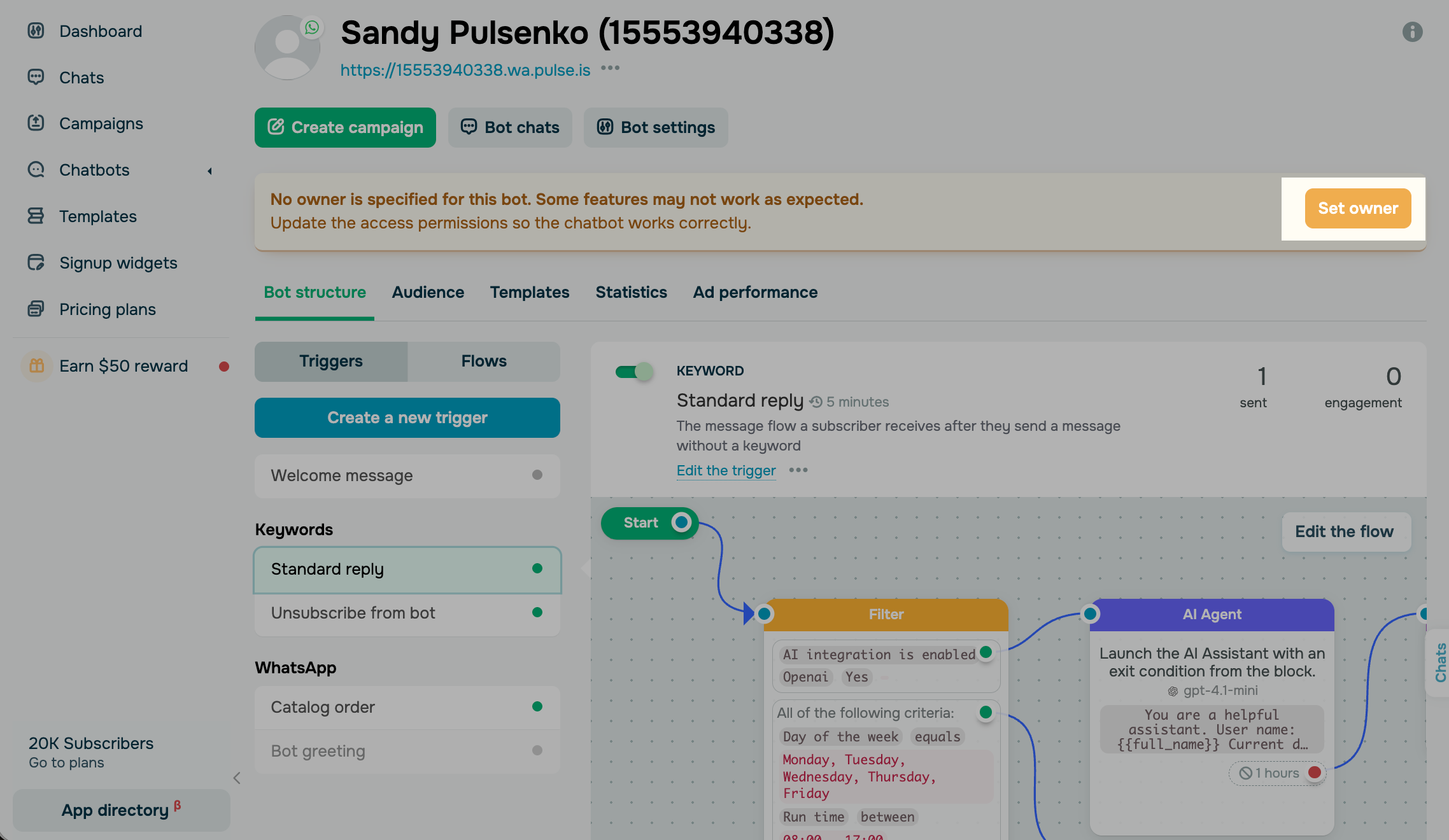
To test your WhatsApp chatbot, you need to add your own WhatsApp account as the chatbot owner. To do this, click Set the owner.
Then, follow the steps on the screen:
- Log in to your personal WhatsApp account on your phone app.
- Point your phone camera at the QR code and open the link. WhatsApp opens chat with the code pasted into the message field.
- Send the message with this code.
Please note that the code changes when you reload the page. Send the current code to identify yourself as the chatbot owner.
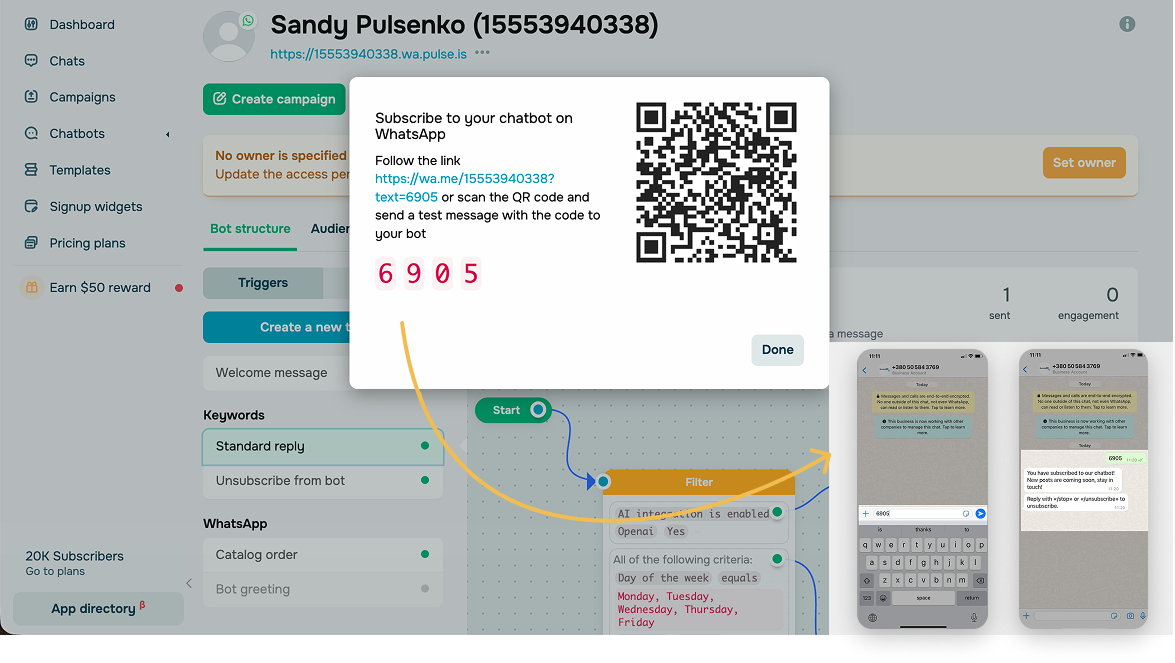
If the setup is correct, the chatbot sends you the Welcome message flow, and the Owner label appears next to your contact in the chatbot audience in SendPulse.
Continue building your chatbot
The Welcome message, Standard reply, and Unsubscribe from flows are available by default. You can also create your own triggers and flows.
Plan the key conversations your chatbot should support, then build dedicated flows with the flow builder elements. Branch flows based on user behavior with the Button, Filter, and AI Agent elements. You can also generate flows with AI or apply ready-made flow templates that match your goals.
Once you set up your chatbot and flows, add chatbot links to your website or pop-ups.
Track your chatbot's performance in your account statistics and in chats with subscribers to analyze the user journey and improve it.
Read more: Create a chatbot flow, Create a WhatsApp campaign, Grow your audience.
 Last Updated: 09.10.2025

or