Add a product tax
Use taxes to include mandatory charges in your product prices. This makes the total cost clear to buyers as they browse and purchase items. After checkout, the system sends tax data to your payment provider and analytics tools.
Let’s talk about how to create and add a tax to your product.
Create a tax
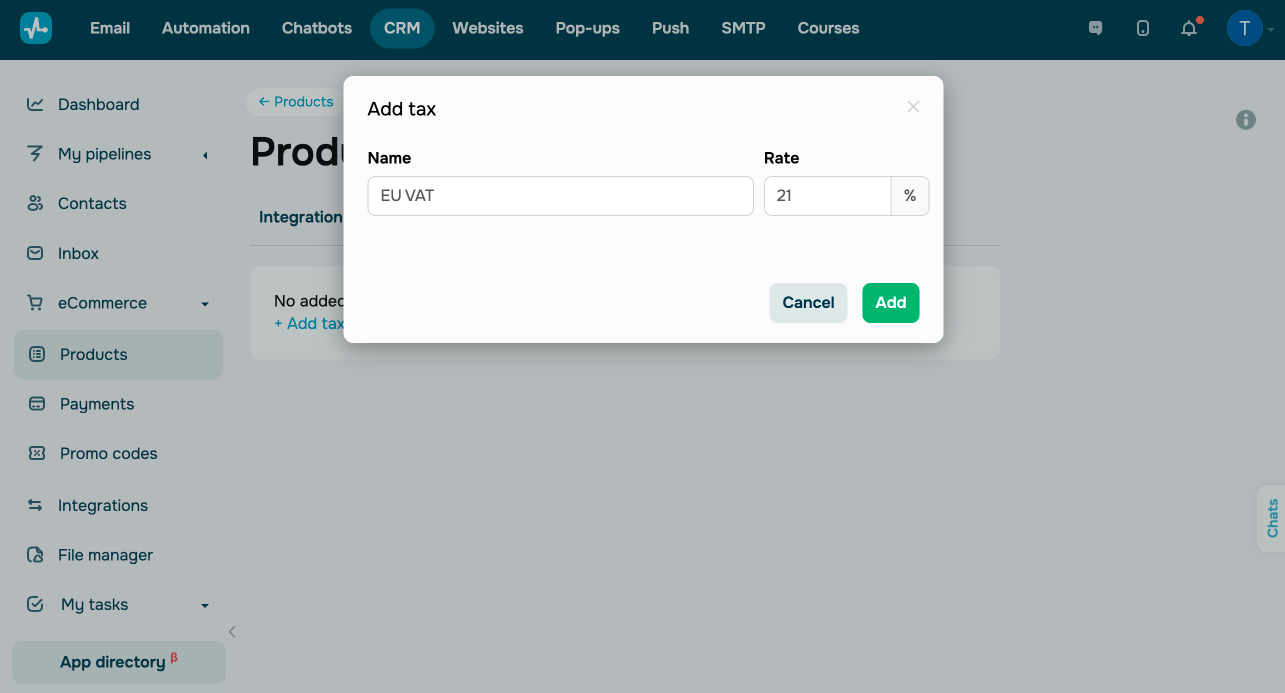
Go to CRM > Products > Settings > Taxes and click Add tax. Enter a tax name and tax rate.
Add a tax to your product
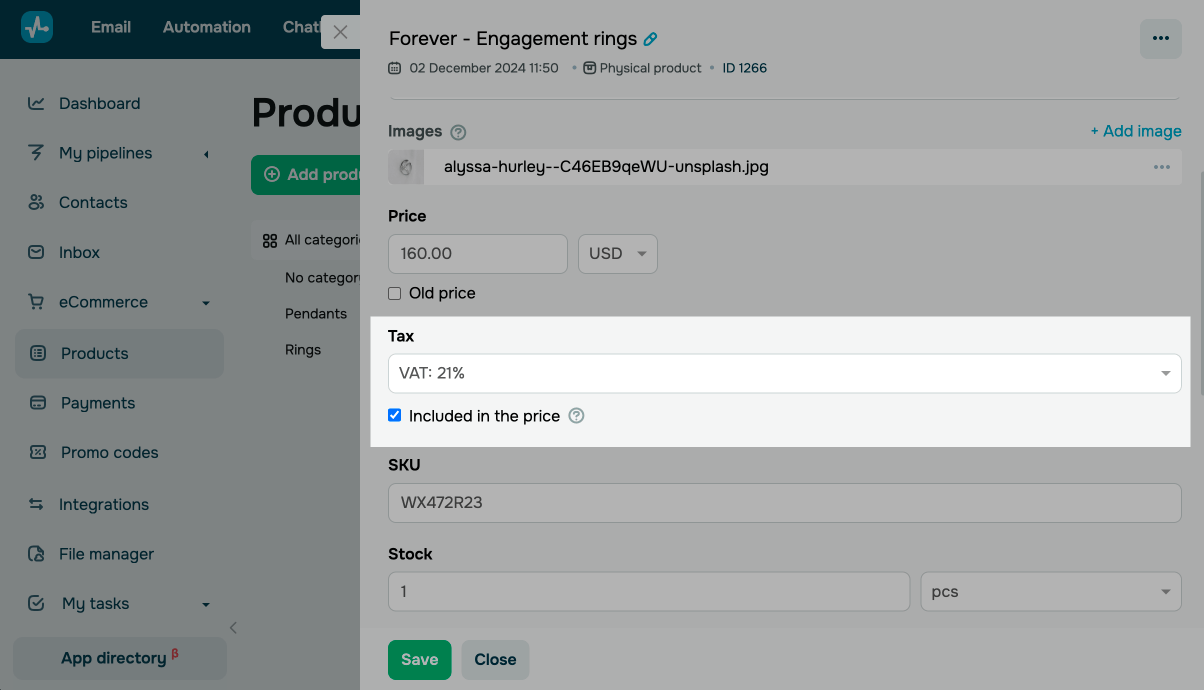
Open the page with your product description. In the Tax field, select the tax.
Select the Included in the price checkbox if needed. When this option is enabled, the tax will be automatically included in your product price. When it’s disabled, the tax amount will be added on top of the price.
Once you add a tax, you can view it along with your product in deals and on your website.
 Last Updated: 28.11.2025





or