Create a dynamic segment
Dynamic segments are groups of contacts created using predefined criteria. These segments automatically update in real time, reflecting changes in contacts' actions or data within SendPulse tools.
In this article, we will talk about how to create dynamic segments.
Go to Automation > Segmentation and click Add segment.
Select a trigger
A trigger is an event that automatically adds a contact to a segment.
You can use triggers from various SendPulse tools. Select multiple triggers for one segment, and when at least one of them activates, a contact will be added to your segment.
Suppose you’ve set up triggers for when users subscribe to your chatbots in various messaging apps. When a user subscribes to any of these chatbots, your trigger condition will be met, adding this user to your dynamic segment.
Select a trigger from the list and configure its conditions.
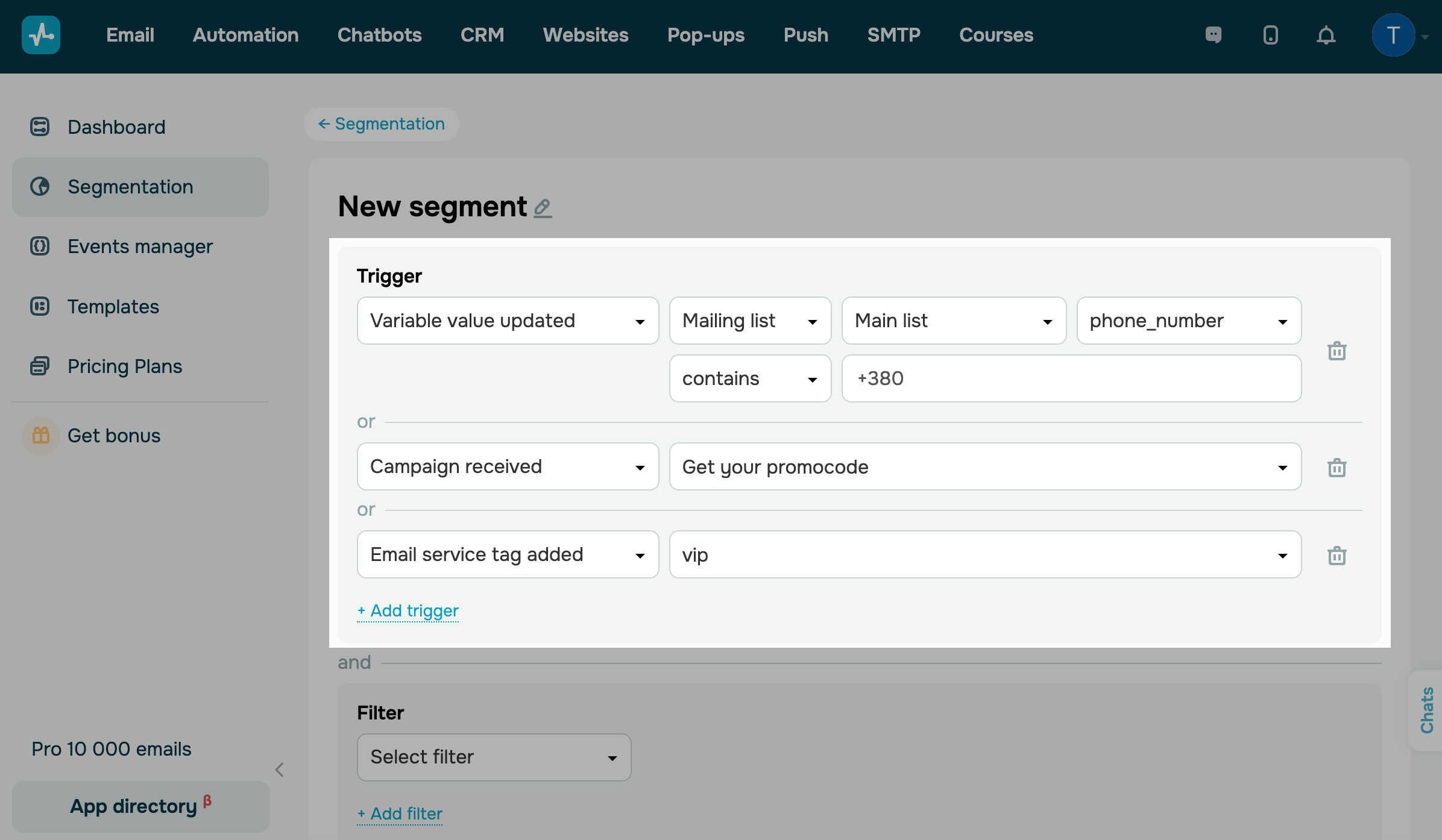
| Variable value updated |
Tracks contact variable value updates in your mailing list. Select a mailing list and variable from the dropdown menu on the right. Select an operator below and add a value. |
| Added to mailing list | Tracks new contacts on your mailing list.
Select a mailing list from the dropdown menu. |
| Campaign received |
Tracks all recipients of your selected email campaigns. Select Any from the dropdown list to track recipients of all email campaigns, or select a specific campaign. |
| Campaign opened |
Tracks recipients who opened an email campaign. Select Any from the dropdown list to track the opens of all campaigns, or select a specific campaign. |
| Email service tag added |
Tracks contacts with mailing list tags in the Email section. Select a contact tag from the dropdown list, or select Any to track all contacts with tags. |
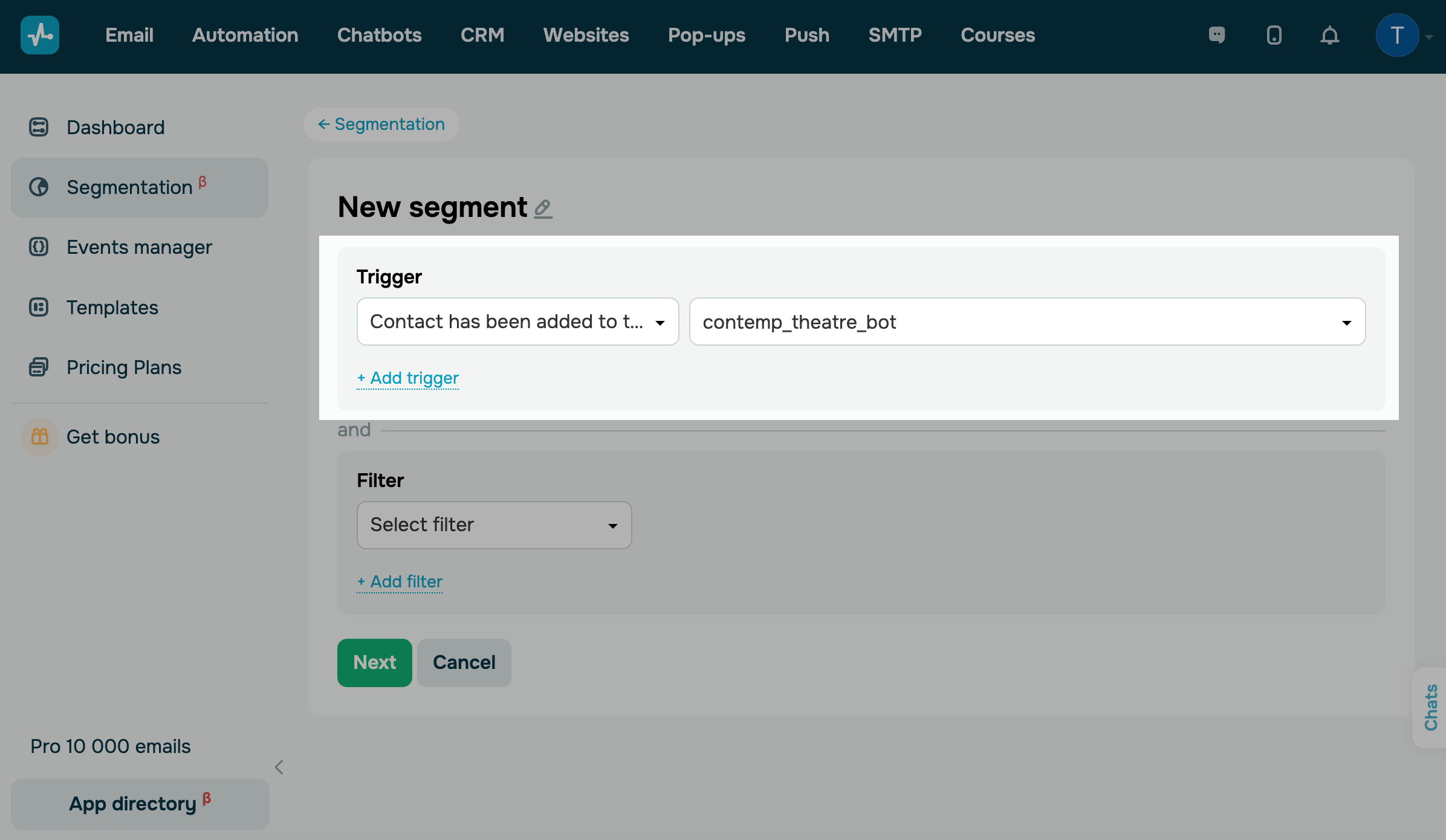
Chatbots
Select the Contact has been added to the chatbot audience trigger to track new chatbot subscribers.
On the right, select a chatbot from the dropdown list.
CRM
Select a trigger from the list and configure its conditions:
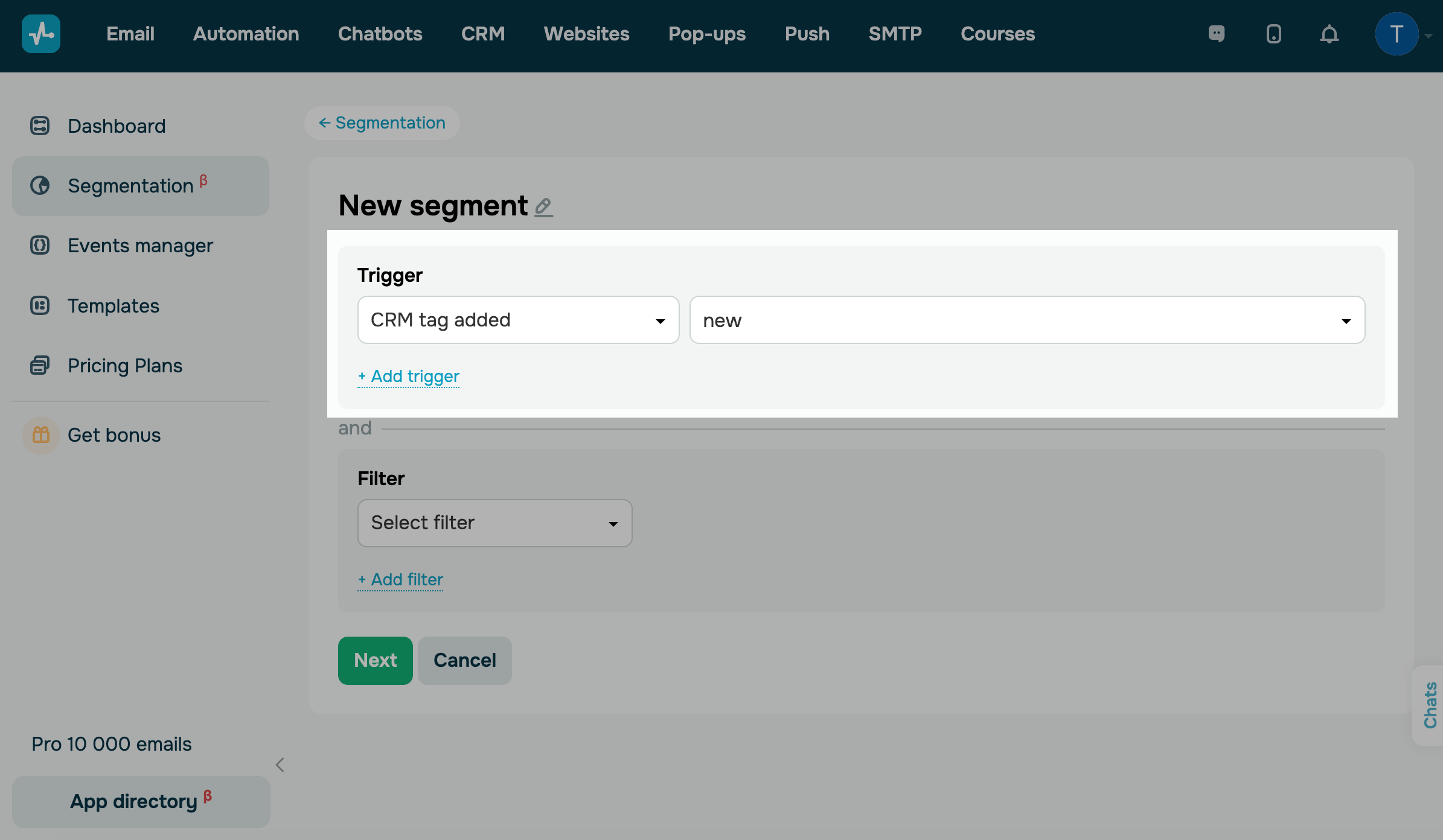
| CRM tag added |
Tracks contacts that have an assigned tag in the CRM system. On the right, select an existing CRM tag from the drop-down list. |
| Deal created |
Tracks pipelines and deal stages (any stage or a specific one). On the right, select an existing CRM pipeline. In the next field, select All from the drop-down list to track deals in every stage, or select a specific stage from your chosen pipeline. The trigger passes all deal variables. Each variable name receives the |
Courses
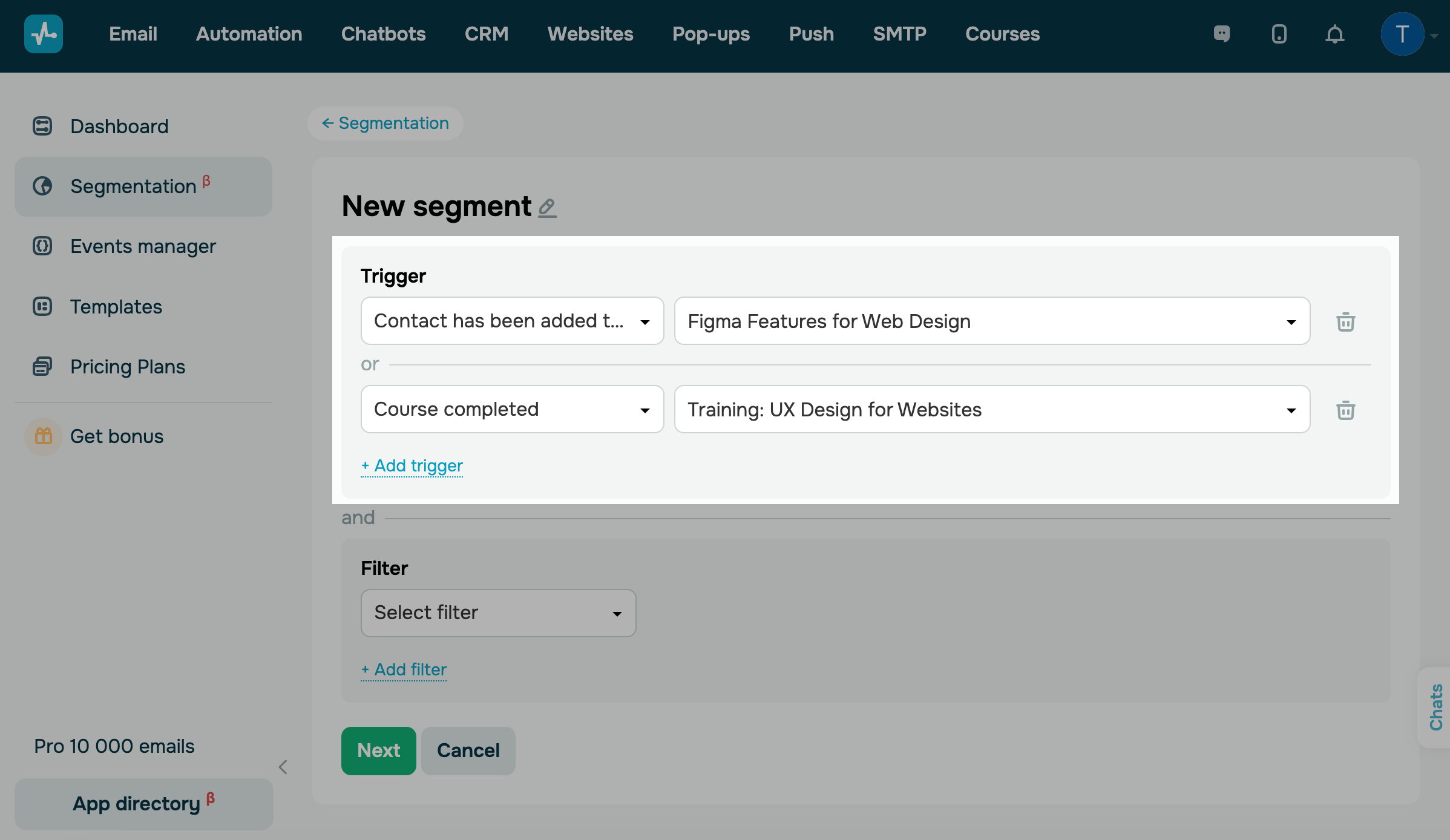
Select a trigger from the list and configure its conditions:
| Contact has been added to the course | Tracks students who signed up for your course. |
| Course completed | Tracks students who completed your course. |
On the right, select Any from the dropdown list to track students across all courses, or select a specific course.
Automation
Select a trigger from the list and configure its conditions:
| Flow message received | Tracks all flow recipients in the Automation section. |
| Flow message opened |
Tracks all recipients who opened a flow message. To use this condition, make sure your flow includes the Email element. |

Add a filter
Filters in dynamic segments can add more criteria to facilitate in-depth segmentation. Unlike triggers, which monitor future events, filters track existing contact data.
Select filter criteria
In the Filter block, select a contact search criterion from the dropdown list, and configure it.
| Email address | Tracks email addresses that meet the condition. Enter an email address as example@domain.com. |
| Email address domain part | Tracks email address parts following the @ sign. For example, in example@domain.com, the domain part is domain.com. |
| Email address local part | Tracks email address parts preceding the @ sign. For example, in example@domain.com, the local part is example. |
| Email address presence in mailing list | Tracks whether a contact is in your mailing list. |
| No received campaigns | Tracks contacts that did not receive your campaigns. |
| No opened campaigns | Tracks contacts that received but did not open your campaigns. |
| CRM tag | Tracks contacts with assigned CRM tags. In the next field, select a tag. |
| Email service tag | Tracks contact tags. In the next field, select a tag. |
| Variable |
Tracks contact variable values. Select a mailing list and variable from the dropdown list. Select conditions and enter a variable value. If you add multiple values, add the and or or operator. |
| Course completed |
Tracks whether contacts completed your course. Select Any from the dropdown list to track all courses, or select a specific course. |
| Campaign opened | Tracks whether contacts opened your campaign. In the next field, select Any or add a specific date. |
| Campaign received | Tracks whether contacts received your campaign. In the next field, select Any or add a specific date. |
| Email: verification status |
Tracks the status of a contact’s email address verification. Select the equals or does not equal criterion and choose a verification status:
|
| Order placed |
Tracks whether a contact is listed in deals within a specific pipeline. In the next fields, select a pipeline and timeframe:
|
| No placed orders |
Tracks whether a contact has no deals in the selected pipeline. In the next fields, select a pipeline and timeframe:
|

Select a criterion
To enhance your search for matches between contact data and customized filter values, you can apply the following criteria:
| Contains | Adds contacts whose data points include the specified value, even if they are not identical.
Can be applied to find partial matches. |
| Equal | Adds contacts whose data points completely match the specified value.
Can be applied to find full matches. |
| Not equal | Adds contacts whose data points exclude the specified value. |
| Starts with | Adds contacts whose data points start with the specified value. |
| Ends with | Adds contacts whose data points end with the specified value. |
| Does not contain | Adds contacts whose data points don’t include the specified value.
Can be applied to find partial matches. |
| (Date) |
Available in the No received campaigns, No opened campaigns, Campaign received, and Campaign opened filters. Select an exact date from the dropdown list, and add a date from the calendar. If you need to filter data by date, choose one of the following options:
If you don't need an exact date, select any date from the dropdown list to track campaign sending and receipt. |
Select operators
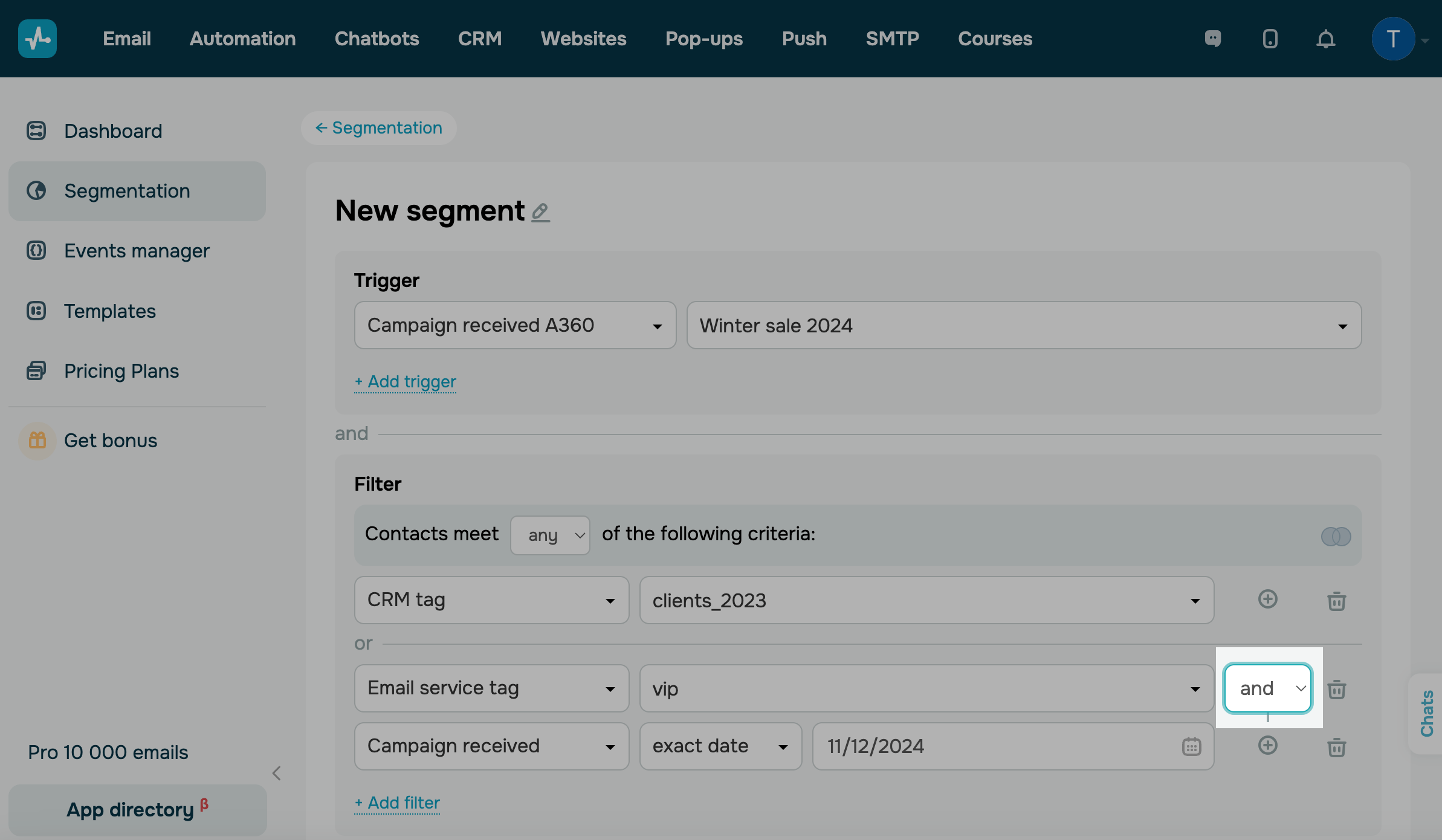
If you add multiple filter conditions, you can link them using Any and All operators.
For example, if your contacts in CRM or other sections have the same tags, you can select the CRM tag and Email service tag filter criteria and link them using the all operator to ensure you don't overlook any relevant contacts.
| Any |
Tracks whether one of the filter criteria is met. Contacts will be added to your segment if at least one of your filter criteria is met. |
| All |
Tracks whether all filter criteria are met. Contacts will be added to your segment if all filter criteria are met. |

You can also group filters and their criteria using the and and or operators.
and |
Ensures that both criteria within the group are met. |
or |
Ensures that any criterion within the group is met. |
Click Next.
Map your variables
New variables will be created in your segment to synchronize variable data across SendPulse tools.
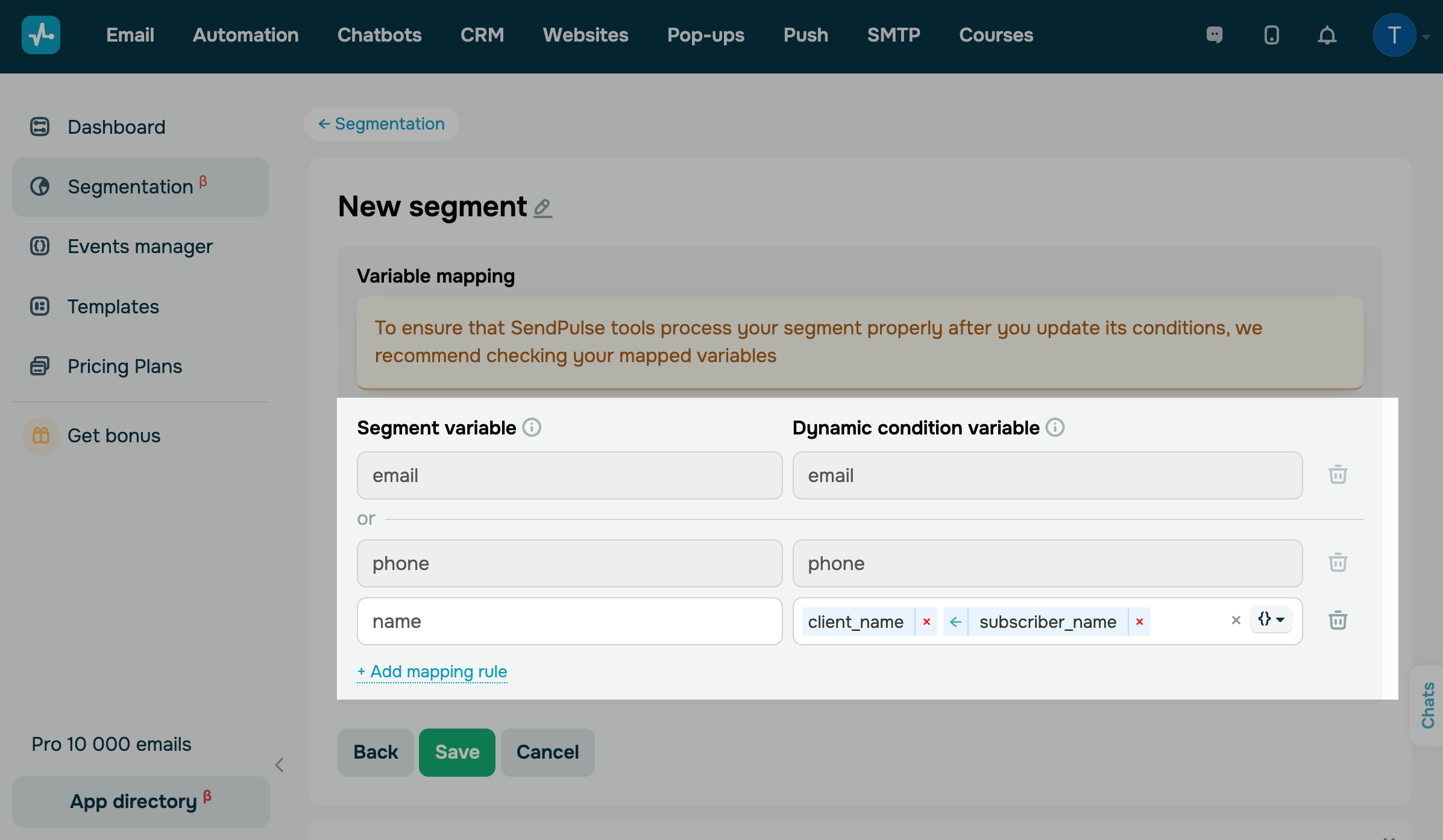
A segment variable is the final value assigned to your segment. Dynamic condition variables are sourced from SendPulse tools and will be synchronized with your segment variables.
Segment variables and dynamic conditions must be entered manually. By default, the email and phone system variables are mapped.
Each deal variable receives the _deal suffix for CRM field mapping. Spaces in variable names are not replaced with underscores.
You can also use system deal variables that are not included in the standard list:
price_deal— deal amount;currency_deal— deal currency;deal_type_deal— deal type (Sales, Sale of products, Sale of services, and so on)
Read also: Use CRM variables in Automation.
Click Add mapping rule. In the Segment variable column, enter the value that will merge other variables. In the Dynamic condition variable column, select the variables from different sections you want to merge.
You can merge similar variables from different mailing lists. Suppose one mailing list has the client_name variable, and another one has the subscriber_name variable. You can add both variables to the Dynamic condition column and create a new variable in the Segment variable column that will merge their data.
Click Save.
You can use the created segment as an automated flow trigger or manage your segments.
 Last Updated: 27.11.2025





or