Manage dynamic segments
You can manage dynamic segments to update their conditions based on new data from SendPulse tools, create similar dynamic segments, or delete them.
In this article, we will talk about how to manage your dynamic segments.
Go to Automation > Segmentation.
Rename a segment
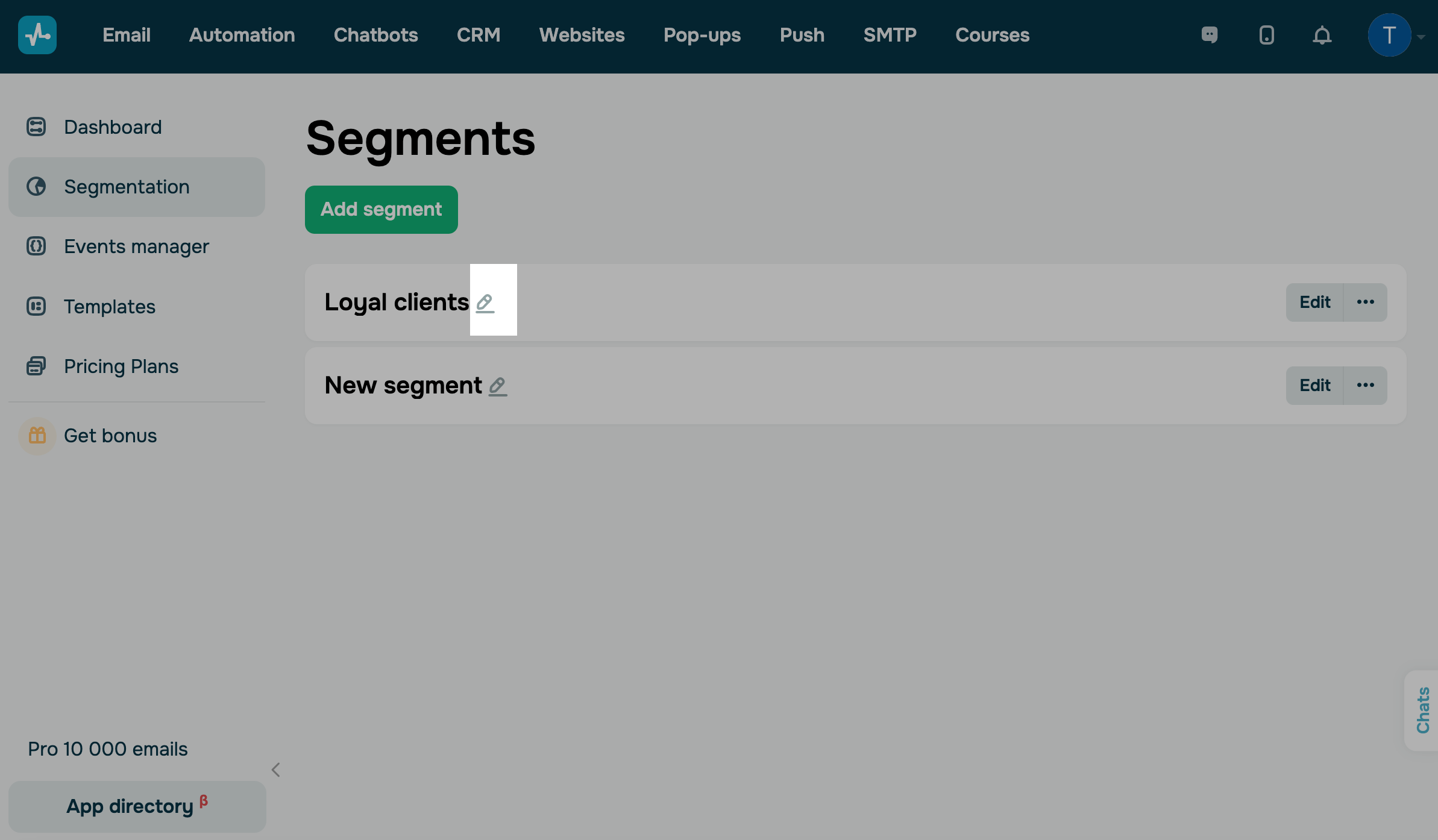
Click the pencil icon to edit your segment name. In the modal window, type in a new name and click Save.
Edit segment conditions
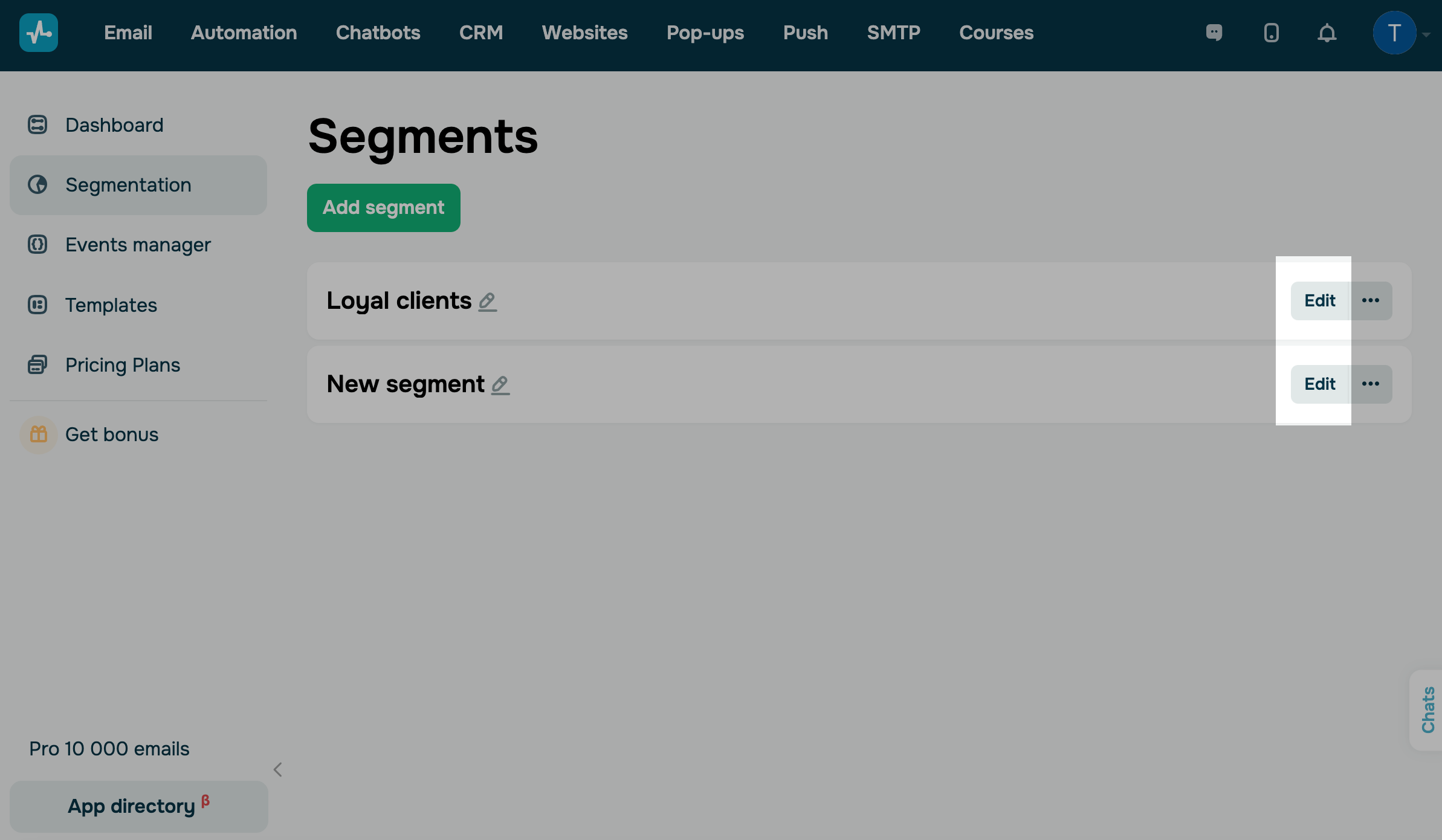
To change the current segment conditions, click Edit. In the opened section, you can configure triggers, filters, and data mapping rules. Save your changes.
Read more: How to create a dynamic segment.
Reuse segment conditions
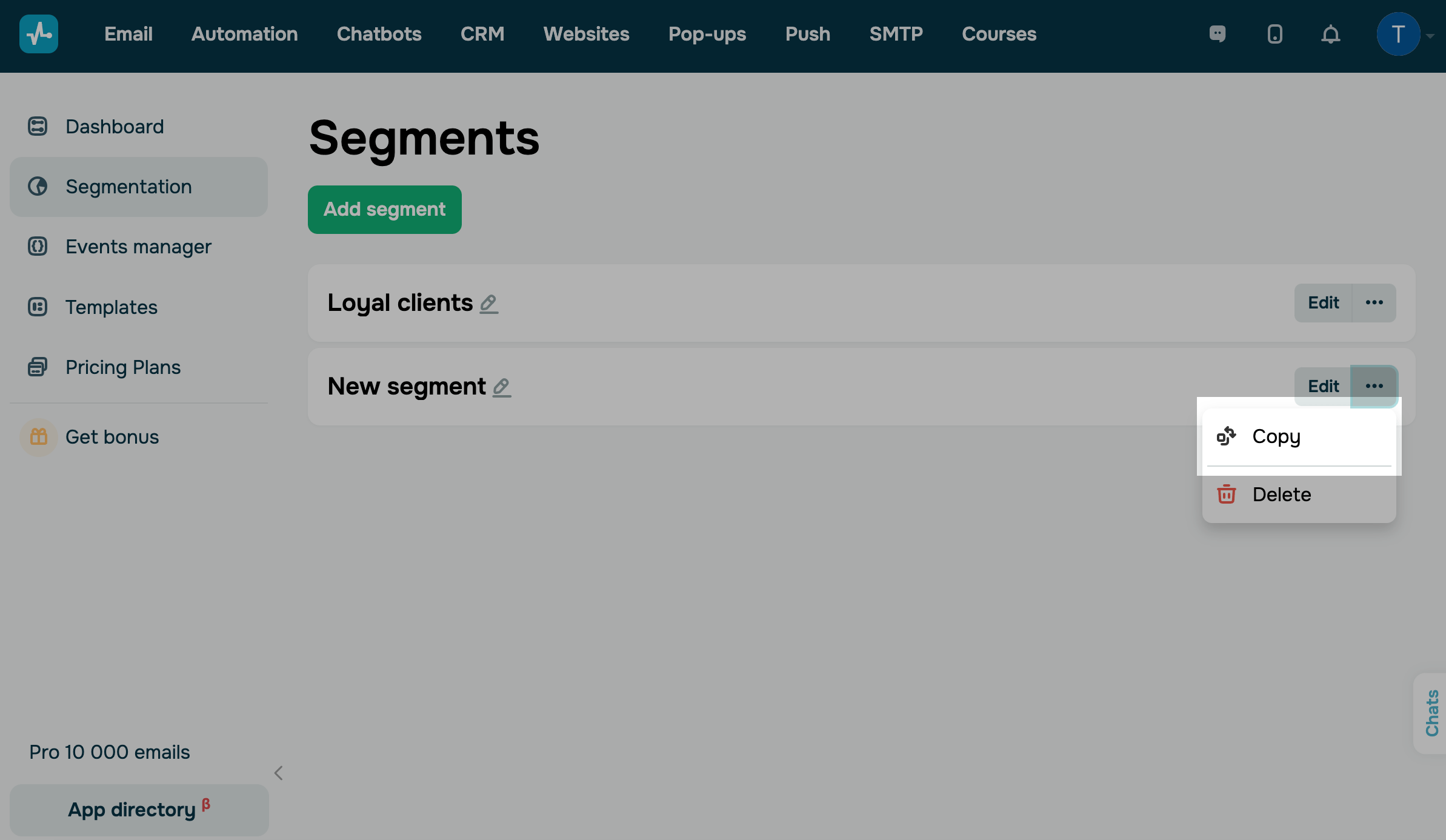
To create a segment using an existing one, click the three dots and select Copy. In the opened section, you can configure conditions, filters, and variable mapping rules. Save the settings to create your segment.
Delete a segment
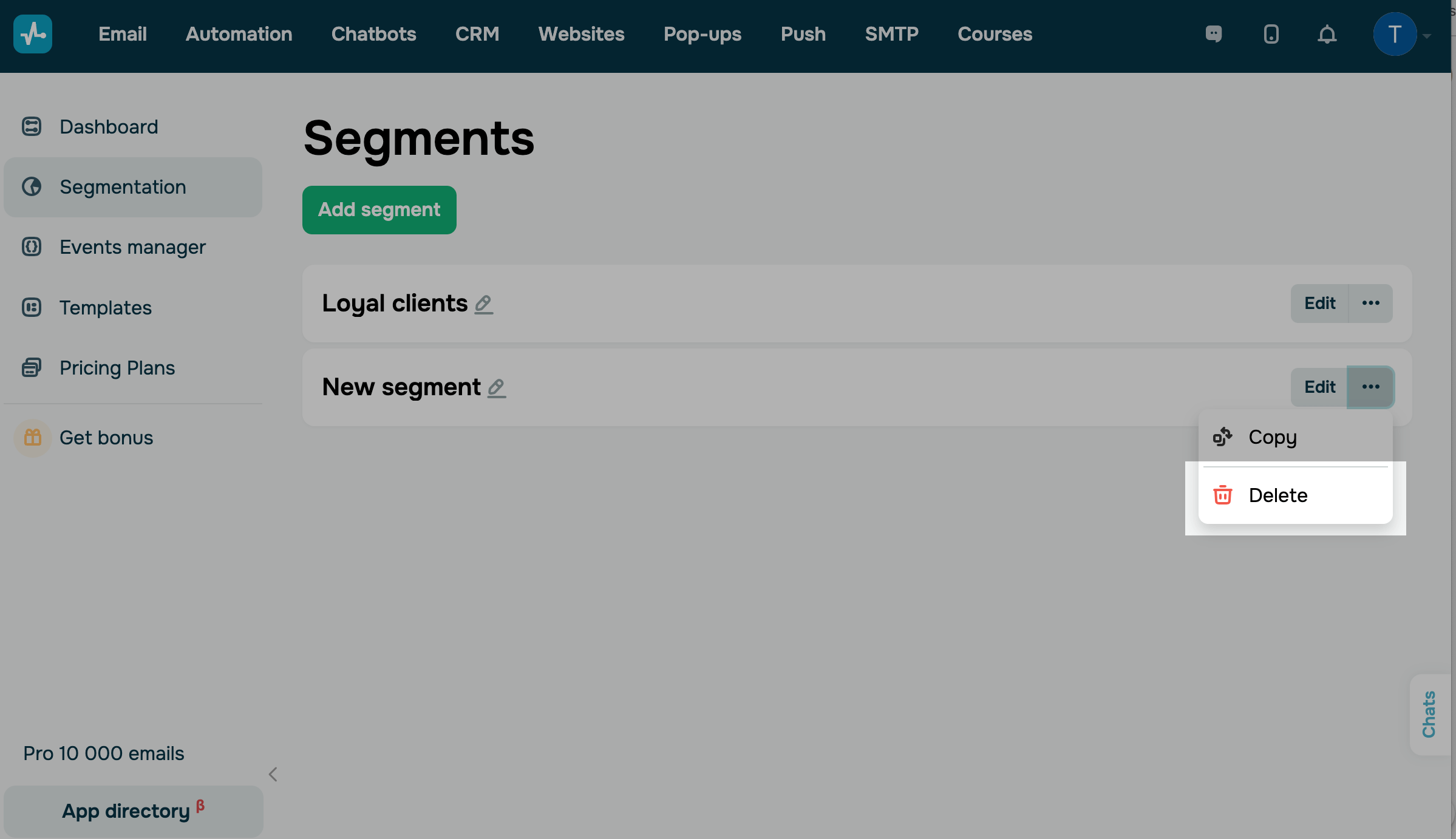
To delete a segment and all its data, click the three dots and select Delete. Confirm the action in the modal window.
 Last Updated: 18.12.2024





or