Export a list of students
You can export your student list to get clear, structured audience data for analysis, reporting, or external tools.
In this article, we will talk about how to create and export a file with your student list.
Create a file
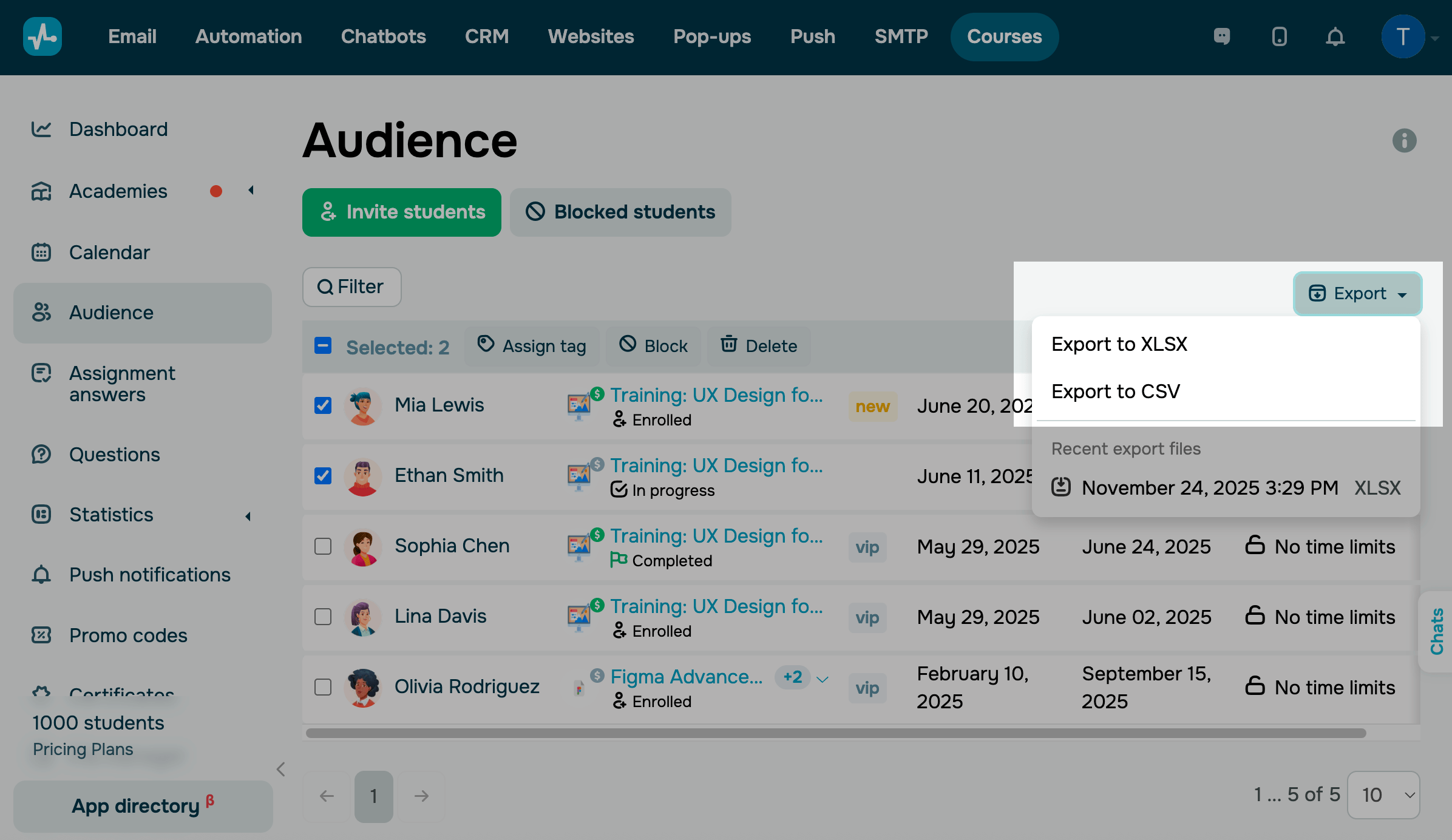
Go to the Audience tab and select your students. To select students based on specific criteria, click Filter and choose filter conditions.
Click Export and choose a file format: XLSX or CSV.
The file is generated in the background and may take some time depending on the number of records. Do not reload the page until the export process is complete.
Download file
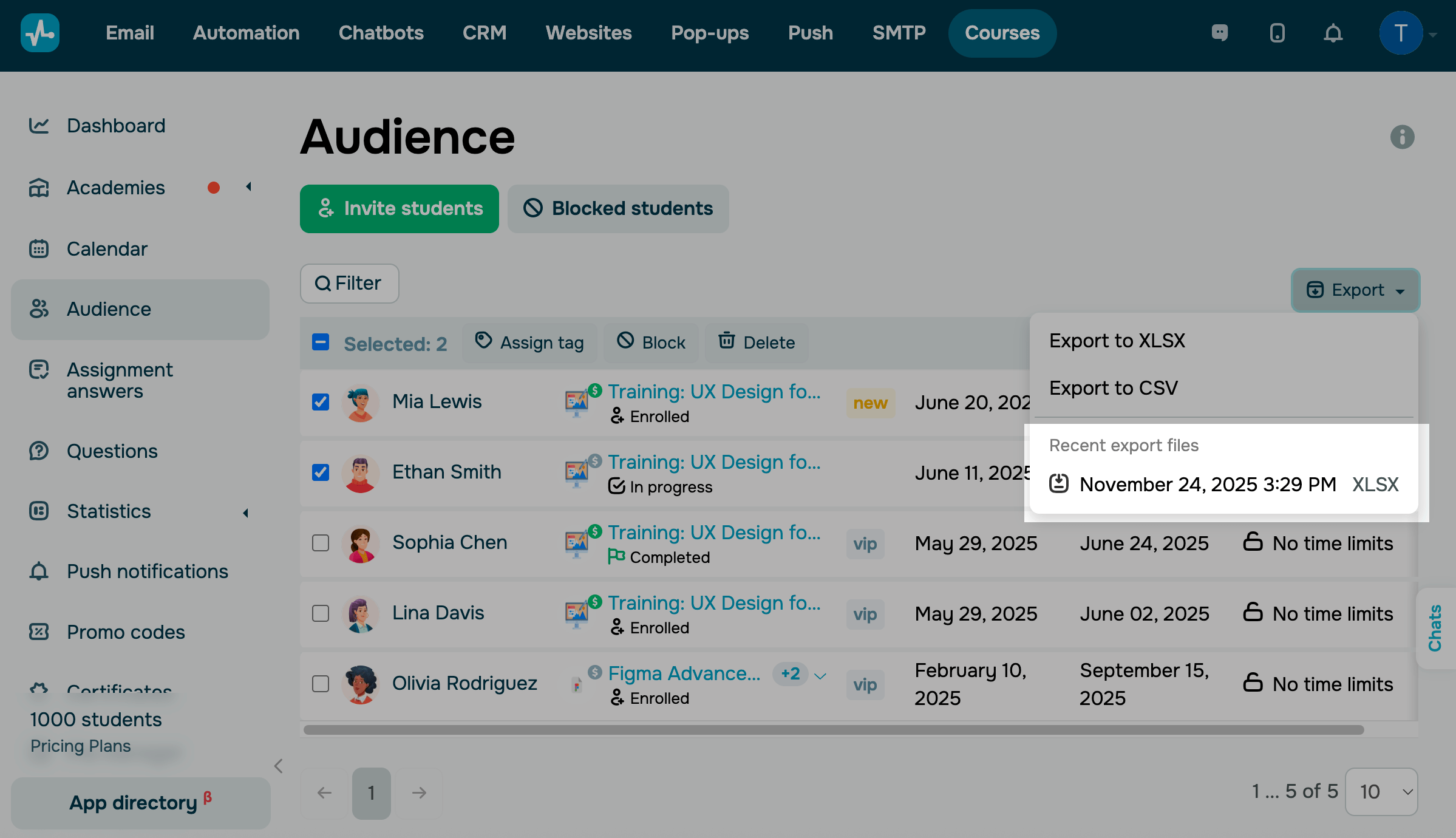
When the file is ready, you can download it to your device. In the export menu, you can also view its name, creation date, and format.
Click Export, then click the file name with a relevant date. The file will be downloaded to your device.
The file includes the following data:
- student name;
- email address;
- course name;
- pricing plan;
- student status;
- tags;
- last login date;
- registration date;
- course completion date;
- course access expiration date.
You can also download any of the last five generated files again without running a new export.
 Last Updated: 27.11.2025





or