Priority time of sending an automation
You can send emails in an automated campaign only on specific days of the week and set a preferred sending time.
In this article, we will talk about how priority sending time works and how to set it for your automated campaign.
Basics
Once the starting condition is triggered, the system waits for N days or N hours. Then, it launches the flow elements on the closest day that matches your automated campaign settings. This rule applies to elements delayed by one day or more.
If an element is set to run at a specific time and that time has already passed on the execution day, the message won’t be sent the next day. Instead, it will be sent on the next priority day.
Sending elements
The execution of the Email, SMS, Messaging app, and Viber elements depends on their execution settings and the campaign’s priority sending time.
If a flow includes multiple sending elements and only the first one is set to run After N days, the first message will be sent on a priority day. The remaining messages follow the settings of their elements.
To send all messages in your flow on a priority day, select After N days in every sending element.
Below is an overview of how different sending scenarios work, taking priority days and time into account.
| Sending settings | Do priority days and time apply? | Description |
| Right away | No | The email is sent immediately. Priority settings don’t apply. |
| Exact time | Partially | If a contact enters your flow before the specified time, priority days aren’t applied. Contacts who enter after that time receive the next message on a priority day. |
| After N minutes / N hours | No | Priority settings don’t apply, even if the total delay exceeds 24 hours. |
| After N days at N hours | Yes | Priority days are always applied. The sending time is retrieved from the element settings. |
| Exact time and date | No |
Setting an exact date and time is available only for the Email element. The email is sent on the specified date and time without taking priority settings into account. |
Condition
You can configure how the Condition element triggers in days, hours, or minutes. Priority days and time apply only in certain cases.
Below is an overview of which scenarios take priority days and time into account and which don’t.
| Settings | Do priority days and time apply? | Description |
| After N days | Yes | Priority days and time apply. The element triggers on the nearest priority day and time. |
| After N hours | No | Priority settings don’t apply, even if the total delay exceeds 24 hours. |
| After N minutes | No | Priority settings don’t apply, even if the total delay exceeds 24 hours. |
Filter
You can configure the Filter element to trigger immediately, after a certain number of minutes or hours, or at a specific time after N days.
Below is an overview of which scenarios take priority days and time into account and which don’t.
| Sending settings | Do priority days and time apply? | Description |
| Right away | No | The element triggers immediately. Priority settings don’t apply. |
| After N minutes / N hours | No | Priority settings don’t apply, even if the total delay exceeds 24 hours. |
| After N days at N hours | Yes | Priority days are always applied. The sending time is retrieved from the element settings. |
How to set a priority automation sending time
You can set up a priority automation sending time when creating a new campaign or editing an existing one.
During your first step of creating an automation, you will see an opened window on the right. If you want to set a priority sending time for your existing automation, go to Automation options.
Expand Advanced options. Select dates and time when you want to send automation elements.
You can also set your priority automation sending date and time in automation elements. Read more: Element execution time.
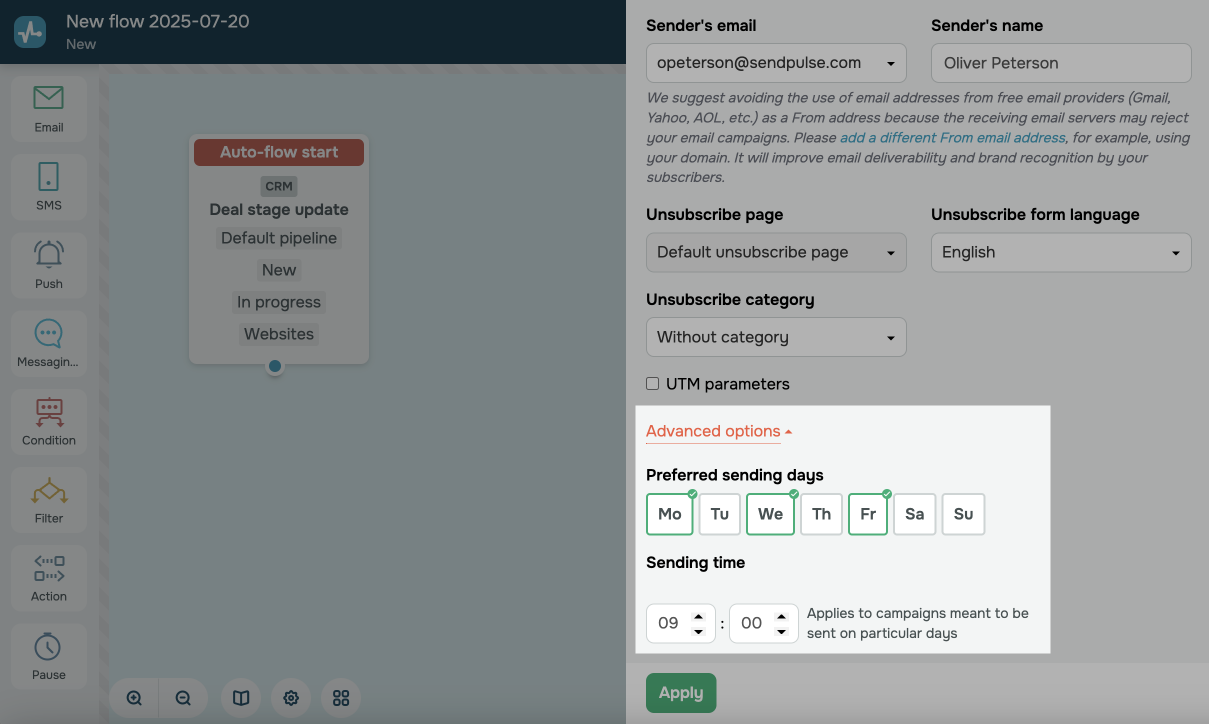
Click Apply, and continue creating and editing your flow. After you finish composing your flow, save it.
In our example, we created an automation with a priority sending time set to Monday, Wednesday, and Friday at 10:00 and selected the After 3 days option to send our email. This way, if our flow start is triggered on Friday at 2:00 PM, the email will be sent next Monday at 10:00 AM.
 Last Updated: 12.01.2026





or