Add element animation
Animation helps highlight key content and brings energy to your website. Add scroll animation to elements to make your page more interactive and captivating. Add scroll animation to your elements to make your page more interactive and captivating.
In this article, we will talk about how to animate text, images, and buttons, as well as adjust animation settings.
You can add animation to the Text, Buttons, and Image widgets and the Column element. If you add animation to the Column element, all its elements will appear with the selected animation type.
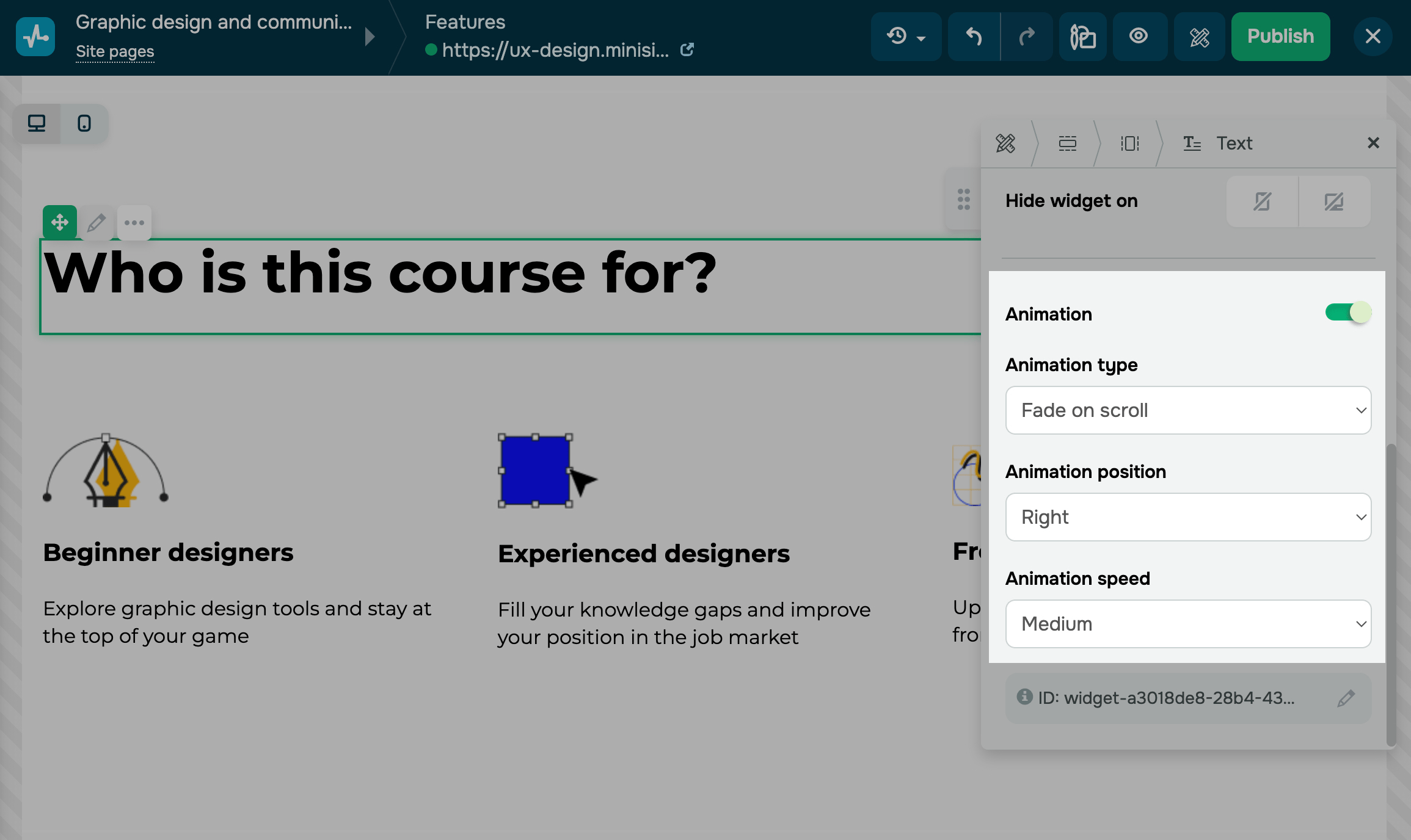
Go to your element settings, turn on the Animation on scroll toggle, and configure the settings:
| Animation type | Select an entrance effect. | |
| Fade | This option allows you to gradually fade in or fade out an element when users scroll down or up. Use this effect to draw attention to a certain element, such as a headline or a call-to-action button. | |
| Scale | This option allows you to gradually increase or decrease the size of an element when users scroll down or up. Use this effect to draw attention to a certain element or create a sense of depth. | |
| Slide | This option allows you to move an element from one position to another when users scroll your page. Use this effect to create a dynamic and exciting user experience. | |
| Scrolling ticker | This option adds an effect that continuously scrolls your horizontal text across the screen. This effect helps highlight important information.
You can apply this effect only to the Text widget. It will appear on your published website or in the preview mode. |
|
| Animation position | Select the direction from which your element should appear (left, right, top, or bottom). | |
| Animation speed | Select the speed at which your element should appear (slow, medium, or fast). | |
 Last Updated: 18.07.2025





or