Copy a chatbot flow from one messaging platform to another
Chatbots allow you to answer common questions from your users, guide them, receive requests, and transfer data for further processing. Your message flow scenario determines the sequence in which messages and user action buttons are displayed.
If you have chatbots for multiple messaging platforms, you can transfer your flows from one platform to another to save time. For example, you can copy a Telegram chatbot flow and use it in your Instagram bot.
You can also copy and transfer chatbot flows within the same messaging platform. In this case, you won't need additional element settings. Read more: Сopy a flow to another chatbot.
Let's talk about how to copy the flow and what you need to know about elements supported by different channels.
Copy a flow
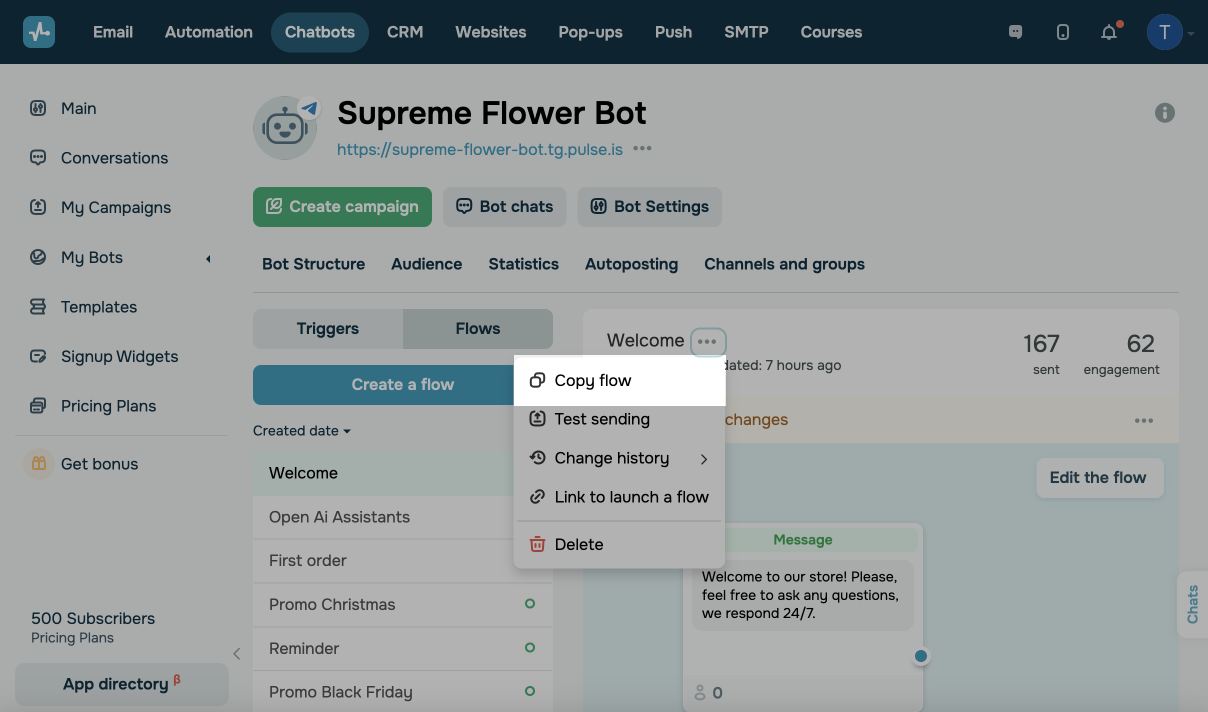
Go to your bot structure, choose a flow, click on the three dots icon in the dashboard, and select Copy flow from the drop-down menu.
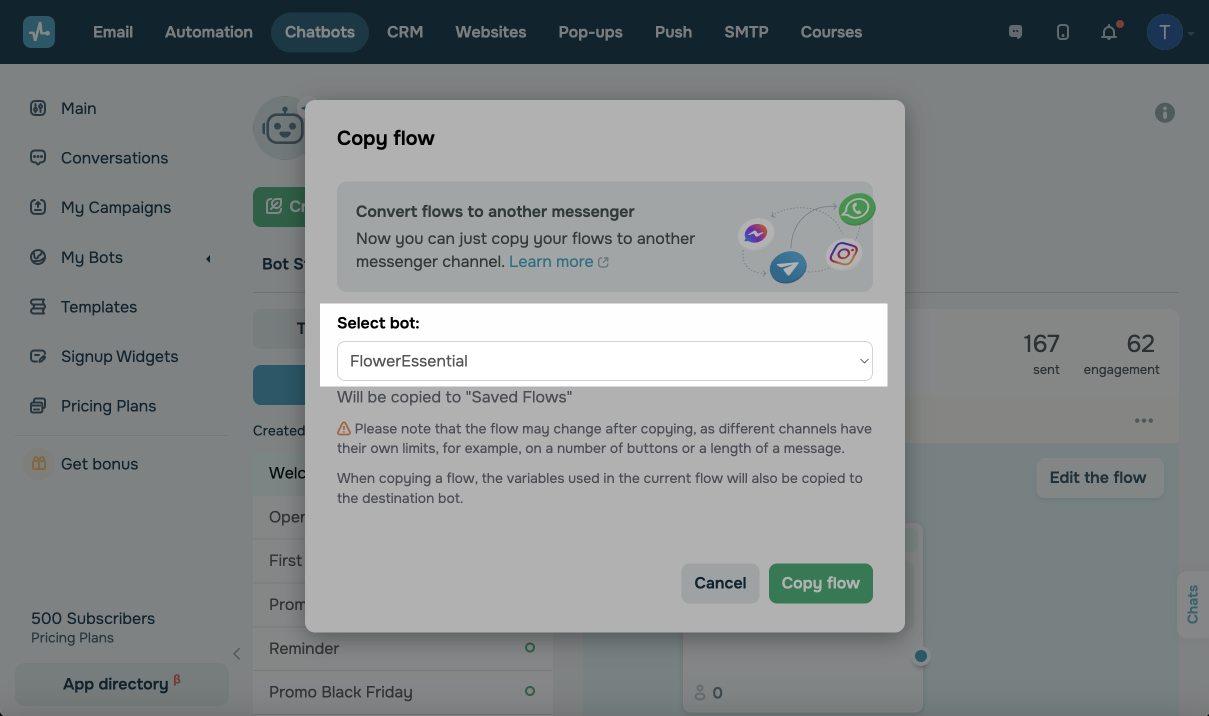
In the next drop-down menu, choose where to copy the flow. You can find all your bots categorized by messaging platform name.
Set up a flow
The platform copies your flow with its elements to the selected bot.
Other messaging platforms may not support some elements or have other limits. All the variables, tags, linked flows, or campaigns from the audience of the source bot will be automatically copied to the target bot.
To make sure all elements were copied properly, go over your flow, find elements with a warning sign, check element-specific limitations, and specify variables and tags in the target bot's audience. Hover over a warning sign icon to see a tooltip about elements that need your attention.
Сopy the Message element
Check your Message elements and edit them if necessary. Replace the elements that are not supported by messaging platforms because they will be deleted otherwise.
If a messaging platform doesn’t support an element type, you will see the “Unsupported message type” warning message.
List of Supported Elements
| Telegram | TikTok | Viber | Live chat | ||||
|---|---|---|---|---|---|---|---|
| Text1 | Add up to 2,000 characters |
Add up to 600 characters. |
Add up to 512 characters | Add up to 1,500 characters | Add up to 6,000 characters | Add up to 2,000 characters | Add up to 2,000 characters |
| To personalize your text, replace your source chatbot variables with the variables from the target chatbot’s audience. | |||||||
| Button | Add up to 25 buttons; all types are supported | Add up to 3 buttons; all types are supported | Add up to 3 buttons; all types are supported | Add up to 3 buttons of the Button type or 1 URL, List, or Payment button |
Add up to 3 buttons Supports only the Continue flow button type |
Add up to 3 buttons; all button types are supported | Add up to 3 buttons; all button types are supported |
| Quick replies | Add up to 10 replies | Add up to 10 quick replies | Add up to 10 quick replies |
Not supported |
Not supported | Add up to 7 rows of quick replies | Add up to 10 quick replies |
| User Input2 | Supports validation of all types | Supports validation of all types | Supports validation of all types | Supports validation of all types | Supports validation of all types | Supports validation of all types | Supports validation of all types |
| You need to replace the variables where your values are stored with the variables from the target bot’s audience. | |||||||
| CRM Product | Supported | Supported | Supported | Supported | Supported | Supported | Supported |
| Сards | Supported with up to 10 cards | Supported | Supported | Supported | Not supported | Supported | Supported |
| Template3 | Not supported | Not supported | Not supported | Supported | Not supported | Not supported | Not supported |
| Catalog3 | Not supported | Not supported | Not supported | Supported | Not supported | Not supported | Not supported |
| Image4 | Supported | Supported | Supported | Supported | Supported in select regions | Supported | Supported |
| File4 | Supported | Not supported | Supported | Supported | Not supported | Supported | Supported |
| Video4 | Supported | Supported | Supported | Supported | Not supported | Supported | Not supported |
| Audio4 | Supported | Supported | Supported | Supported | Not supported | Not supported | Not supported |
| Typing | Add up to 5 seconds | Not supported | Add up to 60 seconds | Add up to 25 seconds | Add up to 5 seconds | Not supported | Add up to 60 seconds |
1If your Text contains buttons, Viber shortens the text limit to 80 characters, and TikTok to 40 characters.
2The Geolocation, Image, Video, and Document validation types are supported only by Telegram.
3Template (WhatsApp template) and Catalog (Meta product card) are supported only by WhatsApp.
4Some messaging platforms may have their own limitations on the size, resolution, and format of media files, even if an element itself is supported. Make sure to check your element and its file after copying them. The Video note, Media group, and Paid media elements are supported only by Telegram.
Copy the Flow element
The flow initiated by this element will be automatically copied from the source bot. To change it, open the element editor, and choose another flow.
Copy the Action element
Most actions are supported by all messaging platforms, and you won't need to edit your flow. However, there are two actions that are supported only by Telegram chatbots: blocking or unblocking a group or channel member.
If you choose the Add variable or Delete variable actions, replace your variable with the existing one from the target bot.
Сopy the Filter element
Most filter conditions are supported by all messaging platforms, and you won't have to edit your flow.
However, certain filters are applicable only to specific messaging platforms.
| Follows you, Following, and Number of followers. | |
| Telegram | Member of a channel or group and Browser language. |
| Country and Phone. | |
| Live chat | Country, Browser language, and Current page URL. |
If you have a variable or tag filter, check if your target chatbot has a variable with the same name and case.
If you had a filter for variables, tags, and the Was in flow or Was in campaign conditions, you'll need to add the data from your target bot or replace the element itself.
You will see the "Check that the selected values are correct" warning if there is no such filter or if you selected a filter with variables.
Copy the API Request element
The system will transfer the requested data to your copied flow. Still, you should edit the API request element and select variables where your values from the target bot's audience will be stored.
Copy the Random element
The Random element options and their recipient group sizes will be automatically copied from the source chatbot. To change them, open the element settings and adjust the percentage for each option.
Copy the Condition element
The selected Automation event and waiting period will be copied to your new flow. Make sure that the selected event and its data match your target chatbot's audience.
Copy the AI agent element
Your AI agent settings will be copied to the new flow. Replace the variables used in your prompts and responses with the variables from your target chatbot's audience.
Сopy the Pause and Repeat elements
Facebook, WhatsApp (regular message), and Instagram allow you to send the next message within 24 hours since the last user message. Therefore, you need to change the delay time when copying your flow to these channels.
| Telegram | Tik-tok | Viber | Live chat | ||||
|---|---|---|---|---|---|---|---|
| Delay time | Up to 60 days | Up to 24 hours | Up to 24 hours | Up to 60 days for template message, up to 24 hours for regular messages | Up to 24 hours | Up to 24 hours | Up to 24 hours |
Keep in mind that delay time limits also affect the connection between elements using the Continue option. If the user does not interact with the bot, it is impossible to continue your flow and send a message after 24 hours. You will need to revise your scenario and add buttons that lead to a new element.
Save and run
Once you finish setting up your flow, click Save and Exit or Save and send to yourself. The transferred flow will be in the Flows list. You can launch it by link or create a trigger and select the created flow.
 Last Updated: 20.08.2026



or