CRM actions
With the help of the Action element, you can make the contact undergo different processes when they get to the element.
To identify a contact in the service, you need the email, phone, or ID variable.
Only sending elements, including Email, SMS, Viber, Messaging app, and Push, require the email or phone variable.
CRM actions don't require a contact to have an email address or phone number. The system uses ID variables, such as ContactId or DealId, instead. This helps you create deals, update deal stages, and take other CRM actions without contact details.
Add element
Drag the Action element, and select one of the following actions from the CRM category.
You can also rename your element to distinguish it from others, or add a comment for your team. Click Element name and enter up to 253 characters in the field. Once you save the settings, the new name will appear in a pop-up window when hovering over the element in the builder.
Select an action
Choose what to do with contact data.
Create deal
Creates a new deal in your CRM system. Select a pipeline and deal stage to which you want to add your deal. Select a team member from the Assign to dropdown list to assign them to your deal.
When a deal is created, its contact is created as well.
If you haven’t selected a team member for a new task, a user selected in the pipeline settings will be assigned by default.
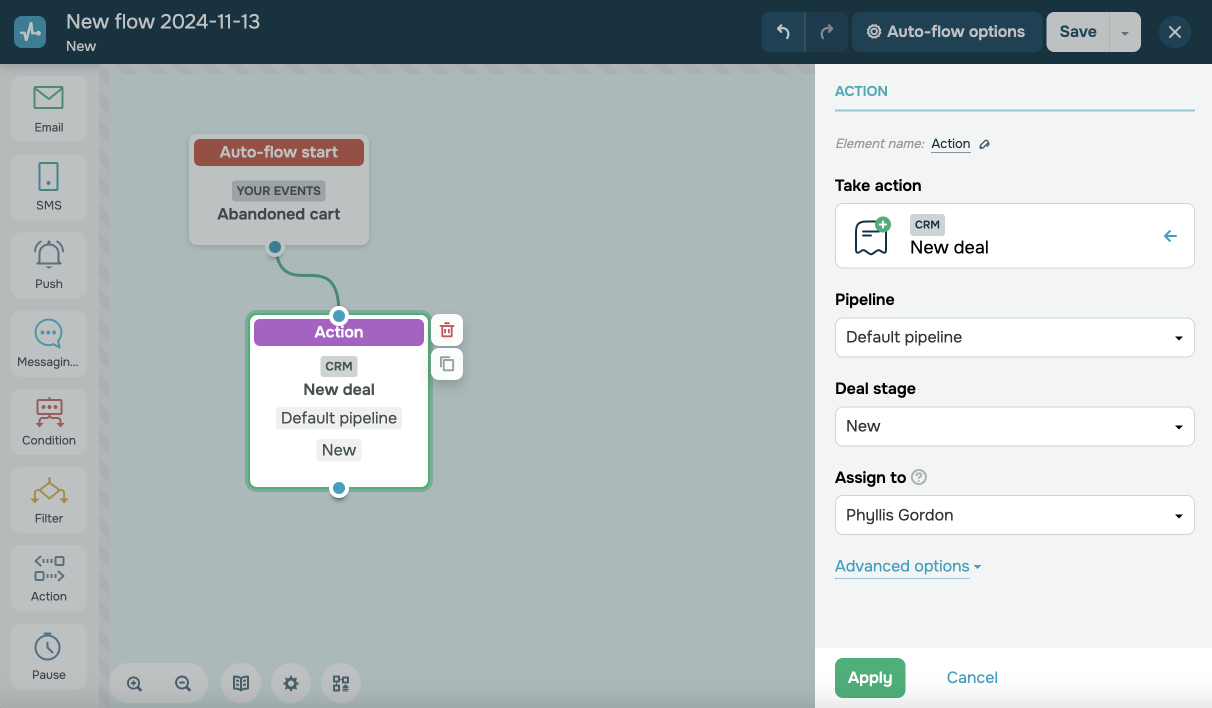
To specify your deal name manually, click Advanced options, and select Add deal name. Enter your deal name, and add contact variables received in your flow start element if necessary.
When creating deals, the system passes variables along with them. To select deal fields to which you want to transfer automation variables, click Map fields. Then, set up the columns.
In the Automation variable name column, select a variable added with the contact in the Flow start element.
In the CRM field name column, enter a deal or contact field name.
To pass currencies, select the Add currency checkbox, and choose a currency.
To pass deal data, your flow must have the Create deal or Change deal stage triggers.
Deal variable values from the Automation section with the_deal suffix will sync with CRM deal fields, and variable values without the specified suffix will sync with contact fields.
To pass variable values to an existing CRM deal field, specify the exact field name, taking into account that names are case-sensitive. If you type in another field name or your field has another data type, the system will create a new field and add your variable value to it.
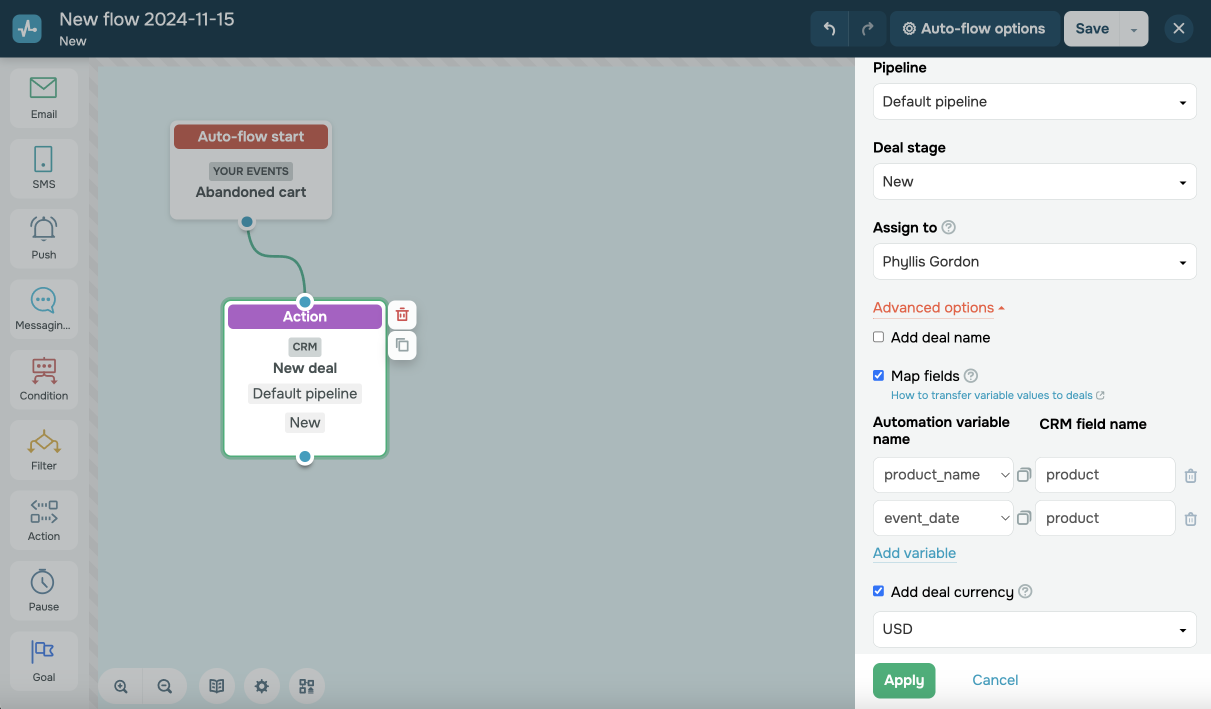
When passing variables, keep the following in mind:
- A currency without a price or with a price equal to zero will not be recorded in your deal. The maximum price length is 14 characters.
- You can use any variable type to record prices, but we recommend using only the
StringorNumbertype.
Create contact
Creates a new contact in your CRM system. Select a team member from the Assign to dropdown list to assign them to the contact.
If you haven’t selected a team member for a new contact, a user selected in the pipeline settings will be assigned by default.
When a flow is triggered by a CRM event for a deal, task, or contact without an email address or phone number, the Create contact action does not create a new contact.
The Move subscriber and Delete subscriber actions are not available for the Create deal, Change deal stage flow starts, and also flow starts by event.
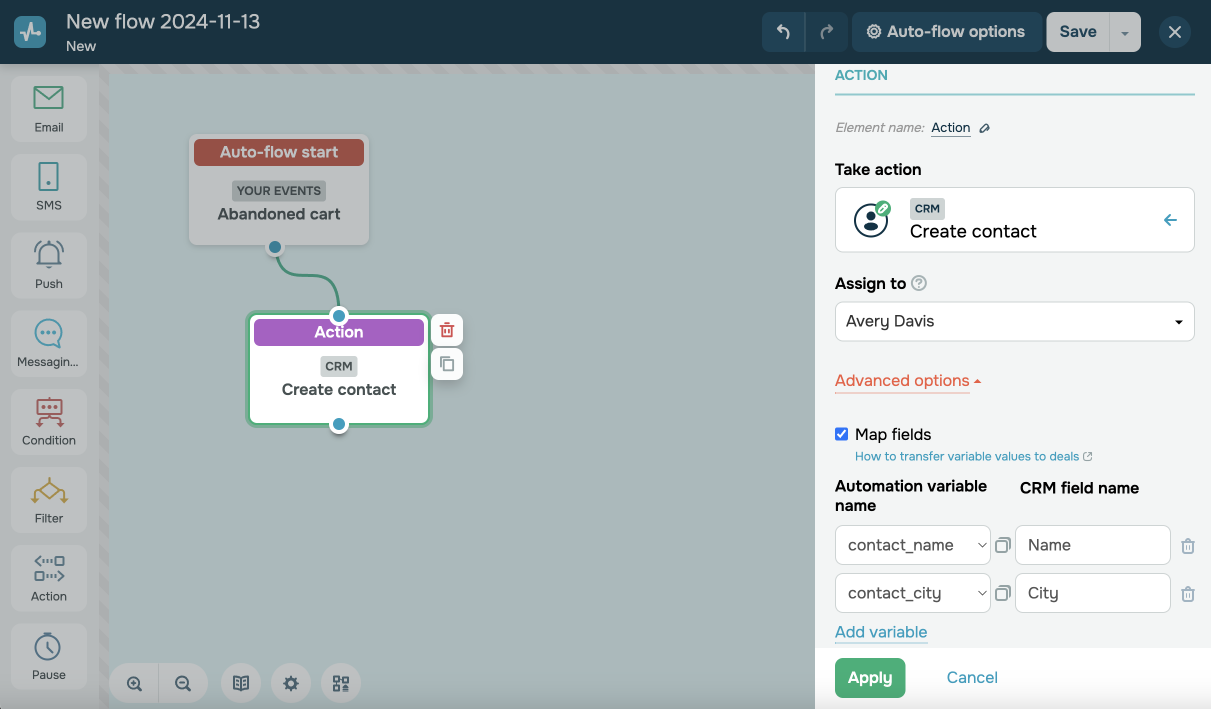
When creating contacts, the system passes variables along with them. To select deal fields to which you want to transfer automation variables, click Advanced Options and select Map fields. Then, set up the columns.
In the Automation variable name column, select a variable added with the contact in the Flow start element.
In the CRM field name column, enter a deal or contact field name.
To pass deal data, your flow must have the Create deal or Change deal stage triggers.
Deal variable values from the Automation section with the_deal suffix will sync with CRM deal fields, and variable values without the specified suffix will sync with contact fields.
To pass variable values to an existing CRM deal field, specify the exact field name, taking into account that names are case-sensitive. If you type in another field name or your field has another data type, the system will create a new field and add your variable value to it.
Assign tag to contact
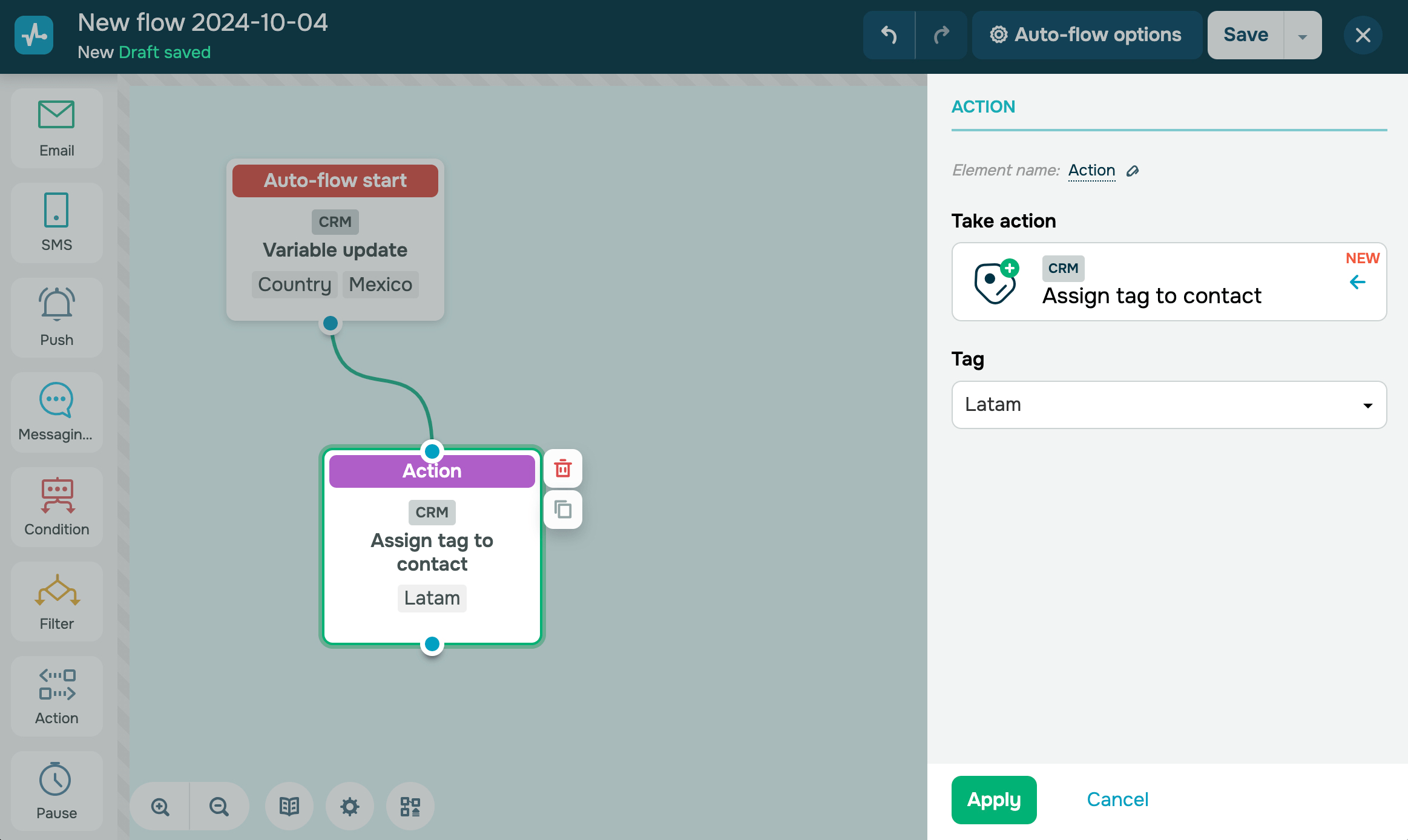
Adds a tag to a CRM contact. For example, when adding or updating contacts, you can assign tags to improve filtering.
Select a tag from the CRM contact settings.
You can use the Assign tag to contact action only in flows with the Add contact, Assign tag, or Change contact field CRM trigger.
Unlink tag from contact
Removes a tag from a contact in the CRM system. For example, you can unlink a tag once a client's trial period ends and start a follow-up flow offering to upgrade to a paid plan.
In the Tag field, select a tag from the CRM contact settings. You can select only one tag per element.
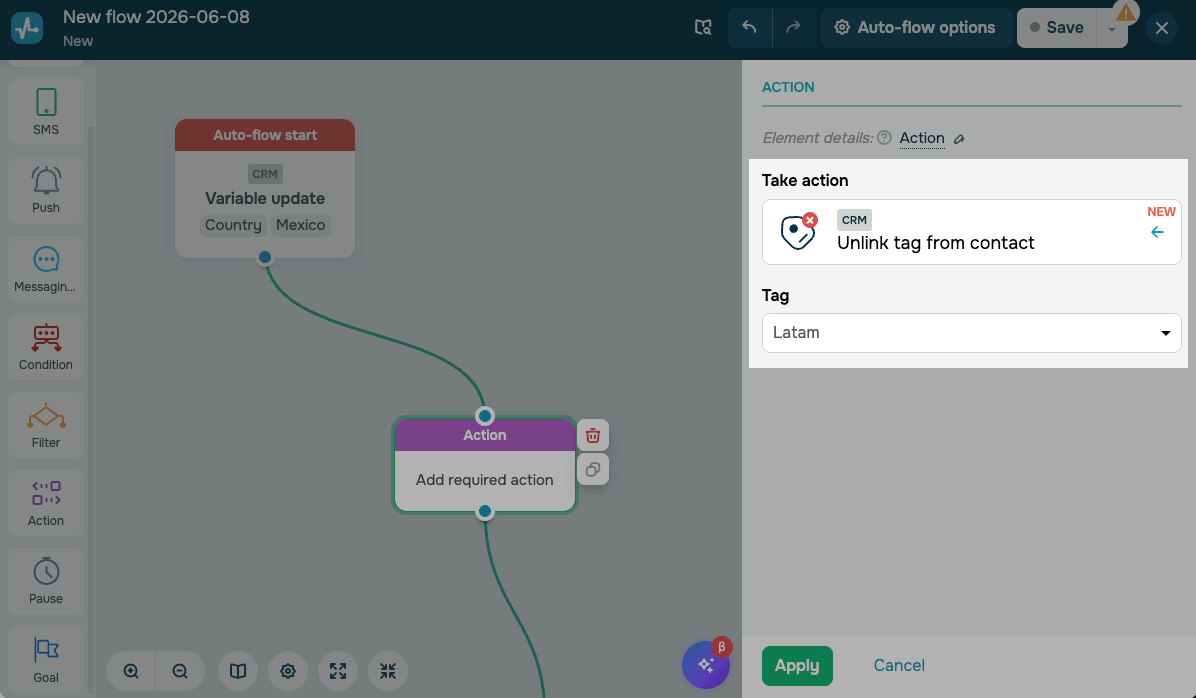
If a contact reaches the Unlink tag from contact element but does not have the selected tag, the action is skipped, and the contact moves to the next element.
Change deal stage
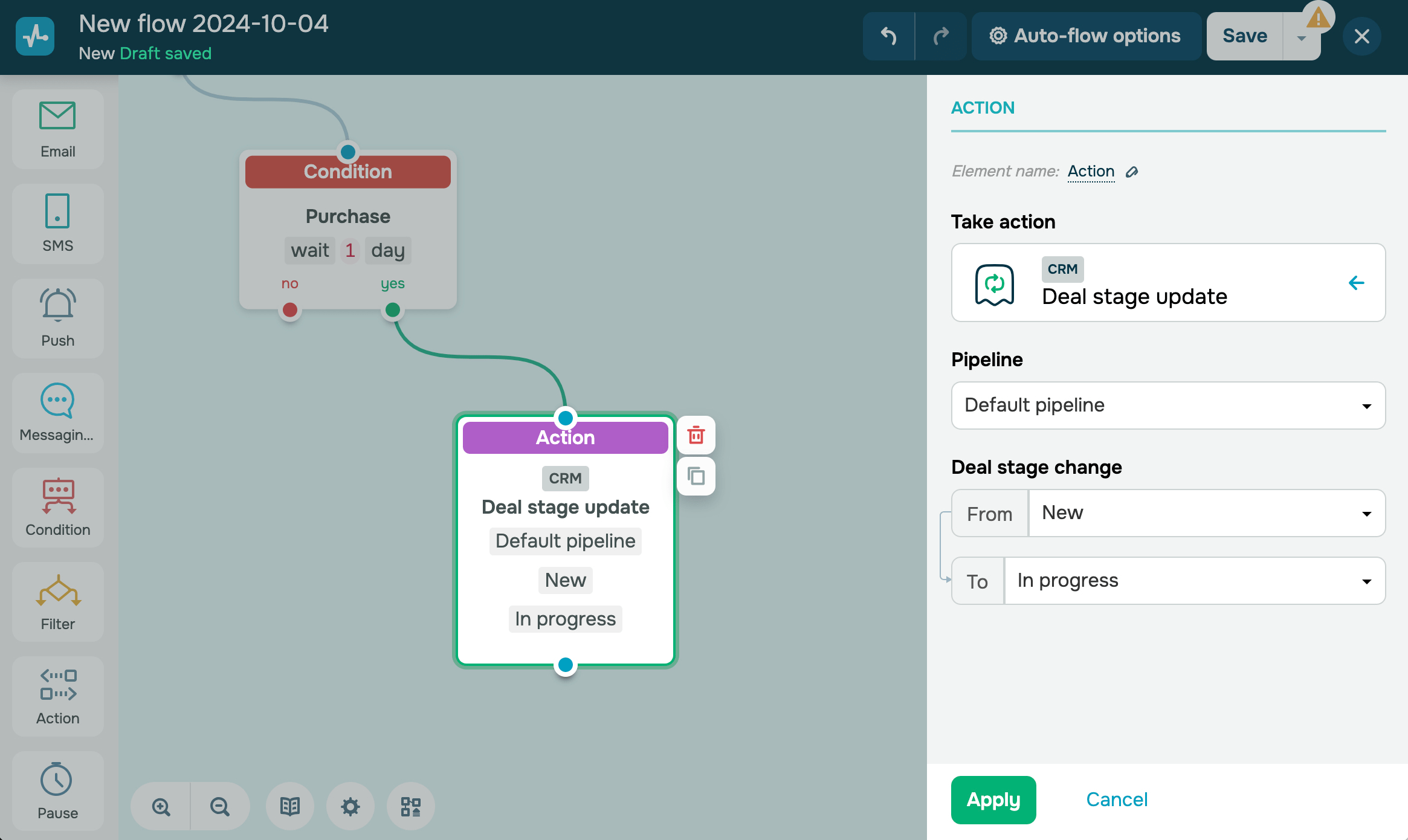
Changes a deal stage in your CRM system. Select the pipeline where your deals are located and your source and target deal stages. When closing a deal, you can mark it as Successfully closed or Unsuccessfully closed.
When a flow is triggered for a deal, task, or contact without an email address or phone number, the action identifies the deal by ContactId. The system finds deals linked to that contact in your selected pipeline and stage and moves them to the next stage.
If a flow is triggered by Deal stage update, the action updates the stage of the deal that triggered the flow.
For example, let’s say you created a flow with an abandoned cart start trigger. If a client purchases a product after your reminder, you can change the deal stage to your next one.
Change team member
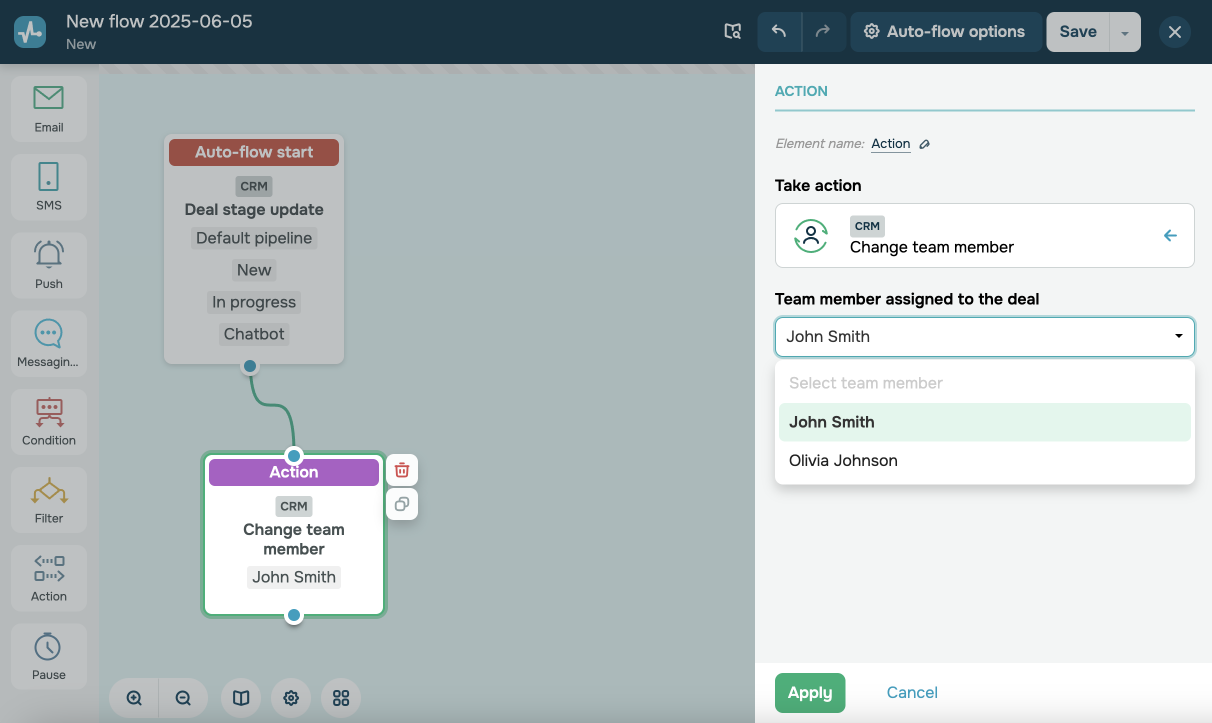
Reassigns a contact, deal, or task in the CRM system to another team member. For example, when a deal moves to a new stage, you can reassign your client to a different team member.
In the Team member assigned to the deal / contact / task dropdown list, select the team member who will take over.
Create task
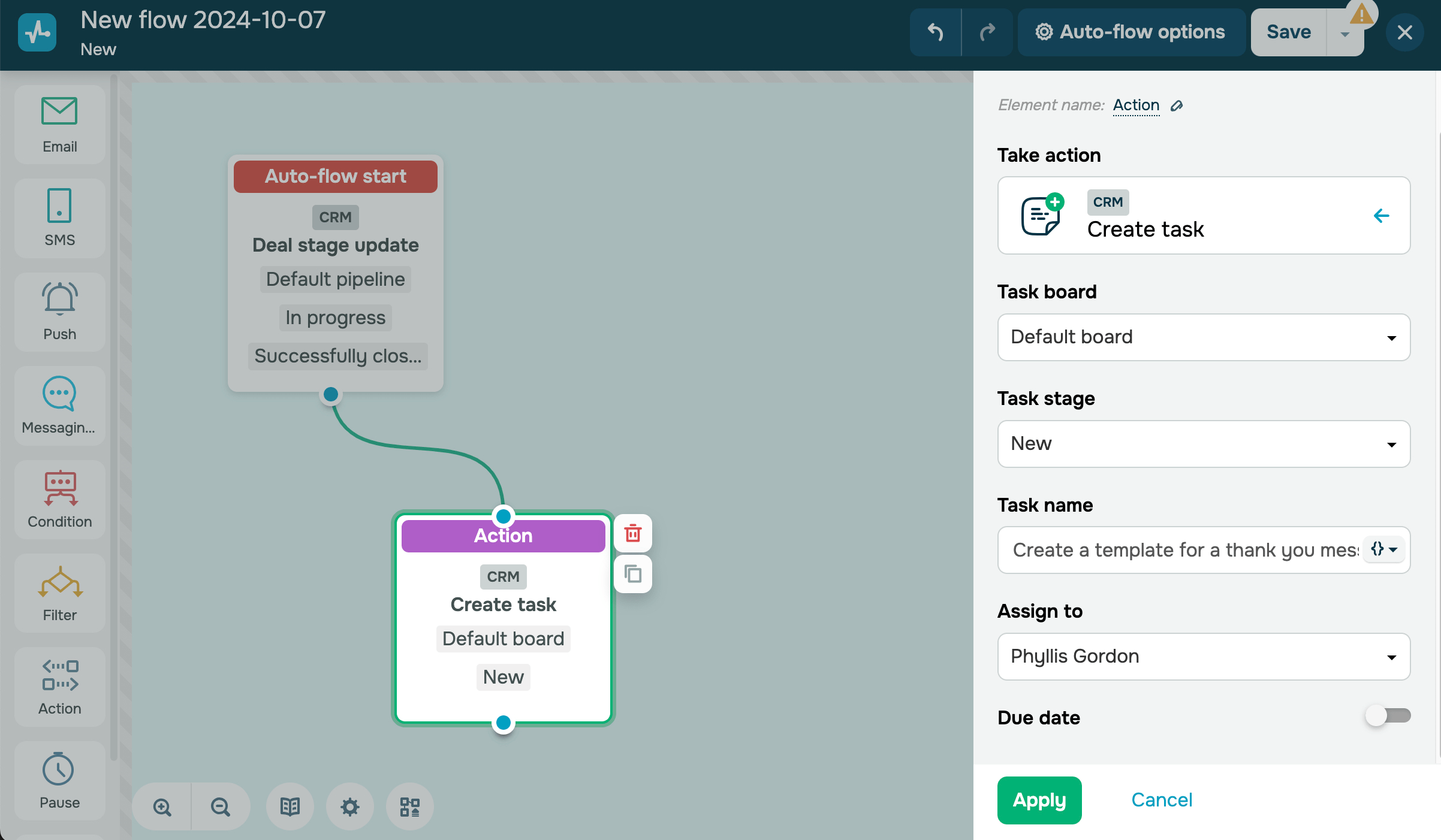
This action creates a new task in your CRM system. For example, if you successfully close a deal with a client, you can add a task to create a thank-you email template for the client.
Select a task board and status to create a task. Available statuses: All, New, In Progress, or Done. Add a task name. You can add flow variables to your task name.
You can assign a team member with access to tasks from the Assigned to list. If you haven’t selected a team member for a new task, an account owner will be assigned to it by default.
You can also set a task deadline. Turn on the Due Date toggle, specify a deadline, and add reminders.
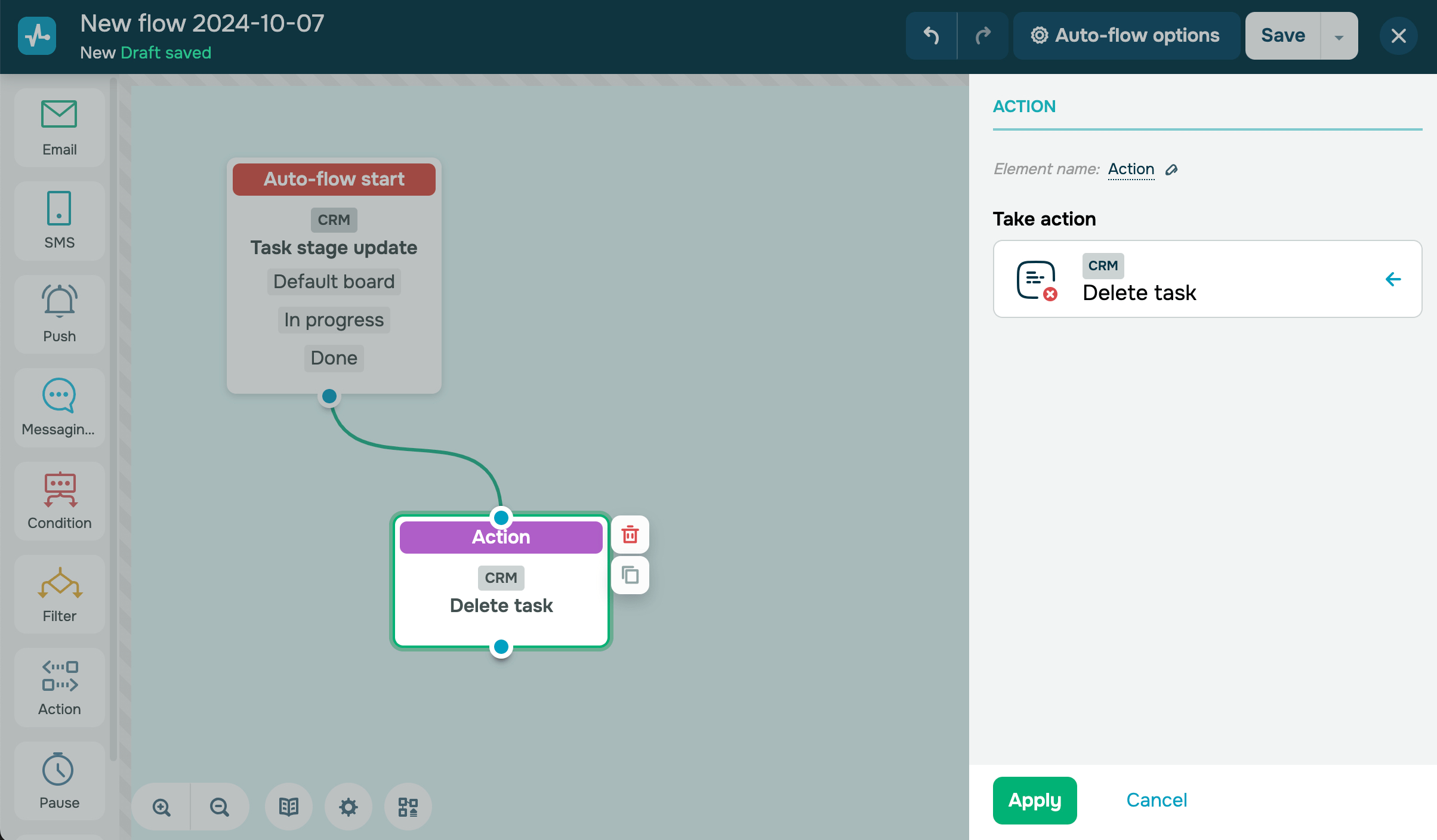
Delete task
This action deletes a task from the CRM system. For example, you can automatically delete a task when its status changes from In Progress to Done.
This action can only be used with the Change deal status trigger. Read more: How to work with deals.
 Last Updated: 17.07.2025





or